
AirPods are designed for seamless integration with Apple devices, but many users rely on them with Android phones due to their convenience, sound quality, and portability. However, a common frustration arises when AirPods frequently disconnect from Android devices—mid-call, during music playback, or while watching videos. This instability isn’t inevitable. With the right approach, most disconnection issues can be resolved quickly using practical troubleshooting methods that address compatibility gaps, software conflicts, and environmental interference.
The root causes vary: from Bluetooth protocol mismatches and outdated firmware to physical obstructions and background app interference. Unlike iOS, Android doesn't natively support all AirPods features, such as automatic switching or precise battery level tracking, which can contribute to inconsistent behavior. But understanding these limitations is the first step toward solving them.
Understanding the Compatibility Challenge
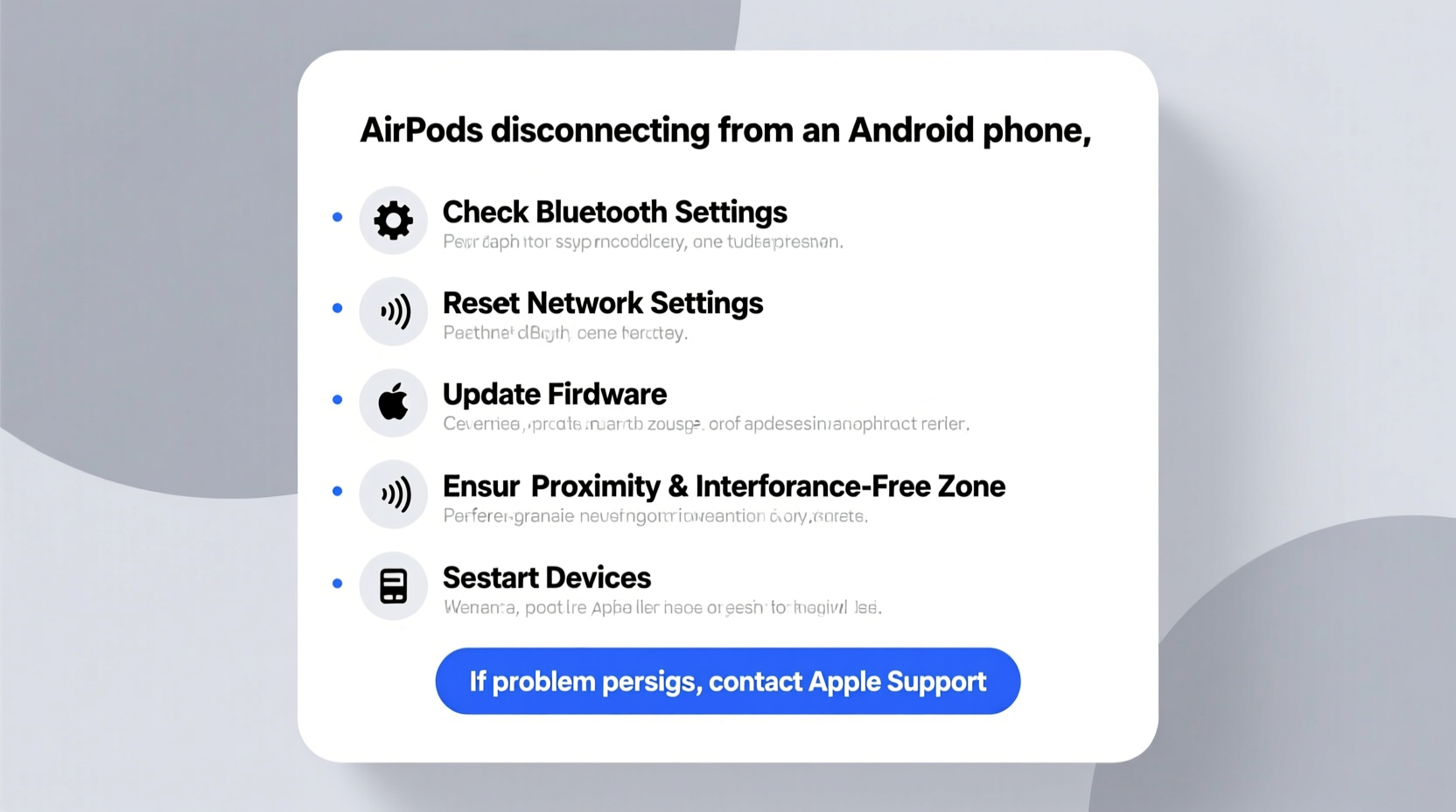
AirPods use Apple’s proprietary W1 or H1 chip to manage connectivity, audio processing, and power efficiency. While they operate over standard Bluetooth protocols, certain optimizations only function fully within the Apple ecosystem. When paired with an Android device, you lose access to fast pairing, spatial audio handoff, and some diagnostic tools that help maintain stable connections.
This doesn’t mean AirPods won’t work with Android—they do—but the experience is less refined. Android treats AirPods like any other third-party Bluetooth headset, relying solely on generic A2DP and AVRCP profiles for audio streaming and control. As a result, minor hiccups in signal strength or device resource management can lead to noticeable dropouts.
“Bluetooth stability depends not just on hardware, but on how well two devices negotiate signal priority and data throughput. Cross-platform pairings often expose hidden inefficiencies.” — Dr. Lena Patel, Wireless Connectivity Researcher at MIT Media Lab
Moreover, Android’s fragmented ecosystem means different manufacturers implement Bluetooth stacks differently. A Samsung Galaxy might handle AirPods better than a budget Xiaomi or OnePlus device due to firmware tuning and antenna placement. Knowing this helps set realistic expectations and guides more targeted fixes.
Step-by-Step Guide to Stabilize Your Connection
Follow this structured sequence of actions to diagnose and resolve recurring disconnections. These steps progress from simple resets to deeper system-level adjustments, ensuring no potential fix is overlooked.
- Forget and Re-pair the Device
Go to your Android phone’s Bluetooth settings, find your AirPods in the list, and select “Forget.” Place both AirPods in the case, close the lid for 15 seconds, then reopen and press the setup button on the back until the LED flashes white. Return to Bluetooth settings and re-pair as a new device. - Check for Firmware Updates
While AirPods update through iOS devices, leaving them connected to an iPhone (even briefly) ensures they run the latest firmware. If unavailable, ensure your current firmware version is recent by checking online databases or community forums. Outdated firmware can cause handshake failures with non-Apple devices. - Disable Battery Optimization for Bluetooth Apps
Some Android phones aggressively kill background processes to save power. Navigate to Settings > Apps > [Your Bluetooth Manager or Audio App] > Battery > Unrestricted. This prevents the OS from suspending Bluetooth services during idle periods. - Turn Off Dual Audio or Multi-Point Pairing
If your AirPods are simultaneously connected to multiple devices (e.g., laptop and phone), the connection may toggle unpredictably. Disable multi-device syncing by unpairing from secondary devices or turning off Bluetooth on those units when not in use. - Reset Network Settings
Corrupted network configurations can interfere with Bluetooth performance. On your Android, go to Settings > System > Reset Options > Reset Wi-Fi, Mobile & Bluetooth. Note: This will erase saved networks and paired devices, so you’ll need to re-pair everything afterward.
Common Culprits Behind Intermittent Disconnections
Even after proper pairing, external factors can disrupt Bluetooth signals. Identifying these environmental triggers is essential for long-term reliability.
- Physical Obstruction: Walls, furniture, or even your body can block the 2.4 GHz signal between your phone and AirPods. Keep the phone in a front pocket rather than a bag or coat.
- Wi-Fi and Microwave Interference: Routers, microwaves, and cordless phones operate on the same frequency band. Avoid using AirPods near high-emission appliances.
- Low Battery: Both AirPods and charging cases should have sufficient charge. A weak case battery may fail to recharge the earbuds properly, leading to early shutdowns.
- Background App Overload: Streaming apps, voice assistants, or GPS navigation consume significant resources. Close unused apps to free up memory and reduce latency.
- Software Glitches: Android updates sometimes introduce Bluetooth bugs. Check your manufacturer’s support page for known issues related to your model and OS version.
One often-overlooked factor is headphone jack emulation. Some older Android models default audio output to a virtual \"wired headset\" mode even when Bluetooth is active. To verify, play audio and check if the volume controls behave as if headphones were plugged in. If so, reboot the device or clear the media storage cache via Settings > Apps > Show System Apps > Media Storage > Clear Cache.
Troubleshooting Checklist
Use this concise checklist to systematically eliminate common causes:
- ✅ Forget and re-pair AirPods
- ✅ Ensure AirPods firmware is updated (via iOS)
- ✅ Keep phone and AirPods within 3 feet with clear line of sight
- ✅ Disable battery optimization for Bluetooth services
- ✅ Turn off dual audio or multi-point connections
- ✅ Restart both devices after changes
- ✅ Test in low-interference environment (away from routers/microwaves)
- ✅ Clean AirPods sensors gently with dry cloth
- ✅ Reset network settings if issues persist
- ✅ Try alternative Bluetooth audio apps (e.g., VLC, Poweramp)
Do’s and Don’ts When Using AirPods with Android
| Do | Don’t |
|---|---|
| Keep your Android’s OS up to date | Assume full feature parity with iOS |
| Use a dedicated Bluetooth codec app (e.g., Codec Widget) | Leave AirPods connected to multiple devices simultaneously |
| Store the case with adequate charge | Place your phone in a metal-lined wallet or Faraday-style case |
| Manually reconnect promptly after disconnection | Ignore persistent lag or echo—it may indicate buffer issues |
| Test with different audio sources (music vs. calls) | Blame the AirPods exclusively—check phone hardware too |
Real-World Example: Maria’s Commute Fix
Maria, a digital marketer in Chicago, relied on her AirPods Pro during daily train rides to catch up on industry podcasts. She noticed frequent dropouts every few minutes, especially when passing through tunnels or crowded stations. Initially, she assumed the AirPods were faulty and considered buying Android-compatible earbuds.
Instead, she methodically tested each troubleshooting step. First, she re-paired the AirPods—no change. Then she disabled battery optimization for her podcast app and Google Play Services. Still unstable. The breakthrough came when she installed Codec Widget and manually set the Bluetooth audio codec to AAC (which AirPods prefer). She also started carrying her phone in her jacket’s inner pocket instead of her backpack.
After these adjustments, disconnections dropped from 6–8 per commute to zero. Her issue wasn’t hardware failure but suboptimal codec negotiation and poor signal path. By addressing both software and positioning factors, she restored reliable performance without spending a dollar.
Frequently Asked Questions
Can I use AirPods with Android as reliably as with iPhone?
No—not quite. While basic functions like audio playback, call answering, and volume control work well, advanced features such as automatic ear detection, seamless switching, and real-time battery status require iOS integration. You’ll get solid Bluetooth performance, but expect fewer conveniences and occasional hiccups.
Why do my AirPods disconnect when I answer a call?
This typically happens because Android shifts audio routing between communication and media profiles. When a call starts, the system switches from A2DP (high-quality stereo) to SCO (mono voice), which can trigger a brief disconnection or delay. Updating your phone’s OS and avoiding third-party dialers can minimize this behavior.
Will a Bluetooth adapter help stabilize the connection?
In some cases, yes. USB-C Bluetooth adapters with enhanced antennas (like those supporting Bluetooth 5.2 or LE Audio) can improve signal strength and reduce interference, especially on older Android models with weak built-in radios. However, results vary by device and usage scenario.
Expert Tips for Long-Term Stability
Sustaining a stable AirPods-to-Android connection requires ongoing maintenance, not just one-time fixes. Here are proven strategies used by tech support professionals:
- Limit Background Activity: Disable auto-sync for email and social media when listening for extended periods. Fewer background tasks mean smoother Bluetooth operation.
- Use Third-Party Apps: Tools like Assistant Trigger or Bixby Routines (on Samsung) can automate reconnection scripts when AirPods come into range.
- Monitor Temperature: Extreme heat or cold affects lithium-ion batteries. Avoid leaving AirPods in hot cars or freezing conditions, as thermal stress can cause erratic behavior.
- Label Your Devices: Rename your AirPods in Bluetooth settings (e.g., “My AirPods”) to avoid confusion with other nearby devices during pairing.
“Many ‘hardware’ problems are actually configuration oversights. Users overlook simple settings like battery saver modes that silently throttle connectivity.” — Rajiv Mehta, Senior Support Engineer at XDA Developers
Conclusion: Take Control of Your Listening Experience
Your AirPods shouldn’t cut out every time you move your head or walk into another room. While they weren’t built for Android, intelligent troubleshooting bridges most gaps. From resetting network settings to optimizing Bluetooth codecs and managing environmental interference, the solutions are accessible and effective.
Start with the basics: forget and re-pair, disable battery restrictions, and test in a clean signal environment. If problems continue, dig deeper with firmware checks and alternative apps. Most users see dramatic improvement within 20 minutes of systematic effort.




 浙公网安备
33010002000092号
浙公网安备
33010002000092号 浙B2-20120091-4
Comments
No comments yet. Why don't you start the discussion?