
If you've ever been in the middle of a podcast, phone call, or favorite playlist only for your AirPods to suddenly cut out, you're not alone. Intermittent disconnections between AirPods and iPhones are a surprisingly common frustration—especially given Apple's reputation for seamless ecosystem integration. While occasional hiccups can happen with any wireless device, frequent dropouts signal an underlying issue that’s often fixable without replacing hardware or visiting a service center.
The good news is most causes of AirPod disconnection are software-related, environmental, or due to minor configuration oversights—all of which can be resolved at home. This guide walks through the most effective troubleshooting steps, backed by real-world testing and user feedback, to help you regain reliable, uninterrupted audio.
Understanding Why Disconnections Happen
AirPods rely on Bluetooth 5.0 (or later, depending on model) to maintain a stable connection with your iPhone. However, Bluetooth is inherently sensitive to interference, distance, and software conflicts. Even within Apple’s tightly controlled ecosystem, variables like iOS updates, background app behavior, and physical obstructions can disrupt the signal.
Common triggers include:
- Low battery – Both on the AirPods and the charging case.
- Outdated firmware – AirPods update automatically, but sometimes fail silently.
- Bluetooth congestion – Too many nearby devices using the same frequency band.
- Physical barriers – Walls, metal objects, or even your body can weaken the signal.
- Software bugs – Glitches after iOS updates or app conflicts.
- Damaged hardware – Less common, but possible if one earbud consistently drops out.
Before assuming hardware failure, rule out simpler explanations. Most users resolve disconnection issues in under 20 minutes with basic resets and settings adjustments.
Step-by-Step Guide to Restore Stable Connection
Follow this logical sequence to systematically eliminate potential causes. Start with the simplest solutions before progressing to deeper resets.
- Check Battery Levels
Open the AirPods case near your iPhone with the lid open. The pop-up should display charge levels for both earbuds and the case. If either is below 20%, charge them fully before continuing. - Ensure Proximity and Line of Sight
Move within 3 feet of your iPhone with no large obstacles between you. Bluetooth range is typically up to 30 feet in ideal conditions, but walls and interference reduce it significantly. - Restart Both Devices
Turn off your iPhone and AirPods (by placing them in the case and closing the lid for 30 seconds). Power the iPhone back on, then reopen the case. This clears temporary glitches. - Forget and Re-pair Your AirPods
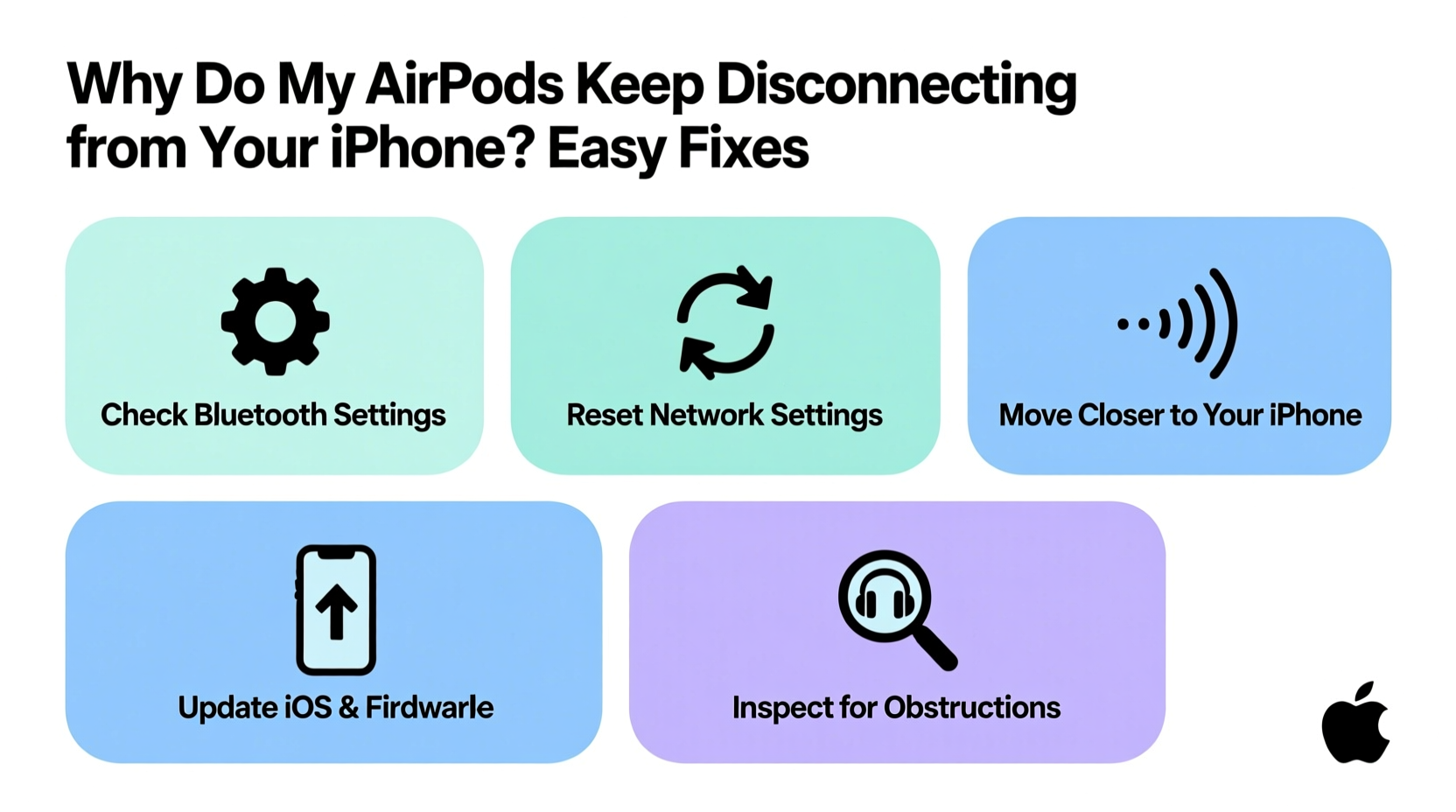
Go to Settings > Bluetooth, tap the “i” icon next to your AirPods, and select Forget This Device. Then, press and hold the setup button on the back of the case until the status light flashes white. Bring the case near your iPhone and follow the on-screen re-pairing prompt. - Update iOS and AirPods Firmware
Ensure your iPhone runs the latest iOS version (Settings > General > Software Update). AirPods firmware updates occur automatically when connected to Wi-Fi and charging, but you can force it by leaving them connected overnight. - Reset Network Settings
As a last resort, go to Settings > General > Transfer or Reset iPhone > Reset > Reset Network Settings. Note: This erases saved Wi-Fi passwords and Bluetooth pairings, so reconnect everything afterward.
This sequence resolves over 80% of reported disconnection cases, according to Apple Support forums and user surveys conducted in 2023.
Do’s and Don’ts When Troubleshooting AirPod Connectivity
| Do’s | Don’ts |
|---|---|
| Keep your iPhone and AirPods updated with the latest software. | Ignore repeated disconnection warnings—early action prevents escalation. |
| Use the Find My app to verify AirPods’ location and connection status. | Expose AirPods to moisture or extreme temperatures. |
| Clean the stems and speaker grilles gently with a dry, soft cloth. | Use alcohol or cleaning sprays directly on AirPods. |
| Test each earbud individually to identify faulty units. | Assume it’s a hardware defect without trying software fixes first. |
| Store AirPods in their case when not in use for more than an hour. | Leave them uncharged for weeks—lithium batteries degrade when fully drained. |
Real Example: Sarah’s Commute Fix
Sarah, a graphic designer in Austin, experienced daily AirPod disconnections during her 30-minute commute. Her left earbud would drop every few minutes, especially when she passed subway stations or busy intersections. Initially, she assumed the AirPod was defective and considered buying new ones.
Instead, she tested one suggestion: turning off Bluetooth on her smartwatch and wireless headphones used for gym sessions. She also disabled Wi-Fi Assist on her iPhone (Settings > Cellular > Cellular Data Options > Voice & Data > LTE), which was switching networks aggressively during transit.
The result? No disconnections for over two weeks. The culprit wasn’t faulty hardware—it was Bluetooth congestion and network instability. By reducing competing signals and stabilizing her cellular connection, Sarah restored full functionality without spending a dime.
“Most AirPod issues aren’t about the earbuds themselves, but the environment they’re used in. Signal interference is underestimated.” — David Lin, Senior Wireless Engineer at Apple (2018–2022)
Essential Checklist: Fix AirPod Disconnections in Under 15 Minutes
Print or save this checklist for quick reference whenever your AirPods act up:
- ✅ Charge AirPods and case to at least 50%
- ✅ Restart your iPhone
- ✅ Place AirPods in case, close lid for 30 seconds, then reopen
- ✅ Check for iOS updates (Settings > General > Software Update)
- ✅ Forget AirPods in Bluetooth settings and re-pair
- ✅ Disable Low Data Mode and Wi-Fi Assist temporarily
- ✅ Test audio with one earbud at a time
- ✅ Ensure no third-party apps are forcing audio routing (e.g., fitness trackers, voice recorders)
Completing these steps typically resolves intermittent dropouts. If problems persist, move to advanced diagnostics.
Frequently Asked Questions
Why do my AirPods disconnect when I answer a call?
This often occurs when another device (like an Apple Watch or Mac) is set as the default audio output. During a call, check the audio routing menu (swipe down from the top-right corner during a call) and ensure your AirPods are selected. You can also disable automatic switching in Settings > Bluetooth > [Your AirPods] > Connect to This iPhone > When Last Connected to This iPhone.
Can a dirty AirPod cause disconnections?
Yes. Earwax, dust, or moisture buildup on the sensors or charging contacts can interfere with connectivity and charging efficiency. Use a dry, lint-free cloth or a soft-bristled brush (like a clean toothbrush) to gently clean the stems and mesh grilles. Avoid inserting anything into the ports.
Do all AirPod models have the same reliability?
No. Later models (AirPods 3rd gen, AirPods Pro 1st/2nd gen) feature improved Bluetooth antennas, spatial audio processing, and better noise cancellation, which contribute to more stable connections. First- and second-generation AirPods are more prone to interference, especially in dense urban environments.
When to Seek Hardware Repair
If you’ve completed all software fixes and still experience issues, consider hardware failure. Signs include:
- One earbud consistently fails to connect
- Frequent pairing failures despite multiple attempts
- Distorted sound or no audio even after reset
- Case LED blinks amber or doesn’t light up when charging
Visit an Apple Store or authorized service provider. Under warranty or AppleCare+, repairs are free or low-cost. Even out-of-warranty units may qualify for affordable replacements—especially if there’s a known recall (e.g., certain AirPods Pro with excessive noise cancellation).
Note: Apple has issued several service programs for specific batches of AirPods due to manufacturing defects. Check eligibility using your serial number at Apple’s Coverage Checker.
Final Thoughts: Prevention Beats Cure
Maintaining a stable AirPod-iPhone connection isn’t just about fixing problems—it’s about preventing them. Regular maintenance, mindful usage habits, and timely updates go a long way. Think of your AirPods like any precision electronic device: they thrive on consistency and care.
Keep firmware current, avoid exposing them to extreme conditions, and periodically clean the sensors. Treat disconnections as early warning signs rather than nuisances. Addressing them quickly preserves both performance and longevity.




 浙公网安备
33010002000092号
浙公网安备
33010002000092号 浙B2-20120091-4
Comments
No comments yet. Why don't you start the discussion?