
If you're relying on your AirPods for work calls, music, or video meetings and they suddenly cut out mid-sentence, the frustration is real. Frequent disconnections between your AirPods and laptop aren’t just annoying—they can disrupt productivity and ruin the listening experience. While AirPods are designed for seamless integration within the Apple ecosystem, connecting them to laptops—especially non-Mac devices—can introduce instability due to Bluetooth interference, outdated drivers, or incorrect settings.
The good news: most of these issues are fixable with simple troubleshooting steps. Whether you’re using a MacBook, Windows PC, or Chromebook, this guide walks through the root causes and provides actionable solutions to keep your AirPods connected reliably.
Understanding Why AirPods Disconnect from Laptops
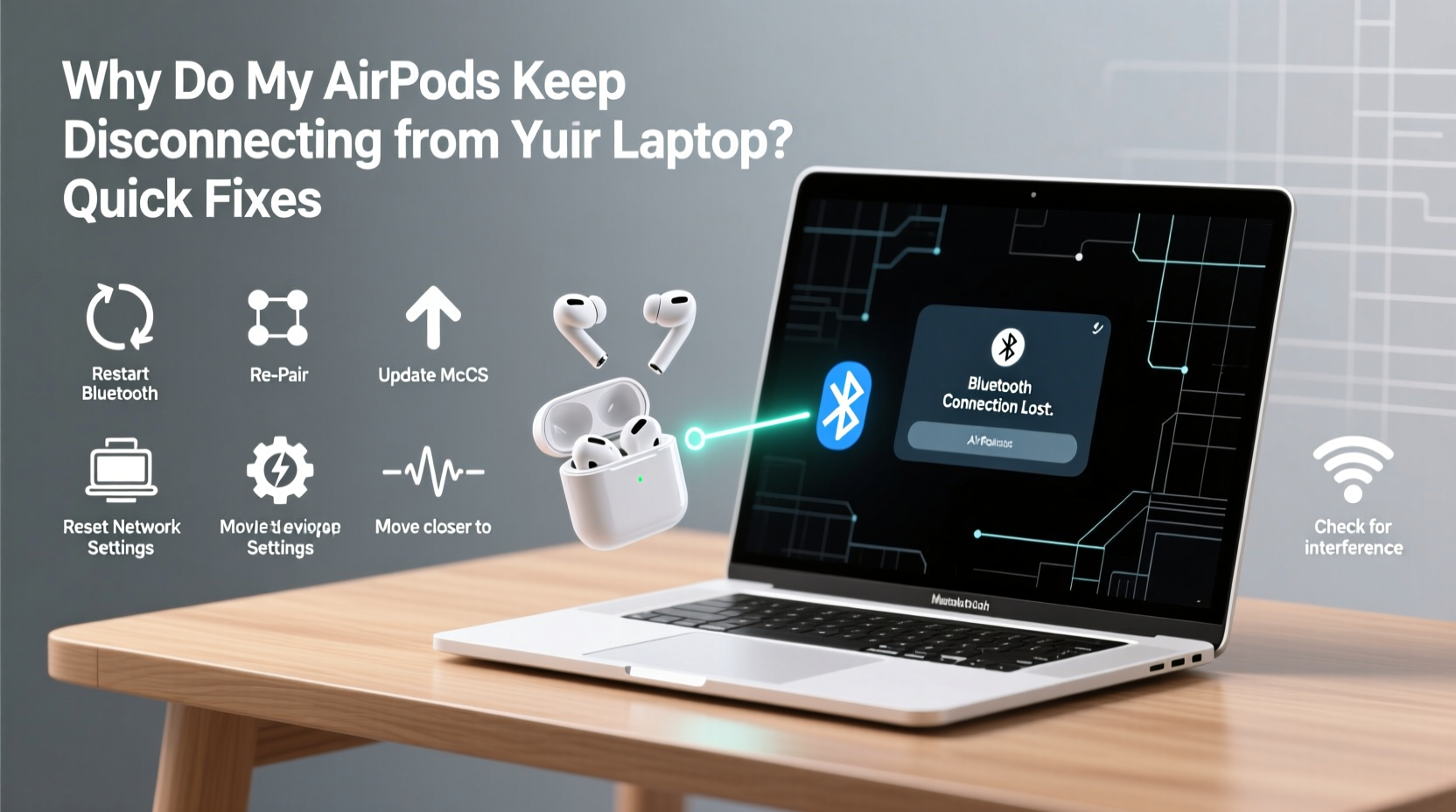
AirPods use Bluetooth technology to maintain a wireless link with your devices. However, Bluetooth connections are sensitive to several factors, including signal strength, hardware compatibility, software bugs, and environmental interference. When paired with a laptop—particularly one not made by Apple—the pairing process may not be as smooth as it is with an iPhone or iPad.
Common culprits behind disconnections include:
- Weak or unstable Bluetooth signal – Physical obstructions, distance, or competing wireless signals can degrade connectivity.
- Outdated operating system or Bluetooth drivers – Especially on Windows machines, missing updates can break compatibility.
- Multiple device auto-switching – If your AirPods are set to connect automatically across multiple Apple devices, they may jump unexpectedly.
- Low battery or charging issues – Even if your AirPods show charge, internal battery management glitches can cause dropouts.
- Bluetooth stack conflicts – Background apps or corrupted Bluetooth profiles may interfere with stable pairing.
“Bluetooth stability isn’t just about the headset—it’s a three-way relationship between the headphones, the host device, and the surrounding RF environment.” — Dr. Lena Torres, Wireless Communication Engineer
Step-by-Step Guide to Fix AirPods Disconnection Issues
Follow this structured approach to diagnose and resolve persistent disconnection problems. Start at Step 1 and proceed sequentially—many users find success early in the process.
- Check Battery Levels
Ensure both your AirPods and their charging case have sufficient charge. A low battery can trigger intermittent disconnects even if the device appears connected. - Move Closer to Your Laptop
Stay within 30 feet (10 meters) of your laptop with minimal physical barriers. Walls, metal objects, and large electronics like microwaves can block or distort Bluetooth signals. - Disable Other Connected Devices
Go to your iPhone or iPad Settings > Bluetooth and “Forget This Device” for your AirPods temporarily. This prevents automatic switching that might pull your AirPods away from your laptop. - Restart Bluetooth on Your Laptop
Turn Bluetooth off, wait 10 seconds, then turn it back on. On Windows, go to Settings > Devices > Bluetooth & other devices. On macOS, click the Bluetooth icon in the menu bar. - Re-pair Your AirPods
Remove the existing pairing:- Open the Bluetooth settings.
- Find your AirPods in the list and select “Remove Device” or “Disconnect.”
- Place your AirPods in the case, close the lid, wait 10 seconds, then reopen.
- Press and hold the setup button on the back of the case until the status light flashes white.
- Reconnect via your laptop’s Bluetooth menu.
- Update Your Operating System
Install any pending OS updates. Apple regularly releases firmware patches that improve accessory compatibility. - Reset Network Settings (macOS)
On MacBooks, corrupted network configurations can affect Bluetooth. Go to Apple Menu > System Settings > Network > Wi-Fi/Bluetooth, and consider resetting network settings (note: this removes saved Wi-Fi networks). - Update Bluetooth Drivers (Windows)
Press Win + X, select Device Manager, expand “Bluetooth,” right-click your adapter (e.g., Intel Wireless Bluetooth), and choose “Update driver.”
Troubleshooting by Platform: Mac vs. Windows vs. Chromebook
Different operating systems handle Bluetooth differently. Here's how to optimize each platform for consistent AirPods performance.
| Platform | Key Issue | Solution |
|---|---|---|
| MacBook (macOS) | Auto-switching pulls AirPods to iPhone | Disable “Allow Audio Sharing” and turn off “Connect to iCloud Devices” in Bluetooth settings |
| Windows PC | Missing or outdated Bluetooth drivers | Manually update drivers via Device Manager; use manufacturer’s website (Dell, HP, Lenovo) for latest versions |
| Chromebook | Limited Bluetooth codec support | Use AAC or SBC audio profile; avoid HD audio streaming; keep ChromeOS updated |
| All Platforms | Interference from USB 3.0 ports or wireless mice | Move Bluetooth adapter or use a USB extension cable to separate from interfering devices |
Real Example: Remote Worker Solves Daily Dropouts
Sarah, a freelance copywriter using a Windows 10 laptop and AirPods Pro, experienced daily disconnections during client Zoom calls. She assumed the issue was with her AirPods’ battery. After trying multiple resets without success, she discovered that her USB 3.0 external hard drive—plugged into the same side of her laptop—was causing radio frequency interference with the Bluetooth module.
She moved the hard drive to a USB hub on the opposite side of her desk, used a short Bluetooth diagnostic tool to confirm improved signal strength, and hasn’t had a dropout since. The fix took less than five minutes but transformed her workday reliability.
Preventive Checklist for Stable AirPods Connections
To minimize future disruptions, follow this routine maintenance checklist monthly—or whenever you notice instability creeping back.
- ✅ Re-pair AirPods every 4–6 weeks to clear connection logs
- ✅ Update your laptop’s OS and Bluetooth drivers monthly
- ✅ Clean AirPods stems gently with a dry microfiber cloth (dirt can affect sensors)
- ✅ Disable automatic device switching when working on critical tasks
- ✅ Avoid placing laptops near strong electromagnetic sources (routers, microwaves, power strips)
- ✅ Use only one audio output device at a time to reduce Bluetooth load
Frequently Asked Questions
Can firmware updates fix AirPods disconnection issues?
Yes. Apple pushes AirPods firmware updates automatically when connected to an iOS device or Mac. To check your firmware version, go to Settings > Bluetooth > [Your AirPods] > press the info (i) icon. The current latest firmware version is typically above 6B38 for AirPods Pro. If your version is significantly older, ensure your iPhone or iPad is updated and leave your AirPods connected overnight to trigger an update.
Why do my AirPods disconnect when I move my head?
This usually indicates a weak signal or poor Bluetooth antenna positioning. On many laptops, especially ultrabooks, the Bluetooth antenna is located near the screen hinge or keyboard deck. Turning your body slightly can create a signal shadow. Try adjusting your seating position relative to the laptop or use a Bluetooth extender dongle plugged into a front-facing USB port.
Do third-party Bluetooth adapters help with stability?
They can. High-quality USB Bluetooth 5.0+ adapters (such as those from ASUS or TP-Link) often provide stronger, more reliable signals than built-in laptop modules, especially on older machines. Look for models supporting Bluetooth 5.2 or later with low latency and multipoint connectivity.
Expert Tips to Maximize Connection Longevity
Beyond basic fixes, adopting smarter usage habits can dramatically extend the reliability of your AirPods-laptop connection.
- Limit background Bluetooth devices: Turn off Bluetooth on unused devices nearby—smartwatches, fitness trackers, speakers—to reduce channel congestion.
- Use wired mode when possible: For long editing sessions or recordings, consider using a Lightning-to-USB-C or 3.5mm adapter to eliminate wireless variables entirely.
- Monitor connection quality: On Windows, install tools like Bluetooth Tweaker or ConnectBlue to view signal strength and packet loss in real time.
- Store AirPods properly: Always return them to the case when not in use. This not only charges them but resets internal circuitry, clearing minor firmware hiccups.
“The best wireless experience starts with disciplined device management—not just tech specs.” — Rajiv Mehta, Senior UX Designer at a leading audio hardware firm
Conclusion: Take Control of Your Wireless Experience
Dealing with AirPods that randomly disconnect from your laptop doesn’t have to be a daily struggle. Most issues stem from correctable software misconfigurations, outdated drivers, or environmental interference—problems that are entirely within your control. By following the step-by-step fixes, applying preventive measures, and understanding how different platforms behave, you can achieve a rock-solid Bluetooth connection that supports your workflow, entertainment, and communication needs.
Don’t accept dropouts as inevitable. Small adjustments today can lead to hours of uninterrupted clarity tomorrow. Implement the checklist, test one variable at a time, and document what works for your setup. Your AirPods are capable of seamless performance—you just need the right tuning.




 浙公网安备
33010002000092号
浙公网安备
33010002000092号 浙B2-20120091-4
Comments
No comments yet. Why don't you start the discussion?