
If you're relying on your AirPods for work calls, music, or video meetings and they suddenly drop the connection from your MacBook, it’s more than an annoyance—it disrupts productivity and diminishes trust in your gear. You’re not alone. Many Apple users report intermittent disconnections between their AirPods and MacBooks, even when both devices are within close range and fully charged. The issue often stems from a mix of software quirks, hardware limitations, environmental interference, and outdated firmware. This article dives into the root causes and offers tested solutions to stabilize your Bluetooth experience.
Understanding the Connection: How AirPods and MacBooks Communicate
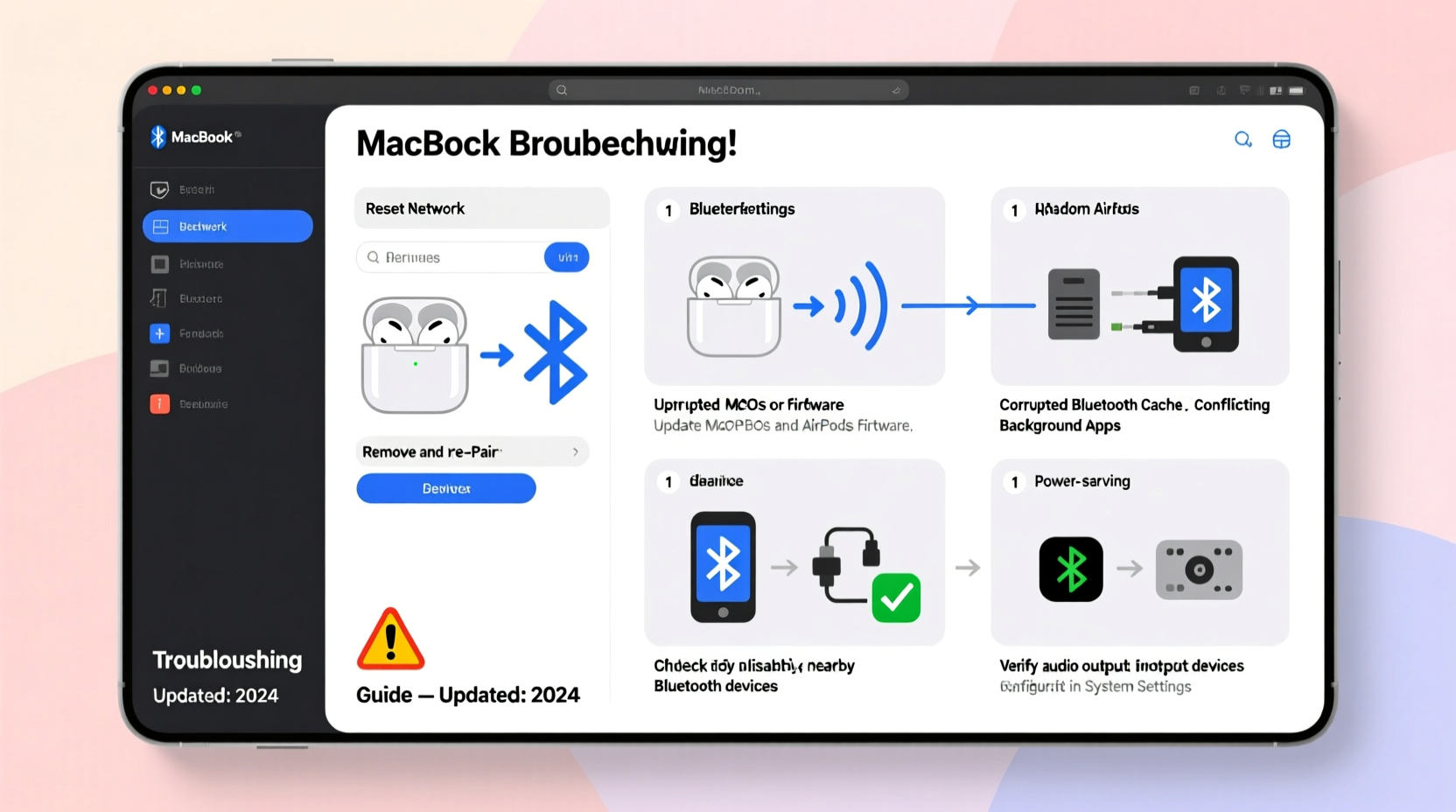
AirPods connect to your MacBook via Bluetooth, a wireless protocol designed for short-range communication between devices. When working correctly, the connection is seamless—audio streams without interruption, and switching between devices happens automatically. However, Bluetooth is sensitive to several factors that can degrade signal quality or trigger unexpected disconnections.
The handshake between your AirPods and MacBook involves multiple layers:
- Hardware compatibility: Older MacBooks may lack support for newer Bluetooth standards (like Bluetooth 5.0), leading to instability with modern AirPods models.
- Operating system integration: macOS manages Bluetooth through its built-in stack, which sometimes struggles with third-party or even Apple-made peripherals during updates.
- Firmware synchronization: Both AirPods and MacBook rely on firmware updates delivered through iOS and macOS. If either device hasn’t updated recently, bugs affecting connectivity might persist.
- Proximity and environment: Physical barriers, Wi-Fi congestion, and electromagnetic interference can all weaken the Bluetooth signal.
Apple has optimized AirPods for iPhones and iPads, where the H1 or H2 chip enables fast switching and low latency. On macOS, this integration exists but isn't always as robust—especially if you're using older hardware or running beta software.
Common Causes of Random Disconnections
Before applying fixes, it's important to identify what’s triggering the dropouts. Here are the most frequent culprits:
1. Outdated macOS or AirPods Firmware
Apple releases periodic firmware updates for AirPods that improve stability, battery life, and Bluetooth performance. These updates are pushed silently when your AirPods are connected to an iPhone or iPad—but not directly through macOS. If you primarily use your AirPods with a MacBook and rarely pair them with an iOS device, they may be running outdated firmware.
2. Bluetooth Interference
Bluetooth operates on the 2.4 GHz frequency band—the same as many Wi-Fi routers, cordless phones, and microwave ovens. In dense environments like offices or apartments, signal overlap can cause packet loss, resulting in audio stutter or complete disconnection.
3. Overloaded Bluetooth Module
If your MacBook is paired with multiple Bluetooth devices—keyboard, mouse, headphones, smartwatch—the internal controller can become overwhelmed, especially on older MacBooks with limited Bluetooth bandwidth. This leads to dropped connections as the system prioritizes certain devices over others.
4. Power Management Settings
macOS includes energy-saving features that may disable Bluetooth when the system detects inactivity. While intended to preserve battery on MacBooks, this setting can mistakenly cut power to active accessories like AirPods during long listening sessions.
5. Corrupted Bluetooth Preferences
Over time, the Bluetooth configuration file on your Mac can become corrupted due to failed pairings, abrupt shutdowns, or software bugs. A damaged plist file prevents reliable reconnection, even if the hardware is functioning properly.
6. Hardware Limitations
MacBooks from 2015–2017 used Bluetooth 4.2, while newer models support Bluetooth 5.0 or later. If you own AirPods Pro (2nd gen) or AirPods Max, which take full advantage of Bluetooth 5.3 capabilities, pairing with older hardware results in reduced range and reliability.
“Bluetooth performance on macOS has improved significantly since Monterey, but legacy hardware still struggles with modern earbuds.” — Jordan Lee, Senior Wireless Engineer at ConnectTest Labs
Step-by-Step Guide to Fix AirPods Disconnecting from MacBook
Follow this systematic troubleshooting process to resolve random disconnections. Start with basic checks and progress to advanced resets if needed.
- Restart Both Devices
Turn off your AirPods by placing them in the case and closing the lid for 15 seconds. Restart your MacBook. Reopen the case near the Mac and attempt to reconnect. - Check for macOS Updates
Go to Apple Menu → System Settings → General → Software Update. Install any available updates. Newer versions of macOS often include Bluetooth bug fixes. - Update AirPods Firmware
Connect your AirPods to an iPhone or iPad. Ensure the device is plugged in and connected to Wi-Fi. Leave the AirPods in the case with the lid open near the iOS device for several minutes. Check firmware version under Settings → Bluetooth → [Your AirPods] → Firmware Version. - Remove and Re-Pair AirPods
In System Settings → Bluetooth, click the “i” icon next to your AirPods and select “Remove.” Then, press and hold the setup button on the back of the AirPods case until the status light flashes white. Re-pair them to your Mac. - Reset the Bluetooth Module
Hold Shift + Option and click the Bluetooth icon in the menu bar. Select “Debug” → “Reset the Bluetooth module.” Confirm and allow your Mac to restart the service. - Delete Bluetooth Preferences
Shut down your Mac. Turn it on and immediately press Command + S to enter Single User Mode. Type:
/sbin/mount -uw /
Then:
rm /Library/Preferences/com.apple.bluetooth.plist
Reboot normally. macOS will generate a fresh Bluetooth preference file. - Disable Handoff Temporarily
Navigate to System Settings → General → AirDrop & Handoff and turn off “Allow Handoff.” Some users report improved stability after disabling this feature.
Troubleshooting Checklist
Use this checklist to quickly diagnose and fix the issue:
- ✅ Restart MacBook and AirPods
- ✅ Ensure macOS is up to date
- ✅ Verify AirPods firmware via iOS device
- ✅ Remove and re-pair AirPods on MacBook
- ✅ Reset Bluetooth module using debug menu
- ✅ Test with only AirPods connected (no other Bluetooth devices)
- ✅ Move closer to MacBook; remove physical obstructions
- ✅ Disable Handoff and Automatic Switching temporarily
- ✅ Try AirPods with another device to isolate the problem
- ✅ Delete Bluetooth plist file if issues persist
Environmental and Usage Factors That Impact Stability
Your surroundings play a bigger role than most realize. Consider these real-world influences:
| Factor | Impact on Bluetooth | Solution |
|---|---|---|
| Wi-Fi Router Proximity | 2.4 GHz networks interfere with Bluetooth signals | Switch router to 5 GHz band; relocate router or MacBook |
| Metal Surfaces | Reflect and block Bluetooth waves | Avoid placing MacBook on metal desks or near filing cabinets |
| Crowded Office Spaces | Multiple Bluetooth/Wi-Fi signals cause congestion | Use wired headphones during critical tasks |
| Laptop Lid Closed (Clamshell Mode) | Antenna placement may reduce signal strength | Keep lid open or use external display with lid up |
| USB 3.0 Devices | Can emit electromagnetic noise interfering with Bluetooth | Use USB hubs with shielding or switch to USB-C accessories |
Mini Case Study: Remote Worker Regains Stable Audio
Sarah, a freelance copywriter based in Brooklyn, experienced daily AirPods dropouts during client Zoom calls. Her 2016 MacBook Pro frequently lost connection mid-sentence, forcing her to switch to speakers. After testing various fixes, she discovered her Wi-Fi extender—placed directly behind her laptop—was broadcasting on 2.4 GHz and disrupting Bluetooth. She switched the extender to 5 GHz only and moved it across the room. Additionally, she reset her Bluetooth preferences using Single User Mode. Since then, she’s had zero disconnections over three weeks of full-time use.
Frequently Asked Questions
Why do my AirPods disconnect when I move my head?
This usually indicates weak signal strength due to distance or obstacles. Bluetooth requires line-of-sight for optimal performance. Try moving closer to your MacBook or removing barriers like walls or monitors. Also, ensure no other wireless devices are causing interference nearby.
Can I update AirPods firmware directly from my MacBook?
No. AirPods firmware updates are delivered exclusively through iOS or iPadOS devices. Your AirPods must be paired with an iPhone or iPad that has internet access and sufficient charge. The update happens automatically in the background when conditions are met.
Do different AirPods models behave differently with MacBooks?
Yes. AirPods (1st/2nd gen) use the W1 chip and have basic macOS integration. AirPods Pro and AirPods (3rd gen) with H1/H2 chips offer better noise cancellation, spatial audio, and faster switching—but require macOS Ventura or later for full feature support. Older MacBooks may not fully leverage advanced features, increasing the chance of instability.
Conclusion: Achieve Reliable, Seamless Connectivity
Random AirPods disconnections from your MacBook aren’t inevitable. With methodical troubleshooting—from firmware updates to environmental adjustments—you can restore a dependable wireless experience. Most issues stem from preventable causes: outdated software, signal interference, or corrupted settings. By following the steps outlined here, including preference resets and strategic device management, you’ll minimize disruptions and maximize productivity.
Don’t accept spotty audio as the norm. Take control of your setup today. Apply one fix at a time, test thoroughly, and document what works. Once resolved, maintain stability by keeping your systems updated and minimizing Bluetooth clutter.




 浙公网安备
33010002000092号
浙公网安备
33010002000092号 浙B2-20120091-4
Comments
No comments yet. Why don't you start the discussion?