
Random disconnections from AirPods can be more than just a minor annoyance—they disrupt calls, break focus during workouts, and interfere with productivity. Despite Apple’s reputation for seamless integration, even the best wireless earbuds can suffer from connectivity issues. The causes range from simple Bluetooth interference to deeper software glitches or hardware wear. Understanding the root causes is the first step toward restoring reliable performance.
This guide dives into the most common reasons behind erratic AirPod disconnections and provides actionable, tested solutions. Whether you're using first-gen AirPods or the latest AirPods Pro, these troubleshooting methods apply across models and devices.
Common Causes of AirPod Disconnections
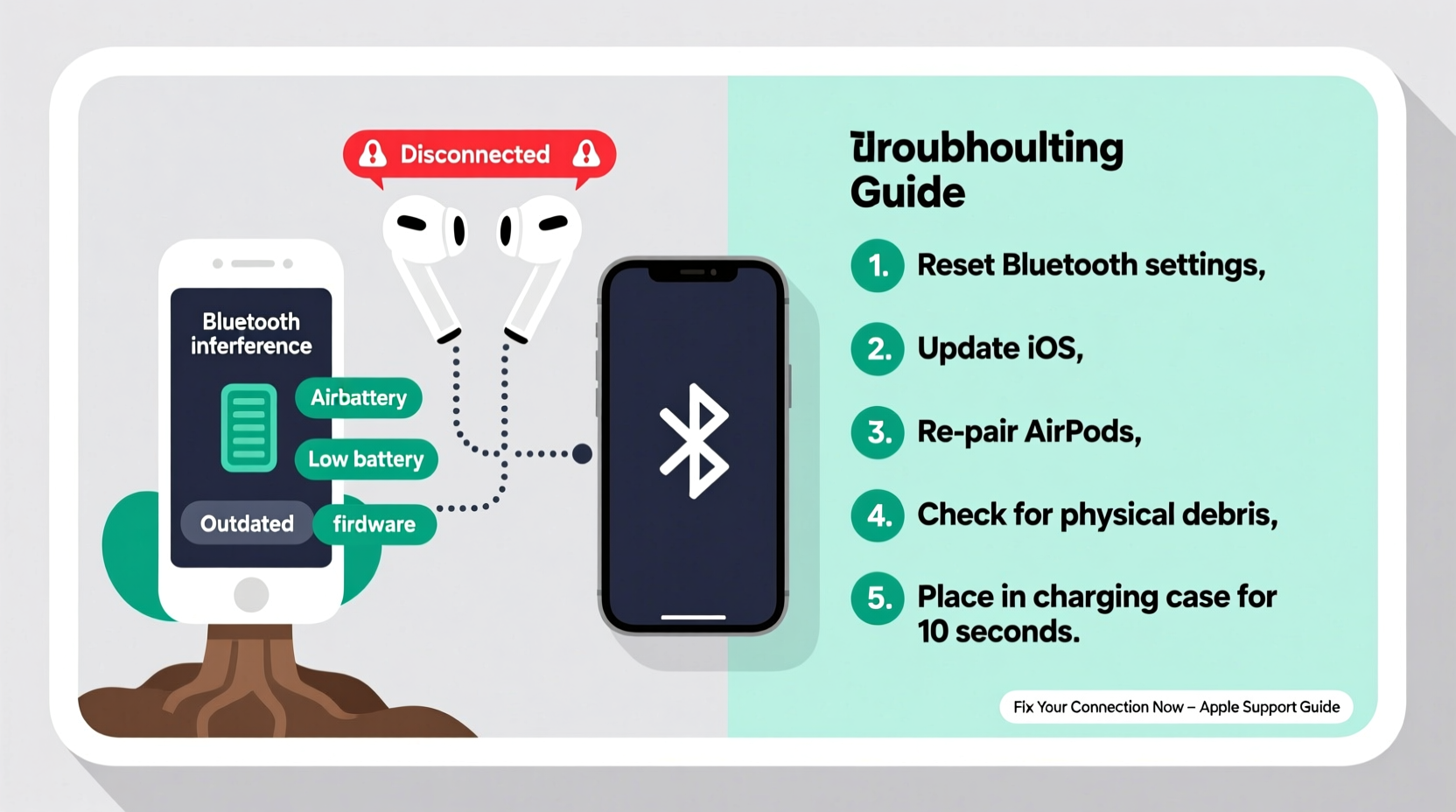
Before jumping into fixes, it's essential to understand what might be triggering the issue. AirPods rely on Bluetooth 5.0 (or later, depending on model), which is generally stable, but several factors can degrade signal quality or cause pairing instability.
- Bluetooth interference: Nearby Wi-Fi routers, microwaves, cordless phones, or other Bluetooth devices can congest the 2.4 GHz band, leading to dropouts.
- Outdated firmware: AirPods receive firmware updates silently through your connected device. If your iPhone or iPad hasn’t updated recently, your AirPods may be running outdated firmware that introduces bugs.
- Poor battery health: As AirPods age, their batteries degrade. Low or unstable power output can trigger unexpected disconnects.
- Software conflicts: iOS bugs, especially after major updates, can interfere with Bluetooth stack performance.
- Physical obstructions: Walls, pockets, or even your body between the AirPods and the source device weaken the signal.
- Dirty sensors: Earwax or debris on the optical sensors can trick AirPods into thinking they’ve been removed, pausing audio and disconnecting.
Step-by-Step Fixes to Stop Random Disconnections
Start with the simplest solutions and progress to more involved steps if needed. Most users resolve the issue within the first few attempts.
1. Restart Your Devices
It sounds basic, but restarting both your AirPods and your connected device clears temporary glitches in the Bluetooth stack.
- Place your AirPods in the charging case and close the lid for 30 seconds.
- Open the lid and press and hold the setup button on the back (for older cases) until the status light flashes amber, then white—this restarts the AirPods.
- Restart your iPhone, iPad, or Mac.
- Reconnect your AirPods by opening the case near the device.
2. Forget and Re-Pair Your AirPods
This forces a clean reconnection and often resolves pairing corruption.
- Go to Settings > Bluetooth on your iPhone or iPad.
- Tap the “i” icon next to your AirPods.
- Select Forget This Device.
- Press and hold the setup button on your AirPods case until the LED flashes white.
- Re-pair them as if setting up for the first time.
3. Update Firmware and Software
Apple pushes AirPods firmware updates automatically when the buds are connected to an iOS device and charging. Ensure your iPhone is updated to the latest iOS version.
To check for AirPods firmware:
- Connect your AirPods to your iPhone.
- Go to Settings > General > About > AirPods.
- Look for the \"Firmware Version.\" Current versions are typically 6.8.x or higher. If it's outdated, leave your AirPods charging near your iPhone overnight—it should update automatically.
4. Reset Network Settings
If Bluetooth issues persist across multiple devices, reset your iPhone’s network configuration.
- Navigate to Settings > General > Transfer or Reset iPhone > Reset > Reset Network Settings.
- Enter your passcode and confirm.
- After reboot, reconnect to Wi-Fi and re-pair your AirPods.
Note: This erases saved Wi-Fi passwords and Bluetooth pairings, so have credentials ready.
5. Clean Your AirPods
Buildup on the speaker mesh or sensors can interfere with function.
- Use a dry, lint-free cloth to wipe the stems and ear tips.
- Gently brush the microphone and speaker grilles with a soft-bristled toothbrush.
- For AirPods Pro, remove the silicone tips and rinse them under lukewarm water (dry thoroughly before reattaching).
Avoid liquids, compressed air, or sharp objects that could damage internal components.
Environmental and Usage Factors That Impact Connection
Your surroundings play a bigger role in Bluetooth stability than many realize. Even with perfect hardware, environmental conditions can introduce interruptions.
| Factor | Impact on AirPods | Solution |
|---|---|---|
| Wi-Fi congestion | Interference on 2.4 GHz band reduces Bluetooth reliability | Switch router to 5 GHz band; keep AirPods closer to device |
| Metal objects or walls | Signal attenuation over distance or barriers | Stay within 30 feet with minimal obstructions |
| Multiple paired devices | Auto-switching can cause delays or drops | Disable automatic switching in Bluetooth settings |
| Crowded Bluetooth environments | Gyms, offices, or public transit with many active devices | Manually select AirPods in Control Center during use |
Bluetooth uses adaptive frequency hopping to avoid interference, but in high-density areas, signal contention is inevitable. In such cases, manually selecting your AirPods instead of relying on auto-switching improves consistency.
Checklist: How to Prevent Future Disconnections
Follow this routine monthly to maintain peak AirPod performance:
- ✅ Clean AirPods and charging case with a dry microfiber cloth
- ✅ Verify firmware is up to date via Settings > About > AirPods
- ✅ Restart your iPhone and AirPods at least once a week
- ✅ Disable automatic device switching if not needed
- ✅ Store AirPods in their case when not in use to preserve battery
- ✅ Avoid exposing AirPods to moisture, extreme heat, or direct sunlight
- ✅ Keep your iOS/macOS system updated
Expert Insight: What Engineers Say About Wireless Stability
While Apple doesn't publish detailed diagnostics for consumer devices, insights from RF (radio frequency) engineers shed light on real-world limitations.
“Even Class 1 Bluetooth devices like AirPods Pro have a practical range of about 10 meters in open space. Obstacles, body absorption, and electromagnetic noise significantly reduce effective range. Users expecting flawless performance beyond that are fighting physics.” — Dr. Lena Torres, Wireless Systems Engineer
This underscores the importance of managing expectations. No wireless earbud is immune to signal loss under poor conditions. However, proper maintenance and usage habits dramatically reduce the frequency of disruptions.
Real-World Example: Fixing Chronic Disconnections
Consider Mark, a remote worker using AirPods Pro daily for Zoom meetings. He experienced frequent dropouts during calls, especially when walking to his kitchen for coffee. Initially, he assumed his AirPods were defective.
After testing the fixes outlined above, he discovered two key issues:
- His Wi-Fi router was placed directly beside his desk, operating on the 2.4 GHz band and causing interference.
- His iPhone had not updated iOS in over two months, leaving his AirPods on outdated firmware.
Mark switched his router to 5 GHz, updated his phone, and reset his network settings. The disconnections stopped entirely. He now keeps his AirPods within line of sight during calls and performs a quick clean every Sunday.
This case illustrates how multiple small factors can combine to create a persistent problem—and how systematic troubleshooting leads to resolution.
Frequently Asked Questions
Why do my AirPods disconnect when I move my head?
This is often due to weak signal strength or physical obstruction. When you turn your head, your body can block the Bluetooth signal between your AirPods and device. Try keeping your phone in front of you or in a jacket pocket rather than a back pocket. Also, ensure your AirPods firmware is current, as newer versions improve signal resilience.
Can third-party chargers damage AirPods or cause disconnections?
Using MFi-certified (Made for iPhone/iPad) chargers is safe. However, low-quality or uncertified chargers may deliver inconsistent power, potentially affecting battery health over time. A degraded battery can lead to unstable performance, including random disconnects. Stick to Apple-branded or MFi-certified accessories for long-term reliability.
Do AirPods disconnect more often on Android devices?
Yes, because AirPods rely on Apple-specific features like W1/H1 chips for seamless switching and optimized pairing. On Android, they function as standard Bluetooth headphones without advanced integration. You lose automatic setup, battery level pop-ups, and fast switching. While they work, expect slightly less stability and fewer features. For consistent performance on Android, consider dedicated Bluetooth earbuds.
Conclusion: Take Control of Your AirPod Experience
Random AirPod disconnections are frustrating but rarely permanent. In most cases, the fix lies in a combination of updated software, cleaner connections, and smarter usage habits. By understanding the interplay between environment, device health, and wireless technology, you regain control over your listening experience.
Don’t accept constant dropouts as normal. Apply the checklist regularly, stay on top of updates, and pay attention to your surroundings. With minimal effort, your AirPods can perform as reliably as Apple intended.




 浙公网安备
33010002000092号
浙公网安备
33010002000092号 浙B2-20120091-4
Comments
No comments yet. Why don't you start the discussion?