
AirPods are designed for seamless integration with Apple’s ecosystem, but many Android users rely on them daily for calls, music, and podcasts. While they work with Android devices via Bluetooth, frequent disconnections can be frustrating and disrupt productivity or entertainment. Unlike on iPhones, where connection stability is nearly flawless, Android users often report random dropouts—sometimes mid-call or during playback. This issue isn’t just a minor annoyance; it can signal deeper compatibility, software, or hardware problems that need addressing.
The root causes vary widely: from Bluetooth protocol mismatches and outdated firmware to interference from other wireless signals or misconfigured settings. Understanding these factors is essential to restoring a stable, reliable connection between your AirPods and Android device. Below, we break down the most common reasons behind the disconnections and provide actionable steps to resolve them permanently.
Common Causes of AirPods Disconnection on Android
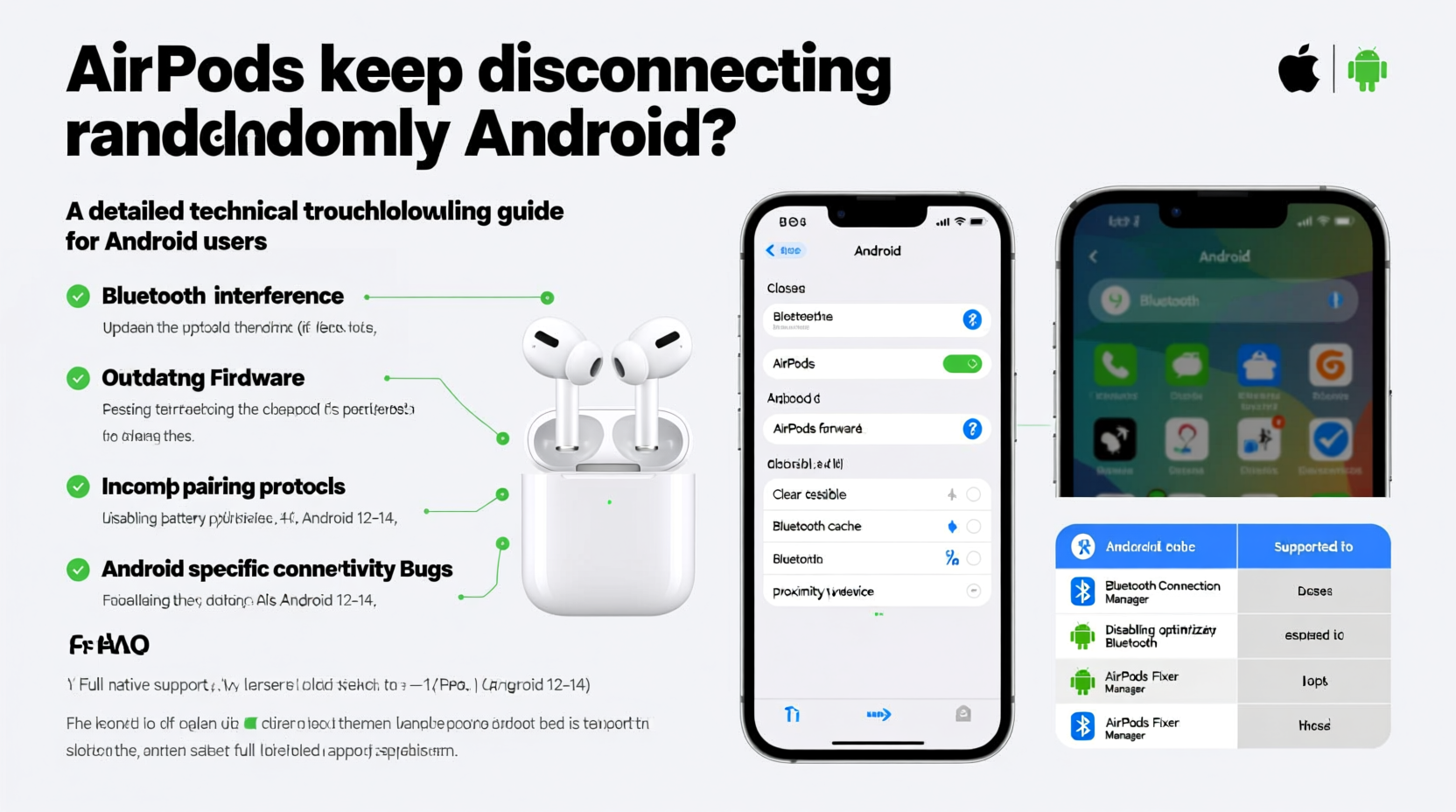
Unlike iOS, Android does not natively support all Apple-specific Bluetooth features. AirPods use Apple’s H1 or W1 chip for fast pairing and low-latency audio streaming, but these chips rely on proprietary optimizations that only fully function within the Apple ecosystem. On Android, the connection defaults to standard Bluetooth protocols like A2DP and AVRCP, which are more prone to latency and instability.
- Bluetooth Profile Limitations: Android lacks support for Apple’s advanced audio routing and automatic switching features, increasing the likelihood of dropped connections.
- Firmware Mismatches: AirPods receive firmware updates through an iPhone. If they haven’t been updated in a while, bugs affecting cross-platform compatibility may persist.
- Interference from Other Devices: Wi-Fi routers, microwaves, and even other Bluetooth gadgets operating on the 2.4 GHz band can interfere with signal stability.
- Low Battery or Charging Issues: If one AirPod drains faster than the other or fails to charge properly, it may disconnect intermittently.
- Outdated Android OS or Bluetooth Stack: Older Android versions may lack optimized Bluetooth drivers, leading to inconsistent performance with non-native accessories.
Step-by-Step Troubleshooting Guide
Before assuming hardware failure, follow this structured approach to diagnose and fix the disconnection problem. Many issues can be resolved without replacing equipment or switching headphones.
- Forget and Re-Pair the Device: Go to your Android’s Bluetooth settings, tap the gear icon next to your AirPods, and select “Forget.” Then, place both AirPods in the case, open the lid, press and hold the setup button on the back until the LED flashes white, and re-pair as a new device.
- Check for Firmware Updates (Indirectly): While you can’t update AirPods directly from Android, connecting them to an iPhone (even a friend’s) can trigger pending firmware updates. After updating, reconnect to your Android device.
- Clear Bluetooth Cache: On Android, go to Settings > Apps > Show System Apps > Bluetooth > Storage > Clear Cache. Restart the device afterward.
- Disable Battery Optimization for Bluetooth: Some phones aggressively throttle background services. Navigate to Settings > Apps > Bluetooth > Battery > set to “Unrestricted” to prevent disconnections due to power-saving modes.
- Test with Another Device: Pair your AirPods with a different Android phone or tablet. If the issue persists, the problem likely lies with the AirPods themselves.
- Reset Network Settings: As a last resort, reset network settings (Settings > System > Reset Options > Reset Wi-Fi, Mobile & Bluetooth). Note: This will erase all saved networks and pairings.
Do’s and Don’ts When Using AirPods on Android
| Do’s | Don’ts |
|---|---|
| Keep your Android OS updated to ensure optimal Bluetooth performance. | Don’t assume the issue is with the AirPods—first rule out software glitches. |
| Use a dedicated app like “AirBattery” to monitor AirPods battery levels on Android. | Don’t leave Bluetooth scanning enabled unnecessarily—it increases interference risk. |
| Store AirPods in their case when not in use to maintain charge and prevent sync errors. | Don’t expose AirPods to moisture or extreme temperatures, which can damage internal components. |
| Limit simultaneous Bluetooth connections (e.g., smartwatch, car audio) to reduce bandwidth strain. | Don’t force firmware updates using third-party tools—they can brick your AirPods. |
Real-World Example: Office Worker Struggles with Call Drops
Sarah, a project manager based in Chicago, uses her AirPods Pro daily for Zoom meetings on her Samsung Galaxy S22. She began noticing frequent disconnections during client calls—sometimes lasting only 10 minutes before cutting out entirely. Initially, she assumed the AirPods were defective and considered purchasing new earbuds.
After testing them with a colleague’s iPhone, she confirmed the AirPods worked flawlessly. Returning to her Android device, she followed the troubleshooting steps above: clearing Bluetooth cache, disabling battery optimization for Bluetooth, and ensuring no other devices were connected simultaneously. She also installed AirBattery to monitor charge balance between the two earbuds.
The real culprit? Her phone was automatically switching between Wi-Fi and mobile data during calls, causing brief network hiccups that disrupted the Bluetooth stream. By locking her phone to Wi-Fi during meetings and turning off Bluetooth auto-connect for nearby devices, Sarah eliminated the disconnections entirely.
“Many users blame the accessory, but more often than not, the environment and device settings are at fault.” — Raj Mehta, Senior Wireless Engineer at ConnectTech Labs
Optimizing Android Settings for Better AirPods Performance
Android offers granular control over Bluetooth behavior, but default settings aren’t always ideal for high-fidelity audio devices like AirPods. Adjusting a few key options can significantly enhance stability.
Navigate to Developer Options (enable by tapping Build Number seven times in Settings > About Phone). Once inside:
- Disable Absolute Volume: Prevents volume mismatch issues between phone and AirPods that can cause crashes.
- Set Bluetooth Audio Codec to AAC: AirPods perform best with AAC encoding. If available, select AAC over SBC for improved audio consistency.
- Increase Bluetooth AVRCP Timeout: Extends the time Android waits before dropping inactive connections.
Additionally, disable dual app features (like dual WhatsApp or Facebook accounts) if they run background syncs that consume Bluetooth resources. These apps sometimes initiate background connections that conflict with active audio streams.
When Hardware Might Be the Issue
If all software fixes fail, consider potential hardware faults. Over time, AirPods can develop internal wear, especially around the charging contacts or motion sensors that detect insertion/removal. Signs of hardware degradation include:
- One AirPod consistently disconnects while the other remains connected.
- LED on the case blinks amber or fails to illuminate.
- Charging stalls at 80% or drops rapidly under use.
- Physical debris in the earbud stem interferes with sensor operation.
Clean the stems gently with a dry microfiber cloth or soft brush. Avoid liquids or compressed air, which can damage internal circuits. If cleaning doesn’t help, visit an Apple Store or authorized service provider. Even without an iPhone, Apple can diagnose firmware status and perform hardware repairs.
FAQ: Common Questions About AirPods on Android
Can AirPods work reliably on Android long-term?
Yes, but with limitations. Basic functions like audio playback and calls work well, but features like automatic switching, spatial audio, and Siri integration are unavailable. With proper maintenance and optimized settings, most users achieve stable daily use.
Why do my AirPods disconnect when I take them out of my pocket?
This often occurs due to signal obstruction. Your body blocks the Bluetooth signal when the phone is in your pocket and the AirPods are in your ears. Try keeping the phone in a bag or on a desk during use. Also, ensure no metal objects or thick fabrics are between the devices.
Does using a Bluetooth adapter help?
In some cases, yes. USB-C Bluetooth 5.3 adapters with low-latency profiles can improve signal strength and reduce interference, especially on older Android models with weaker built-in radios. However, results vary by brand and device compatibility.
Final Checklist: Fix AirPods Disconnections on Android
- Forget and re-pair AirPods with your Android device.
- Clear Bluetooth cache and restart your phone.
- Ensure AirPods firmware is up to date (via an iPhone if possible).
- Disable battery optimization for Bluetooth services.
- Use Developer Options to set Bluetooth codec to AAC and disable Absolute Volume.
- Minimize interference by turning off unused Bluetooth devices.
- Inspect AirPods and case for dirt or damage; clean if necessary.
- Test with another Android device to isolate the issue.
- Reset network settings if all else fails.
- Contact Apple Support if hardware defects are suspected.
Conclusion: Take Control of Your Connection
Random disconnections don’t have to be a permanent part of using AirPods on Android. While they weren’t built for this platform, millions use them successfully every day by understanding the limitations and optimizing accordingly. The key is systematic troubleshooting—eliminating variables one at a time until stability returns.
Start with simple fixes like re-pairing and clearing cache, then move to advanced settings if needed. Pay attention to environmental factors and usage patterns. Most importantly, don’t accept poor performance as inevitable. With the right adjustments, your AirPods can deliver a smooth, professional-grade audio experience—even outside the Apple universe.




 浙公网安备
33010002000092号
浙公网安备
33010002000092号 浙B2-20120091-4
Comments
No comments yet. Why don't you start the discussion?