
If your AirPods cut out during calls, music, or podcasts—especially at the worst possible moment—you're not alone. Millions of users report intermittent disconnections despite Apple's reputation for seamless integration. While occasional hiccups are normal, frequent drops suggest a deeper issue. The good news: most problems have clear, actionable fixes. This guide walks through real-world solutions that go beyond basic restarts, helping you diagnose and resolve why your AirPods keep disconnecting.
Understanding the Root Causes
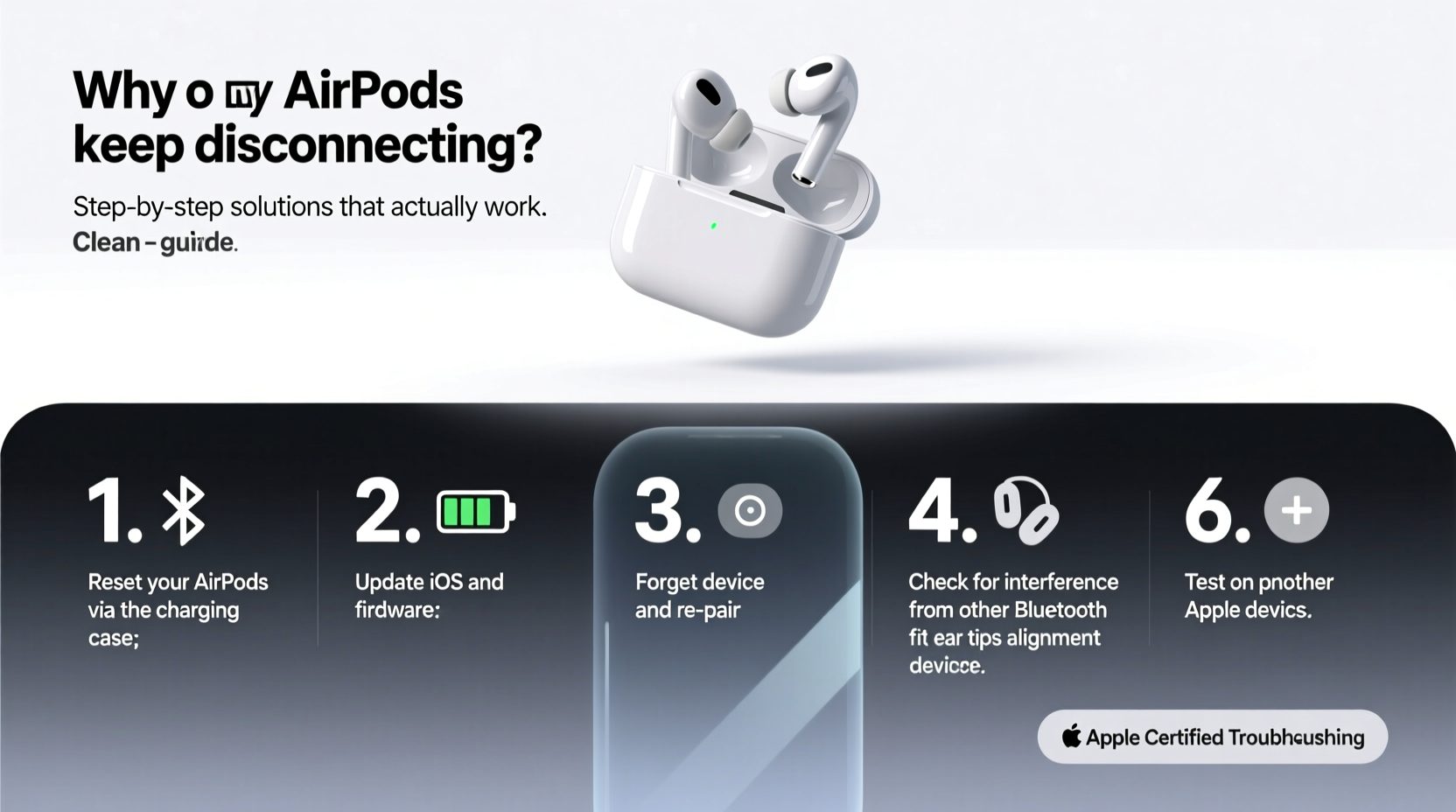
AirPods rely on Bluetooth 5.0 (or later, depending on model), which is generally stable. But stability depends on more than just hardware. Interference, software bugs, outdated firmware, and physical obstructions can all degrade performance. Common causes include:
- Bluetooth interference: Other wireless devices (routers, microwaves, smart home gadgets) operating on the 2.4 GHz band can disrupt signals.
- Firmware glitches: AirPods run firmware separate from your iPhone or iPad. Outdated or corrupted firmware leads to erratic behavior.
- iOS/macOS bugs: Software updates sometimes introduce connectivity regressions.
- Physical distance and obstacles: Walls, metal objects, or even your body can block Bluetooth signals.
- Battery degradation: As battery health declines, power delivery becomes inconsistent, affecting wireless performance.
- Device overload: Too many paired Bluetooth devices can overwhelm your phone’s radio management.
Before jumping into fixes, it helps to identify patterns. Does disconnection happen only when moving your head? Only when using one earbud? Or randomly across devices? These clues narrow down the solution path.
Step-by-Step Troubleshooting Guide
Follow this logical sequence to isolate and fix the problem. Start simple, then escalate as needed.
- Restart both your AirPods and connected device. A soft reset clears temporary glitches. Turn off Bluetooth on your iPhone, close the case for 30 seconds, then reopen and reconnect.
- Forget and re-pair your AirPods. Go to Settings > Bluetooth, tap the “i” next to your AirPods, and select \"Forget This Device.\" Then hold the setup button on the charging case until the status light flashes white. Reconnect as if pairing for the first time.
- Check for firmware updates. AirPods update automatically when idle and connected to Wi-Fi via an iOS device. To force an update, leave them in the case near your iPhone overnight. You can verify firmware version under Settings > General > About > AirPods.
- Reset Network Settings (iOS). This clears all saved Wi-Fi, Bluetooth, and cellular configurations. Go to Settings > General > Transfer or Reset iPhone > Reset > Reset Network Settings. Note: You’ll need to re-enter Wi-Fi passwords.
- Clean the AirPods and case. Dust, earwax, or debris around the stems or charging contacts can interfere with sensors and electrical connections. Use a dry, soft-bristled brush or lint-free cloth.
- Disable Automatic Ear Detection. This feature uses optical sensors to pause playback when removing an earbud. If faulty, it may misinterpret movement as removal. Disable it in Settings > Bluetooth > [AirPods] > Disable \"Automatic Ear Detection.\"
- Test with one earbud at a time. Place one AirPod in the case and use the other. If disconnections stop, the issue may be with the inactive bud. Repeat for the other side.
- Update all devices. Ensure your iPhone, iPad, Mac, and any other paired devices are running the latest OS version. Bugs in older versions often affect Bluetooth stability.
When Disconnections Happen Mid-Movement
If your AirPods drop connection when turning your head or walking, the issue is likely signal obstruction. Your body absorbs 2.4 GHz radio waves, especially near the head and torso. This is normal physics—but some models handle it better than others.
Newer AirPods (3rd gen, Pro 2) use improved antennas and spatial audio beamforming to maintain signal integrity. Older models (AirPods 1st/2nd gen) are more prone to dropout in motion.
“Bluetooth range is line-of-sight dependent. Even slight shifts in posture can create multipath interference, where signals reflect and cancel each other.” — Dr. Lena Torres, Wireless Communications Engineer
Do’s and Don’ts: Best Practices for Stable Connections
| Do | Don’t |
|---|---|
| Keep your AirPods within 30 feet of the source device with minimal obstructions. | Use AirPods far from your phone while it’s inside a metal bag or pocket. |
| Store and charge your AirPods regularly to maintain battery health. | Leave them fully drained for days—this stresses lithium-ion cells. |
| Pair via iCloud sync across Apple devices for smoother handoffs. | Manually switch between devices without disconnecting first. |
| Use mono audio mode if one earbud consistently disconnects. | Ignore recurring firmware update notifications. |
| Carry your phone in a front pocket or holster when using AirPods. | Assume disconnections are always due to hardware failure. |
Real-World Case: Fixing Daily Commute Dropouts
Mark, a daily commuter in Chicago, noticed his AirPods Pro would disconnect every morning during his train ride. Music would cut out for 10–15 seconds, then return. He tried restarting, cleaning, and resetting—nothing worked long-term.
After testing, he realized the issue occurred only when his iPhone was in his backpack, directly behind him. The combination of distance, metal zippers, and dense passenger crowds created a signal shadow. When he moved the phone to his jacket pocket, facing forward, disconnections stopped entirely.
Further investigation revealed his AirPods were running outdated firmware (version 3E751 instead of current 6A316). After forcing an update by leaving them charging near his iPhone overnight, stability improved even when the phone was farther away.
This case highlights two key points: environmental factors matter, and firmware plays a silent but critical role in performance.
Advanced Fixes for Persistent Issues
If basic steps fail, consider these deeper interventions.
Reset All Settings (iOS)
Unlike resetting network settings, this option clears all system preferences—including display, sound, and privacy settings—without erasing media or apps. It often resolves deep-seated software conflicts. Go to Settings > General > Transfer or Reset iPhone > Reset > Reset All Settings.
Check Bluetooth Accessory Interference
Other Bluetooth devices (fitness trackers, headphones, speakers) can cause channel congestion. Turn off unused accessories temporarily to test. On macOS, open System Settings > Bluetooth and remove old or unknown devices.
Use a Different Audio Output Method
On iPhones, go to Settings > Accessibility > Touch > Back Tap. Set \"Play/Pause\" to double-tap the back of your phone. This forces audio through the internal speaker briefly, which can reset the Bluetooth stack when switching back.
Factory Reset AirPods
To fully erase your AirPods:
- Open the charging case with the AirPods inside.
- Press and hold the setup button on the back for 15 seconds until the status light flashes amber, then white.
- Release the button. The AirPods are now reset.
- Re-pair them to your device.
This clears stored data, customizations, and firmware caches. It’s the closest thing to a “clean slate” for AirPods.
FAQ: Common Questions Answered
Why do my AirPods disconnect when I’m on a call?
Voice calls require higher bandwidth and lower latency than music playback. If your iPhone detects instability, it may drop the Bluetooth link and fall back to the phone’s microphone and speaker. This often happens when the AirPods’ battery is low or the signal is weak. Try keeping your phone closer and ensuring both AirPods are fully charged.
Can third-party cases cause disconnection issues?
Yes. Some magnetic or metal-lined cases interfere with the AirPods’ antenna or charging mechanism. Stick to Apple-certified accessories or non-metallic options. Avoid cases that cover the status light or restrict airflow around the charging pins.
Do AirPods disconnect more often over time?
Not inherently—but aging batteries and accumulated firmware wear can contribute. After 2+ years of heavy use, battery efficiency drops below 80%, increasing the likelihood of power-related disconnects. Check battery health in Settings > Battery > Battery Health (for supported models).
Final Checklist: What to Do When AirPods Keep Dropping
- ✅ Restart your iPhone and AirPods
- ✅ Forget and re-pair the AirPods
- ✅ Clean the stems and charging case
- ✅ Update iOS and AirPods firmware
- ✅ Disable Automatic Ear Detection
- ✅ Reset Network Settings (or Reset All Settings)
- ✅ Factory reset the AirPods
- ✅ Test with another Apple device
- ✅ Minimize physical obstructions and distance
- ✅ Visit Apple Support if under warranty
Conclusion: Take Control of Your Listening Experience
Constant disconnections don’t have to be the norm. With methodical troubleshooting, most AirPods issues can be resolved without replacing hardware. The key is understanding that connectivity relies on a balance of software, environment, and device condition. By applying the steps above—from firmware updates to smart usage habits—you regain reliable, uninterrupted audio.




 浙公网安备
33010002000092号
浙公网安备
33010002000092号 浙B2-20120091-4
Comments
No comments yet. Why don't you start the discussion?