
If you’ve ever been immersed in a playlist, podcast, or audiobook only to have your AirPods suddenly pause without warning, you’re not alone. This issue affects countless users across all AirPods models—from the original AirPods to the latest AirPods Pro and AirPods Max. While Apple markets these devices as seamless and intuitive, random pauses can disrupt that experience and raise questions about reliability.
The causes range from sensor malfunctions and software glitches to environmental interference and unintended gestures. The good news is that most of these issues are fixable with the right troubleshooting steps. Understanding what’s triggering the pauses—and how to address it—is key to restoring uninterrupted listening.
Understanding the Common Causes Behind Random Pauses
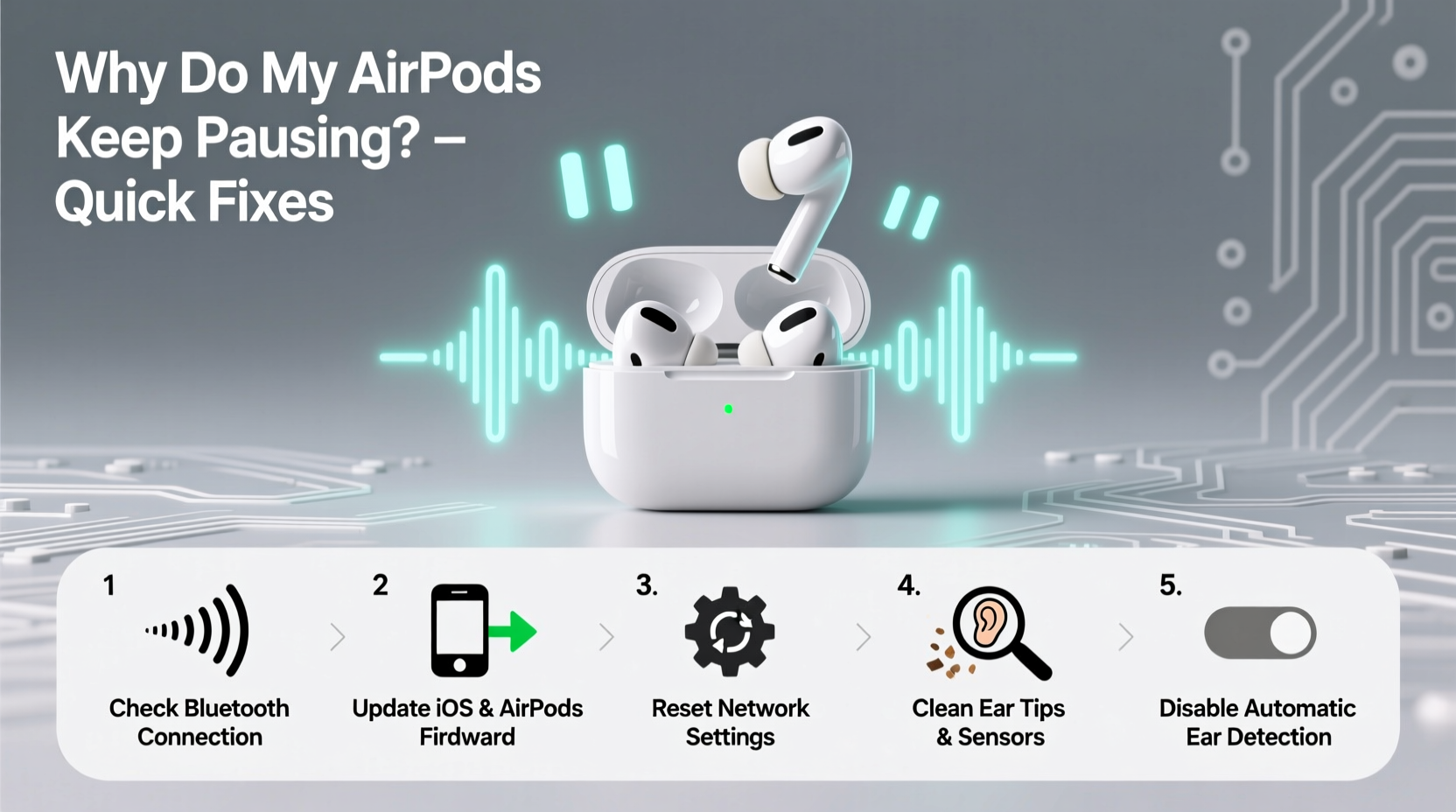
AirPods use a combination of optical sensors, motion accelerometers, and proximity detection to determine when they're in your ears and whether to play or pause audio. When any part of this system misfires, it can result in unexpected behavior. Below are the most frequent culprits:
- Optical Sensor Interference: The infrared sensors inside each earbud detect whether they’re in your ear. If they’re dirty or blocked, they may falsely register removal.
- Sweat or Moisture Buildup: Especially during workouts, moisture can trick sensors into thinking the AirPods have been removed.
- Faulty Automatic Ear Detection: A software-level feature that sometimes fails due to calibration errors.
- Double-Tap or Force Sensor Triggers: Accidental taps (on older models) or presses (on AirPods Pro) can activate play/pause commands.
- Bluetooth Interference: Nearby wireless devices or physical obstructions can cause dropouts that mimic pausing.
- iOS or Firmware Bugs: Outdated software on your iPhone or within the AirPods themselves can lead to erratic behavior.
Identifying which factor applies to your situation is the first step toward resolution.
Step-by-Step Guide to Fix Random Pausing Issues
Follow this systematic approach to diagnose and resolve the root cause of your AirPods pausing unexpectedly.
- Restart Your Devices
Closing the loop between hardware and software starts with a simple restart. Turn off your iPhone (or iPad), wait 30 seconds, then power it back on. Also place your AirPods in the case, close the lid for 15 seconds, then reopen. - Check for Software Updates
Ensure your iPhone is running the latest version of iOS. Go to Settings > General > Software Update. Additionally, AirPods firmware updates occur automatically when connected to an updated device. To check your firmware version: connect your AirPods, go to Settings > Bluetooth, tap the “i” icon next to your AirPods, and view the \"Firmware Version.\" - Reset Automatic Ear Detection
Navigate to Settings > Bluetooth, tap the “i” next to your AirPods, and toggle Automatic Ear Detection off. Wait 10 seconds, then turn it back on. This recalibrates the sensor logic. - Disable Unintended Gesture Controls
If you frequently touch your AirPods, consider changing the double-tap or force sensor action. In the same Bluetooth settings menu, set both left and right controls to “Off” temporarily to test if accidental inputs were the cause. - Forget and Re-Pair Your AirPods
Go to Settings > Bluetooth, tap the “i” icon, and select “Forget This Device.” Then, open your AirPods case near your iPhone and re-pair them as if new. This clears corrupted connection data. - Clean the Sensors and Mesh
Use a soft, dry cotton swab to gently clean around the stem and bottom of each AirPod. Avoid liquids or abrasive materials. Pay attention to the small holes where optical sensors reside—they’re often clogged with earwax or pocket lint. - Test with Another Device
Pair your AirPods with a different iPhone, iPad, or Android phone. If the pausing stops, the issue likely lies with your primary device’s software configuration.
Do’s and Don’ts: Best Practices for Stable Audio Playback
| Do’s | Don’ts |
|---|---|
| Keep your AirPods and charging case clean and dry. | Don’t expose AirPods to excessive sweat or water unless using Water Resistance modes (AirPods Pro only). |
| Update iOS and ensure your AirPods receive firmware updates. | Don’t ignore persistent bugs—report them via Feedback Assistant if unresolved. |
| Use automatic ear detection only if it works reliably for you. | Don’t store AirPods in humid or dusty environments. |
| Customize tap/press controls to reduce accidental input. | Don’t rely solely on Bluetooth in areas with high wireless congestion. |
Real-World Example: How One User Fixed Persistent Pausing
Mark, a daily commuter in Chicago, experienced constant music interruptions during his train rides. His AirPods Pro would pause every few minutes—even when securely in his ears. He assumed it was a hardware defect and considered returning them.
After trying several fixes, he discovered that the issue stemmed from a combination of factors: his coat collar occasionally brushed against the left AirPod during movement, triggering the force sensor. Additionally, Automatic Ear Detection was overly sensitive due to earwax buildup on the sensor.
He cleaned both AirPods thoroughly, disabled Automatic Ear Detection temporarily, and changed the left AirPod’s press action to “Next Track” instead of “Play/Pause.” The random pauses stopped immediately. Over time, he re-enabled ear detection after confirming cleanliness and stability.
This case highlights how multiple subtle issues can compound into a frustrating experience—and how methodical troubleshooting leads to resolution.
Expert Insight: What Engineers Say About Sensor Reliability
“AirPods rely on precise sensor fusion—combining data from optical, capacitive, and motion systems. Even minor obstructions or firmware inconsistencies can disrupt the signal chain. Regular maintenance and awareness of usage patterns significantly improve performance.” — Dr. Lena Torres, Senior Acoustic Engineer at Mobile Audio Labs
This insight underscores that while AirPods are engineered for intelligence, their responsiveness depends heavily on real-world conditions. Users must treat them not just as plug-and-play gadgets but as finely tuned tools requiring care.
Troubleshooting Checklist
Use this checklist to quickly identify and resolve playback interruptions:
- ✅ Restart your iPhone and AirPods
- ✅ Check for iOS updates
- ✅ Verify AirPods firmware is current
- ✅ Toggle Automatic Ear Detection off and on
- ✅ Change double-tap or force sensor actions to “Off”
- ✅ Clean the sensor areas with a dry cloth or cotton swab
- ✅ Forget and re-pair the AirPods
- ✅ Test with another device to isolate the problem
- ✅ Disable Live Listen or Announce Notifications if enabled
- ✅ Reset Network Settings (as a last resort: Settings > General > Transfer or Reset iPhone > Reset > Reset Network Settings)
Frequently Asked Questions
Why do my AirPods pause when I’m clearly still wearing them?
This usually happens due to dirty sensors, moisture interference, or a glitch in Automatic Ear Detection. Cleaning the earbuds and resetting the feature often resolves the issue. In rare cases, a hardware fault may require service through Apple Support.
Can sweat cause my AirPods to pause during workouts?
Yes. Sweat or humidity can interfere with the optical sensors, causing false “removed from ear” signals. While AirPods Pro have some sweat resistance, they aren’t fully waterproof. Wiping them down mid-workout and ensuring a snug fit can help maintain consistent playback.
Is there a way to disable auto-pause completely?
You cannot fully disable Automatic Ear Detection on standard AirPods models, but turning it off in Settings > Bluetooth > [Your AirPods] > Automatic Ear Detection will stop the auto-pause function. Note that this also disables auto-resume when reinserting. For AirPods Pro, you can customize the force sensor to avoid accidental pauses.
When to Seek Professional Help
If you’ve completed all troubleshooting steps and the pausing continues, the issue may be hardware-related. Signs include:
- One AirPod consistently malfunctioning while the other works fine
- Visible damage to the sensor area or speaker mesh
- Intermittent connectivity even after multiple resets
In such cases, contact Apple Support or visit an Apple Store. Under warranty, replacements are often provided at no cost. Even out-of-warranty units may qualify for discounted service.
Before seeking help, back up your device and prepare details: model number, serial number (found on the case), and a timeline of symptoms. Clear documentation speeds up diagnosis.
Final Thoughts: Regain Control of Your Listening Experience
Random pausing shouldn't define your relationship with your AirPods. These devices are designed to enhance your day—not interrupt it. Most issues stem from correctable software settings, environmental factors, or minor maintenance oversights. With the right knowledge, you can restore smooth, uninterrupted audio flow.
Start by cleaning your AirPods and updating your software. Then methodically test sensor behavior and gesture controls. Keep a log if the problem persists—note when and where pauses occur. Often, patterns emerge that point directly to the cause.
Remember, technology serves best when maintained intentionally. A few minutes of care can save hours of frustration.




 浙公网安备
33010002000092号
浙公网安备
33010002000092号 浙B2-20120091-4
Comments
No comments yet. Why don't you start the discussion?