
If you've ever been immersed in a podcast, workout playlist, or important call only for your AirPods to suddenly pause without warning, you're not alone. Thousands of users report this frustrating behavior across all AirPods models—from the original AirPods to the latest AirPods Pro 2. While Apple markets these earbuds as seamless, intelligent devices, their sensitivity to touch, motion, and connectivity can sometimes backfire. The good news is that random pausing is rarely permanent—and with the right troubleshooting steps, you can regain full control over your listening experience.
This guide dives deep into the root causes behind erratic pausing, separates myths from facts, and provides actionable solutions verified by user reports and technical experts. Whether the issue stems from hardware quirks, software bugs, or environmental interference, there's a fix waiting for you.
Understanding the Common Causes of Random Pausing
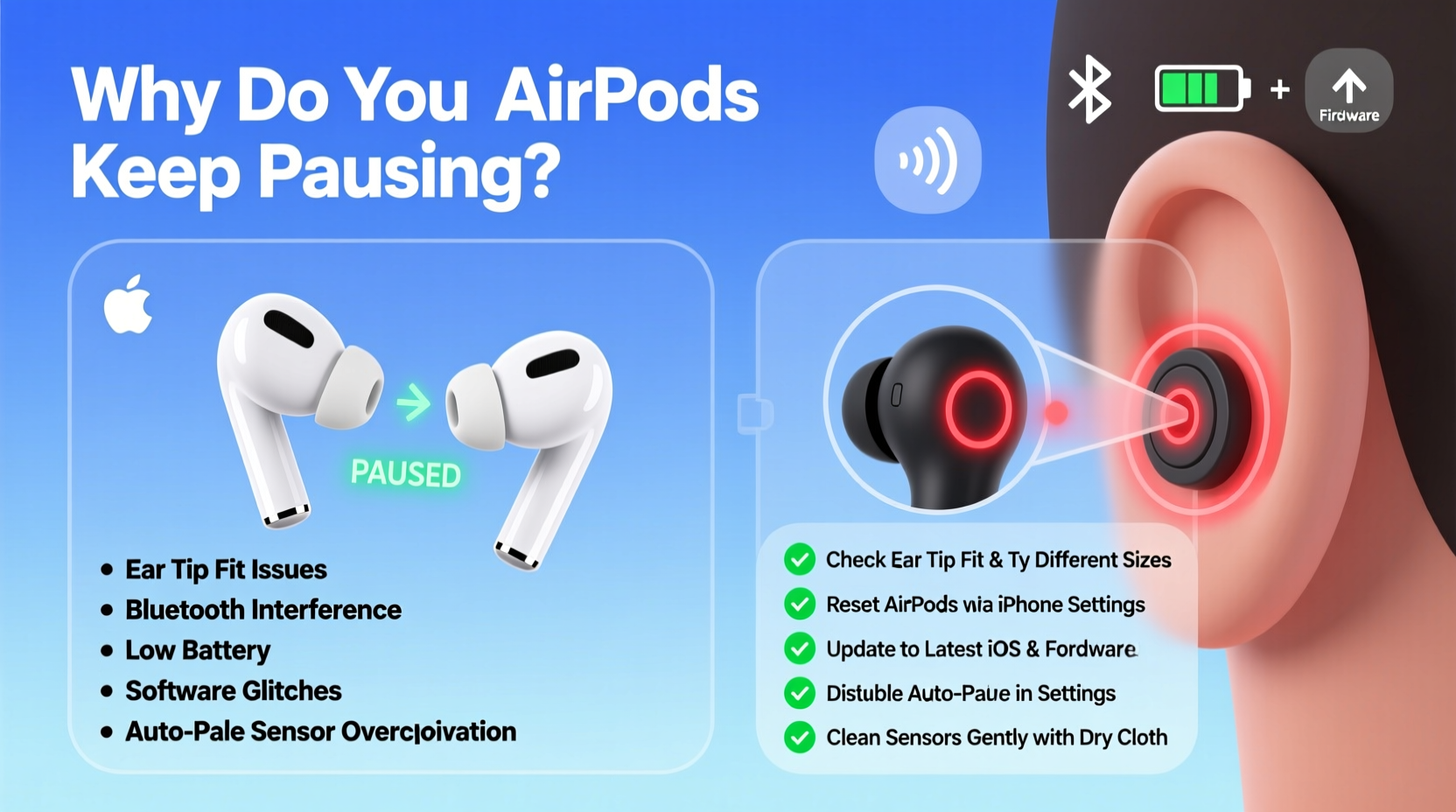
AirPods are designed to respond to a range of inputs: double-taps, force sensors (on newer models), automatic ear detection, and even voice commands via Siri. But when these features malfunction or misinterpret signals, they can trigger unintended pauses. Here are the most frequent culprits:
- Automatic Ear Detection Glitches: If the infrared sensors inside the earbuds misread whether they’re in your ears, playback stops prematurely.
- Faulty Tap or Force Sensors: Over-sensitive controls may register accidental touches, especially during movement.
- Bluetooth Interference: Wi-Fi congestion, physical obstructions, or nearby electronic devices can disrupt signal stability.
- Software Bugs: Outdated firmware or iOS glitches often cause erratic behavior.
- Dirty or Blocked Sensors: Earwax, dust, or moisture buildup on the stem or speaker mesh can interfere with sensor accuracy.
- Misconfigured Settings: Accidental Siri activation or incorrect double-tap actions can interrupt audio.
Before jumping to conclusions about hardware failure, consider that most pausing issues are correctable through configuration or maintenance.
Step-by-Step Guide to Diagnose and Fix the Issue
Follow this structured approach to systematically eliminate possible causes. Many users resolve the problem within minutes using just one or two of these steps.
- Check Sensor Cleanliness
Use a soft, dry microfiber cloth to gently wipe the stem and inner surfaces of each AirPod. Pay attention to the small openings near the speaker mesh where infrared sensors are located. A cotton swab (lightly used) can help remove stubborn debris—but never insert anything deep into the earbud. - Reset Automatic Ear Detection
Go to Settings > Bluetooth on your iPhone, tap the “i” icon next to your AirPods, and toggle off Automatic Ear Detection. Wait 10 seconds, then turn it back on. This forces a recalibration of the proximity sensors. - Update Firmware and iOS
Ensure both your iPhone and AirPods are running the latest software. To check AirPods firmware:- Connect your AirPods to your iPhone.
- Go to Settings > General > About > AirPods.
- Check the firmware version. Latest versions start with 6.0 or higher.
- Re-pair Your AirPods
Sometimes, a fresh Bluetooth handshake resolves communication errors:- Remove your AirPods from the Bluetooth list in Settings.
- Open the AirPods case, press and hold the setup button on the back for 15 seconds until the status light flashes amber, then white.
- Reconnect them as if setting up new devices.
- Test with Another Device
Pair your AirPods with a different phone or tablet. If the pausing persists, the issue is likely with the AirPods themselves. If not, the problem lies with your primary device’s settings or OS.
Do’s and Don’ts When Troubleshooting AirPods Pausing
| Action | Do | Don't |
|---|---|---|
| Cleaning | Use a dry, soft cloth or slightly dampened swab | Submerge in water or use alcohol-based cleaners |
| Software Updates | Keep iOS and AirPods firmware current | Ignore update notifications for extended periods |
| Sensor Testing | Test with music playing while inserting/removing earbuds | Assume sensors work correctly without verification |
| Storage | Store in a cool, dry place with the case closed | Leave in hot cars or humid environments |
| Physical Handling | Handle by the body, not the stem | Tap repeatedly out of frustration |
Real-World Example: How Sarah Fixed Her AirPods in 12 Minutes
Sarah, a graphic designer from Portland, relied on her AirPods Pro for background music during long design sessions. She began noticing frequent pauses—sometimes every few minutes. At first, she assumed battery degradation was the cause. After reading online forums, she tried cleaning the earbuds with a dry toothbrush, which removed visible lint from the mesh grilles. Still, the issue persisted.
Next, she disabled Automatic Ear Detection. The pauses stopped immediately. Confused, she re-enabled the feature and tested again. This time, she noticed that when she leaned forward at her desk, the audio paused—her hair was briefly covering the sensors. By adjusting her hairstyle and ensuring the sensors stayed unobstructed, she restored reliable performance without disabling any features.
Sarah’s case highlights how subtle environmental factors—like hair, sweat, or head position—can trick sensors into thinking the earbuds have been removed.
“Many AirPods issues aren’t hardware failures but misinterpretations of user context. The sensors are highly sensitive—they detect heat, motion, and contact. Even slight changes in fit or environment can trigger false signals.” — Dr. Alan Zhou, Audio Hardware Engineer at SoundLogic Labs
Advanced Fixes for Persistent Problems
If basic troubleshooting doesn’t resolve the issue, consider these deeper interventions:
Disable Double-Tap/Force Sensor Actions
On older AirPods, double-tapping can be set to play/pause. On AirPods Pro, a squeeze (force sensor) does the same. If these are too sensitive, disable them entirely:
- Go to Settings > Bluetooth.
- Tap the “i” next to your AirPods.
- Set Double-Tap (or Press) on Left/Right to “Off”.
You’ll lose gesture control, but gain reliability. Use your device’s screen or Siri instead to manage playback.
Reset Network Settings
Corrupted Bluetooth profiles can cause erratic behavior. Resetting network settings clears all paired devices and refreshes wireless configurations:
- Navigate to Settings > General > Transfer or Reset iPhone > Reset > Reset Network Settings.
- Confirm the reset. Note: You’ll need to re-enter Wi-Fi passwords.
- Re-pair your AirPods afterward.
This step has resolved intermittent pausing for many users experiencing no other device issues.
Check for Physical Damage
If one AirPod consistently causes pauses, inspect it closely. Look for cracks, discoloration, or signs of liquid exposure (such as red indicators inside the stem). Even minor internal damage can affect sensor calibration. In such cases, contact Apple Support or visit an Apple Store for diagnostics.
Preventive Checklist to Avoid Future Issues
To ensure your AirPods remain pause-free long-term, follow this monthly maintenance checklist:
- ✅ Clean earbuds and case with a dry cloth
- ✅ Verify firmware is up to date
- ✅ Test Automatic Ear Detection functionality
- ✅ Re-pair AirPods if connection feels sluggish
- ✅ Avoid extreme temperatures (e.g., leaving in a car)
- ✅ Keep iOS updated
- ✅ Check for hair or clothing interference during use
Performing these simple checks takes less than five minutes but can prevent hours of audio disruption.
Frequently Asked Questions
Why do my AirPods pause when I’m clearly still wearing them?
This usually happens due to faulty sensor readings. Sweat, hair, glasses arms, or earwax blocking the infrared sensors can make the AirPods think they’ve been removed. Cleaning the sensors and recalibrating Automatic Ear Detection often resolves this.
Can third-party apps cause my AirPods to pause?
Yes. Some music or podcast apps have background processes that conflict with Bluetooth audio management. Try switching apps to test. Also, ensure apps are updated—older versions may not handle audio session handoffs properly.
Will resetting my AirPods delete my settings?
A factory reset removes pairing history and custom controls (like double-tap functions), but once reconnected, your iPhone will restore most preferences automatically. It won’t affect iCloud data or device backups.
Final Thoughts: Regain Control of Your Listening Experience
Random pausing shouldn’t define your relationship with your AirPods. These devices are engineered for convenience, not constant interruption. Most issues stem from small, fixable problems—dirty sensors, outdated firmware, or overly sensitive controls—that don’t require replacement or costly repairs.
The key is systematic troubleshooting: clean first, update second, reconfigure third. By understanding how AirPods interpret their environment, you can anticipate and prevent glitches before they disrupt your day. And when in doubt, a simple re-pair or network reset can work wonders.
Don’t accept frustration as the norm. With a little care and attention, your AirPods can deliver the seamless, uninterrupted audio experience they were designed for.




 浙公网安备
33010002000092号
浙公网安备
33010002000092号 浙B2-20120091-4
Comments
No comments yet. Why don't you start the discussion?