
Bluetooth headphones offer freedom from wires and seamless integration with modern devices—but nothing undermines that convenience like sudden disconnections. Whether you're in the middle of a critical call, enjoying music on a commute, or working out at the gym, an unexpected drop in connection can be frustrating. The causes are often rooted in environmental interference, device limitations, or overlooked settings. Understanding the technical and practical reasons behind these disruptions is the first step toward reliable performance.
The issue isn’t always with the headphones themselves. Bluetooth technology operates on the 2.4 GHz frequency band, which is shared by countless household devices, including Wi-Fi routers, microwaves, and even baby monitors. This congestion creates interference that weakens or breaks the signal between your headphones and source device. Additionally, physical obstructions, outdated firmware, or poor battery health can all contribute to instability.
This guide explores the most common causes of Bluetooth disconnection and provides actionable solutions. From optimizing your environment to updating firmware and managing device compatibility, you’ll find strategies to ensure consistent, high-quality audio without interruption.
Understanding Bluetooth Signal Interference
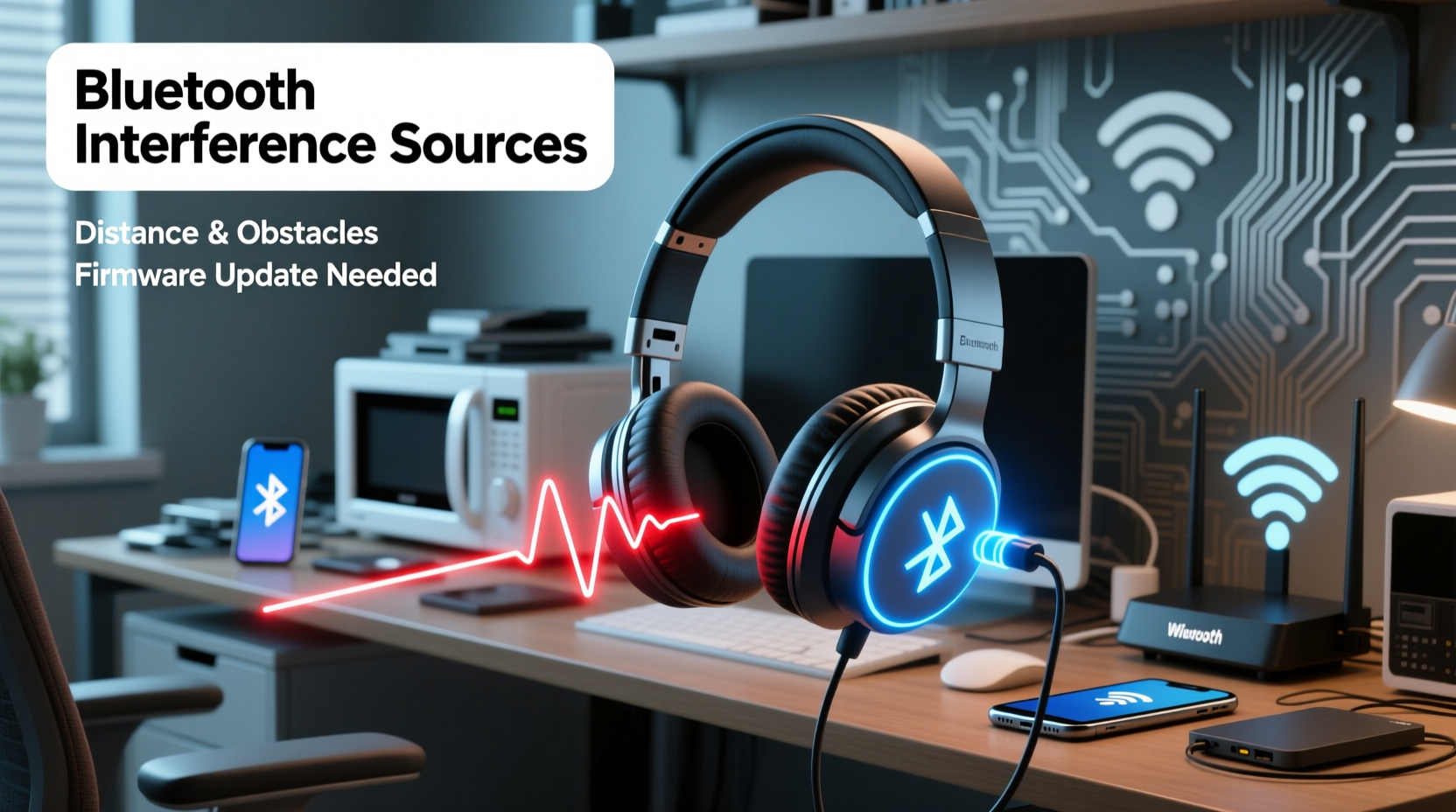
Bluetooth uses short-range radio waves to transmit data wirelessly over distances typically up to 30 feet (10 meters) in ideal conditions. However, real-world environments rarely meet \"ideal.\" Walls, furniture, metal objects, and even human bodies absorb or reflect radio signals, reducing effective range and stability.
The 2.4 GHz band is particularly vulnerable because it's unlicensed and widely used. Devices operating on this frequency don't require regulatory approval, leading to widespread adoption—and competition for bandwidth. When multiple devices transmit simultaneously, they interfere with one another, causing latency, audio stuttering, or complete disconnection.
Interference sources include:
- Wi-Fi routers: Especially dual-band models that use both 2.4 GHz and 5 GHz bands.
- Microwave ovens: Emit strong bursts of energy in the 2.4 GHz range during operation.
- Cordless phones and baby monitors: Older models often operate on overlapping frequencies.
- USB 3.0 ports and hubs: Can emit electromagnetic noise that disrupts nearby wireless signals.
- Other Bluetooth devices: Multiple active connections increase channel congestion.
To reduce interference, consider switching your Wi-Fi router to the 5 GHz band if your smartphone or laptop supports it. This frees up space on the 2.4 GHz spectrum for Bluetooth devices. Alternatively, relocating your router away from your usual listening area can significantly improve headphone performance.
Device Compatibility and Connection Limits
Not all Bluetooth versions are created equal. Devices using older standards like Bluetooth 4.0 may struggle with stability compared to newer iterations such as Bluetooth 5.0, 5.2, or 5.3. These upgrades bring improvements in range, speed, power efficiency, and coexistence with other wireless technologies.
A mismatch between your headphone’s Bluetooth version and your source device can lead to inconsistent behavior. For example, if your headphones support Bluetooth 5.2 but your phone only goes up to 4.1, you won’t benefit from advanced features like LE Audio or improved multipoint connectivity.
“Bluetooth 5 introduced significant gains in signal robustness and broadcast capacity—upgrading both ends of the connection makes a measurable difference.” — Dr. Lin Zhao, Wireless Communications Researcher, IEEE Senior Member
Another common issue is exceeding the number of paired devices. Many Bluetooth headphones allow pairing with multiple devices (e.g., phone, tablet, laptop), but maintaining too many active pairings can confuse the connection logic. Some models automatically switch between devices, while others may fail to reconnect properly after switching.
How to Check Your Bluetooth Version
- On Android: Go to Settings > About Phone > Software Information > Bluetooth Version.
- On iOS: Bluetooth version details aren’t directly visible, but model-specific specs are listed on Apple’s official website.
- On Windows: Press Win + R, type “devmgmt.msc,” expand “Bluetooth,” right-click your adapter, and check properties.
- For headphones: Consult the user manual or manufacturer’s website for technical specifications.
| Bluetooth Version | Max Range (Indoor) | Data Rate | Key Improvements |
|---|---|---|---|
| 4.0 | ~30 ft (10 m) | 1 Mbps | Low Energy (LE) support |
| 4.2 | ~30 ft (10 m) | 1 Mbps | Better security, faster transfer |
| 5.0 | ~130 ft (40 m) | 2 Mbps | 4x range, 2x speed, 8x broadcasting capacity |
| 5.2 | ~130 ft (40 m) | 2 Mbps+ | LE Audio, improved codec support |
Step-by-Step Guide to Fix Persistent Disconnections
If your Bluetooth headphones keep cutting out, follow this systematic troubleshooting process before assuming hardware failure.
Step 1: Forget and Re-Pair the Device
Corrupted pairing data is a frequent culprit. Remove the headphones from your device’s Bluetooth list and re-pair them.
- Go to Bluetooth settings on your phone, tablet, or computer.
- Find your headphones in the list of paired devices.
- Select “Forget” or “Remove Device.”
- Turn off your headphones, then turn them back on in pairing mode.
- Reconnect through the Bluetooth menu.
Step 2: Update Firmware
Manufacturers release firmware updates to fix bugs, improve battery management, and enhance connection stability. Use the official app (such as Sony Headphones Connect, Bose Connect, or Jabra Sound+ ) to check for available updates.
Step 3: Reduce Wireless Congestion
Temporarily disable other Bluetooth devices nearby. Turn off smart speakers, fitness trackers, or secondary headphones not in use. If possible, connect your primary devices via Ethernet or 5 GHz Wi-Fi to reduce 2.4 GHz traffic.
Step 4: Test with Another Source Device
Determine whether the problem lies with your headphones or your playback device. Try connecting the headphones to a different phone, tablet, or laptop. If the issue persists across devices, the headphones may need servicing.
Step 5: Reset Headphones to Factory Settings
Most models have a reset procedure involving a long press on specific buttons (often power + volume down). Refer to the user manual for exact steps. This clears all pairing history and restores default settings.
Step 6: Monitor Battery Health
Low or degrading battery performance can cause erratic behavior. Charge your headphones fully and observe if disconnections occur more frequently near depletion. Consider replacing batteries if the unit is over two years old and shows signs of rapid drain.
Mini Case Study: Solving Office Disruptions
Jamie, a remote software developer in Austin, experienced daily dropouts while using AirPods Pro during Zoom meetings. The disconnections happened mostly around lunchtime and lasted several seconds at a time. After ruling out software glitches and trying multiple resets, Jamie noticed the pattern coincided with microwave usage in the office kitchen—just 15 feet away.
Using a Wi-Fi analyzer app, Jamie discovered severe 2.4 GHz interference peaking during those hours. Switching the office router to prioritize 5 GHz and relocating the microwave farther from the work desk eliminated the issue entirely. Jamie also began using wired earbuds during lunch meetings as a backup.
This case illustrates how seemingly unrelated appliances can impact wireless audio quality—and how targeted diagnostics can yield simple, cost-free fixes.
Preventive Maintenance Checklist
Use this checklist weekly or monthly to maintain optimal Bluetooth headphone performance:
- ✅ Clean ear cushions and charging contacts with a dry microfiber cloth
- ✅ Check for firmware updates once per month
- ✅ Remove unused paired devices from memory
- ✅ Store headphones in a protective case when not in use
- ✅ Avoid exposing headphones to extreme temperatures or moisture
- ✅ Limit continuous usage to under 8 hours to prevent overheating
- ✅ Power off when not in use for extended periods
Frequently Asked Questions
Why do my Bluetooth headphones disconnect when I move my head?
This usually happens due to signal obstruction. Your body absorbs radio waves, especially when turning away from the source device. Keeping your phone in a pocket behind you or placing it on the opposite side of a table increases the chance of dropout. Try keeping the device in front of you or closer to chest level for better line-of-sight transmission.
Can walls or doors cause Bluetooth disconnections?
Yes. Drywall attenuates signals slightly, but concrete, brick, metal framing, or insulated doors can block Bluetooth almost completely. Even glass with metallic coatings (common in energy-efficient windows) reflects radio waves. For best results, stay within the same room and avoid thick barriers between devices.
Do phone cases affect Bluetooth performance?
Rarely, but some heavy-duty or metal-reinforced cases can interfere with antennas. If you suspect this is the issue, test connectivity with and without the case. Most modern smartphones place antennas along the edges or top, so bulky cases that cover these areas may degrade signal strength marginally.
Expert Recommendations for Long-Term Reliability
While occasional hiccups are normal, persistent disconnections indicate a solvable problem. Experts emphasize proactive habits over reactive fixes.
“Users often overlook environmental factors. A small change in device placement or network configuration can restore flawless performance without any hardware replacement.” — Maria Tran, Senior Audio Engineer at ConsumerTech Labs
Consider investing in headphones with multipoint connectivity if you regularly switch between devices. This feature allows stable linking to two sources simultaneously (e.g., phone and laptop), reducing the need to constantly re-pair and minimizing handshake failures.
Additionally, favor codecs like aptX, AAC, or LDAC if your devices support them. These provide higher-quality streaming with better error correction than standard SBC, contributing to smoother playback under mild interference.
Conclusion: Take Control of Your Listening Experience
Bluetooth headphone disconnections are rarely random—they’re symptoms of identifiable issues ranging from signal interference to outdated software. By understanding the underlying causes and applying targeted solutions, you can enjoy uninterrupted audio whether you're working, traveling, or relaxing at home.
Start with the basics: re-pair your devices, update firmware, and declutter your wireless environment. Then refine your setup by optimizing placement, upgrading outdated gear, and practicing regular maintenance. Small adjustments often deliver dramatic improvements.




 浙公网安备
33010002000092号
浙公网安备
33010002000092号 浙B2-20120091-4
Comments
No comments yet. Why don't you start the discussion?