
If you've recently upgraded to Windows 11 or paired new Bluetooth headphones with your system, you may have noticed a frustrating issue: the audio sounds dull, distant, or muffled. This isn't just in your head—many users report degraded sound quality when using wireless headphones on Windows 11. The good news is that this problem is often fixable without replacing hardware. The root causes typically involve outdated drivers, incorrect audio settings, or Bluetooth codec mismatches. Understanding how Windows 11 handles Bluetooth audio and knowing where to adjust settings can make a dramatic difference in clarity and volume.
Understanding the Root Causes of Muffled Audio
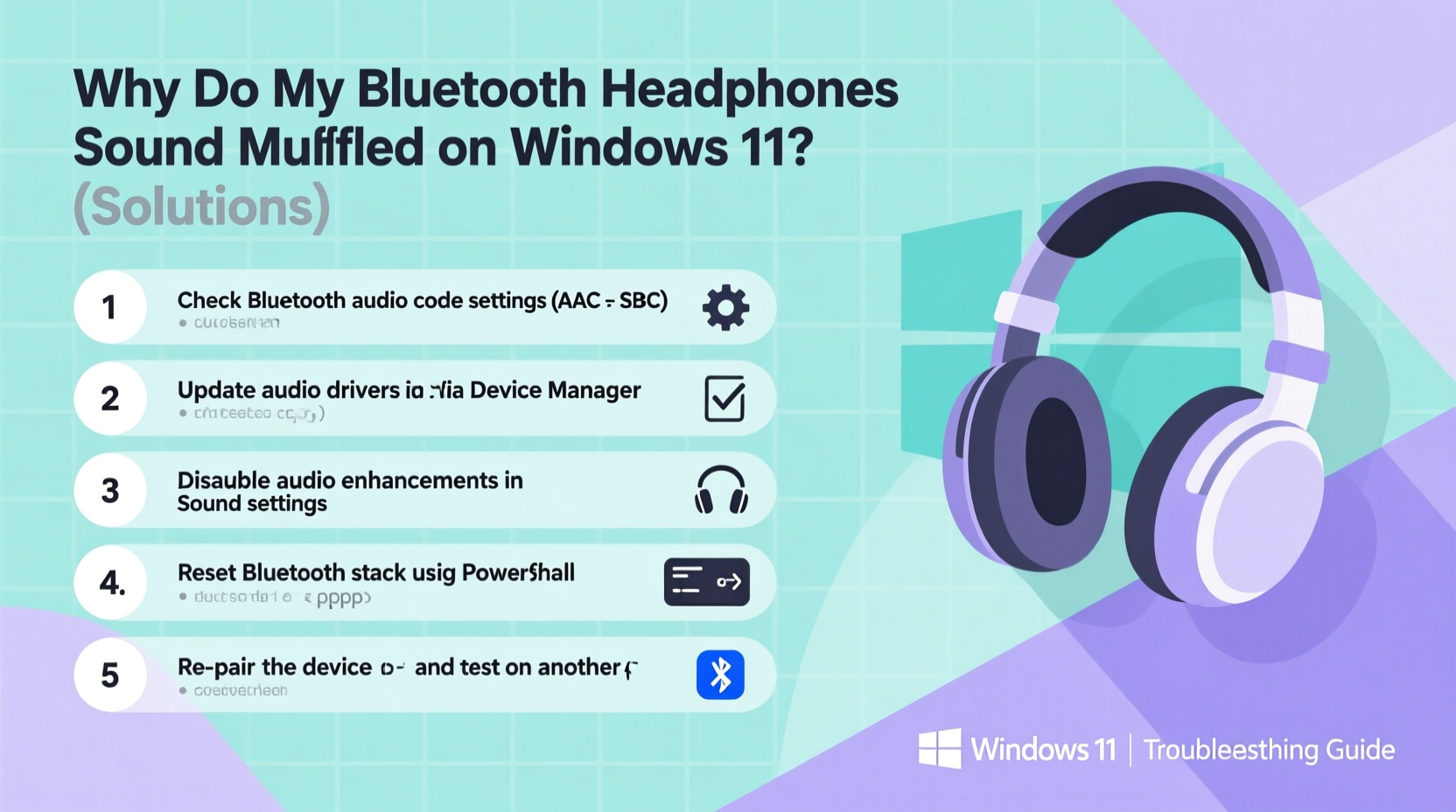
Bluetooth audio performance on Windows depends on several interdependent components: the operating system’s audio stack, the Bluetooth driver, the connected device’s capabilities, and the selected audio codec. When any one of these elements underperforms, the result is often poor sound quality.
One common culprit is the use of the SBC (Subband Coding) codec, which is the default Bluetooth audio codec on most Windows systems. While universally compatible, SBC is highly compressed and lacks the bandwidth for high-fidelity audio, leading to flat, lifeless, or muffled output. If your headphones support higher-quality codecs like AAC or aptX but Windows defaults to SBC, you’re not getting the full potential of your hardware.
Additionally, Windows 11 sometimes applies audio enhancements by default—even when they degrade rather than improve sound. Features like bass boost, virtual surround, or loudness equalization can distort frequencies and mask detail, especially in mid and high ranges. Misconfigured sample rates or bit depths can also contribute to a lossy signal path.
“Many audio issues on modern Windows systems stem from mismatched expectations between hardware capability and software configuration.” — Dr. Alan Reyes, Audio Systems Engineer at Signal Integrity Labs
Step-by-Step Fixes to Restore Clear Audio
Before assuming your headphones are defective or incompatible, follow this structured troubleshooting sequence. Most muffled audio problems can be resolved through careful adjustments within Windows settings and device management.
- Disconnect and Re-pair Your Headphones
Sometimes, a clean pairing resets corrupted connection profiles. Go to Settings > Bluetooth & devices, remove your headphones, restart both devices, then pair again. - Switch to High-Quality Audio Mode
After pairing, go to Settings > System > Sound > More sound settings > Playback tab. Right-click your Bluetooth headphones and select “Properties.” Under the “Advanced” tab, uncheck “Enable audio enhancements” and set the default format to the highest available sample rate (e.g., 48000 Hz, 16-bit or 24-bit if supported). - Disable Audio Enhancements
Even if enhancements are meant to improve sound, they often over-process the signal. In the same Properties window, go to the “Enhancements” tab and check “Disable all enhancements.” This alone resolves muffled tones for many users. - Update or Reinstall Bluetooth Drivers
Outdated or corrupted drivers can prevent proper codec negotiation. Press Win + X, select Device Manager, expand “Bluetooth,” right-click your adapter (e.g., Intel Wireless Bluetooth), and choose “Update driver.” Alternatively, download the latest version directly from your PC manufacturer’s support site. - Check for Windows Updates
Microsoft regularly releases patches for audio subsystems. Navigate to Settings > Windows Update and install any pending updates, including optional driver updates.
Optimizing Bluetooth Codecs for Better Sound
The audio codec acts as a translator between your PC and headphones. Choosing the right one is critical for fidelity. Windows 11 supports multiple Bluetooth audio codecs, but only if both your computer's Bluetooth adapter and your headphones support them.
| Codec | Quality Level | Supported By Windows? | Notes |
|---|---|---|---|
| SBC | Low | Yes (default) | Basic compression; often causes muffled sound |
| AAC | Moderate | Limited (depends on hardware) | Better than SBC; good for Apple-like devices |
| aptX | High | Only with compatible hardware/driver | Near-CD quality; requires Qualcomm chipsets |
| aptX HD | Very High | Rare on Windows PCs | 24-bit audio; minimal compression |
| LDAC | Excellent | No native support (requires third-party tools) | Sony’s high-res codec; up to 990 kbps |
To determine which codec your system is using, open Device Manager, go to Bluetooth > your device > Properties > Details tab. Select “Service GUIDs” from the dropdown. If you see {0000110D-0000-1000-8000-00805F9B34FB}, A2DP is active. However, this doesn’t reveal the specific codec. For that, third-party tools like Bluetooth Audio Receiver from the Microsoft Store or utilities like 1Bluetooth Tweaker may help identify and force preferred codecs—if your hardware allows it.
For optimal results, ensure your PC has a modern Bluetooth 5.0+ adapter with aptX support. Many laptops still ship with older Bluetooth 4.x chips that only handle SBC efficiently. Consider using a USB Bluetooth 5.2 dongle with aptX support for a significant upgrade in audio clarity.
Real-World Example: Fixing Muffled Sound on Sony WH-1000XM4
Mark, a remote worker in Chicago, purchased a pair of Sony WH-1000XM4 headphones for conference calls and music. Despite their premium reputation, he found voices sounded boxy and music lacked definition when connected to his Windows 11 laptop. Frustrated, he almost returned them—until he discovered the real issue.
After checking playback settings, he noticed his system was running audio at 44.1 kHz, 16-bit with “Bass Boost” enabled. He disabled enhancements and changed the format to 48 kHz, 24-bit. Still, the sound remained flat. Upon inspecting Device Manager, he realized his laptop used an older Intel Bluetooth 4.2 adapter that didn’t support aptX. He purchased a $25 USB-C Bluetooth 5.3 adapter with aptX HD support. Once paired, his headphones automatically switched to a higher bitrate stream. The improvement was immediate: voices became crisp, and instrument separation in music improved dramatically.
This case illustrates that even high-end headphones can underperform if the source system limits audio quality. Hardware compatibility matters as much as software settings.
Essential Checklist: How to Fix Muffled Bluetooth Audio
Use this checklist to systematically eliminate causes of muffled sound:
- ✅ Disconnect and re-pair Bluetooth headphones
- ✅ Disable all audio enhancements in playback properties
- ✅ Set default format to highest available (e.g., 48000 Hz, 24-bit)
- ✅ Update Bluetooth and audio drivers via Device Manager or manufacturer site
- ✅ Install latest Windows updates, including optional driver updates
- ✅ Verify headphone firmware is up to date (via manufacturer app)
- ✅ Test with another device (phone/tablet) to isolate the issue
- ✅ Use a high-quality USB Bluetooth adapter if built-in hardware is outdated
- ✅ Avoid using Bluetooth while downloading large files or heavy Wi-Fi usage
Frequently Asked Questions
Why do my Bluetooth headphones sound fine on my phone but muffled on Windows 11?
This usually happens because smartphones often support advanced codecs like AAC or LDAC natively, while Windows defaults to SBC unless hardware and drivers allow otherwise. Additionally, mobile OSes apply less aggressive audio processing, preserving clarity.
Can I enable aptX or LDAC on Windows 11 without extra hardware?
aptX support depends on your Bluetooth adapter and driver. Some newer laptops with Qualcomm chipsets support it out of the box. LDAC is not natively supported by Windows, but third-party tools like AutoA2DP or LCHEAudio can enable it—though stability varies.
Does Windows 11 compress Bluetooth audio more than Windows 10?
Not inherently, but changes in the audio stack and default enhancement settings in Windows 11 can lead to perceived compression. The underlying issue is often driver maturity and codec support, not the OS itself.
Final Recommendations and Long-Term Prevention
Muffled audio on Bluetooth headphones in Windows 11 is rarely a permanent flaw—it’s usually a configuration gap. By methodically addressing drivers, codecs, and system settings, most users can achieve studio-grade clarity without spending hundreds on new gear.
For long-term performance, treat your audio setup like any other critical system component. Regularly check for driver updates, avoid generic USB Bluetooth adapters, and keep firmware current on your headphones. If you rely on audio for work or entertainment, investing in a dedicated Bluetooth 5.2+ adapter with aptX support pays dividends in sound quality and reliability.
Also, consider bypassing Bluetooth entirely for critical listening. Using a wired connection via USB-C or 3.5mm (with a quality DAC) eliminates compression and latency issues. Bluetooth is convenient, but it’s a compromise between mobility and fidelity.
“The key to great wireless audio isn’t just the headphones—it’s ensuring the entire chain, from OS to codec, supports high-resolution transmission.” — Lena Park, Senior Acoustic Designer at AudioEdge Innovations
Take Action Today for Crisper Sound Tomorrow
Your Bluetooth headphones are capable of far better sound than you might think. Don’t accept muffled audio as inevitable. With the right settings, updated drivers, and possibly a small hardware upgrade, you can unlock their full potential. Start with the troubleshooting steps outlined here, use the checklist to stay organized, and don’t hesitate to experiment with codecs and external adapters. Clarity is within reach—take control of your listening experience now.




 浙公网安备
33010002000092号
浙公网安备
33010002000092号 浙B2-20120091-4
Comments
No comments yet. Why don't you start the discussion?