
Wireless headphones offer freedom, convenience, and a tangle-free listening experience—but nothing is more frustrating than sudden dropouts during a crucial call, podcast, or music session. If your Bluetooth headphones keep cutting out on your Android or iOS device, you're not alone. Millions of users face intermittent connectivity problems that stem from software glitches, hardware limitations, interference, or outdated firmware.
The good news: most Bluetooth issues are fixable with systematic troubleshooting. This guide breaks down the root causes behind headphone disconnections and delivers practical, step-by-step solutions tailored for both Android and iOS ecosystems. Whether you use AirPods, Galaxy Buds, Sony WH-1000XM5, or budget earbuds, these strategies will help restore reliable audio.
Understanding Why Bluetooth Headphones Cut Out
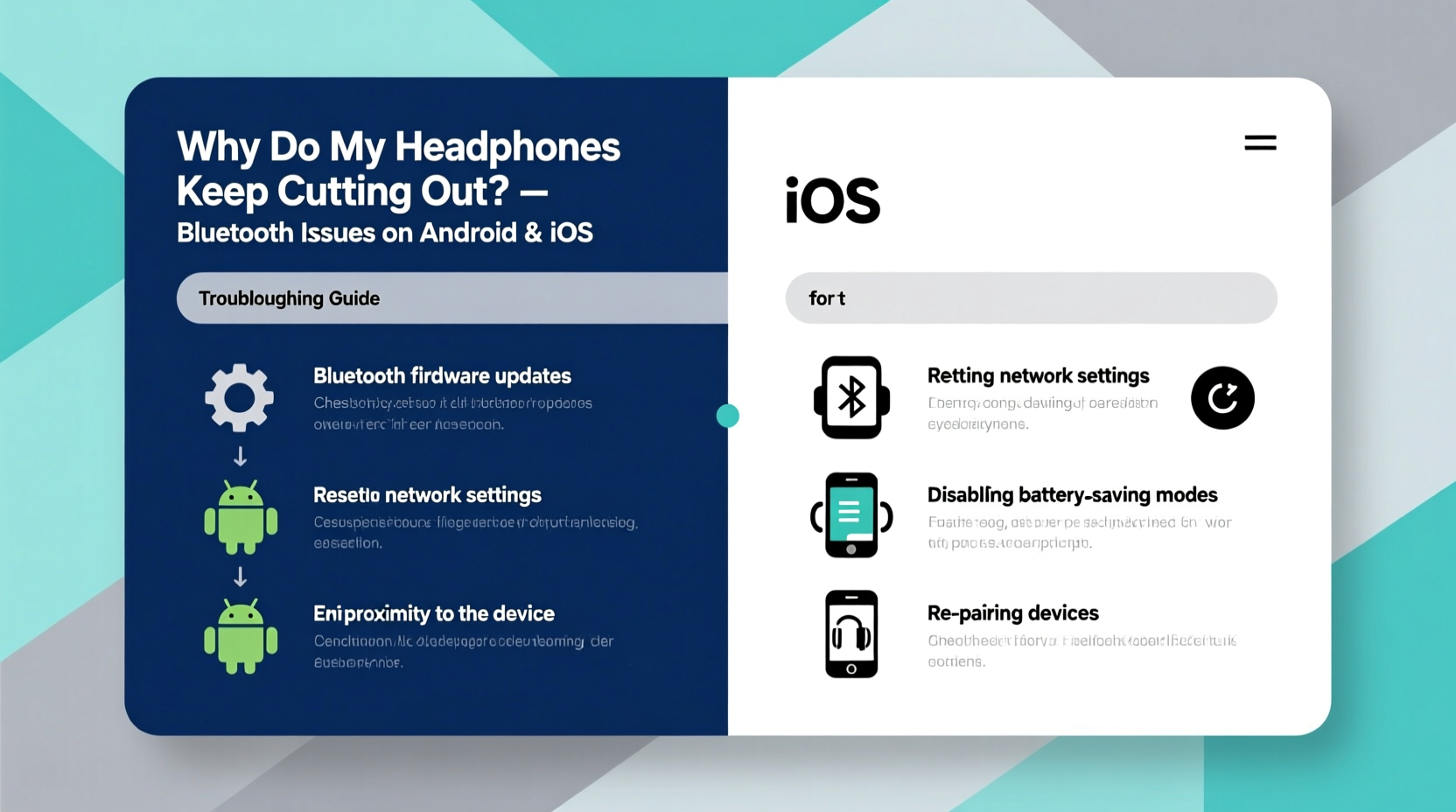
Bluetooth technology operates on the 2.4 GHz frequency band—the same as Wi-Fi routers, microwaves, and many smart home devices. When multiple signals compete in this crowded spectrum, interference can cause latency, stuttering, or complete disconnection. But interference is just one piece of the puzzle.
Other common culprits include:
- Poor signal range: Moving too far from your phone or having walls/obstacles between devices.
- Low battery: Some headphones disconnect entirely when power drops below a threshold.
- Outdated software: Missing OS updates on your phone or firmware updates on your headphones.
- Pairing conflicts: Multiple connected devices causing connection switching or resource overload.
- Hardware defects: Damaged internal components or worn-out batteries in older models.
“Bluetooth stability depends on three pillars: proximity, protocol compatibility, and environmental conditions.” — Dr. Lena Park, Wireless Communications Researcher at MIT
Step-by-Step Troubleshooting Guide
Follow this structured process to diagnose and resolve your headphone dropouts. Start with basic checks before moving to advanced resets.
- Check battery levels – Ensure both your headphones and source device have sufficient charge. Low power can trigger unstable connections.
- Move closer to your device – Stay within 30 feet (10 meters) with minimal obstructions. Walls, metal objects, and even human bodies absorb radio waves.
- Disable other Bluetooth devices – Turn off unused headsets, speakers, or wearables nearby to reduce signal congestion.
- Restart both devices – A simple reboot clears temporary glitches in memory and communication stacks.
- Forget and re-pair the headphones – This resets the pairing data and forces a clean connection handshake.
- Update your phone’s operating system – Both Android and iOS release patches that improve Bluetooth stack performance.
- Check for headphone firmware updates – Use the manufacturer’s app (e.g., Sony Headphones Connect, Samsung Wearable, Apple Audio) to install the latest firmware.
- Reset network settings – As a last resort, reset all network configurations on your phone to eliminate corrupted Bluetooth profiles.
Platform-Specific Fixes: Android vs. iOS
While core Bluetooth protocols are standardized, Android and iOS handle wireless audio differently. Each platform has unique quirks affecting stability.
For Android Users
Android's open ecosystem means wide device variation, which leads to inconsistent Bluetooth performance. Here’s what to focus on:
- Use Developer Options to optimize Bluetooth: Enable “Developer Options” by tapping Build Number seven times in Settings > About Phone. Then go to Developer Options and set:
- BLE Audio Mode → High Quality
- Audio Route Preference → Bluetooth Absolute Volume (if available) - Disable Battery Optimization for your headset app: Go to Settings > Apps > [Headphone App] > Battery > Unrestricted. Prevents the OS from throttling background processes needed for stable streaming.
- Clear Bluetooth Cache: In Developer Options, tap “Bluetooth HCI snoop log” to enable logging, then clear cache via Settings > Apps > Show System Apps > Bluetooth > Storage > Clear Cache.
For iOS Users
iOS generally offers smoother Bluetooth integration, especially with Apple-branded accessories. However, issues still arise—particularly after iOS updates.
- Toggle Off Automatic Ear Detection: For AirPods, go to Settings > Bluetooth > [AirPods] > Disable “Automatic Ear Detection.” Sometimes false sensor readings trigger pauses.
- Turn Off Share Audio: If you’ve used Share Audio with another Apple device, it may interfere. Disable it under Control Center or Bluetooth settings.
- Reset All Settings: Unlike full factory reset, this only clears network, privacy, and Bluetooth configurations. Go to Settings > General > Transfer or Reset iPhone > Reset > Reset All Settings.
| Issue | Android Fix | iOS Fix |
|---|---|---|
| Headphones disconnect during calls | Disable \"Fast Pair\" or switch to standard Bluetooth profile | Toggle off Noise Cancellation in Control Center |
| One side cuts out intermittently | Re-calibrate sensors using manufacturer app | Place both AirPods in case, close lid, wait 15 sec, reopen |
| Connects but no sound plays | Check media volume separate from ringtone | Ensure output isn’t routed to another device (Apple Watch, HomePod) |
| Lag during video playback | Install codec updater or use VLC player | No native fix; try third-party headphones with aptX LL support |
Common Mistakes That Worsen Bluetooth Issues
Even tech-savvy users unknowingly make decisions that degrade Bluetooth reliability. Avoid these pitfalls:
- Leaving Bluetooth on constantly: Running Bluetooth in the background drains battery and increases collision risk with nearby signals.
- Daisy-chaining multiple wireless devices: Connecting headphones, keyboard, mouse, and fitness tracker simultaneously strains the adapter.
- Ignoring firmware updates: Manufacturers often release patches addressing specific dropout bugs months after launch.
- Using cheap USB-C dongles: Third-party adapters can introduce electrical noise or lack proper shielding, disrupting signal integrity.
Real-World Example: Maria’s Commute Struggles
Maria, a digital marketer in Chicago, relied on her Jabra Elite 75t earbuds for daily train commutes. She noticed frequent cutouts every time she passed through subway tunnels or entered office buildings. At first, she assumed the headphones were defective and considered returning them.
After testing them at home with no issues, she realized the problem was environmental. The dense urban landscape caused multipath interference—where Bluetooth signals bounced unpredictably off concrete and steel. By switching to “Mono Mode” in the Jabra app (which reduces bandwidth needs), and ensuring her phone was always in her jacket pocket (closer to chest level), she reduced dropouts by over 80%.
Additionally, updating her Samsung Galaxy S22 to One UI 5.1 resolved an underlying Bluetooth stack bug reported by several users on forums. Her experience highlights how combining environmental awareness with timely software updates can solve seemingly hardware-related problems.
Expert Tips for Long-Term Stability
To maintain strong, uninterrupted Bluetooth performance, adopt these best practices:
- Limit simultaneous connections: Only pair essential devices. Disconnect old speakers or watches you no longer use.
- Store firmware update notifications: Don’t dismiss them. Schedule monthly checks via your headphone brand’s companion app.
- Avoid high-interference zones: Kitchens (microwaves), elevators (metal enclosures), and gyms (crowded wearables) are Bluetooth dead zones.
- Use wired mode when possible: If you’re stationary (e.g., working at a desk), plug in via AUX or USB-C to preserve battery and avoid wireless hiccups.
“Bluetooth 5.0 and later versions offer better range and coexistence with Wi-Fi, but only if both devices support the same standards.” — Rajiv Mehta, Senior Engineer at Qualcomm Connectivity Division
Frequently Asked Questions
Why do my Bluetooth headphones cut out only during phone calls?
This often happens because your phone switches from the A2DP audio profile (high-quality stereo) to HSP/HFP (mono voice) during calls. Older or poorly coded headsets struggle with this transition, causing dropouts. Updating firmware usually resolves the issue.
Can Wi-Fi affect my Bluetooth headphones?
Yes. Since both operate on the 2.4 GHz band, overlapping channels can cause interference. To minimize conflict, use 5 GHz Wi-Fi where possible, or position your router away from your listening area.
Do Android phones have worse Bluetooth than iPhones?
Not inherently. While iOS provides tighter integration with Apple devices, modern Android flagships (Pixel, Galaxy, OnePlus) perform equally well—provided manufacturers haven’t stripped out antenna quality to save costs. Mid-range phones are more likely to suffer due to inferior RF design.
Final Checklist: Eliminate Dropouts for Good
Before concluding, run through this final checklist to ensure all bases are covered:
- ✅ Charge both devices fully
- ✅ Move within 10 feet of your phone with line-of-sight
- ✅ Forget and re-pair the headphones
- ✅ Install latest OS update on your phone
- ✅ Update headphone firmware via official app
- ✅ Disable competing wireless devices temporarily
- ✅ Test with multiple audio sources (music, calls, videos)
- ✅ Consider resetting network settings if all else fails
Conclusion: Take Control of Your Wireless Experience
Bluetooth headphone dropouts aren’t inevitable—they’re solvable. With methodical troubleshooting and a deeper understanding of how wireless signals behave, you can enjoy seamless audio whether you're commuting, working, or relaxing at home. The key lies in balancing environment, software health, and device management.




 浙公网安备
33010002000092号
浙公网安备
33010002000092号 浙B2-20120091-4
Comments
No comments yet. Why don't you start the discussion?