
Bluetooth headphones offer freedom from wires and seamless integration with modern devices—but nothing disrupts the experience like sudden disconnections. Whether you're in the middle of a workout, an important call, or simply trying to enjoy music, frequent dropouts can be frustrating. The good news is that most Bluetooth disconnection issues stem from predictable causes, many of which are simple to fix. Understanding the root problems—from signal interference to outdated firmware—can help you restore stability and get back to uninterrupted listening.
Understanding Bluetooth Connectivity Basics
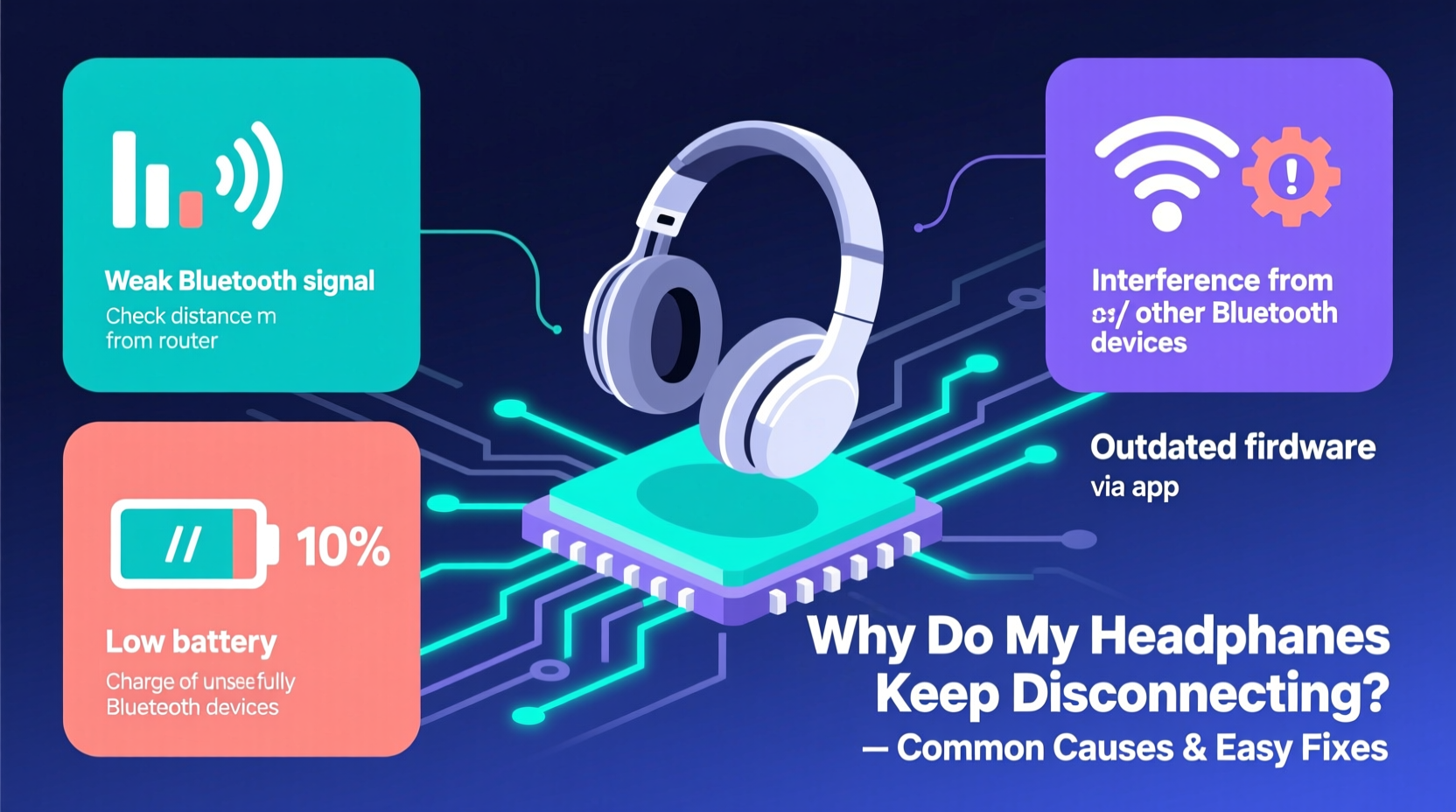
Before troubleshooting, it's essential to understand how Bluetooth works. Bluetooth uses short-range radio waves (typically in the 2.4 GHz frequency band) to transmit data between devices. Unlike Wi-Fi, which prioritizes speed and range, Bluetooth focuses on low-power, short-distance communication. This makes it ideal for audio streaming but also more susceptible to interference and signal loss.
Most modern Bluetooth headphones use versions 4.0 to 5.3, with each iteration improving range, bandwidth, and connection stability. However, even the latest standards can struggle under certain conditions. Factors like physical obstructions, competing wireless signals, and device compatibility play significant roles in maintaining a consistent link.
The typical effective range for Bluetooth 5.0 and above is around 30–40 feet (10–12 meters) in open space. But real-world environments—especially homes and offices filled with walls, appliances, and other electronics—often reduce this significantly.
“Bluetooth is designed for convenience, not robustness. Its strength lies in energy efficiency, not signal resilience.” — Dr. Alan Reeves, Wireless Communication Engineer
Common Causes of Bluetooth Headphone Disconnections
Headphones disconnecting unexpectedly are rarely due to one single issue. Instead, they’re often the result of overlapping factors. Identifying the most likely culprit requires checking both your headphones and your environment.
1. Signal Interference
The 2.4 GHz band used by Bluetooth is shared with many household devices, including Wi-Fi routers, microwaves, cordless phones, and baby monitors. When multiple devices operate on the same frequency, they can interfere with each other, causing packet loss and audio dropouts.
2. Physical Obstacles and Distance
Walls, furniture, and even your own body can block or weaken Bluetooth signals. Moving too far from your source device—or placing it behind metal objects—can break the connection. Even turning your head while wearing over-ear headphones may temporarily disrupt the signal if your phone is behind you.
3. Low Battery or Power-Saving Modes
When battery levels drop below a certain threshold, some headphones automatically enter power-saving mode or shut down non-critical functions, including the Bluetooth radio. Similarly, your smartphone may disable Bluetooth to conserve power during low-battery scenarios.
4. Outdated Firmware or Software
Manufacturers regularly release firmware updates to improve stability, fix bugs, and enhance compatibility. If your headphones or connected device hasn’t been updated in months, outdated software could be causing erratic behavior.
5. Pairing Conflicts and Multi-Device Issues
Many modern headphones support pairing with multiple devices simultaneously. While convenient, this feature can lead to conflicts—especially when switching between devices or when a previously paired device reconnects automatically in the background.
6. Hardware Limitations or Defects
In rare cases, the issue may lie with faulty hardware. Damaged internal antennas, worn-out batteries, or manufacturing defects can all contribute to unstable connections. These problems are usually persistent and unaffected by troubleshooting steps.
Troubleshooting Checklist: Step-by-Step Fixes
Before replacing your headphones, try these practical solutions in order. Most users resolve their disconnection issues within minutes using one or more of these methods.
- Restart both devices: Turn off your headphones and source device (phone, tablet, laptop), wait 10 seconds, then power them back on.
- Re-pair the devices: Remove the headphones from your device’s Bluetooth settings, then pair them again as if new.
- Check battery levels: Ensure both your headphones and source device have at least 20% charge.
- Reduce distance and remove obstacles: Stay within 10 feet of your device and avoid walls or large metal objects between them.
- Disable other wireless devices temporarily: Turn off nearby Bluetooth speakers, keyboards, or Wi-Fi routers to test for interference.
- Update firmware: Use the manufacturer’s app (e.g., Sony Headphones Connect, Bose Connect, Jabra Sound+) to check for updates.
- Forget all paired devices on the headphones: Reset the pairing list to prevent background reconnections.
- Reset the headphones to factory settings: Refer to the user manual for reset instructions—usually involves holding buttons for 10+ seconds.
- Test with another device: Pair your headphones with a different phone or tablet to isolate whether the issue is with the headphones or the original device.
- Disable Bluetooth auto-suspend on Android: Go to Developer Options > Bluetooth Audio Codec and disable \"Disable A2DP hardware offload\" if available.
Do’s and Don’ts: Best Practices for Stable Connections
| Do’s | Don’ts |
|---|---|
| Keep your headphones and device within line of sight when possible. | Don’t place your phone in a back pocket while walking away from your headphones. |
| Charge your headphones regularly—even if not fully drained. | Don’t let battery drop below 10% frequently; it stresses the battery management system. |
| Use manufacturer apps to update firmware monthly. | Don’t ignore firmware update notifications—they often include critical fixes. |
| Limit active Bluetooth devices nearby. | Don’t run microwave ovens near your listening area while using Bluetooth audio. |
| Store headphones in a dry, temperature-controlled space. | Don’t leave them in hot cars or humid bathrooms—moisture damages internal circuits. |
Real-World Example: Fixing Dropouts During Workouts
Consider Mark, a fitness enthusiast who uses wireless earbuds during his daily runs. He noticed frequent disconnections whenever he turned his head or passed near streetlights. At first, he assumed the earbuds were defective. After testing them at home without issues, he realized the problem only occurred outdoors.
Upon investigation, he discovered that his phone was in his backpack, creating a barrier between the device and his ears. Additionally, urban environments are saturated with Wi-Fi and cellular signals, increasing interference. By moving his phone to a waistband holder and switching to a Bluetooth codec known for better stability (AAC instead of SBC), Mark eliminated nearly all dropouts. He also updated the earbuds’ firmware through the companion app, which included improvements for outdoor signal handling.
This case illustrates how environmental factors and small adjustments can make a big difference—even when the hardware itself is functioning correctly.
Advanced Tips for Persistent Issues
If basic troubleshooting fails, consider these deeper interventions:
- Change the Bluetooth codec: Some Android devices allow you to select codecs via Developer Options. AAC and aptX generally offer better stability than default SBC, especially in noisy environments.
- Limit background apps: On smartphones, apps running in the background can consume system resources and interrupt Bluetooth services. Close unused apps or restart the phone periodically.
- Use a Bluetooth transmitter: For desktop or TV setups, a dedicated USB Bluetooth adapter with external antenna can provide stronger, more reliable connections than built-in laptop radios.
- Check for electromagnetic interference (EMI): Fluorescent lights, power strips, and poorly shielded electronics emit EMI that disrupts Bluetooth. Keep headphones away from such sources.
Frequently Asked Questions
Why do my Bluetooth headphones disconnect when I move my head?
This typically happens when your phone is behind you or in a bag, and your body blocks the signal. The human body absorbs radio waves, especially at 2.4 GHz. Try keeping your device in a front pocket or on a table in front of you.
Can Wi-Fi affect my Bluetooth headphones?
Yes. Since both use the 2.4 GHz band, strong Wi-Fi signals—especially from older routers—can interfere with Bluetooth. Dual-band routers allow you to shift devices to 5 GHz, freeing up space for Bluetooth.
How often should I update my headphone firmware?
Check for updates every 1–2 months, or whenever you notice performance issues. Manufacturers often release silent patches that improve battery life, audio quality, and connection reliability.
Final Recommendations and Long-Term Stability
Maintaining a stable Bluetooth connection isn’t just about fixing problems—it’s about preventing them. Treat your wireless headphones like any precision electronic device: store them properly, keep software updated, and be mindful of your environment. Simple habits, like charging after each use and avoiding extreme temperatures, extend both battery life and wireless performance.
Also, recognize that not all Bluetooth implementations are equal. Higher-end models often include advanced features like multipoint connectivity with intelligent switching, better antennas, and support for high-efficiency codecs. If you rely heavily on wireless audio for work or fitness, investing in a reputable brand with strong firmware support pays off in long-term reliability.
“Connection stability is 30% hardware, 70% environment and usage patterns. Optimize both for best results.” — Lena Torres, Senior Audio Systems Analyst
Conclusion: Take Control of Your Listening Experience
Bluetooth headphone disconnections don’t have to be a daily annoyance. With a clear understanding of the underlying causes and a systematic approach to troubleshooting, you can achieve consistent, dropout-free performance. Most issues are resolvable with simple fixes—re-pairing devices, updating firmware, or adjusting your surroundings. The key is persistence and attention to detail.




 浙公网安备
33010002000092号
浙公网安备
33010002000092号 浙B2-20120091-4
Comments
No comments yet. Why don't you start the discussion?