
Bluetooth headphones offer freedom from wires and convenience during calls, but frequent disconnections can turn a seamless experience into frustration. Whether you're on an important work call, catching up with family, or attending a virtual meeting, sudden audio dropouts disrupt communication and reduce productivity. The causes range from simple signal interference to deeper firmware issues. Understanding the root causes and applying targeted fixes can restore reliability and confidence in your wireless audio setup.
Common Causes of Bluetooth Disconnection During Calls
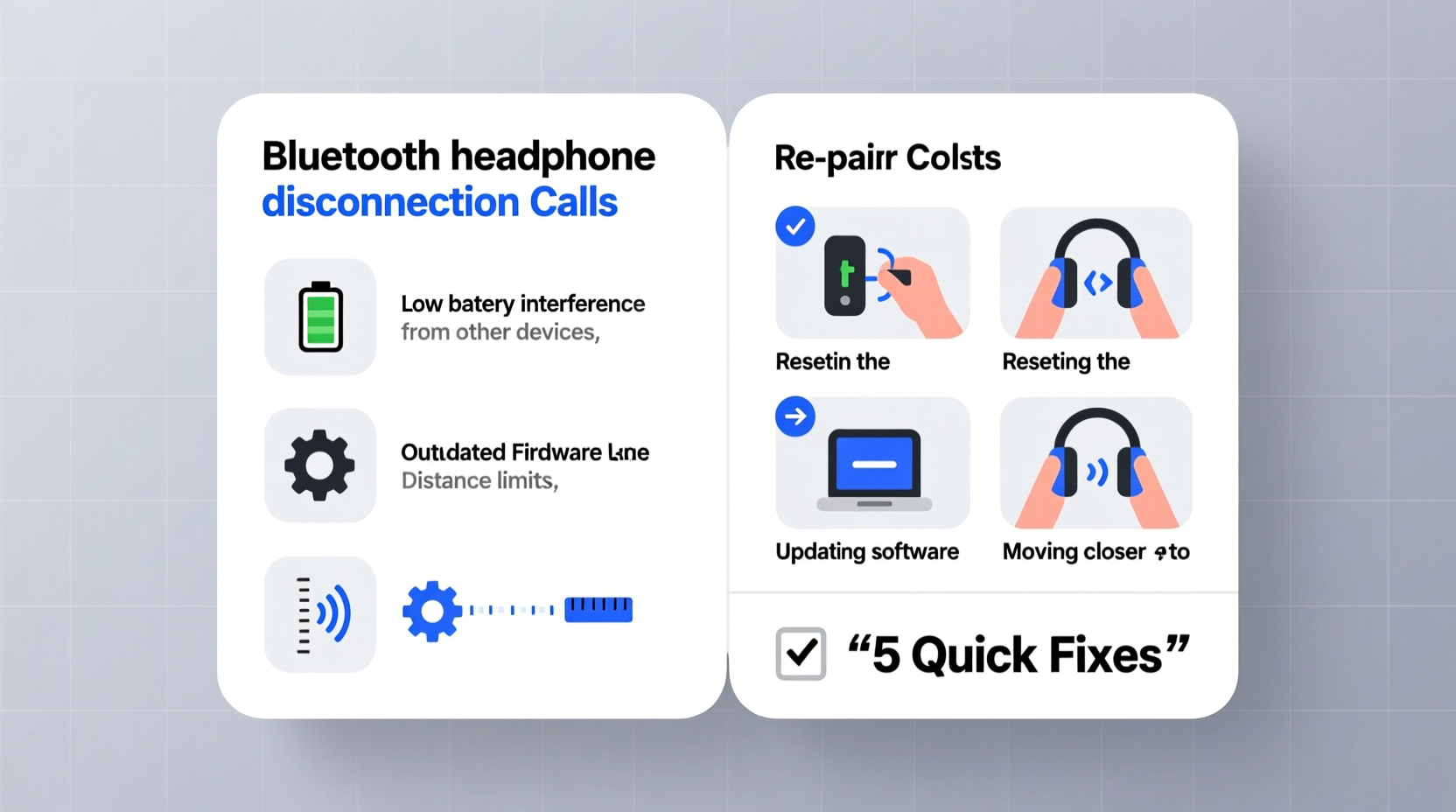
Unlike music playback, voice calls place different demands on Bluetooth connections. They often rely on the Hands-Free Profile (HFP), which has lower bandwidth and is more prone to instability than the Advanced Audio Distribution Profile (A2DP) used for media streaming. This technical limitation explains why some users experience disconnections only during calls, not while listening to music.
Several factors contribute to unstable Bluetooth performance:
- Signal Interference: Wi-Fi routers, microwaves, and other wireless devices operate on the 2.4 GHz band, competing with Bluetooth signals.
- Distance and Obstructions: Walls, furniture, or moving too far from your phone weaken the connection.
- Battery Levels: Low battery in either the headphones or the connected device can degrade Bluetooth stability.
- Firmware Bugs: Outdated or buggy firmware on headphones or smartphones may cause unexpected disconnects.
- Multipoint Connection Conflicts: If your headphones are paired to multiple devices, switching between them can interrupt active calls.
- Phone Software Glitches: Background apps, OS bugs, or aggressive power-saving modes may interfere with Bluetooth services.
Step-by-Step Troubleshooting Guide
Follow this systematic approach to diagnose and resolve disconnection issues during calls. Each step builds on the previous one, isolating variables to identify the root cause.
- Restart Both Devices: Power cycle your headphones and smartphone. This clears cached Bluetooth data and resets the radio module.
- Check Battery Levels: Ensure both devices have at least 30% charge. Low power can trigger automatic power-saving behaviors that disrupt connectivity.
- Remove Physical Obstacles: Stay within 10 feet of your phone with minimal walls or metal objects between you.
- Forget and Re-Pair the Device: Go to your phone’s Bluetooth settings, select your headphones, and choose “Forget.” Then re-pair them as if new.
- Disable Other Wireless Devices Temporarily: Turn off nearby Wi-Fi routers or Bluetooth speakers to test for interference.
- Update Firmware: Check the manufacturer’s app (e.g., Sony Headphones Connect, Jabra Sound+). Install any pending updates.
- Test with Another Phone: Pair your headphones with a different smartphone to determine if the issue lies with your original device.
- Disable Dual Audio or Multipoint: If your headphones support connecting to two devices simultaneously, disable this feature during calls.
- Turn Off Battery Optimization for Bluetooth: On Android, go to Settings > Apps > Bluetooth > Battery > set to “Unrestricted.”
- Reset Network Settings: As a last resort, reset network settings on your phone. This clears all saved Wi-Fi, Bluetooth, and cellular configurations.
Do’s and Don’ts When Using Bluetooth Headphones for Calls
| Do’s | Don’ts |
|---|---|
| Keep your phone and headphones updated with the latest firmware and OS versions. | Don’t use your headphones near strong electromagnetic sources like microwaves or cordless phones. |
| Store your headphones in their case when not in use to preserve battery and prevent accidental connections. | Don’t leave Bluetooth enabled on multiple devices if you’re not actively using them. |
| Use wired mode occasionally to give the Bluetooth circuitry a break and extend longevity. | Don’t ignore recurring disconnection warnings—address them before they worsen. |
| Perform regular cleaning of earpads and charging contacts to maintain optimal function. | Don’t attempt DIY firmware flashing unless guided by official support channels. |
Real-World Case Study: Resolving Persistent Call Drops
Samantha, a remote project manager based in Denver, relied on her AirPods Pro for daily Zoom and Teams meetings. She noticed that her headphones would disconnect every 5–7 minutes during calls, though music playback remained stable. Frustrated, she tested several fixes without success until she followed a structured troubleshooting process.
She first ruled out distance and interference by sitting next to her laptop with no other devices nearby. The problem persisted. Next, she forgot the device and re-paired it—no improvement. Then, she checked for firmware updates via the Apple Support app and discovered a pending update for her AirPods. After installing it, the disconnections stopped completely.
The root cause was outdated firmware affecting HFP stability. Apple had released a patch months earlier addressing call quality issues on certain iOS versions. Samantha hadn’t received the update automatically due to a paused background download setting. Her experience highlights how easily critical updates can be overlooked—and how impactful they can be.
“Over 60% of Bluetooth audio issues reported to our support team are resolved with a firmware update or proper re-pairing sequence.” — Raj Mehta, Senior Support Engineer at Jabra
Advanced Fixes for Persistent Problems
If basic troubleshooting fails, consider these advanced solutions:
Clear Bluetooth Cache (Android)
On Android devices, corrupted Bluetooth cache can prevent stable connections. To clear it:
- Go to Settings > Apps.
- Tap the three-dot menu and select “Show system apps.”
- Find “Bluetooth” and “Bluetooth MIDI Service.”
- For each, tap Storage > Clear Cache.
- Restart your phone and re-pair your headphones.
Check for App-Specific Issues
Some calling apps (like WhatsApp, Skype, or Microsoft Teams) manage audio routing differently. Test your headphones across multiple apps. If disconnections occur only in one app, check its audio settings or reinstall it.
Disable Absolute Volume (Android – Developer Option)
This hidden setting can cause conflicts between phone and headphone volume control, leading to dropouts. To disable:
- Enable Developer Options by tapping Build Number 7 times in Settings > About Phone.
- Go to Developer Options.
- Find “Disable Absolute Volume” and toggle it ON.
- Re-pair your headphones.
Use a Bluetooth Signal Booster (Rare Cases)
In large homes or offices with thick walls, a USB Bluetooth adapter with extended range can improve connectivity between your computer and headphones. These adapters act as dedicated transmitters with stronger signal output.
Troubleshooting Checklist
Use this checklist to methodically address disconnection issues:
- ✅ Restart both headphones and connected device
- ✅ Ensure both devices are sufficiently charged
- ✅ Move closer to your phone/laptop (within 3 meters)
- ✅ Remove obstructions like walls or metal objects
- ✅ Forget and re-pair the Bluetooth device
- ✅ Check for firmware updates via manufacturer app
- ✅ Disable multipoint or dual audio features
- ✅ Test with another phone or tablet
- ✅ Update your phone’s operating system
- ✅ Reset network settings as a final step
Frequently Asked Questions
Why do my Bluetooth headphones disconnect only during calls but not while playing music?
This happens because voice calls use the Hands-Free Profile (HFP), which prioritizes microphone input and operates at lower bitrates. HFP is less stable than A2DP (used for music). Firmware bugs or interference can affect HFP more severely, causing dropouts during calls even when music plays fine.
Can a phone case cause Bluetooth disconnection?
Yes, metallic or heavily shielded cases can block Bluetooth signals. While rare, some thick magnetic wallets or rugged cases with metal plates may interfere with antenna performance. Try removing the case temporarily to test signal strength.
How do I know if my headphones need a firmware update?
Most manufacturers provide companion apps (e.g., Bose Connect, Samsung Wearable, Sony Headphones Connect) that notify you of available updates. Alternatively, visit the official support page for your model and search for firmware release notes. Regularly checking these sources ensures you stay current.
Conclusion: Regain Reliable Call Performance
Bluetooth headphone disconnections during calls are frustrating but rarely unsolvable. By understanding the underlying causes—from firmware gaps to environmental interference—you gain control over your audio experience. Most issues stem from correctable software or configuration problems, not hardware failure. Applying consistent maintenance, staying updated, and following a logical troubleshooting path can eliminate interruptions and restore confidence in your wireless setup.




 浙公网安备
33010002000092号
浙公网安备
33010002000092号 浙B2-20120091-4
Comments
No comments yet. Why don't you start the discussion?