
Android Auto is designed to make driving safer and more convenient by bringing essential smartphone functions to your car’s display. However, one of the most frustrating issues users report is frequent headphone disconnections when using Bluetooth audio through Android Auto. Whether you're listening to music, taking calls, or relying on navigation prompts, sudden dropouts disrupt the experience and can even compromise safety. The root causes vary—from software conflicts and outdated firmware to hardware limitations and signal interference. Understanding these factors is the first step toward a permanent solution.
Understanding the Connection Chain
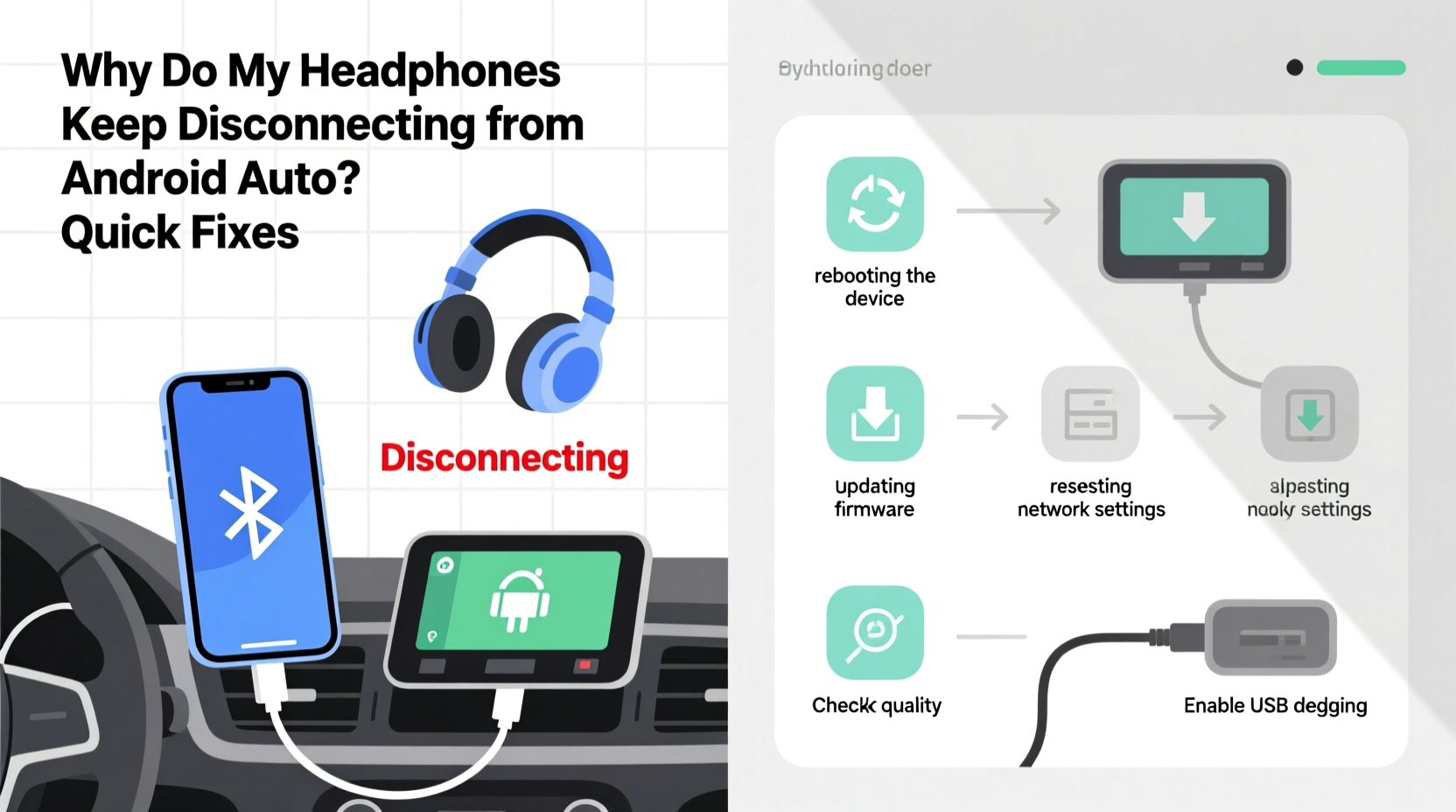
Before troubleshooting, it's important to understand how the components interact. When you use headphones with Android Auto, the data path involves multiple layers: your phone, the car’s infotainment system (or USB connection), Bluetooth protocols, and the headphones themselves. Android Auto doesn’t directly control your headphones; instead, it relies on the phone’s operating system to manage Bluetooth audio routing. Any instability in this chain—especially between the phone and the wireless device—can cause disconnections.
Bluetooth operates on the 2.4 GHz frequency band, which is also used by Wi-Fi, microwaves, and other electronic devices. In a car environment, multiple signals compete for bandwidth, increasing the chance of interference. Additionally, some vehicles route audio through their own Bluetooth stack rather than the phone’s, adding complexity. If your headphones drop out during GPS voice guidance or when switching apps, it may indicate a priority conflict in audio channel management.
“Bluetooth stability in automotive environments depends heavily on signal clarity, protocol compatibility, and power management settings.” — Dr. Rajiv Mehta, Wireless Communication Engineer
Common Causes of Headphone Disconnection
Headphone dropouts aren’t always due to faulty hardware. Often, they stem from overlooked software or environmental factors. Below are the most frequent culprits:
- Bluetooth interference: Other wireless devices, especially in urban areas or parking garages, can overwhelm the 2.4 GHz band.
- Outdated firmware: Both your phone and headphones may require updates to maintain compatibility with newer Android Auto versions.
- Power-saving modes: Aggressive battery optimization can suspend background processes, including Bluetooth services.
- Poor pairing history: If your headphones were previously paired with other devices, residual connections can interfere.
- Distance and obstacles: Even slight movement—like placing your phone in a pocket or bag—can weaken the signal if the car interior has reflective surfaces that scatter waves.
- Audio focus conflicts: Android Auto may temporarily mute or switch audio outputs when navigation or calls interrupt media playback.
Step-by-Step Fixes to Stabilize Your Connection
Solving disconnection issues requires systematic troubleshooting. Follow this sequence to isolate and resolve the problem efficiently.
- Forget and re-pair the headphones: Go to your phone’s Bluetooth settings, select your headphones, and tap “Forget.” Then restart both devices and pair them again. This clears any corrupted pairing data.
- Disable Battery Optimization for Android Auto: Navigate to Settings > Apps > Android Auto > Battery. Select “Unrestricted” to prevent the OS from shutting down the app in the background.
- Turn off Bluetooth on other nearby devices: Smartwatches, tablets, or laptops in close proximity might try to reconnect automatically, causing interruptions.
- Update all software: Ensure your phone’s OS, Android Auto app, and headphone firmware are up to date. Check the manufacturer’s app (e.g., Sony Headphones Connect, Samsung Wearable) for firmware updates.
- Use a high-quality USB cable (for wired Android Auto): A poor USB connection can destabilize the entire Android Auto session, indirectly affecting Bluetooth audio routing.
- Test with a different pair of headphones: This helps determine whether the issue is device-specific or systemic.
- Reset network settings: As a last resort, go to Settings > System > Reset > Reset Wi-Fi, Mobile & Bluetooth. Note: This erases all saved networks and pairings.
Do’s and Don’ts: Managing Bluetooth Stability
| Do’s | Don’ts |
|---|---|
| Keep your phone within 3 feet of the headphones when possible | Place your phone in a metal-lined compartment (e.g., center console) |
| Use headphones certified for low-latency Bluetooth (aptX, AAC, or LDAC) | Rely on generic, unbranded Bluetooth earbuds with unknown chipsets |
| Enable 'Media Audio' and 'Call Audio' in Bluetooth device settings | Disable one audio profile assuming it improves performance |
| Restart Android Auto after major phone updates | Ignore recurring disconnection warnings—they often precede complete failure |
| Store headphones in pairing mode briefly before entering the car | Leave headphones in a hot car; extreme heat damages batteries and circuits |
Real-World Example: Commuter Struggles with Daily Dropouts
Consider Mark, a daily commuter in Chicago who uses Android Auto with his Google Pixel 7 and Jabra Elite 85t earbuds. Every morning, his headphones would disconnect during turn-by-turn navigation, forcing him to manually reconnect while stopped at lights—a dangerous distraction. After weeks of frustration, he discovered that his smartwatch, mounted on the opposite side of the dashboard, was attempting to reconnect every time the phone switched audio profiles. By turning off Bluetooth on the watch during drives, Mark eliminated the conflict entirely. He also updated the Jabra firmware via the companion app, which improved signal resilience in tunnels and congested areas. His fix wasn’t technical wizardry—it was attention to ecosystem interactions.
Advanced Tips for Persistent Issues
If basic steps fail, consider deeper configurations that influence connectivity behavior.
Some Android phones include developer options that allow fine-tuning of Bluetooth behavior. Enabling Developer Mode (via tapping Build Number in Settings seven times) unlocks access to settings like “Bluetooth AVRCP Version” or “Disable Offload Audio Effects.” While not user-friendly, adjusting these can sometimes stabilize problematic connections.
Another underused strategy is managing audio focus programmatically. Apps like Tasker or Automate can detect when Android Auto launches and lock Bluetooth audio to a specific device, preventing automatic switching. For example, a simple automation rule can disable Bluetooth on all non-essential devices when the car’s Wi-Fi network is detected.
Checklist: Quick Fixes to Apply Today
- ✅ Forget and re-pair your headphones
- ✅ Disable battery optimization for Android Auto and Bluetooth services
- ✅ Update phone OS, Android Auto app, and headphone firmware
- ✅ Test with a different set of Bluetooth headphones
- ✅ Keep your phone visible and unobstructed during use
- ✅ Turn off Bluetooth on nearby devices (watches, tablets)
- ✅ Use a high-quality USB cable for wired Android Auto
- ✅ Reset network settings if all else fails
Frequently Asked Questions
Why do my headphones disconnect only when using Android Auto, but work fine otherwise?
Android Auto modifies how audio is routed and prioritized. It may temporarily yield audio focus to navigation or phone calls, which can trigger a disconnection if the headphones don’t handle audio focus changes gracefully. Some older or budget headphones lack robust support for dynamic audio switching.
Can using a wired connection solve the problem?
Yes. Using a wired headset or connecting via a USB-C to 3.5mm adapter eliminates Bluetooth instability entirely. However, note that Android Auto itself may still rely on a USB connection to the car, so ensure your cable supports both data and audio if using a single port.
Does Android Auto support dual Bluetooth connections (e.g., headphones and car speakers)?
Limited support exists, but it’s highly dependent on the phone model and car system. Most Android devices can maintain two connections, but audio can only play through one output at a time. Switching between them may cause brief dropouts. For reliability, stick to a single active audio device.
Conclusion: Take Control of Your Driving Experience
Headphone disconnections during Android Auto sessions are more than an annoyance—they undermine the very purpose of hands-free convenience. The good news is that most issues are fixable with methodical troubleshooting. From updating firmware to managing audio focus and minimizing interference, the solutions are within reach. Technology should serve you, not frustrate you. By applying these proven fixes, you reclaim control over your commute, ensuring smooth, uninterrupted audio whether you’re navigating city streets or cruising on the highway.




 浙公网安备
33010002000092号
浙公网安备
33010002000092号 浙B2-20120091-4
Comments
No comments yet. Why don't you start the discussion?