
If you've ever been immersed in music, a podcast, or an important call only to be abruptly cut off by your headphones disconnecting, you're not alone. Random disconnections between Bluetooth headphones and Android phones are one of the most common — and frustrating — tech issues users face today. While Bluetooth technology has improved significantly over the years, it's still prone to interference, software bugs, and compatibility quirks. Understanding the root causes behind these interruptions is the first step toward achieving a seamless audio experience.
The issue isn't always with your headphones or your phone individually—it's often a combination of environmental factors, outdated firmware, background processes, or misconfigured settings. This guide dives deep into the technical and practical reasons for unstable Bluetooth connections and offers actionable solutions that go beyond basic troubleshooting.
Common Causes of Bluetooth Disconnection on Android
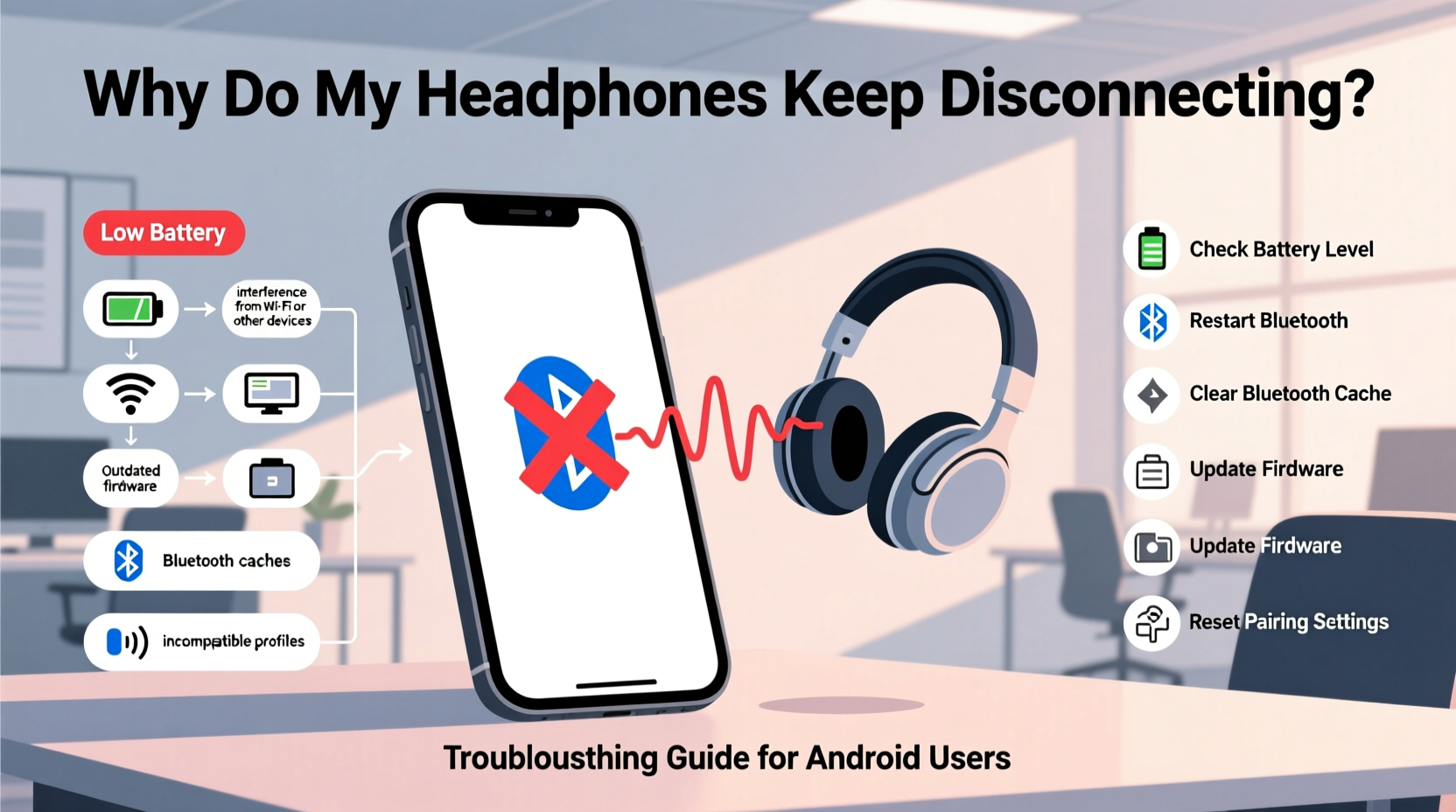
Before jumping into fixes, it's essential to understand what might be causing the instability. The problem rarely stems from a single source. Instead, multiple overlapping factors can contribute to erratic behavior in wireless audio devices.
- Signal Interference: Wi-Fi routers, microwaves, cordless phones, and even other Bluetooth devices can interfere with the 2.4 GHz frequency band used by Bluetooth.
- Outdated Software: Both your Android OS and your headphones’ firmware need regular updates. Outdated versions may contain bugs affecting connectivity.
- Distance and Obstacles: Bluetooth has a limited range (typically 30 feet). Walls, furniture, or even your body can weaken the signal.
- Battery Optimization Settings: Android aggressively manages background apps and services to save power, sometimes killing Bluetooth-related processes prematurely.
- Pairing Conflicts: If your headphones are paired with multiple devices simultaneously, automatic switching can cause unexpected dropouts.
- Hardware Limitations: Older Bluetooth versions (like 4.0 or earlier) lack the stability and efficiency of newer standards such as Bluetooth 5.0+.
Step-by-Step Guide to Fix Persistent Disconnections
Solving random disconnections requires a methodical approach. Jumping straight to factory resets without diagnosing the issue can waste time. Follow this sequence to isolate and resolve the problem efficiently.
- Re-pair Your Headphones: Go to Settings > Bluetooth, tap the gear icon next to your headphones, and select “Forget.” Then, turn off and back on Bluetooth on both devices and pair them again.
- Check for System Updates: Navigate to Settings > System > System Update to ensure your phone is running the latest Android version.
- Update Headphone Firmware: Use the manufacturer’s app (e.g., Sony Headphones Connect, Samsung Wearable, Jabra Sound+) to check for firmware updates.
- Disable Battery Saver for Bluetooth Apps: In Settings > Apps, find your Bluetooth audio service or headphone app and disable battery optimization for it.
- Reset Network Settings: This clears all saved Wi-Fi, Bluetooth, and mobile network configurations. Go to Settings > System > Reset Options > Reset Wi-Fi, mobile & Bluetooth. Note: You’ll need to re-pair all devices afterward.
- Test with Another Device: Pair your headphones with a different phone or tablet. If the problem persists, the issue likely lies with the headphones themselves.
Do’s and Don’ts When Troubleshooting Bluetooth Issues
| Do’s | Don’ts |
|---|---|
| Keep your phone and headphones within line of sight when possible | Place your phone in a metal case or thick wallet that blocks signals |
| Use headphones within their rated range (check manual) | Assume the problem is entirely with the manufacturer—test systematically |
| Update both Android OS and headphone firmware regularly | Ignore repeated disconnection patterns—they often indicate deeper issues |
| Limit the number of paired Bluetooth devices | Leave Bluetooth on constantly if not in use; it drains battery and increases conflict risk |
| Clear Bluetooth cache periodically (via App Info > Bluetooth > Storage > Clear Cache) | Factory reset your phone without trying targeted fixes first |
Expert Insight: What Engineers Say About Bluetooth Stability
Bluetooth reliability isn't just about hardware—it's also about how operating systems manage low-level communication protocols. We spoke with Dr. Alan Reyes, a senior embedded systems engineer specializing in wireless communications, who explained:
“Many disconnections stem from timing mismatches between the host device (your phone) and the peripheral (headphones). Android’s power management sometimes puts the Bluetooth controller into deep sleep too aggressively, breaking the link layer supervision timeout. Users should disable adaptive battery features for critical audio apps.” — Dr. Alan Reyes, Wireless Systems Engineer
This insight underscores why seemingly minor software settings can have major impacts on performance. It’s not enough to assume Bluetooth “just works”—modern usage demands active configuration.
Mini Case Study: Solving Daily Commute Audio Drops
Jamal, a product manager in Chicago, relied on his wireless earbuds during his daily train commute. Every morning, his left bud would cut out intermittently, especially when passing through tunnels or near subway stations. He assumed the issue was due to poor signal strength in transit zones.
After testing several theories, he discovered that his phone was automatically switching between Bluetooth profiles—sometimes connecting via \"Media Audio,\" other times using \"Call Audio\"—which caused brief but disruptive dropouts. By disabling unnecessary Bluetooth permissions in Developer Options and turning off “Absolute Volume” (a feature known to cause sync issues), Jamal restored consistent playback.
Additionally, he updated his earbud firmware through the manufacturer’s app and disabled battery optimization for the companion app. These combined steps eliminated the disconnections, proving that environmental challenges can amplify underlying software flaws.
Comprehensive Checklist to Prevent Future Disconnections
Use this checklist monthly—or whenever you notice instability—to maintain a strong, reliable Bluetooth connection:
- ✅ Reboot your Android phone and headphones
- ✅ Ensure both devices are fully charged before extended use
- ✅ Verify that no system or firmware updates are pending
- ✅ Remove old or unused Bluetooth pairings
- ✅ Disable battery optimization for Bluetooth services and headphone apps
- ✅ Test audio output in different environments to identify interference sources
- ✅ Clean Bluetooth contacts (on wired adapters or charging cases) with a dry cloth
- ✅ Avoid placing your phone in pockets lined with metallic materials
- ✅ Keep your phone screen awake during long audio sessions (some models pause Bluetooth when locked)
- ✅ Monitor third-party apps that access Bluetooth (e.g., fitness trackers, smartwatches) for conflicts
Frequently Asked Questions
Why do my headphones disconnect when I put my phone in my pocket?
This is often due to signal blockage caused by your body or clothing material. The human body absorbs radio waves, weakening the Bluetooth signal. Additionally, some phone cases with metal components can shield the antenna. Try keeping your phone in an outer jacket pocket or using a belt clip to reduce obstruction.
Can a crowded Bluetooth environment cause disconnections?
Yes. In densely populated areas—such as offices, gyms, or public transport—you may encounter dozens of active Bluetooth signals. This congestion can lead to packet loss and connection instability. Devices with Bluetooth 5.0 or later handle interference better thanks to improved coexistence algorithms and adaptive frequency hopping.
Is it harmful to keep Bluetooth on all the time?
Not inherently, but constant Bluetooth scanning consumes battery and increases the chance of unwanted connections or security vulnerabilities. For optimal performance and privacy, turn off Bluetooth when not in use. However, if you rely on wearables or smart accessories, leaving it on with proper device management is acceptable.
When to Consider Replacement or Professional Support
Despite thorough troubleshooting, some issues cannot be resolved through user-level adjustments. If you’ve followed all recommended steps—including firmware updates, network resets, and cross-device testing—and still experience frequent dropouts, the problem may lie in hardware degradation.
Signs that professional repair or replacement is needed include:
- One side consistently disconnects while the other remains connected
- Physical damage to charging ports or internal circuitry
- Manufacturing defects reported widely in online forums or recall notices
- Inability to maintain pairing beyond a few minutes
Contact the manufacturer’s support team or consult a certified technician before purchasing new equipment. Some brands offer extended diagnostics tools or replacement programs for defective units under warranty.
Conclusion: Take Control of Your Wireless Experience
Random headphone disconnections don’t have to be a daily annoyance. With a deeper understanding of how Bluetooth functions on Android—and the ability to diagnose both software and environmental factors—you can reclaim reliable, uninterrupted audio. The key is consistency: regular maintenance, mindful usage habits, and staying informed about updates and best practices.




 浙公网安备
33010002000092号
浙公网安备
33010002000092号 浙B2-20120091-4
Comments
No comments yet. Why don't you start the discussion?