
If you've ever been in the middle of a crucial Zoom call, an intense music session, or a focused study block only for your Bluetooth headphones to suddenly cut out, you're not alone. This frustrating issue affects users across brands and operating systems—Windows, macOS, and even Linux. While Bluetooth technology has improved significantly over the years, it's still susceptible to interference, outdated drivers, power-saving settings, and hardware limitations.
The root cause of intermittent disconnections isn't always obvious. It could be something as simple as a weak signal due to distance or physical obstruction, or as complex as firmware bugs or driver conflicts. The good news is that most problems are fixable with systematic troubleshooting. This guide dives deep into the most common causes and provides actionable solutions so you can enjoy stable, uninterrupted audio.
Understanding Why Bluetooth Headphones Disconnect
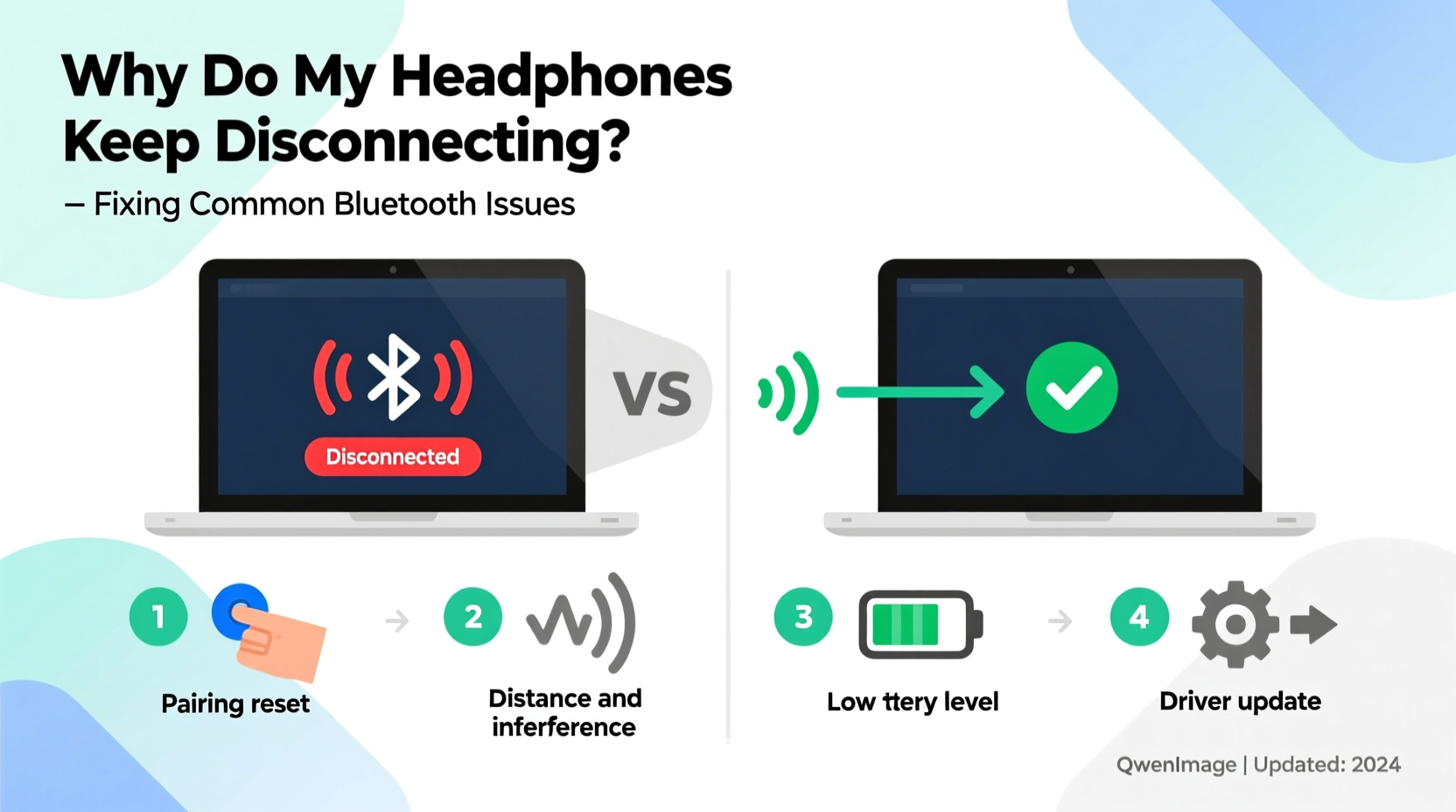
Bluetooth operates on the 2.4 GHz frequency band, which is shared by many household devices like Wi-Fi routers, microwaves, cordless phones, and USB 3.0 ports. When multiple devices compete for bandwidth, interference occurs, leading to signal instability. Additionally, Bluetooth uses adaptive frequency hopping to avoid interference, but it’s not foolproof—especially in crowded wireless environments.
Another major factor is the Bluetooth protocol itself. Different versions (e.g., 4.0, 4.2, 5.0, 5.3) offer varying ranges, speeds, and connection stability. Older laptops may use outdated Bluetooth chips that struggle with newer headphones, resulting in frequent dropouts. Similarly, power management features built into modern laptops often prioritize battery life over consistent connectivity, causing the system to suspend or reset the Bluetooth adapter during idle periods.
Hardware wear and software misconfigurations also play roles. A damaged headphone battery might fail to maintain a steady signal, while incorrect audio profiles or corrupted pairing data on the laptop side can prevent stable communication.
Step-by-Step Guide to Fix Bluetooth Disconnection Issues
Follow this structured approach to identify and resolve the underlying cause of your headphone disconnections. Start with the simplest fixes before moving to advanced troubleshooting.
- Re-pair Your Headphones
Remove the device from your laptop’s Bluetooth list, then pair it again. This clears any corrupted connection data. - Restart Both Devices
Power cycle your laptop and headphones. A fresh boot resolves temporary glitches in both hardware and software. - Check Battery Levels
Low battery on either device can lead to unstable connections. Charge both fully and test again. - Update Bluetooth Drivers
Outdated drivers are a top cause of disconnections. Visit your laptop manufacturer’s support site to download the latest version. - Disable Power Saving for Bluetooth
Prevent Windows or macOS from turning off the adapter to save energy. - Reduce Wireless Interference
Turn off nearby devices using the 2.4 GHz band or switch your Wi-Fi to 5 GHz if possible. - Test on Another Device
Determine if the issue lies with the headphones or the laptop by connecting them to a phone or tablet. - Reset Bluetooth Module
On Windows, use Command Prompt to reset the stack. On macOS, delete Bluetooth preferences and restart.
Common Fixes by Operating System
For Windows Users
Windows laptops, especially those with generic or OEM Bluetooth adapters, are prone to disconnection issues due to aggressive power management and outdated drivers.
- Navigate to Device Manager > Bluetooth, right-click your adapter (e.g., Intel Wireless Bluetooth, Realtek), and select Properties.
- Go to the Power Management tab and uncheck \"Allow the computer to turn off this device to save power\".
- In Services (press Win + R, type
services.msc), ensure Bluetooth Support Service is set to Automatic and is running. - Run the built-in Bluetooth troubleshooter via Settings > Update & Security > Troubleshoot.
For macOS Users
Apple systems generally have robust Bluetooth performance, but issues can arise after OS updates or when using third-party headphones.
- Hold the Option key and click the Bluetooth icon in the menu bar. Select Debug > Reset the Bluetooth module.
- Delete the problematic device, then re-pair it.
- Remove the
com.apple.Bluetooth.plistfile from~/Library/Preferences/and restart your Mac. - Ensure Handoff and Instant Hotspot are enabled under System Settings > General > AirPlay & Handoff, as they share the same radio.
| Issue | Possible Cause | Solution |
|---|---|---|
| Headphones disconnect when laptop wakes from sleep | Power-saving settings | Disable USB/Bluetooth suspend in Device Manager |
| Audio cuts out every 10–30 seconds | Wi-Fi interference | Switch router to 5 GHz or move devices apart |
| Only one earbud disconnects | Firmware imbalance or low battery | Charge fully, update firmware, re-pair |
| No sound after reconnecting | Wrong audio profile selected | Set output to \"Headphones\" instead of \"Hands-Free\" mode |
Expert Insight: What Engineers Say About Bluetooth Stability
“Many users don’t realize that Bluetooth ‘Hands-Free’ mode prioritizes microphone input over audio quality, which can cause stuttering. Always ensure your headphones connect in ‘Stereo Audio’ mode for media playback.” — David Lin, Senior Wireless Systems Engineer at Nordic Semiconductor
This distinction is critical. When your headphones connect in Hands-Free mode (commonly used for calls), the audio is compressed and limited to lower bandwidth. This mode is designed for voice clarity, not music. If you’re watching videos or listening to music and notice choppy audio, check your audio output settings and switch to the high-fidelity stereo profile.
Real-World Example: Sarah’s Work-from-Home Struggles
Sarah, a freelance editor working remotely, relied on her Sony WH-1000XM4 headphones for daily tasks. She began experiencing random disconnections during client calls, forcing her to constantly reconnect. At first, she assumed the headphones were faulty. After testing them on her phone with no issues, she turned her attention to her Windows 10 laptop.
She discovered that her Realtek Bluetooth adapter was being disabled by power management settings. Even though the laptop was plugged in, Windows was suspending the device during idle periods. By disabling the power-saving option in Device Manager and updating her Bluetooth driver from the manufacturer’s website, Sarah resolved the issue completely. Her calls now stay connected for hours without interruption.
This case highlights how easily overlooked settings can undermine user experience—even on high-end equipment.
Essential Checklist: Prevent Future Disconnections
Use this checklist regularly, especially after system updates or when introducing new wireless devices:
- ✅ Ensure both laptop and headphones are fully charged
- ✅ Disable Bluetooth power-saving features in system settings
- ✅ Keep Bluetooth drivers and firmware up to date
- ✅ Avoid placing laptop near USB 3.0 devices or microwave ovens
- ✅ Re-pair devices monthly to clear cached data
- ✅ Use 5 GHz Wi-Fi to reduce 2.4 GHz band congestion
- ✅ Confirm audio is routed through Stereo mode, not Hands-Free
- ✅ Restart the Bluetooth service weekly on Windows/macOS
Frequently Asked Questions
Why do my Bluetooth headphones disconnect when I move my laptop?
Movement can temporarily block the signal path between your headphones and laptop, especially if there are walls, furniture, or people in the way. Bluetooth 5.0+ offers better range and obstacle penetration, but physical barriers still affect performance. Try keeping the laptop closer and minimizing obstructions.
Can a USB 3.0 port interfere with Bluetooth?
Yes. Studies have shown that poorly shielded USB 3.0 ports emit electromagnetic noise in the 2.4 GHz band, directly interfering with Bluetooth and Wi-Fi signals. If your laptop has multiple USB ports, try plugging peripherals into USB 2.0 ports or use ferrite chokes on USB cables to reduce interference.
Do all laptops support stable Bluetooth audio?
No. Budget or older laptops often come with low-quality Bluetooth modules that lack support for advanced codecs like aptX or LDAC and suffer from poor antenna design. For reliable performance, consider using a high-quality external USB Bluetooth 5.0+ adapter, which can outperform built-in chips.
Final Thoughts and Recommendations
Bluetooth headphone disconnections are rarely due to a single cause. They stem from a combination of environmental factors, hardware limitations, and software configurations. The key to resolving them lies in methodical troubleshooting—starting with basic checks and progressing to deeper system adjustments.
Staying proactive makes a difference. Regularly updating drivers, managing wireless interference, and understanding how your devices communicate can prevent issues before they disrupt your day. Don’t assume the problem is with your headphones; often, the fix is just a few clicks away on your laptop.
If built-in Bluetooth continues to underperform despite all efforts, investing in a dedicated USB Bluetooth 5.2+ adapter (such as those from ASUS or TP-Link) can dramatically improve stability and audio quality. These adapters are affordable, easy to install, and often support higher bandwidth and longer range than older internal modules.




 浙公网安备
33010002000092号
浙公网安备
33010002000092号 浙B2-20120091-4
Comments
No comments yet. Why don't you start the discussion?