
If you've ever been in the middle of an important call, a focused work session, or immersed in music only for your Bluetooth headphones to suddenly cut out, you're not alone. Unstable Bluetooth connections between headphones and PCs are among the most common tech frustrations today. While wireless audio offers freedom and convenience, inconsistent performance can undermine its benefits. The root causes range from driver issues and signal interference to outdated firmware and power management settings. Understanding these factors—and knowing how to address them—is essential to maintaining a seamless listening experience.
Understanding Common Causes of Bluetooth Disconnections
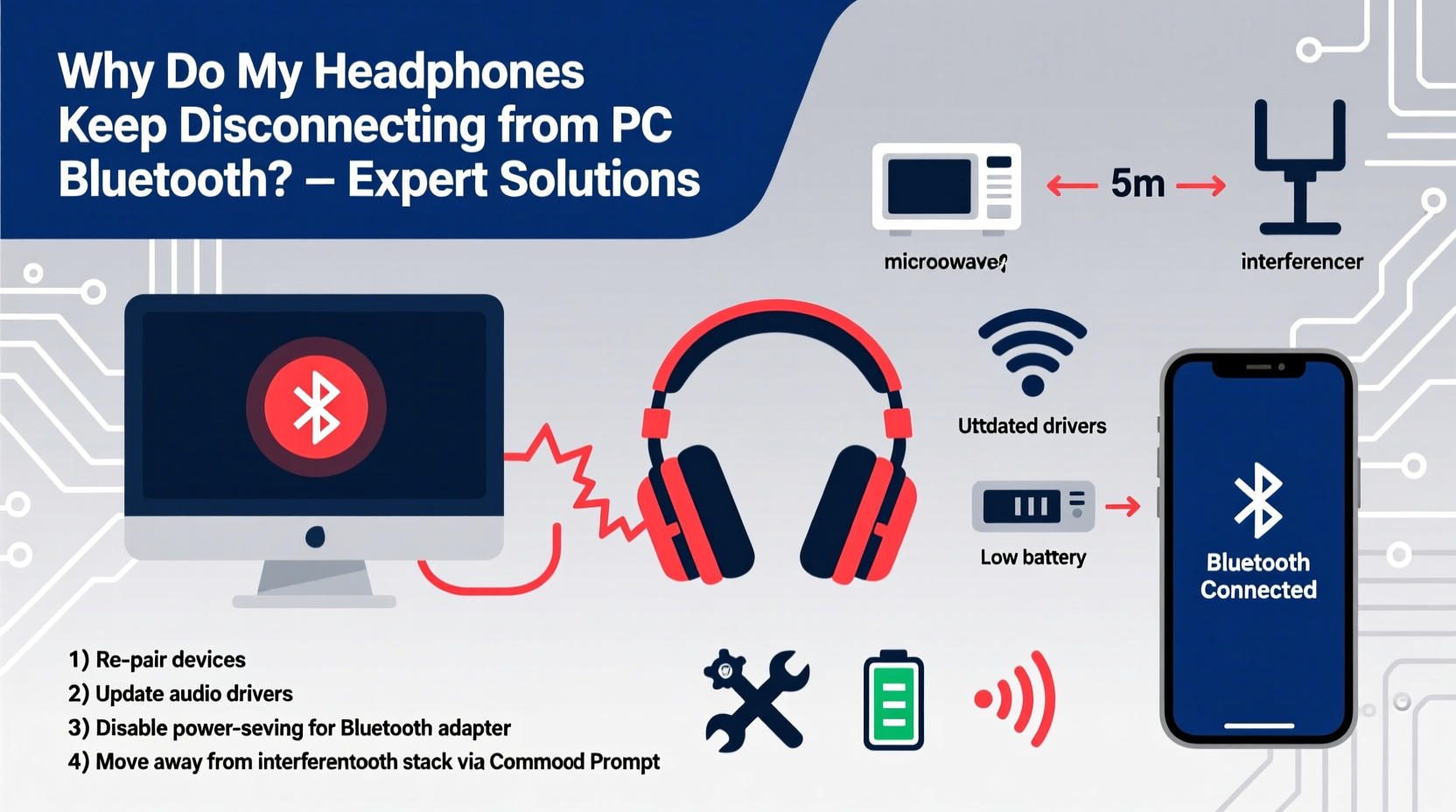
Before diving into fixes, it's important to recognize that Bluetooth disconnection issues are rarely due to a single factor. Instead, they often stem from a combination of hardware limitations, software conflicts, and environmental conditions. Below are the most frequent culprits behind unstable Bluetooth headphone connections on PCs:
- Outdated or corrupted Bluetooth drivers – Drivers act as communication bridges between your operating system and hardware. If they’re outdated or damaged, connectivity suffers.
- Interference from other wireless devices – Wi-Fi routers, microwaves, cordless phones, and even USB 3.0 ports emit signals that can disrupt the 2.4 GHz frequency band used by Bluetooth.
- Low battery or faulty charging – Some headphones automatically disconnect when battery levels drop below a certain threshold.
- Power-saving settings – Windows may turn off the Bluetooth adapter to conserve energy, especially on laptops.
- Distance and physical obstructions – Bluetooth has a limited range (typically 30 feet). Walls, furniture, and even human bodies can weaken the signal.
- Incompatible Bluetooth versions – Older Bluetooth standards (like 4.0) may struggle with newer codecs or high-bitrate audio streams.
- Firmware bugs – Both your headphones and your PC’s Bluetooth adapter may require firmware updates to resolve known stability issues.
“Bluetooth instability is often a systems issue, not a device failure. Over 70% of reported disconnections are resolved through driver updates or configuration changes.” — Dr. Alan Reyes, Wireless Connectivity Researcher at MIT Media Lab
Step-by-Step Guide to Stabilize Your Bluetooth Connection
Follow this structured sequence to diagnose and fix persistent disconnection problems. This methodical approach ensures no critical step is skipped.
- Restart all devices: Power cycle your headphones and reboot your PC. This clears temporary memory glitches and resets active connections.
- Check battery levels: Ensure your headphones have sufficient charge. Low power can cause intermittent dropouts.
- Remove and re-pair the device:
- Go to Settings > Devices > Bluetooth & other devices.
- Select your headphones and click “Remove device.”
- Put your headphones in pairing mode and re-add them.
- Update Bluetooth drivers:
- Press Win + X and select Device Manager.
- Expand “Bluetooth” and right-click your adapter (e.g., Intel Wireless Bluetooth, Realtek, etc.).
- Select “Update driver” and choose “Search automatically for updated driver software.”
- If no update is found, visit your PC manufacturer’s support site to download the latest version manually.
- Disable power-saving for Bluetooth:
- In Device Manager, right-click your Bluetooth adapter and select “Properties.”
- Go to the “Power Management” tab.
- Uncheck “Allow the computer to turn off this device to save power.”
- Run the Bluetooth troubleshooter:
- Navigate to Settings > System > Troubleshoot > Other troubleshooters.
- Run the Bluetooth troubleshooter and follow the on-screen instructions.
- Check for Windows updates: Install the latest OS patches, which often include Bluetooth stack improvements.
- Test with another device: Pair your headphones with a smartphone or tablet to determine if the issue lies with the headphones themselves.
Environmental and Hardware Optimization Tips
Even with perfect software setup, external factors can degrade Bluetooth performance. Addressing these can make a dramatic difference.
Consider the following adjustments:
- Minimize wireless interference: Turn off unused Bluetooth devices, move away from microwave ovens, and avoid placing your PC near large metal objects.
- Use a USB Bluetooth adapter: If your built-in Bluetooth is weak or outdated, a high-quality USB 5.0+ dongle (such as those from ASUS or TP-Link) can provide better range and stability.
- Avoid USB 3.0 port interference: Some USB 3.0 ports leak electromagnetic noise that interferes with Bluetooth. Plug peripherals into USB 2.0 ports when possible, or use shielded cables.
- Limit connected Bluetooth devices: Running multiple Bluetooth devices simultaneously (keyboard, mouse, headphones) increases bandwidth demand and latency risks.
Recommended Bluetooth Adapters for Improved Stability
| Adapter Model | Bluetooth Version | Key Benefit | Best For |
|---|---|---|---|
| ASUS USB-BT500 | 5.0 | Strong signal, plug-and-play | Desktops lacking internal Bluetooth |
| TP-Link UB500 | 5.0 | Compact design, low power draw | Laptops and travel setups |
| Avantree DG60 | 5.0 with aptX support | High-quality audio streaming | Audiophiles and content creators |
| IOGEAR GBU521 | 4.1 | Budget-friendly, reliable | Basic wireless needs |
Real-World Case Study: Fixing Persistent Dropouts in a Remote Work Setup
Consider the case of Maria, a technical writer working remotely from her home office. She frequently joined video calls using her Jabra Elite 85h headphones paired with a Windows 10 laptop. Despite full battery and close proximity, her headphones would disconnect every 5–10 minutes, forcing her to reconnect mid-conversation.
Initial attempts—restarting devices and re-pairing—provided only temporary relief. A deeper investigation revealed that her laptop’s Bluetooth driver had not been updated in over a year. After downloading the latest Intel Wireless Bluetooth driver from the manufacturer’s website, the disconnections ceased.
Further analysis showed that the issue was compounded by aggressive power management settings. By disabling the “allow computer to turn off this device” option in Device Manager, Maria achieved uninterrupted audio during long meetings. Additionally, relocating her Wi-Fi router three feet away reduced signal interference, further stabilizing the connection.
This case illustrates how multiple small issues can combine to create a major usability problem—and how systematic troubleshooting leads to resolution.
Essential Checklist: Prevent Bluetooth Headphone Disconnections
Use this checklist to ensure your Bluetooth headphones maintain a stable connection with your PC:
- ✅ Restart both the headphones and the PC
- ✅ Verify headphone battery level is above 20%
- ✅ Remove and re-pair the device in Windows settings
- ✅ Update Bluetooth drivers via Device Manager or manufacturer site
- ✅ Disable power-saving mode for the Bluetooth adapter
- ✅ Run the built-in Windows Bluetooth troubleshooter
- ✅ Install the latest Windows updates
- ✅ Test headphones with another device to isolate the issue
- ✅ Minimize physical distance and obstacles between devices
- ✅ Consider upgrading to a USB Bluetooth 5.0+ adapter if problems persist
Frequently Asked Questions
Why do my Bluetooth headphones disconnect when I move my head?
This typically occurs due to signal obstruction or weak transmission strength. Your body can block the Bluetooth signal between your PC and headphones, especially if the PC is behind you or on the floor. Try positioning your PC closer to line-of-sight with your headphones, or use a USB Bluetooth extender placed nearby.
Can outdated firmware on my headphones cause disconnections?
Yes. Manufacturers regularly release firmware updates to fix bugs, improve battery efficiency, and enhance Bluetooth stability. Check your headphone brand’s official app (e.g., Sony Headphones Connect, Bose Connect, Jabra Sound+) for available firmware updates. Skipping these updates can leave known issues unresolved.
Does Windows 11 handle Bluetooth better than Windows 10?
In many cases, yes. Windows 11 includes improved Bluetooth stack management, better power efficiency, and enhanced support for modern codecs like LC3 used in Bluetooth LE Audio. However, early adopters reported compatibility issues with older adapters. Ensure your hardware supports Windows 11 before upgrading, and always install post-update drivers.
Conclusion: Take Control of Your Wireless Experience
Bluetooth headphone disconnections don’t have to be a daily annoyance. With the right knowledge and tools, most issues are preventable or easily fixed. Start with basic steps like restarting devices and updating drivers, then progress to optimizing your environment and hardware setup. Remember, stability isn’t just about the headphones—it’s about the entire ecosystem, including your PC’s adapter, operating system, and surrounding electronics.
Don’t accept poor performance as inevitable. Apply the strategies outlined here, monitor your results, and refine your setup over time. Small adjustments can lead to dramatically smoother audio experiences, whether you're working, gaming, or relaxing.




 浙公网安备
33010002000092号
浙公网安备
33010002000092号 浙B2-20120091-4
Comments
No comments yet. Why don't you start the discussion?