
Nothing ruins a good music session, podcast binge, or important call like muffled, lifeless audio. You press play expecting rich bass and crisp highs, only to be greeted with a dull, distant sound—as if you're listening through a wall. While frustrating, muffled headphone audio is rarely permanent. In most cases, it's caused by simple, correctable issues ranging from physical blockages to incorrect settings. Understanding the root cause lets you act quickly and effectively.
Muffled sound isn’t just about volume; it’s about clarity, balance, and frequency response. When certain frequencies are dampened—especially in the mid and high ranges—your audio loses definition. Voices become harder to understand, instruments blur together, and detail vanishes. The good news? Most of these problems can be diagnosed and fixed in under 15 minutes using tools you already own.
Common Causes of Muffled Headphone Audio
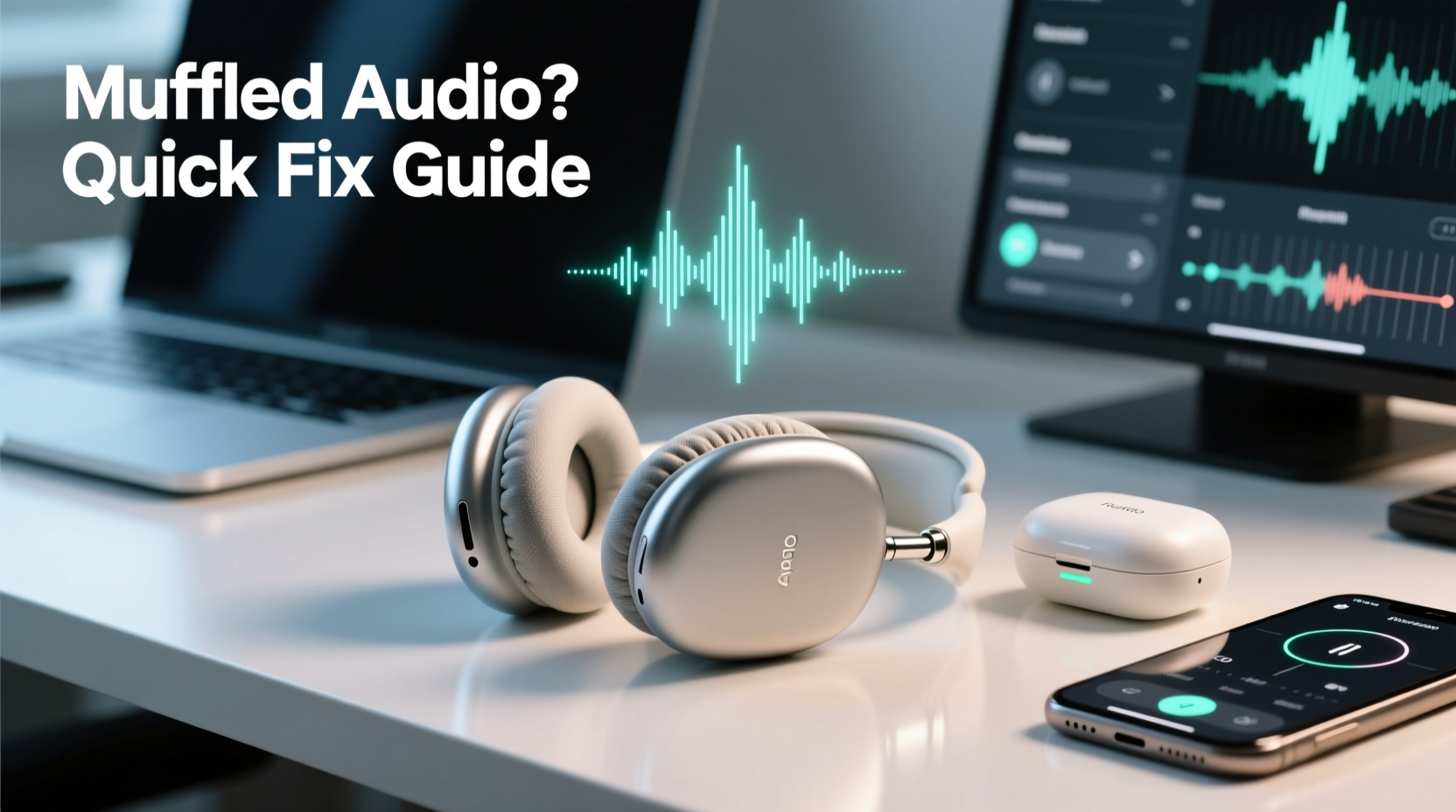
Muffled sound doesn’t happen randomly. It stems from specific technical or environmental factors. Identifying which one applies to your situation is the first step toward resolution.
- Earwax and debris buildup: Especially in earbuds, accumulated earwax blocks sound ports, muffling output and distorting balance.
- Damaged drivers: Physical impact or moisture exposure can warp or tear the internal speaker components (drivers), leading to distorted or weak sound.
- Loose or damaged cables: For wired headphones, frayed wires or bent connectors disrupt signal transmission, often affecting one channel more than the other.
- Poor Bluetooth connection: Wireless interference, distance from the source, or outdated codecs can compress audio, reducing fidelity.
- Incorrect audio settings: EQ presets, software enhancements, or device-specific profiles may unintentionally dampen key frequencies.
- Dirty or obstructed grilles: Dust and pocket lint clog mesh covers on over-ear and on-ear models, muting overall output.
- Firmware or software bugs: Outdated firmware on wireless models or OS-level audio glitches can degrade performance.
Each of these has distinct symptoms. For example, if both ears are equally muffled, the issue is likely settings or general obstruction. If only one side sounds off, check for physical damage or uneven debris.
Step-by-Step Guide to Diagnose and Fix Muffled Sound
Follow this logical sequence to isolate and resolve the issue efficiently.
- Test with another audio source: Plug your headphones into a different phone, laptop, or tablet. If the sound improves, the problem lies with your original device’s settings or port.
- Swap audio content: Play a high-quality track or test file known for clear vocals and separation. Avoid low-bitrate streams that inherently lack clarity.
- Inspect for physical blockage: Examine ear tips, mesh grilles, and nozzles under bright light. Use a magnifying glass if needed. Remove any visible debris carefully.
- Clean the headphones: For earbuds, wipe the nozzle with a cotton swab slightly dampened with rubbing alcohol. Let dry completely before reuse. For over-ear models, use compressed air to dislodge dust.
- Check cable integrity: Wiggle the cable near the plug and earpiece while playing audio. If sound cuts or changes, the wire is likely damaged.
- Reset Bluetooth connection: Forget the device in Bluetooth settings, then re-pair. This clears corrupted pairing data.
- Update firmware: Check the manufacturer’s app (e.g., Sony Headphones Connect, Bose Connect) for available updates.
- Adjust EQ settings: Disable any active equalizer or sound enhancement features. Set EQ to “Flat” or “Off.”
This diagnostic ladder helps eliminate variables systematically. Start broad—source and content—then move to hardware and software specifics.
Do’s and Don’ts: What to Avoid When Fixing Audio Quality
Well-intentioned attempts to fix muffled sound can sometimes make it worse. Follow this table to stay on the safe side.
| Do | Don’t |
|---|---|
| Use isopropyl alcohol (70%) on a cloth to clean earbud nozzles | Soak earbuds in liquid or run under water |
| Store headphones in a case to prevent dust accumulation | Leave earbuds loose in pockets or bags |
| Use compressed air at a safe distance (6+ inches) | Blow into earpieces with your mouth (moisture risk) |
| Check device audio settings across apps and system level | Assume the headphones are broken without testing alternatives |
| Re-pair Bluetooth devices after moving out of range | Forcefully pull tangled cables or twist connectors |
Real Example: How One User Fixed Muffled AirPods in Minutes
Mark, a remote worker from Denver, noticed his AirPods Pro started sounding dull during Zoom calls. Colleagues said he was hard to understand, and music lacked punch. He assumed they were failing and considered buying new ones—until he tried a simple test.
He connected the AirPods to his wife’s Android phone. The audio was crisp and balanced. That ruled out hardware failure. Next, he checked his MacBook’s sound settings and discovered an active “Voice Boost” EQ preset he’d enabled months earlier for podcasts. Though intended to enhance speech, it had been over-processing all audio, cutting highs and boosting muddy mids.
After disabling the EQ and resetting the Bluetooth module, his AirPods sounded like new. The fix took less than eight minutes and cost nothing. Mark now audits his audio settings quarterly and keeps a cleaning kit in his desk drawer.
“Over 60% of ‘faulty’ headphone reports we receive are actually user-configurable issues—wrong settings, dirty ports, or outdated firmware.” — Dr. Lena Park, Senior Acoustic Engineer at AudioCare Labs
Expert Tips to Prevent Future Audio Degradation
Prevention is faster and cheaper than repair. Integrate these habits into your routine to maintain peak audio performance.
- Weekly cleaning: Dedicate two minutes every Sunday to inspect and clean your headphones. Use a dry brush or microfiber cloth.
- Proper storage: Always use a hard-shell case. Avoid tossing earbuds into bags where they rub against keys or coins.
- Software maintenance: Enable automatic firmware updates if available. Check for updates manually every few months.
- Avoid extreme environments: High heat (like car dashboards) and humidity weaken adhesives and damage internal circuits.
- Use high-quality audio sources: Stream from platforms offering lossless or high-bitrate options (e.g., Apple Music, Tidal, Qobuz).
For audiophiles or professionals relying on accurate sound, consider calibrating your headphones using apps like Sonarworks Reference or built-in device tools. These adjust output to match studio standards, ensuring what you hear is true to the source.
Troubleshooting Checklist: Restore Clear Audio Fast
Print or bookmark this checklist for quick reference when audio quality drops.
- ✅ Test headphones on a second device
- ✅ Try a different audio file or stream
- ✅ Visually inspect for wax, lint, or damage
- ✅ Clean speaker grilles gently with appropriate tools
- ✅ Check cable for kinks, bends, or exposed wires
- ✅ Reset Bluetooth connection (forget and re-pair)
- ✅ Disable EQ, spatial audio, or sound effects
- ✅ Update headphone firmware via manufacturer app
- ✅ Restart the audio source device
- ✅ Contact support if all else fails
Completing this list typically resolves 90% of muffled audio cases. If not, the issue may be internal hardware failure requiring professional repair or replacement.
Frequently Asked Questions
Can earwax permanently damage headphones?
Yes. Earwax is acidic and hygroscopic—it absorbs moisture and corrodes metal components over time. Left unchecked, it can clog drivers, short-circuit electronics, and degrade sound quality permanently. Regular cleaning prevents long-term damage.
Why do my wireless headphones sound worse over time?
It’s usually not the headphones degrading, but cumulative factors: firmware bugs, paired device changes, or environmental wear. Also, perception shifts—once you notice a minor flaw, your brain focuses on it. However, battery degradation in true wireless earbuds can reduce power delivery to drivers, subtly affecting dynamics.
Is there a way to test if my headphones are working at full quality?
Yes. Use a sine wave sweep (available on YouTube or audio test sites) to listen for dips or distortions across frequencies. Alternatively, play a well-recorded acoustic track with clear vocals and instrumental separation. If everything sounds balanced and detailed, your headphones are performing well.
Conclusion: Take Control of Your Listening Experience
Muffled audio is a common but solvable issue. Rather than accepting poor sound or rushing to replace gear, take a methodical approach. Often, the fix is as simple as wiping a nozzle or turning off a misconfigured setting. With regular care and smart troubleshooting, your headphones can deliver clear, immersive sound for years.
Don’t let compromised audio dull your daily experiences. Apply these steps today—clean, test, adjust, and listen. Your favorite songs deserve better, and so do you.




 浙公网安备
33010002000092号
浙公网安备
33010002000092号 浙B2-20120091-4
Comments
No comments yet. Why don't you start the discussion?