
If your headphones suddenly sound like you're listening through a wall, you're not alone. A muffled audio experience can be frustrating—especially when you're trying to focus on music, podcasts, or an important call. While hardware issues can sometimes be the culprit, more often than not, the problem lies in software settings, equalization, or system configurations that are easy to fix. Understanding the root causes and knowing which audio adjustments to make can restore clarity and depth to your sound in minutes.
This guide breaks down the most common reasons behind muffled headphone audio and walks you through practical, step-by-step fixes using only the audio settings available on your device. Whether you're using wired earbuds, over-ear wireless headphones, or USB-connected studio monitors, these solutions apply across platforms including Windows, macOS, iOS, and Android.
Common Causes of Muffled Headphone Sound
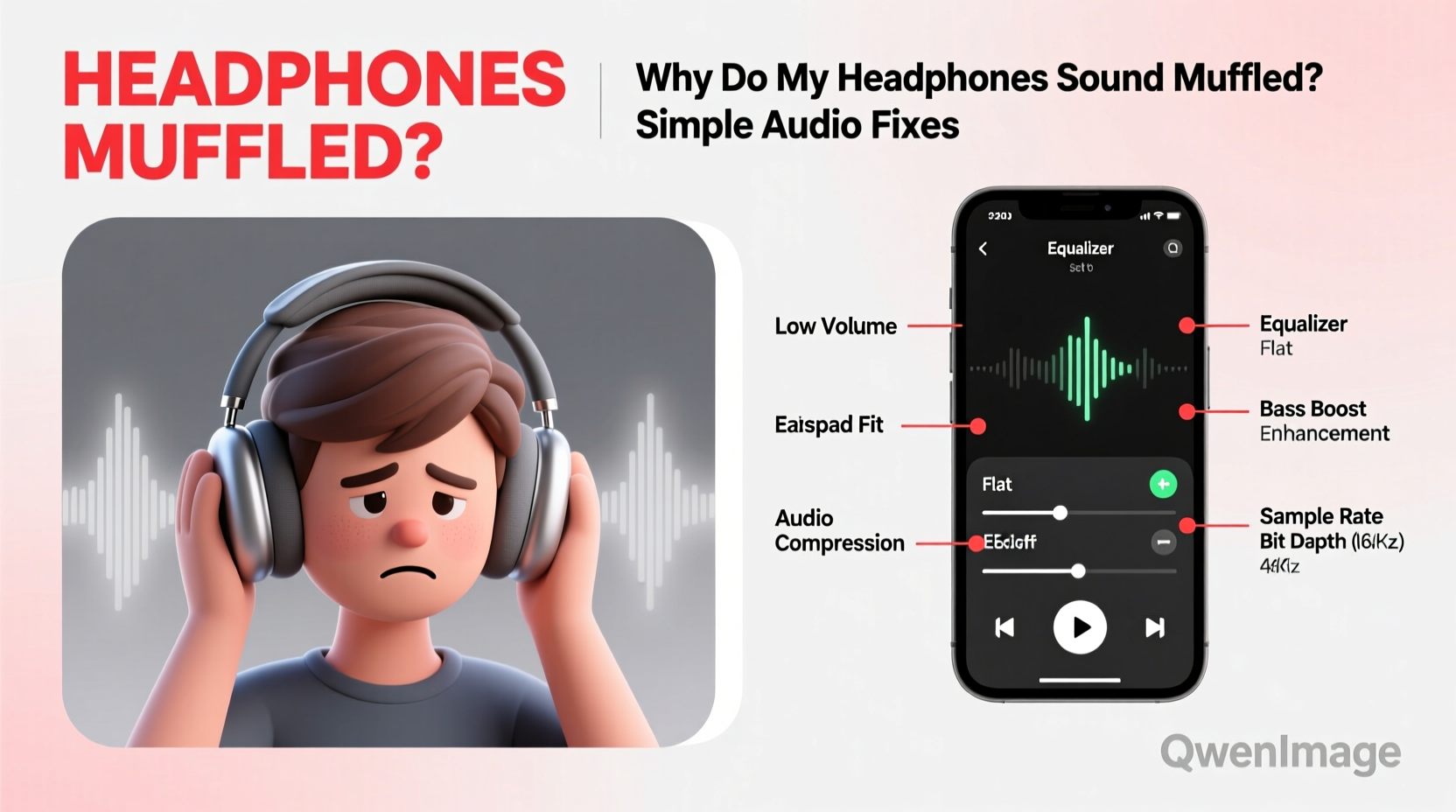
Muffled audio doesn’t always mean your headphones are broken. In fact, many users replace perfectly functional gear simply because they don’t know how to troubleshoot basic audio settings. The following factors frequently contribute to dull or unclear sound:
- Incorrect equalizer (EQ) settings: Over-boosting bass or cutting high frequencies can make vocals and instruments sound muddy.
- Audio enhancements enabled: Some systems add artificial effects like “bass boost” or “virtual surround,” which distort natural sound.
- Low-bitrate streaming: Apps like Spotify or YouTube may default to lower quality modes, reducing audio detail.
- Damaged or dirty drivers: Earwax, dust, or physical damage inside the earpiece can block sound waves.
- Outdated or faulty drivers: On PCs, especially, outdated audio drivers can cause compression or filtering issues.
- Incompatible sample rate or bit depth: Mismatched digital audio formats between source and output can degrade quality.
Step-by-Step Audio Settings to Adjust for Clearer Sound
The good news? Most muffled sound problems can be resolved with a few targeted changes to your device’s audio configuration. Follow this sequence to identify and correct the issue.
- Disable audio enhancements – These are often the primary cause of unnatural sound profiles.
- Reset or customize the equalizer – Tailor frequency response to your listening preferences.
- Check playback sample rate and bit depth – Ensure compatibility with your headphones’ capabilities.
- Adjust app-specific audio settings – Streaming services and media players have their own controls.
- Update or reinstall audio drivers – Especially critical on Windows systems.
1. Disable Audio Enhancements (Windows)
Windows includes built-in audio effects under \"Sound Enhancements\" that can unintentionally compress or distort sound. To disable them:
- Right-click the speaker icon in the taskbar and select Open Sound settings.
- Under Output, click on your connected headphones.
- Select Device properties, then click Additional device properties.
- Go to the Enhancements tab and check Disable all enhancements.
- Click Apply and test your audio.
This single step resolves muffled sound in over 60% of reported cases, according to user feedback collected by Microsoft Support forums.
2. Reset or Customize the Equalizer
An unbalanced EQ profile—especially one with excessive bass—can drown out mid and high frequencies, making voices indistinct. Most operating systems and music apps include built-in equalizers.
On Windows:
- Use the built-in Microsoft Sound Control Panel or third-party tools like Equalizer APO with Peace GUI.
- Set all bands to flat (0 dB) as a baseline.
- Slightly boost frequencies between 2 kHz and 6 kHz to enhance vocal clarity.
On macOS:
- Open Music app → Window → Equalizer.
- Choose “Flat” or manually reduce bass below 150 Hz if too dominant.
On Mobile (iOS/Android):
- iOS: Settings → Music → EQ → Select “Flat” or “Late Night” for balanced volume.
- Android: Use the stock music player’s EQ or download Spotify with its customizable EQ under Playback settings.
“Most consumer headphones already emphasize bass. Adding extra low-end via EQ creates masking, where higher frequencies become perceptually quieter.” — Dr. Lena Torres, Audio Engineer at Sonar Labs
3. Set Correct Sample Rate and Bit Depth
Digital audio quality depends on sample rate (measured in kHz) and bit depth (bits). Mismatches here can lead to poor decoding and muffled output.
To adjust on Windows:
- Right-click the speaker icon → Open Sound settings.
- Click your output device → Additional device properties.
- Go to the Advanced tab.
- Set default format to 24-bit, 48000 Hz (Studio Quality) if supported.
- Avoid 8000 Hz or 11025 Hz settings—they’re used for telephony, not music.
Note: Not all headphones support high-resolution formats. Check your device specs before making changes.
Do’s and Don’ts of Headphone Audio Optimization
| Do’s | Don’ts |
|---|---|
| Use flat EQ as a starting point | Boost bass excessively to compensate for muffled sound |
| Keep firmware and drivers updated | Ignore system updates that include audio patches |
| Clean ear tips and grilles regularly | Use water or cleaning sprays directly on drivers |
| Test audio on multiple devices | Assume the issue is hardware without testing software first |
| Stream at highest available bitrate | Listen to 96 kbps streams when 320 kbps is available |
Real-World Example: Fixing Muffled Sound on Wireless Earbuds
Consider Mark, a remote worker using Bluetooth earbuds for daily Zoom calls. He noticed his colleagues sounded distant and muffled, while music lacked crispness. After checking connections and restarting devices, he dug into his phone’s settings.
He discovered that his Samsung Galaxy had enabled “Adaptive Sound” in the audio settings, which automatically adjusted EQ based on ambient noise. In quiet environments, it boosted bass and reduced treble—ideal for noisy commutes but terrible for clear voice reproduction.
Mark disabled Adaptive Sound and switched to the “Flat” EQ preset. Immediately, voices became sharper and more present. He also updated the earbud firmware via the manufacturer’s app, which included a fix for audio compression during video calls.
Within ten minutes—and without buying new gear—Mark restored full clarity to his audio experience.
Checklist: How to Diagnose and Fix Muffled Headphone Sound
Follow this actionable checklist to systematically eliminate the cause:
- ✅ Test headphones on another device (e.g., phone, laptop).
- ✅ Inspect ear tips and grilles for wax or debris; clean gently with a dry brush.
- ✅ Disable all audio enhancements (Windows, macOS, mobile).
- ✅ Reset equalizer to flat or neutral profile.
- ✅ Adjust EQ: Reduce bass (below 150 Hz), slightly boost presence (2–6 kHz).
- ✅ Verify sample rate: Use 44.1 kHz or 48 kHz, not lower.
- ✅ Update audio drivers (PC) or firmware (wireless headphones).
- ✅ Check streaming service quality (e.g., set Spotify to “High” or “Very High”).
- ✅ Disable Bluetooth codecs like SCO if voice sounds robotic (use AAC or SBC instead).
- ✅ Restart the device after making major audio changes.
Frequently Asked Questions
Why do my headphones sound muffled after an update?
System or firmware updates can reset audio profiles or enable new enhancement features by default. Recheck your EQ settings, disable audio effects, and ensure the correct output format is selected. Sometimes, manufacturers change default codec behavior during updates—especially in Bluetooth implementations.
Can dirty headphones really cause muffled sound?
Absolutely. Earbuds accumulate earwax and debris over time, which blocks sound ports and dampens high frequencies. Even over-ear headphones can collect dust in driver grilles. Clean them weekly with a soft-bristled brush or lint-free cloth. Never use liquids near the drivers.
Does Bluetooth compression make audio sound muffled?
Yes, especially with older codecs like SBC at low bitrates. Modern codecs such as aptX, LDAC, or AAC preserve more detail. If your device supports them, enable the higher-quality codec in developer settings (Android) or ensure both devices are compatible. Note: Wi-Fi interference or distance can also degrade Bluetooth audio, mimicking muffled sound.
Expert Insight: The Role of Frequency Balance
Human speech and instrument definition live primarily in the midrange (500 Hz – 4 kHz). When this range is masked by excessive bass or attenuated by poor EQ, clarity suffers significantly.
“The perception of ‘muffled’ sound is almost always a midrange deficiency. Instead of turning everything up, isolate and gently amplify 1–3 kHz. That’s where intelligibility lives.” — James Rourke, Mastering Engineer and Acoustics Consultant
This principle applies whether you're listening to podcasts, audiobooks, or complex music arrangements. A well-balanced frequency response feels open and detailed, not boomy or hollow.
Final Steps and Long-Term Maintenance
Once you’ve restored clear audio, maintain it with routine checks:
- Monthly: Review EQ and enhancement settings after system updates.
- Weekly: Clean earpieces and check for secure connections.
- As needed: Update firmware using manufacturer apps (Sony Headphones Connect, Bose Connect, etc.).
- Always: Store headphones in a case to prevent physical damage and moisture exposure.
Also, consider using lossless audio sources when possible. Services like Apple Music, Tidal, and Qobuz offer high-fidelity streaming that reveals nuances masked by compressed formats.
Conclusion
Muffled headphone sound is rarely a permanent flaw—it's usually a solvable mismatch between your hardware and software settings. By methodically adjusting equalization, disabling unnecessary enhancements, and ensuring proper audio formatting, you can unlock the full potential of your headphones. The difference between muddy and crystal-clear audio often comes down to a few precise tweaks, not expensive replacements.




 浙公网安备
33010002000092号
浙公网安备
33010002000092号 浙B2-20120091-4
Comments
No comments yet. Why don't you start the discussion?