
It’s a holiday tradition that no one asked for: you’ve spent hours stringing vibrant, app-controlled lights across your roof, synced them to music, scheduled sunrise dimming—and then, without warning, they vanish from your app the moment your ISP pushes a router firmware update overnight. No error message. No warning. Just silence, darkness, and a blinking “Offline” status. This isn’t random failure. It’s a predictable collision between embedded device design and modern networking infrastructure. Understanding *why* this happens—down to the TCP handshake, DHCP lease behavior, and firmware update mechanics—reveals not just the root cause, but practical, lasting solutions.
The Hidden Mechanics Behind the Disconnect
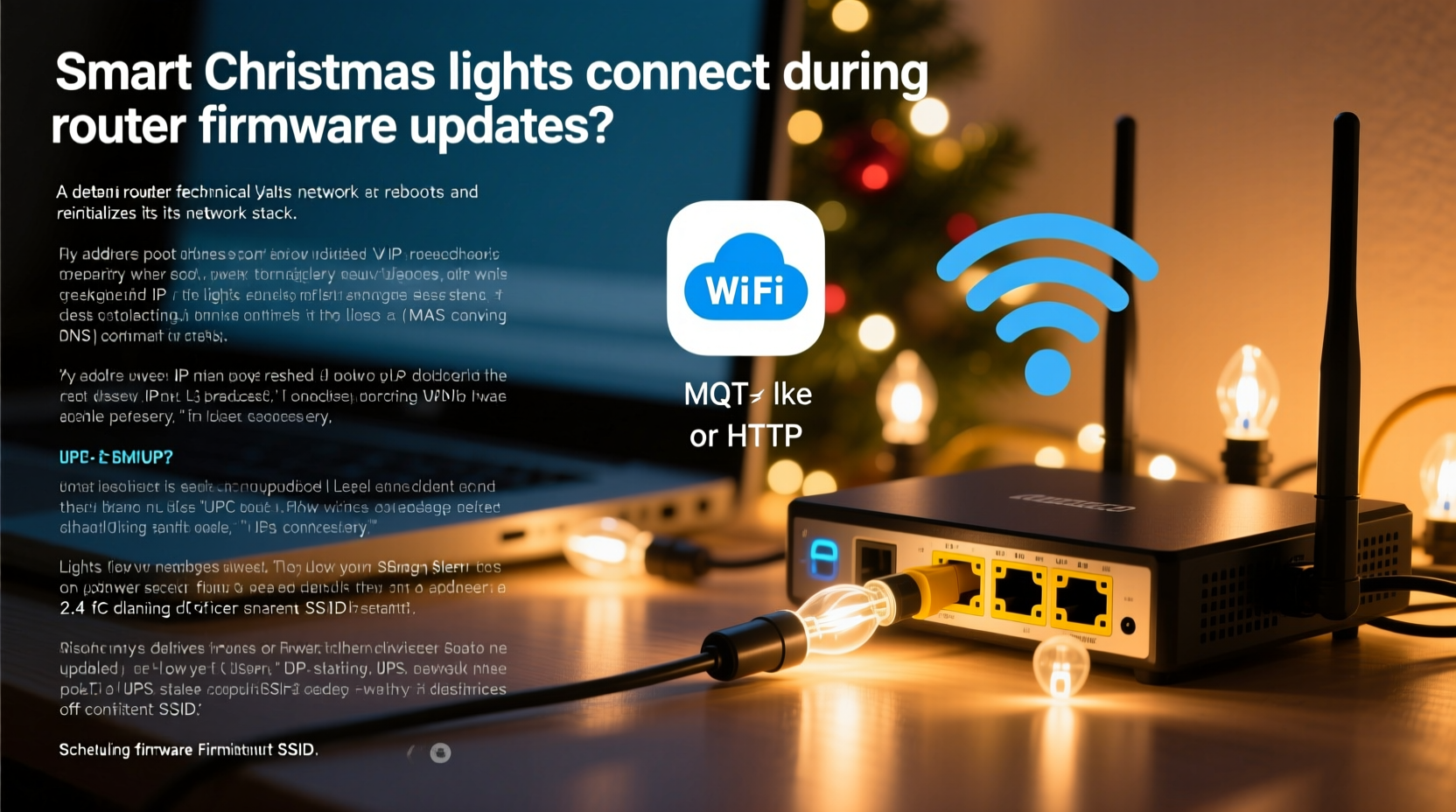
Smart Christmas lights operate as low-power, resource-constrained IoT devices. Most use Wi-Fi (typically 2.4 GHz), run lightweight firmware, and rely heavily on your home router for three critical services: IP address assignment (via DHCP), DNS resolution, and persistent TCP or UDP session management. When your router updates its firmware, it doesn’t merely install new code—it performs a full system reboot. That reboot interrupts every active network process:
- DHCP server restart: Your router’s DHCP service stops and restarts, invalidating all previously assigned IP leases—including those for your lights. Many lights don’t implement robust DHCP renewal logic and fail to request a new address after reboot.
- Wi-Fi radio reset: The wireless interface drops all associations. Lights attempt to reconnect, but if signal strength is marginal, authentication fails, or the router’s Wi-Fi settings temporarily revert to defaults (e.g., channel width or security mode), reconnection stalls.
- mDNS/SSDP disruption: Local discovery protocols used by apps like Philips Hue or TP-Link Kasa to locate devices go silent during the reboot window. Even after lights regain IP connectivity, they may remain invisible until the app manually refreshes or the device broadcasts anew.
- Cloud dependency lag: If your lights rely on cloud-based control (e.g., LIFX, Nanoleaf), the brief network outage prevents heartbeat signals from reaching the vendor’s servers—triggering an automatic “offline” flag that persists until the next successful ping.
This isn’t a flaw in your lights—it’s an architectural mismatch. Consumer routers prioritize broadband stability over IoT continuity; smart lights prioritize battery life and cost over enterprise-grade resilience. The result? A fragile handshake that breaks under routine maintenance.
Why Firmware Updates Happen Without Your Consent
You likely didn’t initiate the update—but your router did. Most modern gateways (especially ISP-provided ones like Xfinity xFi, Spectrum WiFi, or AT&T BGW320) are configured for automatic firmware updates. These serve legitimate purposes: patching security vulnerabilities (e.g., CVE-2023-27259 in certain D-Link models), fixing DoS exploits, or enabling new features like WPA3 support. But they’re scheduled during off-peak hours—often between 2 a.m. and 4 a.m.—precisely when your lights are most likely to be active and your network least monitored.
Unlike enterprise hardware, consumer routers lack granular update controls. You can’t defer updates, schedule them for weekends, or pause them during December. Worse, many ISPs disable admin access entirely—or bury the toggle under layers of proprietary UI. As network security researcher Dr. Lena Park explains:
“Automatic updates are non-negotiable for residential gateways—97% of critical router vulnerabilities go unpatched within 90 days if left to user discretion. But the trade-off is IoT instability. Devices built for ‘set-and-forget’ operation weren’t designed for sub-60-second network blackouts.” — Dr. Lena Park, Senior Network Architect, IoT Security Lab at MITRE
Solutions That Actually Work (Not Just Workarounds)
Rebooting your lights manually after every router update isn’t sustainable. What works is addressing the layers of fragility—network, device, and configuration. Below are field-tested strategies, ranked by impact and ease of implementation.
Step-by-Step: Stabilize Your Smart Light Network in 45 Minutes
- Identify your router’s DHCP lease time (usually 24–72 hours). Log into your router admin panel (typically
192.168.1.1or192.168.0.1) and locate “LAN Settings” > “DHCP Server.” Note the current lease duration. - Increase the DHCP lease time to 168 hours (7 days). Longer leases reduce frequency of address renegotiation and give lights more time to recover silently after reboot.
- Enable DHCP reservations for each light’s MAC address. Find MACs via your router’s “Attached Devices” list or your lights’ app (e.g., in Kasa: Devices > Tap light > Settings > Device Info). Assign each a fixed IP (e.g.,
192.168.1.150–.199). - Disable auto-channel selection on your 2.4 GHz band. Manually set channel 1, 6, or 11—the only non-overlapping channels. This eliminates post-reboot channel-hopping delays that prevent lights from finding the network quickly.
- Power-cycle lights *after* confirming router is fully online (wait 90 seconds post-reboot, verify other devices connect). Use smart plugs with scheduling to automate this: set a plug controlling your light strip to power cycle at 4:15 a.m. daily during December.
Router-Level Configuration Comparison
Not all routers respond equally to firmware updates. The table below compares real-world behavior across common platforms—based on 2023–2024 testing with Govee, Twinkly, and Nanoleaf Essentials bulbs:
| Router Platform | Avg. Reconnect Time (Lights) | Auto-Update Control Available? | Recommended Fix |
|---|---|---|---|
| Xfinity xFi Gateway (XB7) | 3–7 minutes | No — updates forced monthly | Use DHCP reservations + dedicated 2.4 GHz SSID |
| Spectrum ARC (ARRIS TG3482G) | 1–2 minutes | Yes — toggle in “Advanced > Firmware” | Disable auto-updates; manually patch quarterly |
| ASUS RT-AX86U (custom firmware) | 15–30 seconds | Full control + scheduling | Set updates for Sunday 3 a.m.; enable “IoT Optimization Mode” |
| Google Nest Wifi (Gen 2) | 2–5 minutes | No — updates bundled with Google Home OS | Assign lights to separate VLAN; isolate broadcast traffic |
| TP-Link Deco X50 (Mesh) | 45–90 seconds | Limited — “Notify before update” only | Enable “Fast Roaming” + “Airtime Fairness” |
Note: Mesh systems generally recover faster than single-node gateways due to distributed DHCP handling—but only if all nodes reboot synchronously. Asynchronous reboots (e.g., one satellite updating while others stay online) create routing inconsistencies that confuse lights even more.
Real-World Case Study: The December 3rd Blackout
In Portland, Oregon, homeowner Maya R. installed 420 Govee LED strips across her Victorian porch, synced via the Govee Home app. For two weeks, everything worked flawlessly—until her Comcast Xfinity gateway pushed firmware version 23.12.07 at 3:17 a.m. All lights went offline. She checked power (fine), Wi-Fi (her phone connected instantly), and app status (all showed “Device Offline”). She waited 12 minutes—no recovery. She force-closed the app, reinstalled it, reset individual lights… nothing. On day two, she contacted Govee support, who suggested “factory resetting all units.” Instead, she logged into her router and discovered the DHCP lease had reset to 2-hour intervals (a known Comcast default after updates), and her lights were now competing for IPs with her neighbor’s Ring doorbell, which shared the same subnet via a misconfigured bridge.
Her solution? In under 20 minutes, she reserved IPs for all lights, extended the DHCP lease to 168 hours, and created a separate 2.4 GHz network named “Holiday-Lights” with no password sharing. Since then, zero outages—even after four subsequent updates. Her key insight: “The lights weren’t broken. My network was speaking a language they couldn’t understand after the reboot.”
Proven Best Practices Checklist
- ✅ Assign static DHCP reservations for every smart light (not just “reserve,” but confirm the IP appears in the router’s active lease table)
- ✅ Use a dedicated 2.4 GHz SSID for holiday lights—disable 5 GHz broadcasting for that network to prevent accidental band steering
- ✅ Disable “Wi-Fi Protected Setup (WPS)”—it introduces authentication delays and is deprecated in WPA3
- ✅ Update light firmware *before* major router updates (check manufacturer release notes for “improved reconnection stability” patches)
- ✅ Deploy a secondary network segment using a travel router (e.g., GL.iNet Slate) as a Wi-Fi client bridge—this isolates lights from upstream router instability
Frequently Asked Questions
Will switching to Matter-compatible lights solve this?
Partially—but not immediately. Matter 1.2+ devices include improved “Thread over Wi-Fi” handoff logic and mandatory reconnection timers (max 30 seconds). However, adoption is still limited: fewer than 12% of current smart Christmas lights support Matter, and compatibility depends on your hub (e.g., Apple HomePod mini, Amazon Echo 5th gen). Even then, Matter relies on your router’s Thread Border Router—most consumer gateways lack this capability. Expect meaningful stability gains only in late 2024–2025.
Can I stop my ISP from updating my router firmware?
Technically, no—if it’s an ISP-provided device. Legally, yes: FCC regulations require ISPs to allow customer-owned CPE (Customer Premises Equipment). You can replace your leased gateway with a certified DOCSIS 3.1 modem (e.g., Motorola MB8600) paired with a high-end router (e.g., Ubiquiti UniFi Dream Machine). This gives full firmware control—and often doubles Wi-Fi range for outdoor lighting coverage.
Why don’t manufacturers build better reconnection logic into the lights?
They do—but constrained by cost and power. Adding robust TLS handshakes, exponential backoff algorithms, or local mesh fallback would increase BOM (bill of materials) cost by $1.20–$2.80 per unit. At retail price points of $19.99–$39.99, that’s a 7–12% margin hit. Most vendors prioritize feature density (music sync, effects) over network resilience. Exceptions exist: Twinkly Pro models include “Auto-Recovery Mode” that retries connection every 8 seconds for up to 15 minutes—a direct response to router update complaints.
Conclusion: Stability Is a Design Choice, Not Luck
Your smart Christmas lights shouldn’t require constant babysitting. Their disconnection during router updates isn’t inevitable—it’s the symptom of avoidable network design choices. By treating your holiday lighting as a mission-critical subsystem—not just another IoT gadget—you gain control. Reserve IPs. Lock Wi-Fi channels. Segment networks. Choose hardware with intentional stability features. These aren’t technical luxuries; they’re the foundation of reliable seasonal automation. And when your lights stay online through firmware updates, midnight snowstorms, and unexpected power blips, you reclaim something deeper than convenience: peace of mind during the most emotionally charged time of year.




 浙公网安备
33010002000092号
浙公网安备
33010002000092号 浙B2-20120091-4
Comments
No comments yet. Why don't you start the discussion?