
Smart Christmas lights bring color, rhythm, and automation to the holiday season. With voice control, scheduling, and music sync features, they’ve become a staple in modern décor. But when your lights keep dropping off the network—mid-show or during setup—the magic fades fast. Frequent disconnections are frustrating, but they’re rarely random. Most issues stem from predictable technical causes: weak Wi-Fi signals, power fluctuations, firmware bugs, or device overload. The good news is that nearly all of them can be diagnosed and resolved with systematic troubleshooting.
This guide dives into the most common reasons smart Christmas lights disconnect and provides actionable solutions. Whether you use Philips Hue, Govee, Twinkly, or another brand, these strategies apply across platforms and help restore reliability to your display.
Understanding How Smart Lights Connect
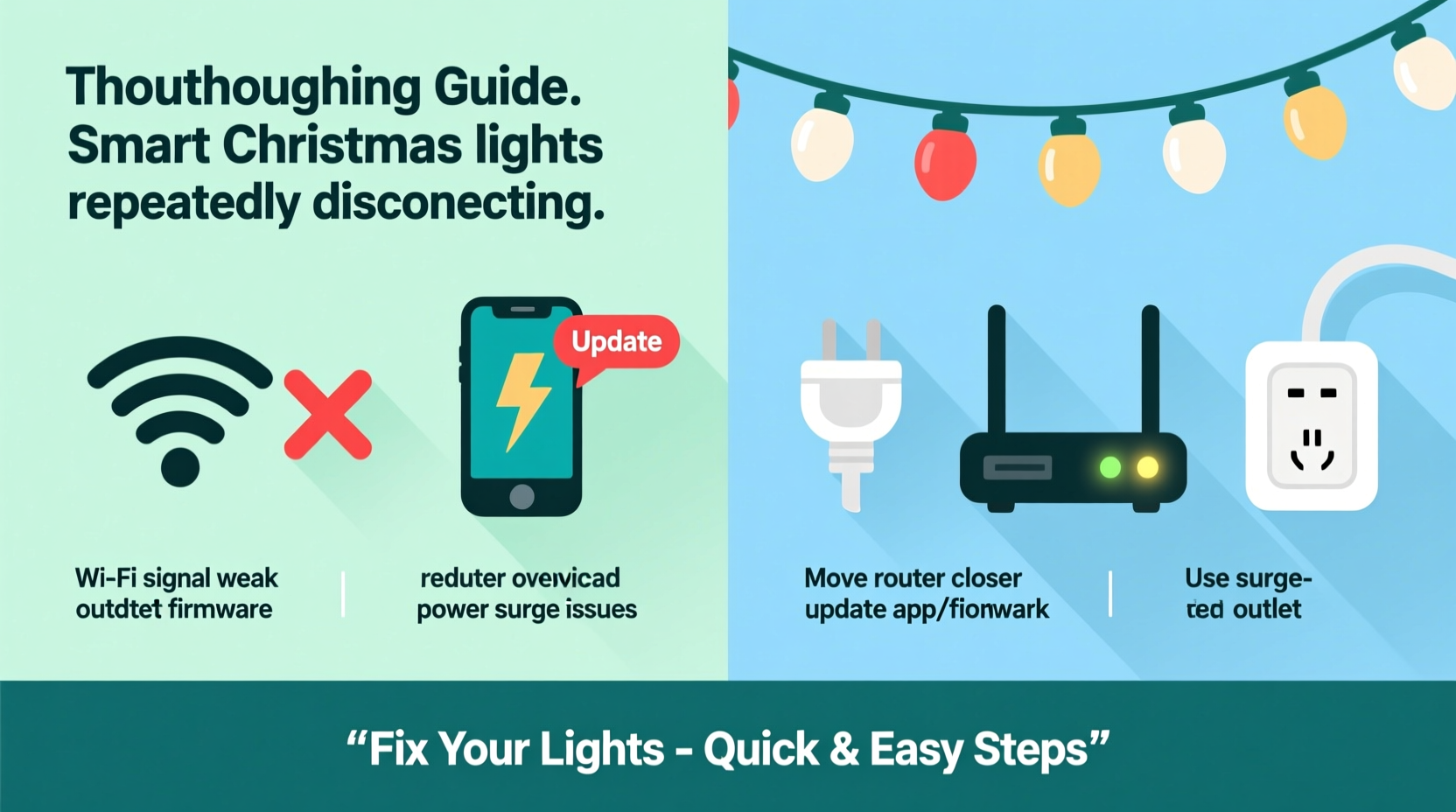
Before troubleshooting, it helps to understand how smart Christmas lights maintain their connection. Unlike traditional string lights, smart versions rely on wireless communication—usually Wi-Fi or Bluetooth—to receive commands from apps, voice assistants, or automations.
- Wi-Fi-based lights connect directly to your home network. They require stable 2.4 GHz signals (most don’t support 5 GHz) and consistent power delivery.
- Bluetooth lights pair directly with your phone or hub within a short range (typically under 30 feet).
- Hue and similar systems use a bridge (like the Hue Hub), which acts as a middleman between the lights and your router.
Disconnections occur when any part of this chain fails—signal strength drops, power flickers, or software misbehaves. Identifying where the break happens is key to fixing it.
Common Causes of Disconnection and Fixes
1. Weak or Unstable Wi-Fi Signal
The most frequent culprit behind dropped connections is poor Wi-Fi coverage. Smart lights often hang in garages, porches, or corners far from the router. As distance increases, signal strength drops—especially through walls, metal frames, or insulation.
Solutions:
- Move the router closer to the lights’ location, if possible.
- Use a Wi-Fi extender or mesh network system to boost coverage outdoors or in distant areas.
- Ensure your lights are on the 2.4 GHz band. Many dual-band routers auto-switch devices; manually assign lights to 2.4 GHz for better wall penetration.
“Over 70% of smart home device issues I see in field service calls trace back to Wi-Fi congestion or dead zones.” — Mark Tran, Smart Home Integration Specialist
2. Power Supply Issues
Smart lights need steady voltage. Fluctuations—from overloaded circuits, low-quality extension cords, or outdoor outlets exposed to moisture—can cause resets or complete shutdowns.
Look for signs like flickering before disconnection or inconsistent brightness. These often point to unstable power rather than network problems.
Solutions:
- Plug lights directly into a wall outlet instead of daisy-chaining multiple strings.
- Use heavy-gauge extension cords rated for outdoor use and avoid overloading circuits.
- Replace old or corroded outdoor outlets. Consider GFCI-protected ones for safety.
- For long runs, use a mid-string power injector to maintain voltage.
3. Network Congestion and Device Overload
Your router has limits. Each smart light counts as a connected device, and when combined with phones, cameras, TVs, and more, the network can become overloaded—especially during peak usage times like evenings.
Congestion leads to packet loss, delayed responses, and eventual timeouts that force lights offline.
Solutions:
- Limit the number of smart lights per circuit or controller. Some brands recommend no more than 10–15 strings per hub.
- Upgrade to a high-performance router with QoS (Quality of Service) settings to prioritize smart home traffic.
- Restart your router weekly to clear memory and refresh DHCP leases.
4. Firmware Bugs and Outdated Software
Firmware governs how smart lights interpret signals and manage connectivity. Manufacturers release updates to patch bugs, improve stability, and add features. If your lights haven’t updated in months, they may suffer from known disconnection flaws.
Solutions:
- Open your lighting app (e.g., Govee Home, Twinkly, Hue) and check for firmware updates.
- Ensure your smartphone app is also up to date—older versions may not communicate properly with newer firmware.
- Reboot the lights after an update by cutting power for 30 seconds.
Troubleshooting Checklist: Step-by-Step Guide
Follow this logical sequence to diagnose and resolve disconnection issues efficiently.
- Verify physical power: Ensure the plug is secure and the outlet is live. Test with another device.
- Check Wi-Fi status: Confirm your router is online and other devices have internet access.
- Test proximity: Bring your phone within 10 feet of the lights. If the app reconnects, signal strength is likely the issue.
- Restart the lights: Unplug for 30 seconds, then plug back in. Wait 2–3 minutes for full reboot.
- Restart the router: Power cycle your modem and router. Wait 2 minutes before turning them back on.
- Check for updates: Open the manufacturer’s app and verify firmware and app versions are current.
- Reduce load: Disconnect other smart devices temporarily to test if congestion is the cause.
- Factory reset: If all else fails, reset the lights using the app or hardware button (refer to manual).
- Re-pair the lights: Go through setup again as if installing new lights.
Do’s and Don’ts: Best Practices Table
| Do’s | Don’ts |
|---|---|
| Use surge protectors for outdoor installations | Plug too many light strings into one outlet |
| Mount Wi-Fi extenders near outdoor displays | Run lights through sprinkler systems or standing water |
| Label controllers and keep manuals handy | Ignore blinking indicator lights on controllers |
| Update firmware monthly during active use | Use indoor-rated lights outdoors |
| Group lights by zone and controller | Assume the problem is the app—test hardware first |
Real-World Example: A Garage Display That Kept Failing
Jason in Denver installed 12 strands of Govee RGBIC lights around his garage and eaves. Every night at 7 PM, the display would work for 10 minutes—then go dark. The app showed “Device Offline,” though his phone had full Wi-Fi.
He tried restarting the lights and router daily, but the issue persisted. After reading about signal penetration, he realized his garage was insulated with aluminum-backed foam board—a material that blocks Wi-Fi. His router was in the basement, two floors away.
Jason installed a mesh node on the main floor near the garage wall. Within minutes of pairing, the lights stayed connected for hours. He also switched to a dedicated outdoor-rated power strip to eliminate voltage drop. The display now runs reliably from Thanksgiving through January.
This case illustrates how environmental factors—often overlooked—can sabotage even well-installed setups.
Frequently Asked Questions
Why do my smart lights disconnect only at night?
Nighttime disconnections often coincide with higher household bandwidth usage—streaming, video calls, gaming—which strains the router. Additionally, outdoor temperature drops can affect power delivery and Wi-Fi propagation. Try reducing network load or adding a local access point.
Can cold weather affect smart Christmas lights?
Yes. Extreme cold can reduce battery efficiency in wireless controllers and make plastic casings brittle. While most lights are rated for freezing temps, sustained exposure below -10°C (14°F) may impair performance. Avoid rapid temperature shifts (e.g., bringing lights indoors while hot) to prevent condensation damage.
Will using a smart plug help stabilize my lights?
In some cases, yes. A smart plug can provide scheduled on/off control and remote reboot capability. However, if the lights themselves lose Wi-Fi, the plug won’t solve the underlying connectivity issue. Use it as a supplement—not a fix—for power cycling.
Preventing Future Disconnections
Once you’ve restored your lights, take steps to maintain stability throughout the season.
- Create a maintenance schedule: Set calendar reminders to check firmware and restart devices every two weeks.
- Map your Wi-Fi coverage: Use a free app like Wi-Fi Analyzer (Android) or NetSpot (Mac/PC) to identify dead zones and adjust extender placement.
- Document your setup: Note model numbers, IP addresses (if static), and controller locations. This speeds up troubleshooting next year.
- Use static IPs or reservations: In your router settings, assign fixed IP addresses to smart light hubs to prevent DHCP conflicts.
Also consider simplifying complex automations. Sequences involving multiple triggers (e.g., “Turn on when motion detected AND after sunset AND temperature below 40°F”) increase failure points. Break them into smaller routines for better reliability.
Conclusion: Keep the Lights On All Season
Smart Christmas lights should enhance the holidays, not complicate them. While disconnections are common, they’re rarely permanent. By methodically addressing power, signal, software, and network conditions, you can achieve a stable, dazzling display that runs smoothly from dusk to dawn.
Start with the basics—power and proximity—then move to advanced fixes like firmware updates and network optimization. Most issues resolve in under an hour once you know where to look. And remember: every tech-savvy homeowner faces these challenges. You’re not alone, and you’re not doing anything wrong.




 浙公网安备
33010002000092号
浙公网安备
33010002000092号 浙B2-20120091-4
Comments
No comments yet. Why don't you start the discussion?