
Smart lighting systems promise convenience, ambiance, and energy efficiency—especially when paired with voice assistants like Alexa, Google Assistant, or Siri. But when your lights flicker unexpectedly after a voice command, the experience shifts from futuristic to frustrating. This isn’t just a minor glitch; it can indicate deeper issues in your smart home ecosystem. The good news? Most causes are diagnosable and fixable with the right approach.
Flickering triggered by voice commands doesn't always point to faulty bulbs. Instead, it often stems from communication delays, power inconsistencies, or configuration mismatches between devices. Understanding the root cause is essential to restoring smooth, reliable control over your lighting environment.
How Smart Lights Respond to Voice Commands
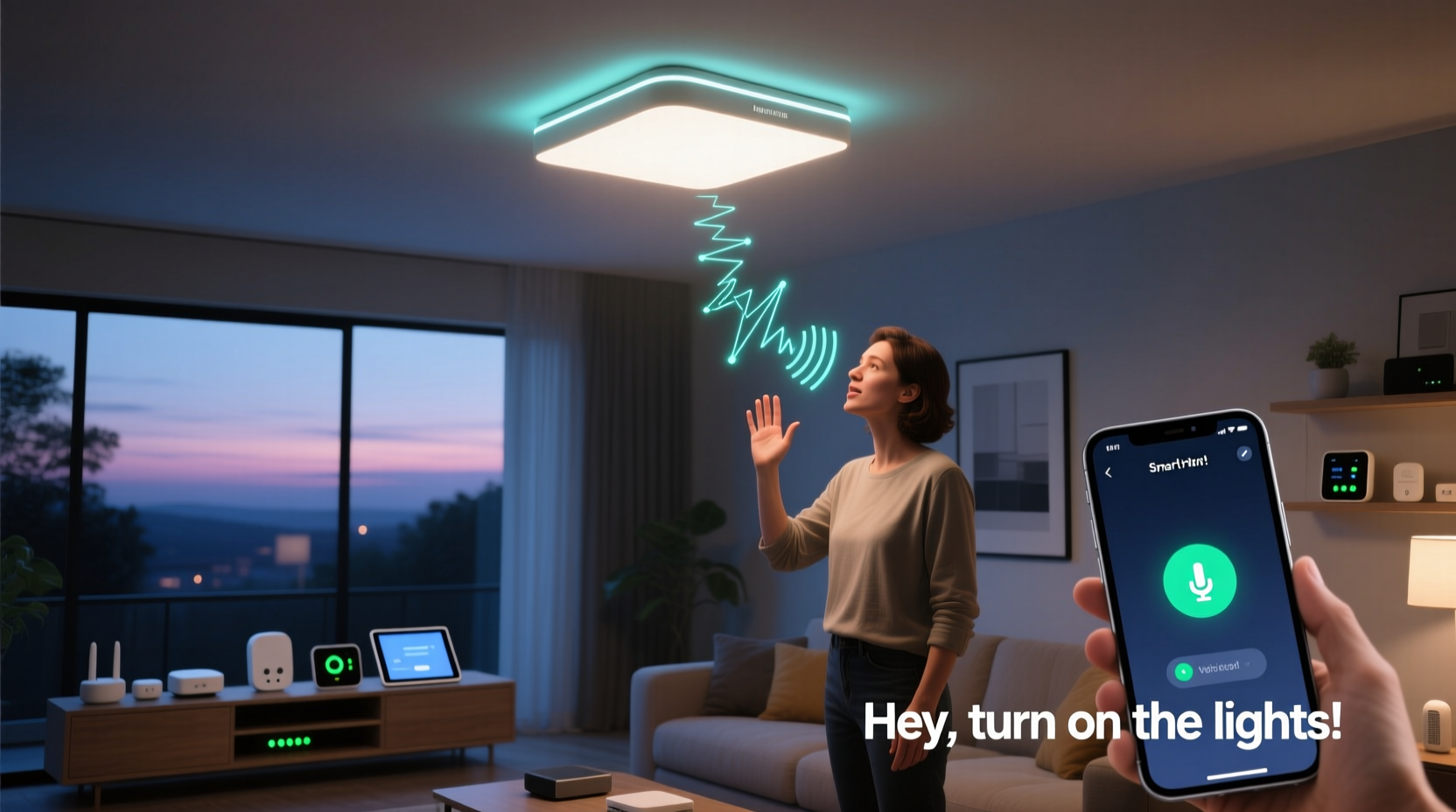
When you say, “Alexa, turn on the living room lights,” a chain of events unfolds behind the scenes:
- Your voice assistant captures and processes the audio command.
- The request is sent to the cloud service associated with your smart lighting platform (e.g., Philips Hue, LIFX, or TP-Link Kasa).
- The cloud server communicates with your home network to relay the instruction to the relevant smart bulb or hub.
- The bulb receives the signal and adjusts its state—turning on, dimming, changing color, etc.
This process typically takes less than a second under ideal conditions. However, any delay or error in this sequence can result in visible flickering. For instance, if the bulb briefly powers down during a failed handshake or misinterprets a partial signal, it may flash momentarily before stabilizing.
Unlike traditional switches that deliver consistent voltage, smart bulbs rely on microprocessors and wireless signals. These components require stable power and clean data transmission. Any disruption—no matter how brief—can manifest as flickering, especially during transitions initiated remotely.
Common Causes of Flickering After Voice Commands
Flickering isn’t random. It’s usually a symptom of one or more underlying technical factors. Below are the most frequent culprits:
1. Network Latency or Wi-Fi Congestion
If your home Wi-Fi is overloaded or your router is far from the smart bulbs, signal delays occur. When a voice command arrives late—or in fragments—the bulb might interpret it as multiple rapid inputs, causing it to blink instead of smoothly transitioning.
2. Incompatible or Low-Quality Dimmer Switches
Many smart bulbs are installed in fixtures controlled by physical dimmer switches. Traditional dimmers reduce voltage using phase-cutting methods that interfere with the constant power supply smart bulbs need. Even when set to “on,” these dimmers can introduce electrical noise, leading to erratic behavior during remote activation.
3. Power Supply Instability
Smart LEDs draw small amounts of current even when off, enabling wake-on-LAN features. If the circuit has voltage fluctuations—common in older homes or shared circuits with high-draw appliances—the bulb’s internal driver may reset momentarily, causing a flicker upon receiving a command.
4. Firmware Bugs or Outdated Software
Manufacturers regularly release firmware updates to improve stability and compatibility. An outdated bulb or hub may misinterpret commands due to unresolved bugs, especially after voice assistant platform updates.
5. Signal Interference from Other Devices
Smart lights using Zigbee or Z-Wave protocols are generally more stable than Wi-Fi models, but they’re not immune to interference. Cordless phones, microwaves, baby monitors, and dense clusters of Bluetooth devices can disrupt radio frequencies, corrupting command delivery.
Troubleshooting Steps to Stop the Flickering
Resolving flickering requires a methodical approach. Follow this step-by-step guide to identify and eliminate the issue:
- Isolate the Problem: Test whether all smart lights flicker or only specific ones. Try turning them on via the mobile app instead of voice. If the flicker persists in app mode, the issue is likely hardware or power-related.
- Check for Firmware Updates: Open your smart lighting app (e.g., Hue, Kasa, or Wiz) and verify that all bulbs and hubs are running the latest firmware. Update any that aren’t.
- Reboot Your Network: Restart your router, modem, and smart hub (if applicable). This clears temporary glitches and reestablishes clean connections.
- Test Without a Dimmer: Temporarily disconnect any wall dimmer switch and wire the fixture directly. Use only voice or app control for testing. If flickering stops, the dimmer is the culprit.
- Improve Wi-Fi Coverage: Move your router closer to the lights or install a mesh Wi-Fi system. Alternatively, use a dedicated Zigbee or Z-Wave hub placed centrally for better signal distribution.
- Reduce Electrical Noise: Plug the lights into a different circuit. Avoid sharing outlets with refrigerators, AC units, or washing machines that cause power surges.
- Factory Reset Affected Bulbs: Remove the problematic bulb from the app, perform a reset (usually by power cycling 3–5 times), then reconnect it.
Do’s and Don’ts When Diagnosing Smart Light Flicker
| Do’s | Don’ts |
|---|---|
| Use smart-bulb-rated dimmer switches if needed | Use old incandescent dimmers with LED smart bulbs |
| Keep firmware updated across all devices | Ignore update notifications in your lighting app |
| Install a Wi-Fi extender for distant bulbs | Assume flickering is normal behavior |
| Consult an electrician for persistent power issues | Attempt DIY electrical rewiring without expertise |
| Test one variable at a time during troubleshooting | Change multiple settings simultaneously |
Real-World Example: A Case of Misconfigured Automation
Consider Mark, a homeowner in Portland who installed a set of LIFX bulbs in his kitchen. Every time he said, “Hey Google, turn on the kitchen lights,” they flashed twice before staying on. He assumed the bulbs were defective and nearly returned them.
After reviewing his automation settings, he discovered a custom routine labeled “Morning Kitchen” that included two sequential actions: “Turn on lights” followed immediately by “Set brightness to 75%.” Because both commands fired within milliseconds, the bulbs interpreted them as separate events, causing a perceptible flicker.
By merging the actions into a single command (“Turn on and set to 75% brightness”), the flickering stopped instantly. This case highlights how software logic—not hardware failure—can create seemingly technical malfunctions.
“Many flickering complaints we see are actually timing or scripting issues, not electrical faults. Reviewing automations and command sequences often resolves the problem.” — David Lin, Senior Support Engineer at Nanoleaf
Preventative Maintenance Checklist
To keep your smart lighting system flicker-free long-term, follow this checklist periodically:
- ✅ Check for firmware updates monthly
- ✅ Verify all bulbs appear online in the app
- ✅ Audit automations and routines for redundant commands
- ✅ Ensure no physical dimmer switches are interfering
- ✅ Monitor Wi-Fi signal strength near each bulb location
- ✅ Clean dust from bulb bases and sockets every 3–6 months
- ✅ Label circuits to avoid accidental overload from other appliances
Frequently Asked Questions
Can voice assistants send corrupted commands?
While rare, yes. If your voice assistant mishears a command (e.g., “dim the lights” vs. “blink the lights”), it may trigger unintended behaviors. More commonly, network latency causes delayed or duplicated commands. Ensuring clear speech and strong connectivity minimizes these risks.
Why do only some of my smart bulbs flicker?
Inconsistent behavior across bulbs usually points to localized issues—such as one bulb being on a noisy circuit, having outdated firmware, or sitting at the edge of your Wi-Fi range. Individual bulb age and wear can also contribute; older units may have degraded drivers that respond poorly to rapid signals.
Is flickering dangerous?
Occasional flickering due to software glitches is generally not hazardous. However, persistent flickering accompanied by buzzing sounds, overheating, or burning smells could indicate electrical faults, incompatible wiring, or failing components. In such cases, discontinue use and consult a licensed electrician.
Conclusion: Regain Control Over Your Smart Lighting
Flickering smart lights may seem like a minor annoyance, but they disrupt the seamless experience smart homes are designed to deliver. By understanding the interplay between voice commands, network stability, electrical setup, and device configuration, you can diagnose and resolve the issue effectively.
The solution often lies not in replacing hardware, but in fine-tuning the ecosystem around it. Whether it’s updating firmware, removing incompatible dimmers, or simplifying automation routines, small adjustments yield significant improvements. Smart lighting should enhance your life—not distract from it.




 浙公网安备
33010002000092号
浙公网安备
33010002000092号 浙B2-20120091-4
Comments
No comments yet. Why don't you start the discussion?