
Notifications are designed to keep us informed in real time—whether it's a message from a colleague, an urgent email, or a social media update. Yet, many users regularly experience frustrating delays. A text arrives minutes after it was sent. An email alert pops up hours later. These lags disrupt workflows, damage communication reliability, and can even cause missed opportunities. The root causes vary widely, from device settings to network congestion and background app behavior. Understanding why these delays occur is the first step toward eliminating them.
The issue isn't always with your phone or operating system alone. Multiple layers—from the app developer’s server infrastructure to your Wi-Fi connection—can influence delivery speed. This article breaks down the technical and environmental factors behind delayed notifications and provides actionable solutions to restore timely alerts across Android, iOS, and desktop environments.
How Notifications Work: The Hidden Journey
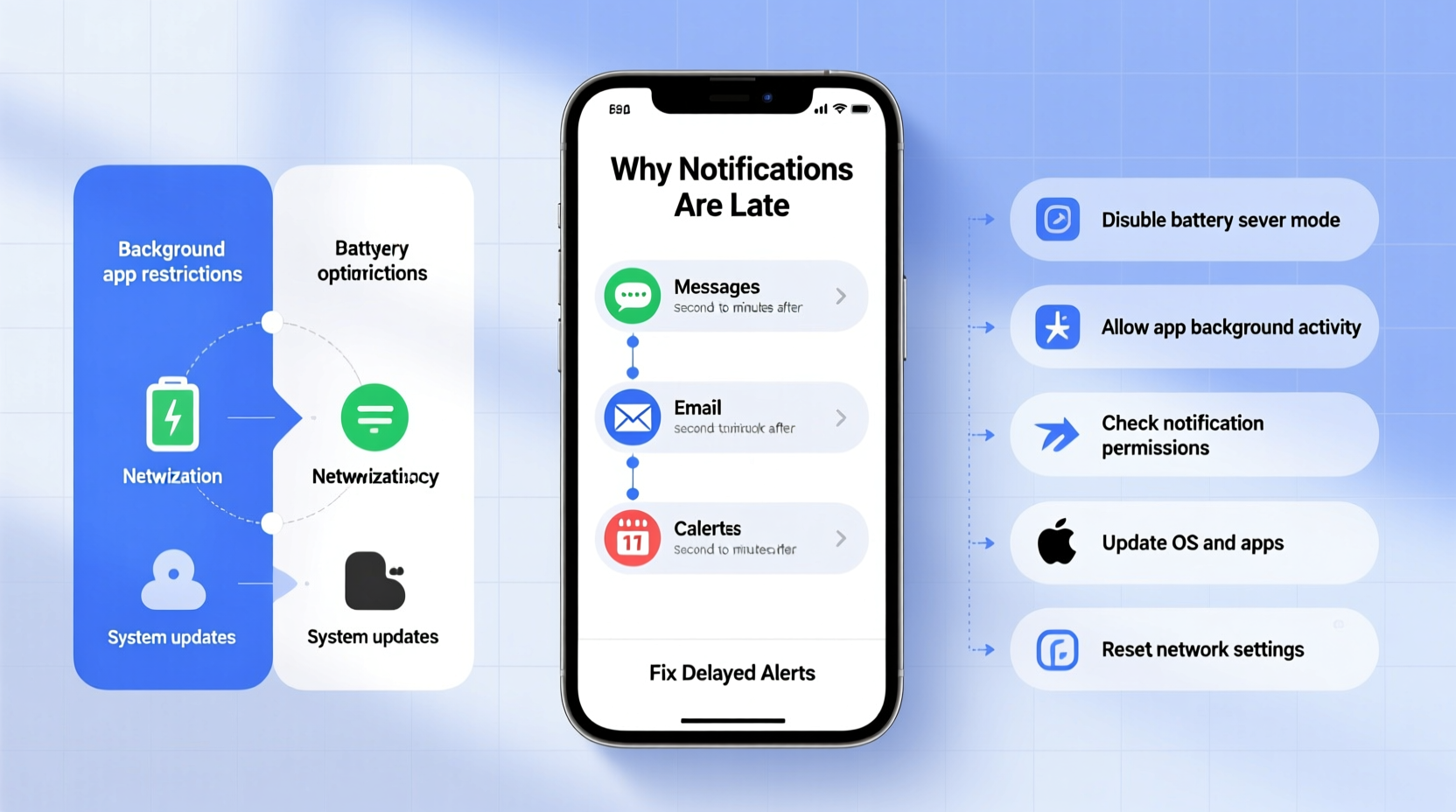
Before diagnosing delays, it helps to understand how a notification travels from sender to recipient. When someone sends you a message on WhatsApp, for example, it doesn’t go directly to your phone. Instead, it follows this path:
- The sender hits “send,” and the message uploads to WhatsApp’s servers.
- WhatsApp identifies your registered device(s) and queues a push notification.
- Google Firebase Cloud Messaging (FCM) on Android or Apple Push Notification Service (APNs) on iOS receives the alert.
- Your device wakes up briefly to receive the signal—even if the screen is off.
- The OS delivers the notification to the app interface.
This process usually takes under a second. But at any point, a bottleneck can introduce lag. For instance, if your phone is in deep sleep mode, it may not check for messages frequently enough. Or, if APNs is experiencing high traffic, delivery might be queued.
“Push notification systems rely on a delicate balance between battery efficiency and responsiveness. Many delays stem from power-saving features overriding real-time delivery.” — Dr. Lena Torres, Mobile Systems Engineer at MIT
Common Causes of Notification Delays
Notification latency rarely stems from a single source. More often, it’s a combination of software, hardware, and network conditions. Below are the most frequent culprits:
1. Aggressive Battery Optimization
Modern smartphones prioritize battery life over background activity. Both Android and iOS restrict apps from running constantly in the background. On Android, features like Doze Mode suspend background processes when the device is idle. iOS uses Background App Refresh limits to reduce energy use. If your messaging app is throttled, it won’t check for new messages until the next maintenance window—sometimes delaying alerts by minutes or even hours.
2. Poor or Unstable Internet Connection
Even with Wi-Fi enabled, signal strength matters. Weak cellular signals or congested networks slow data transmission. Push services like FCM require consistent connectivity to deliver alerts instantly. If your device disconnects intermittently, it may miss notification pings entirely and only sync upon reconnection.
3. App-Specific Sync Settings
Some apps, especially email clients like Gmail or Outlook, default to manual or periodic syncing. If set to fetch new messages every 15 minutes, you won’t get instant alerts. Similarly, social media apps may batch notifications to reduce server load and improve user focus, meaning multiple updates arrive together with a delay.
4. Server-Side Throttling
Not all delays are on your end. Messaging platforms occasionally throttle delivery during peak usage. For example, during global events, Twitter or Facebook may experience backend congestion, causing delayed pushes. In such cases, no local fix will help—only time resolves the issue.
5. Outdated Software or Caches
Bugs in outdated operating systems or apps can interfere with push services. Corrupted caches may prevent apps from registering correctly with FCM or APNs, leading to missed or delayed alerts.
Step-by-Step Guide to Fixing Delayed Notifications
Follow this structured troubleshooting sequence to identify and resolve the root cause of notification delays. Start with the simplest checks and progress to deeper configurations.
- Check Internet Connectivity
Ensure your device has stable internet access. Try loading a webpage or using another app that requires real-time updates. If other apps work fine, the issue is likely isolated to one app or its settings. - Verify App Notification Permissions
Go to Settings > Notifications and confirm the app is allowed to send alerts. Some updates reset permissions. Also ensure \"Allow Notifications\" is toggled on and set to deliver alerts immediately—not silently. - Disable Battery Optimization for Critical Apps
On Android: Settings > Apps > [App Name] > Battery > Unrestricted.
On iOS: Settings > [App Name] > Background App Refresh > Enable. - Adjust Sync Frequency
In email apps, navigate to account settings and change sync frequency to “Push” or “As Items Arrive.” Avoid “Every 15/30 Minutes” unless you’re intentionally conserving data. - Clear App Cache (Android)
Settings > Apps > [App Name] > Storage > Clear Cache. This forces the app to re-register with FCM and refresh its connection tokens. - Restart Push Services
Turn off Wi-Fi and mobile data, enable Airplane Mode for 10 seconds, then disable it. This resets network connections and often re-establishes lost push channels. - Update Operating System and Apps
Install the latest OS and app updates. Developers frequently patch bugs related to background processing and push delivery. - Re-add Problematic Accounts
If only one email or messaging account is delayed, remove and re-add it. This regenerates authentication tokens and reconnects the push channel.
Do’s and Don’ts: Best Practices for Timely Alerts
| Action | Do | Don’t |
|---|---|---|
| Battery Management | Whitelist essential apps from battery optimization | Apply blanket restrictions to all background apps |
| Wi-Fi Usage | Use reliable networks with strong signal | Rely on public Wi-Fi with spotty connectivity |
| Sync Settings | Enable push or instant sync for critical accounts | Set email to manual fetch unless necessary |
| Software Updates | Install updates promptly, especially security patches | Delay OS or app updates indefinitely |
| Notification Settings | Customize per-app alert timing and sound | Disable notifications entirely to avoid clutter |
Real-World Example: Sarah’s Missed Client Message
Sarah, a freelance graphic designer, relies on Slack and WhatsApp to communicate with clients. One morning, she missed a time-sensitive request because her phone didn’t alert her until two hours later. After investigating, she discovered that her Samsung Galaxy had placed WhatsApp into “Deep Sleeping” mode after 10 minutes of inactivity. Although notifications were enabled, the app wasn’t allowed to wake the device to receive messages.
She resolved the issue by navigating to Settings > Battery > App Power Management > WhatsApp > Unrestricted. She also disabled “Put unused apps to sleep.” Within minutes, her message delivery became instantaneous. This case highlights how aggressive power management—while beneficial for battery—can undermine real-time communication needs.
Checklist: Optimize Your Device for Instant Notifications
- ✅ Confirm all apps have active notification permissions
- ✅ Disable battery optimization for messaging, email, and work apps
- ✅ Set email accounts to “Push” or “Fetch New Data” as frequently as possible
- ✅ Ensure Wi-Fi and cellular connections are stable and fast
- ✅ Clear cache for apps with persistent delays (Android)
- ✅ Restart your device weekly to clear memory and reset services
- ✅ Update your OS and apps regularly
- ✅ Test notifications using secondary devices or accounts
- ✅ Monitor server status pages (e.g., downdetector.com) during widespread delays
- ✅ Use dual SIM or hotspot backup if primary network is unreliable
Frequently Asked Questions
Why do my notifications arrive in batches?
Bundling notifications is a feature designed to reduce interruptions. However, some apps group alerts due to sync intervals or power-saving modes. To stop batching, disable “Notification Summary” (iOS) or adjust notification categories to deliver immediately. On Android, check if “Adaptive Notifications” or “Suggested Apps” are interfering.
Can antivirus or firewall software delay notifications?
Yes. Security apps that monitor network traffic or block background activity can interfere with push services. For example, certain Android antivirus tools restrict background data or classify messaging apps as low priority. Temporarily disable third-party security apps to test if they’re causing delays.
Do iMessage delays mean I’ve been blocked?
Not necessarily. While being blocked prevents delivery altogether, delays are more commonly caused by poor internet, iCloud sync issues, or the recipient’s device being offline. A delayed “Delivered” status doesn’t confirm blocking—check other interactions or ask directly if concerned.
Conclusion: Reclaim Control Over Your Alerts
Delayed notifications aren’t inevitable. With the right settings and awareness, you can maintain near-instant delivery across all your devices. The key is balancing performance, battery life, and connectivity without sacrificing responsiveness. Most fixes require only a few minutes in your settings menu but yield long-term improvements in communication reliability.
Start by auditing your current notification behavior. Identify which apps are consistently delayed and apply targeted fixes—especially around battery optimization and sync settings. Regular maintenance, like clearing caches and updating software, prevents future issues. Remember, your smartphone should serve you, not silence critical updates.




 浙公网安备
33010002000092号
浙公网安备
33010002000092号 浙B2-20120091-4
Comments
No comments yet. Why don't you start the discussion?