
Smart lighting systems offer convenience, energy efficiency, and enhanced home automation—but nothing undermines that experience faster than lights turning on by themselves. This phenomenon, commonly known as \"ghost switching,\" frustrates homeowners who expect reliability from their connected devices. While it may seem like a minor glitch, unexplained activations can point to deeper issues in your network, device firmware, or electrical setup. Understanding the root causes and applying targeted fixes ensures your smart lights behave predictably and securely.
Ghost switching doesn’t mean your home is haunted—it’s usually the result of technical oversights, compatibility mismatches, or environmental interference. With the right knowledge, most cases can be resolved without replacing hardware. This guide dives into the mechanics behind spontaneous light activation, walks through diagnostic steps, and provides long-term solutions to restore control over your smart lighting ecosystem.
Understanding Ghost Switching in Smart Lights
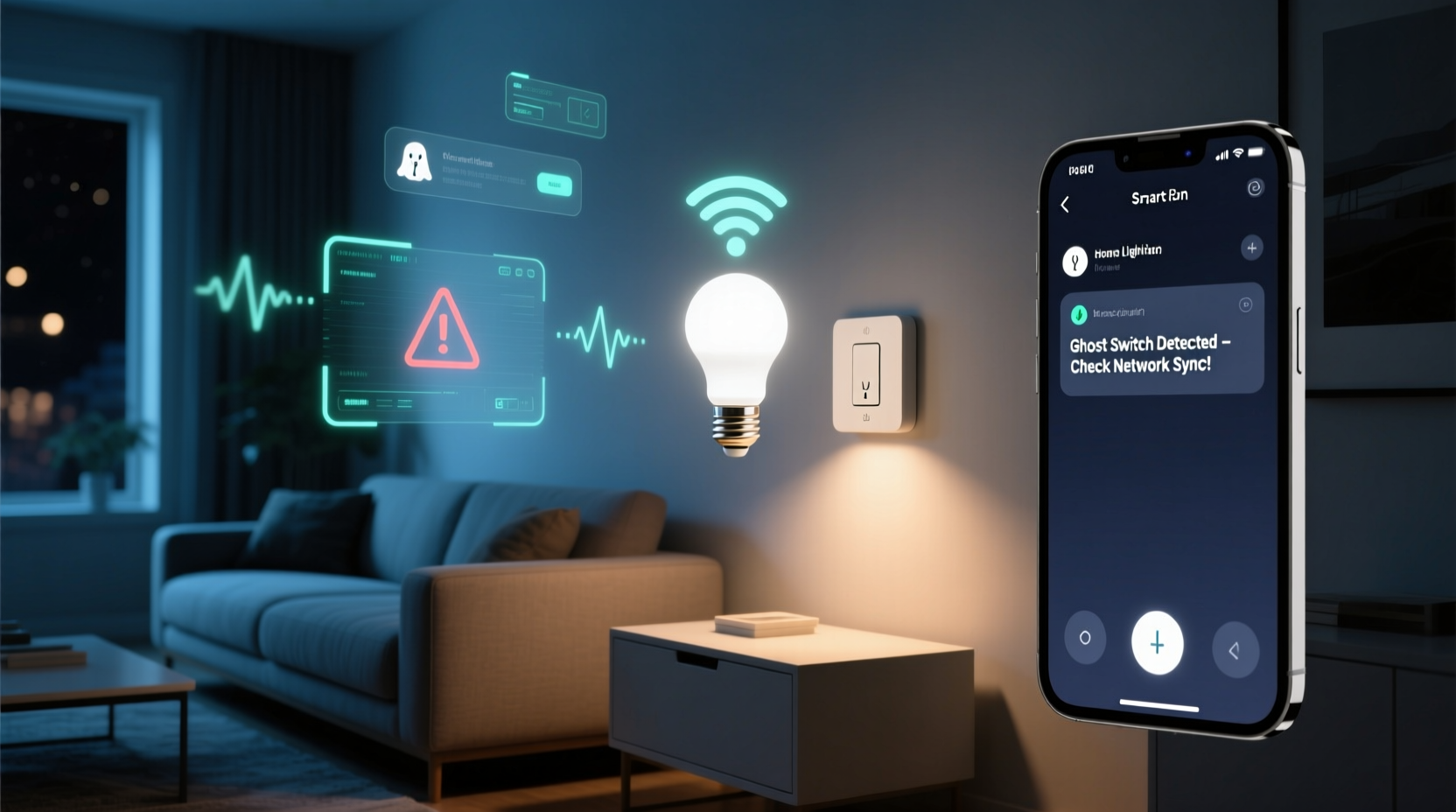
Ghost switching refers to the unintended activation of smart bulbs or switches without user input. It often occurs at random times—late at night, during storms, or after system updates. The behavior mimics manual toggling but lacks a clear trigger. While alarming at first, this issue is typically rooted in one of several common factors:
- Firmware bugs or outdated software
- Wi-Fi signal instability or network congestion
- Electrical noise or voltage fluctuations
- Automation rules misconfigured in apps
- Interference from other smart devices or RF signals
Unlike traditional switches, smart lighting relies on digital communication between devices, hubs, routers, and cloud servers. Any disruption in this chain can cause false commands. For example, a momentary Wi-Fi dropout might prompt a bulb to revert to a default state when reconnecting. Similarly, an automation rule set to “turn on if motion detected” could activate due to sensor errors rather than actual movement.
“Ghost switching is rarely a hardware defect. In 90% of cases we see, it's either a configuration flaw or network instability.” — David Lin, Senior IoT Engineer at HomeSync Systems
Common Causes and How to Diagnose Them
Resolving ghost switching starts with isolating the source. Below are the most frequent culprits, along with diagnostic techniques to confirm each possibility.
1. Automation or Routine Conflicts
Many users unknowingly create overlapping automations. A sunrise-based rule might conflict with a motion-triggered scene, especially if time zones or geolocation settings are inaccurate.
2. Network Instability
Smart bulbs depend on stable connectivity. If your router drops packets or experiences latency spikes, command signals can become corrupted. Zigbee and Z-Wave devices are less prone to this than Wi-Fi models, but even mesh networks can suffer from interference.
To test network health:
- Run a ping test from your phone or laptop to the smart hub.
- Check for packet loss or high jitter using tools like
ping -t(Windows) orping(macOS/Linux). - Monitor signal strength near the affected lights using a Wi-Fi analyzer app.
3. Power Surges and Electrical Noise
In older homes or circuits shared with large appliances, voltage fluctuations can mimic switch signals. Dimmer switches, especially trailing-edge types, are particularly sensitive to such disturbances.
A real-world example: A homeowner reported their bedroom smart bulb turning on every time the HVAC system cycled off. An electrician discovered induced voltage from nearby motor wiring was enough to trigger the low-power circuitry inside the bulb.
4. Firmware Bugs
Manufacturers occasionally release firmware with logic errors. For instance, a Philips Hue update in early 2023 caused certain bulbs to interpret heartbeat signals as on/off commands under specific network conditions.
Always check your device manufacturer’s support page for known issues before assuming hardware failure.
Troubleshooting Step-by-Step Guide
Follow this structured approach to eliminate potential causes systematically. Start simple and escalate only when necessary.
- Disable all automations temporarily. Turn off schedules, scenes, and voice assistant integrations. Observe the lights for 24–48 hours. If no ghost switching occurs, re-enable rules one by one to identify the culprit.
- Reboot your network infrastructure. Power down your router, modem, and smart hub. Wait two minutes, then restart them in order: modem → router → hub. This clears stale connections and resets DHCP leases.
- Update firmware and apps. Ensure your smart lighting app, hub (if used), and individual bulbs are running the latest versions. Check within the app or via the manufacturer’s website.
- Check for physical switch interference. If your smart bulb is controlled by a wall switch, ensure the switch is fully in the “on” position. Some users leave dimmers halfway, causing erratic power delivery.
- Test on a different circuit. Move the bulb to another room or plug it into a lamp on a separate breaker. If the issue stops, the original circuit may have electrical noise.
- Factory reset the device. Use the app or a reset sequence (e.g., power cycle five times) to wipe settings and re-pair the bulb. This removes corrupted configurations.
- Inspect for third-party integrations. Services like IFTTT, Alexa Routines, or Google Assistant shortcuts can execute hidden triggers. Disable non-essential links and audit recent activity logs.
Prevention Checklist
Once the immediate issue is resolved, use this checklist to prevent recurrence:
- ✅ Audit automations monthly
- ✅ Enable automatic firmware updates
- ✅ Install a UPS or surge protector for critical hubs
- ✅ Use dedicated 2.4 GHz Wi-Fi band for smart devices
- ✅ Label circuits and map device locations for troubleshooting
- ✅ Avoid mixing incompatible dimmer switches with smart bulbs
Do’s and Don’ts When Dealing with Ghost Switching
| Do’s | Don’ts |
|---|---|
| Use a wired hub (like Samsung SmartThings or Hubitat) instead of relying solely on Wi-Fi | Ignore repeated firmware update notifications |
| Segment smart devices onto a separate VLAN or guest network | Assume the problem is isolated to one bulb without testing others |
| Keep a log of when ghost switching occurs (time, weather, appliance usage) | Blame the manufacturer immediately without diagnostics |
| Consult an electrician if you suspect circuit-level interference | Overload circuits with multiple high-draw devices near smart lights |
Real-World Case Study: Solving Persistent Nighttime Activations
A family in Portland, Oregon, experienced their living room smart bulbs turning on around 2:17 AM nearly every night. They had tried resetting the bulbs, changing routers, and disabling all automations—but the issue persisted.
After reviewing their setup, a technician noticed two key details: First, the bulbs were connected to a dimmer switch not rated for LED loads. Second, their internet provider performed nightly maintenance between 2:00–2:30 AM, briefly interrupting service.
The combination created a perfect storm: During reconnection, the bulbs would briefly lose state memory. Because the dimmer wasn’t fully on, the inconsistent power flow caused the firmware to default to “on” upon reboot. Replacing the dimmer with a compatible model and adding a small uninterruptible power supply (UPS) for the router eliminated the problem entirely.
This case underscores the importance of considering both software and hardware layers when diagnosing smart home issues.
Frequently Asked Questions
Can a power outage cause smart lights to turn on automatically?
Yes. Many smart bulbs default to “on” after a power interruption unless configured otherwise. In the app settings, look for options like “Restore last state,” “Power loss recovery,” or “Startup behavior” and set them to “Off” or “Last state” as preferred.
Why do my smart lights turn on when I unlock my front door?
This is likely due to an automation rule tied to your smart lock. Check your home automation app (e.g., Apple Home, Google Home, or Alexa) for any “If door unlocks, turn on lights” routines. You may have enabled this accidentally or through a suggested shortcut.
Is ghost switching a security risk?
Possibly. While rare, unauthorized access to your smart home account could allow remote triggering. Always use strong passwords, enable two-factor authentication, and review connected devices regularly. If ghost switching coincides with other odd behaviors (e.g., cameras moving, locks engaging), investigate for breaches immediately.
Expert Recommendations for System Stability
Leading smart home engineers emphasize proactive maintenance over reactive fixes. According to Maria Tran, a systems architect at Nest Labs:
“The best way to avoid ghost switching isn’t fixing it when it happens—it’s designing your system to be resilient from day one. That means choosing reliable protocols, avoiding Wi-Fi overcrowding, and treating firmware updates like oil changes: routine and non-negotiable.” — Maria Tran, Smart Home Systems Architect
She recommends prioritizing Zigbee or Z-Wave over Wi-Fi for lighting where possible. These mesh protocols are more stable, consume less bandwidth, and are less susceptible to interference from streaming devices or video calls.
Additionally, she advises against daisy-chaining automations across platforms. For example, triggering a Philips Hue scene via an Alexa Routine that’s activated by a SmartThings motion sensor introduces multiple points of failure. Instead, consolidate logic within a single ecosystem when feasible.
Conclusion: Regain Control of Your Smart Lighting
Smart lights turning on by themselves is a solvable problem—not a permanent flaw in modern technology. By methodically evaluating automations, network performance, electrical conditions, and firmware status, you can pinpoint and eliminate the cause of ghost switching. Most solutions require no special tools or expertise, just attention to detail and patience during testing.
Remember, consistency matters more than complexity. A well-maintained smart lighting system should operate silently and reliably, enhancing your home without surprises. Apply the steps outlined here, implement the prevention checklist, and document changes to build confidence in your setup.




 浙公网安备
33010002000092号
浙公网安备
33010002000092号 浙B2-20120091-4
Comments
No comments yet. Why don't you start the discussion?