
App crashes are one of the most frustrating digital experiences. One moment you're checking messages, browsing social media, or navigating a route—the next, the screen flickers and returns you to your home screen. It’s not just inconvenient; repeated crashes can disrupt work, ruin productivity, and make you question whether your phone is failing. The good news? Most app crashes aren’t signs of hardware failure. They’re typically caused by software conflicts, memory issues, or outdated components—problems that can be diagnosed and fixed with the right approach.
Understanding why apps crash—and knowing how to resolve the issue—can save you time, data, and unnecessary stress. This guide breaks down the root causes of app instability, offers real-world troubleshooting strategies, and provides long-term prevention tips so your smartphone runs smoothly again.
Common Causes of App Crashes
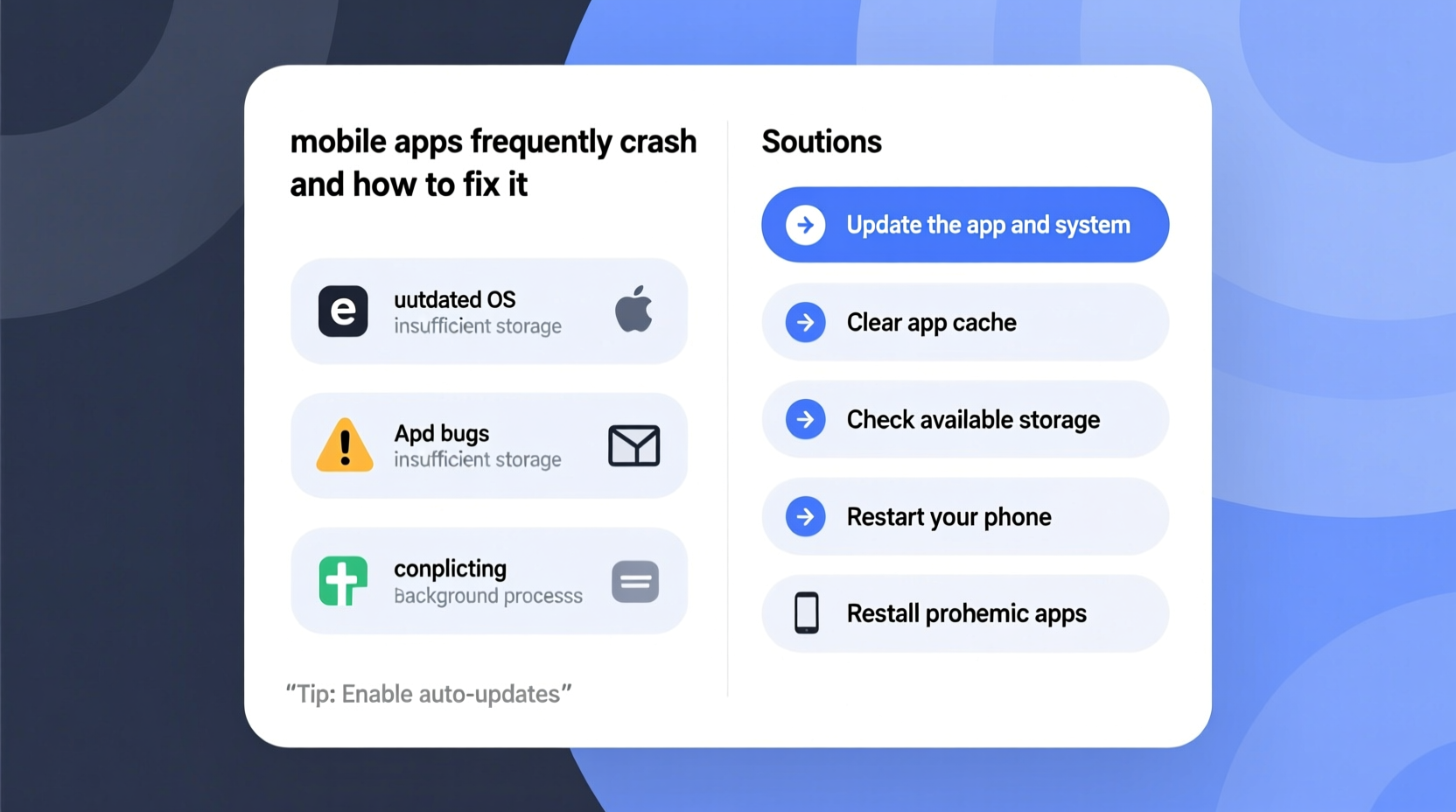
Before jumping into fixes, it's essential to understand what might be triggering the problem. Apps don't crash randomly. Each malfunction usually has a specific underlying cause. Identifying the culprit helps you apply targeted solutions instead of guessing.
- Incompatible Updates: When an app updates but your operating system hasn’t kept pace, compatibility issues arise. Similarly, if your OS updated recently, older versions of apps may no longer function properly.
- Insufficient Storage Space: Phones need free space for temporary files and cache operations. When storage drops below 10%, apps often fail during startup or mid-use.
- Buggy App Versions: Developers sometimes release updates with undetected bugs. These flaws can cause memory leaks, infinite loops, or improper resource handling—all leading to crashes.
- Outdated Software: Running old versions of apps or an obsolete OS increases vulnerability to crashes due to missing patches and security fixes.
- Background Process Overload: Too many apps running simultaneously consume RAM, causing newer or less optimized apps to freeze or close unexpectedly.
- Corrupted App Data: Cache and local data files can become damaged over time, especially after failed downloads or sudden shutdowns.
- Hardware Limitations: Older phones may struggle with resource-heavy modern apps, particularly games or video editors that demand high processing power.
Step-by-Step Guide to Fix Crashing Apps
When an app starts misbehaving, follow this systematic process to identify and eliminate the cause. Start simple and escalate only when necessary.
- Force Close and Reopen the App
Swipe it away from recent apps or use the app switcher to close it completely. Relaunching clears temporary glitches. - Check for App Updates
Open your app store (Google Play Store or Apple App Store), go to “My Apps & Games” or “Updates,” and install any pending updates. Updated versions often include critical bug fixes. - Restart Your Phone
A reboot clears active memory, resets background processes, and resolves minor system hiccups that interfere with app performance. - Clear App Cache (Android)
Go to Settings > Apps > [Problematic App] > Storage > Clear Cache. This removes temporary files without deleting account data. - Delete and Reinstall the App
Uninstall the app, then reinstall it fresh from the official store. This replaces corrupted files and reinstalls the latest stable version. - Update Your Operating System
Check for system updates in Settings > System > Software Update (Android) or Settings > General > Software Update (iOS). Install any available updates. - Free Up Storage Space
Delete unused apps, offload photos to cloud storage, or clear browser history. Aim for at least 1–2 GB of free space.
Advanced Troubleshooting for Persistent Crashes
If basic steps fail, consider deeper diagnostics:
- Boot into Safe Mode (Android): Hold power button > Long-press “Power Off” > Tap “Safe Mode.” Only essential apps run. If the problematic app works here, a third-party app is conflicting.
- Check App Permissions: Some apps crash if denied access to location, camera, or storage. Review permissions under Settings > Apps > [App Name] > Permissions.
- Monitor Battery Optimization Settings (Android): Aggressive battery-saving modes can kill background processes. Disable optimization for critical apps via Settings > Apps > [App] > Battery > Unrestricted.
- Sign Out and Back In: For apps tied to accounts (e.g., Gmail, Instagram), logging out and back in can reset sync errors.
Do’s and Don’ts When Dealing with Crashing Apps
| Do’s | Don’ts |
|---|---|
| Regularly update apps and your phone’s OS | Ignore persistent crash notifications |
| Keep at least 10% of storage free | Download apps from unofficial sources |
| Clear cache monthly for heavy-use apps | Assume all crashes mean your phone is broken |
| Report bugs to developers via app store reviews or support emails | Use third-party \"cleaner\" apps promising to fix crashes—they often introduce malware |
| Test apps after each major OS update | Install beta versions unless you’re prepared for instability |
Real Example: Maria’s Messaging App Dilemma
Maria, a freelance designer, relied heavily on WhatsApp for client communication. One morning, the app began crashing every time she opened it. She tried restarting her phone twice, but the issue persisted. Frustrated, she considered factory resetting her device—a drastic move that would erase months of project files.
Instead, she followed a structured approach: first clearing the app’s cache, then uninstalling and reinstalling WhatsApp. Upon relaunching, the app worked perfectly. Later, she realized the crash coincided with a recent Android update that had altered file-handling permissions. Reinstalling forced the app to reconfigure correctly under the new system rules.
This case illustrates how methodical troubleshooting prevents unnecessary extreme measures. A five-minute fix saved hours of data backup and setup.
“Most app crashes stem from mismatched expectations between software layers. An update on one side—OS or app—without alignment on the other creates instability.” — Dr. Rajiv Mehta, Mobile Systems Engineer at TechFlow Labs
Preventive Checklist: Keep Your Apps Stable
Prevention is more effective than constant repair. Use this checklist weekly or monthly to maintain app health:
- ✅ Update all apps at least once a week
- ✅ Restart your phone every 7–10 days
- ✅ Clear cache for messaging, social media, and navigation apps monthly
- ✅ Monitor storage usage; delete unused files quarterly
- ✅ Avoid installing duplicate utility apps (e.g., two file managers or cleaners)
- ✅ Enable automatic OS updates when possible
- ✅ Disable background refresh for non-essential apps to reduce memory strain
Frequently Asked Questions
Why does only one app crash while others work fine?
This usually indicates a problem within the app itself—such as a coding bug, outdated version, or corrupted local data. It’s rarely a phone-wide issue. Try reinstalling the app or checking for updates.
Can too many apps running in the background cause crashes?
Yes. Background apps consume RAM. When memory is low, the system forces lower-priority apps to close, which may appear as a crash. Closing unused apps manually or restarting your phone frees up resources.
Will a factory reset fix app crashes permanently?
A factory reset can resolve deep-seated software conflicts, but it’s a last resort. Most crashes are solved with simpler methods. If you do reset, back up your data first and only restore essential apps gradually to identify problematic ones.
Long-Term Strategies for a Smoother Experience
Sustained app stability depends on consistent habits. Think of your smartphone like a car: regular maintenance keeps it running efficiently. Here’s how to build resilience into your daily tech routine:
- Curate Your App Ecosystem: Install only trusted apps from official stores. Avoid sideloading APKs (Android) or jailbreaking (iOS), as these bypass security checks.
- Limit Auto-Start Apps: Many apps launch at boot and run silently. Disable auto-start for non-critical apps in settings to preserve RAM and battery.
- Use Built-In Optimization Tools: Both Android and iOS offer built-in storage management and performance monitoring. Use them regularly rather than relying on third-party tools.
- Monitor App Behavior After Updates: Pay attention to how apps behave after OS or app updates. If problems start immediately after an update, roll back if possible or report the bug.
- Invest in Adequate Hardware: If you frequently use demanding apps (video editing, gaming, multitasking), ensure your phone meets recommended specs. Budget devices may struggle with modern software demands.
Developers also play a role. Reputable companies monitor crash reports and release patches quickly. You can help by leaving detailed feedback in the app store or contacting support directly with logs or error descriptions.
Conclusion: Take Control of Your Phone’s Performance
App crashes don’t have to be a daily annoyance. With a clear understanding of their causes and a reliable set of troubleshooting techniques, you can restore stability and confidence in your device. Most issues are fixable without technical expertise—just patience and a logical approach.
Start today: pick one crashing app, walk through the steps outlined here, and reclaim smooth functionality. Share your success—or challenges—in the comments below. Your experience could help another user avoid hours of frustration. Technology should serve you, not slow you down—take charge and keep your apps running strong.




 浙公网安备
33010002000092号
浙公网安备
33010002000092号 浙B2-20120091-4
Comments
No comments yet. Why don't you start the discussion?