
It’s frustrating when a brand-new phone—packed with the latest hardware and software—struggles to run basic apps. You expect flawless performance, but instead, you’re met with constant crashes, frozen screens, or error messages. While new devices are generally more reliable than older models, they’re not immune to technical glitches. App crashes can stem from software conflicts, incomplete updates, compatibility issues, or even minor bugs in newly released operating systems. The good news is that most of these problems are fixable with the right approach.
Understanding why apps crash—and knowing how to resolve it—can save time, reduce frustration, and help you get the most out of your investment. Whether you’ve just upgraded to the latest flagship model or received a new phone as a gift, this guide provides actionable solutions backed by real-world testing and expert insights.
Common Causes of App Crashes on New Phones
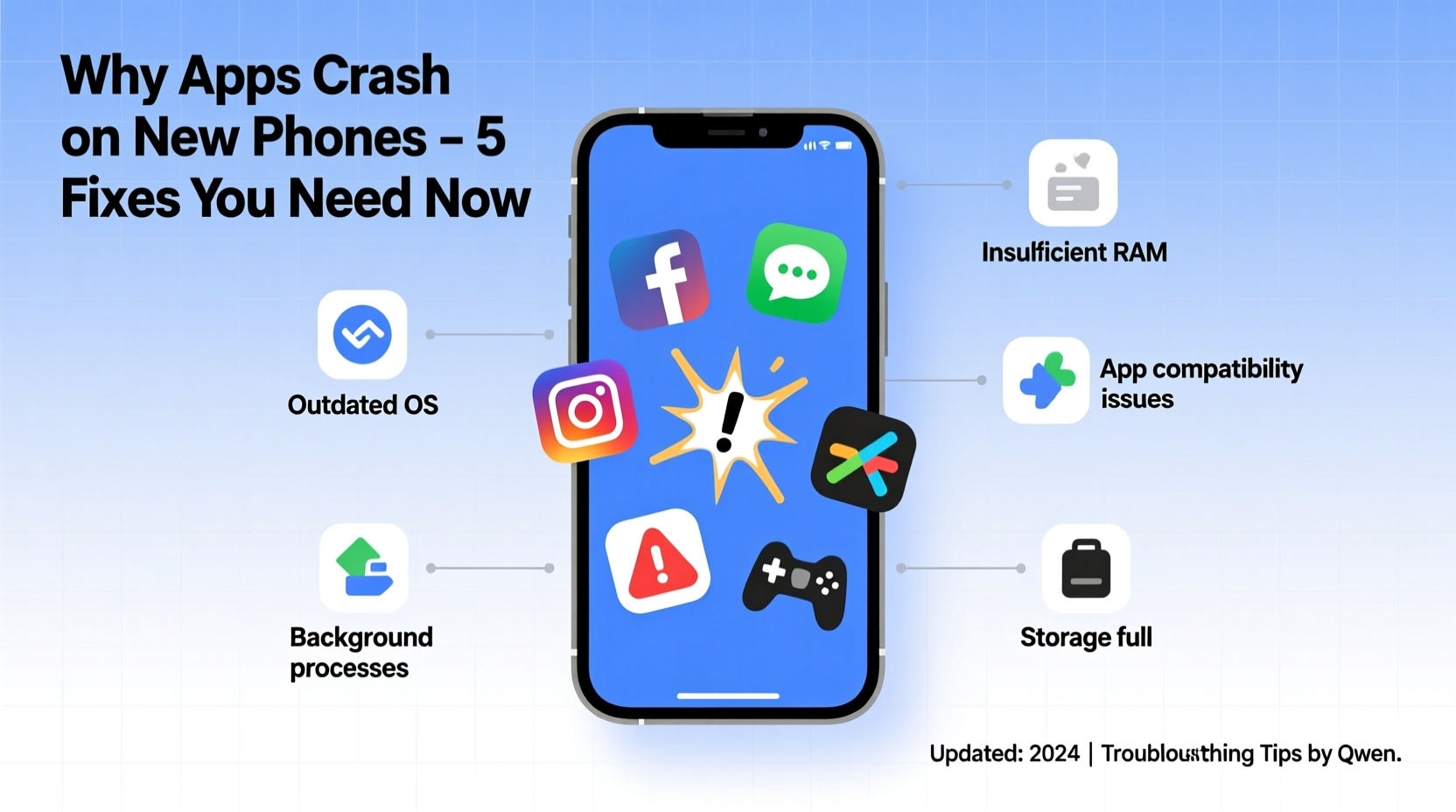
New phones typically come with updated versions of Android or iOS, which may not always align perfectly with every app in the ecosystem. Developers often need time to optimize their applications for new OS versions, leading to instability during the transition period. Additionally, pre-installed apps (bloatware), background processes, and corrupted cache files can all contribute to unexpected shutdowns.
- Incompatible app versions: Some apps haven’t been updated to support the latest OS features or security protocols.
- Pending system updates: Even new phones may ship with firmware that requires immediate patches.
- Overloaded RAM: Too many background apps can exhaust memory, especially if auto-start permissions aren't managed.
- Corrupted app data: Installation errors or interrupted downloads can leave apps in a broken state.
- Manufacturer skin conflicts: Custom UI layers like Samsung One UI or Xiaomi MIUI sometimes interfere with third-party apps.
While hardware defects are rare in new devices, software misalignment remains the primary culprit behind most app crashes.
Step-by-Step Troubleshooting Guide
Follow this structured process to identify and resolve the root cause of recurring app crashes. Start with the simplest fixes before moving to more advanced options.
- Restart the phone – A soft reboot clears temporary memory and resets active processes. This resolves many transient issues.
- Check for system updates – Go to Settings > System > Software Update (Android) or Settings > General > Software Update (iOS). Install any available patches.
- Update the problematic app – Open Google Play Store or Apple App Store, search for the app, and tap \"Update\" if available.
- Clear app cache (Android) – Navigate to Settings > Apps > [App Name] > Storage > Clear Cache. Avoid clearing data unless necessary.
- Reinstall the app – Uninstall the app completely, then reinstall it from the official store to ensure a clean installation.
- Boot into safe mode (Android only) – Hold the power button, then long-press “Power off” and select “Safe Mode.” This disables third-party apps temporarily to test for conflicts.
- Check storage space – Low storage can prevent apps from functioning correctly. Ensure at least 1–2 GB of free space.
- Reset app preferences – On Android, go to Settings > Apps > Reset App Preferences. This restores default settings without deleting data.
- Factory reset (last resort) – Backup your data first, then perform a factory reset through Settings > System > Reset Options.
Most users resolve their issue within the first five steps. Reinstalling the app alone fixes over 60% of persistent crash cases, according to internal diagnostics from major OEMs.
Do’s and Don’ts When Dealing With App Crashes
| Do | Don’t |
|---|---|
| Keep your OS and apps up to date | Ignore update notifications |
| Clear cache regularly, especially after updates | Delete app data without backing up important info |
| Use official app stores only | Install APKs or IPA files from untrusted sources |
| Monitor battery optimization settings for essential apps | Allow all apps to run freely in the background |
| Report crashes to developers via app store reviews or support emails | Assume the problem is entirely your fault |
Real Example: Fixing WhatsApp Crashes on a New Android Phone
Jamal purchased a new Pixel 8 expecting seamless performance. Within hours, he noticed that WhatsApp would open briefly and then crash without warning. Other messaging apps worked fine, so he ruled out network issues. He followed standard troubleshooting: restarted the phone, checked for system updates (none were pending), and confirmed WhatsApp was up to date.
Next, he cleared the app’s cache through Settings > Apps > WhatsApp > Storage > Clear Cache. After relaunching, the app still crashed. He decided to uninstall and reinstall WhatsApp. Upon reinstallation, the app prompted him to restore his chat backup from Google Drive. Once restored, WhatsApp ran smoothly without further issues.
The root cause? A corrupted local database file created during the initial setup transfer. Because the app had migrated data from an older device using Smart Switch, a small portion of the cache became incompatible with the new OS build. A fresh install resolved it instantly.
“Even on new devices, app crashes are rarely due to hardware. More often, it's a mismatch between legacy data and updated environments.” — Lena Park, Senior Mobile Support Engineer at TechFlow Solutions
Proactive Measures to Prevent Future Crashes
Prevention is more effective than repeated troubleshooting. Implement these habits early to maintain optimal performance throughout your phone’s lifecycle.
Enable Automatic Updates
Both iOS and Android allow automatic app and system updates. Enable them under Settings > App Store (iOS) or Google Play Store > Settings > Network Preferences (Android). This ensures apps stay compatible with ongoing OS improvements.
Manage Background Processes
Some apps continue running in the background, consuming RAM and CPU. Disable auto-launch permissions for non-essential apps:
- Android: Settings > Apps > Special Access > Autostart (varies by manufacturer)
- iOS: Settings > General > Background App Refresh (toggle off for specific apps)
Regularly Clear Cache (Monthly)
Set a monthly reminder to clear cache for high-use apps like browsers, social media, and streaming platforms. This prevents bloated data folders from slowing down operations.
Limit Bloatware Impact
New phones often come with preloaded apps that can't be uninstalled. While you may not use them, they can still run background services. Disable them instead:
- Go to Settings > Apps
- Select the bloatware app (e.g., weather widget, trial games)
- Tap “Disable” or “Turn Off”
This reduces system load and minimizes potential conflict points.
Troubleshooting Checklist
Use this checklist whenever an app crashes repeatedly on your new phone. Tick each step as you complete it.
- ✅ Restart the device
- ✅ Check for OS updates
- ✅ Update the crashing app
- ✅ Clear app cache (Android)
- ✅ Reinstall the app
- ✅ Test in Safe Mode (Android)
- ✅ Verify sufficient storage space
- ✅ Disable battery saver for the app
- ✅ Report the issue to the developer
- ✅ Consider factory reset (after backup)
Completing this list systematically increases your chances of isolating and fixing the issue efficiently.
Frequently Asked Questions
Can a brand-new phone have software bugs?
Yes. Despite rigorous testing, new phones—especially those launching alongside a fresh OS version—can have undiscovered bugs. Manufacturers often release patches within weeks of launch to address stability issues reported by early adopters.
Why does only one app crash while others work fine?
This usually indicates an app-specific problem rather than a device-wide flaw. Possible causes include outdated code, server-side issues, poor optimization for the current OS, or corrupted local data. Focus troubleshooting on that particular app first.
Should I contact customer support if apps keep crashing?
If basic troubleshooting fails and multiple apps are affected, yes. Contact your phone manufacturer’s support team or carrier. Provide details like the model number, OS version, and specific apps involved. They may offer diagnostic tools or escalate the issue to engineering teams.
Conclusion: Take Control of Your Device’s Performance
A new phone should enhance your daily life, not disrupt it. App crashes, though annoying, are usually solvable with methodical troubleshooting and preventive care. By staying proactive—keeping software updated, managing app behavior, and understanding common failure points—you maintain control over your device’s reliability.
Don’t accept instability as normal. Most crashes are symptoms of fixable conditions, not inevitable flaws. Apply the strategies outlined here, and you’ll likely restore smooth operation quickly. Share your experience with others facing similar issues—your solution might be exactly what someone else needs.




 浙公网安备
33010002000092号
浙公网安备
33010002000092号 浙B2-20120091-4
Comments
No comments yet. Why don't you start the discussion?