
If you've ever lit up your home with festive Christmas lights only to notice strange flickering or pulsing effects during a Zoom call, Google Meet session, or any other video conference, you're not alone. This phenomenon isn't just distracting—it can make your background look unprofessional or even cause visual discomfort for participants. The issue lies at the intersection of lighting technology, camera sensors, and frame rates. Understanding the science behind this flicker is the first step toward eliminating it.
Modern LED Christmas lights are energy-efficient and long-lasting, but they don’t always play well with digital cameras. Unlike traditional incandescent bulbs that emit steady light, many LEDs cycle on and off rapidly—a behavior invisible to the human eye but clearly captured by camera sensors. When these pulses interact with your webcam’s refresh rate, the result is visible flickering or banding in your video feed.
The good news? This is a solvable problem. With the right adjustments to your lighting setup, camera settings, and environment, you can enjoy holiday cheer without compromising your video quality.
The Science Behind Flickering Lights on Camera
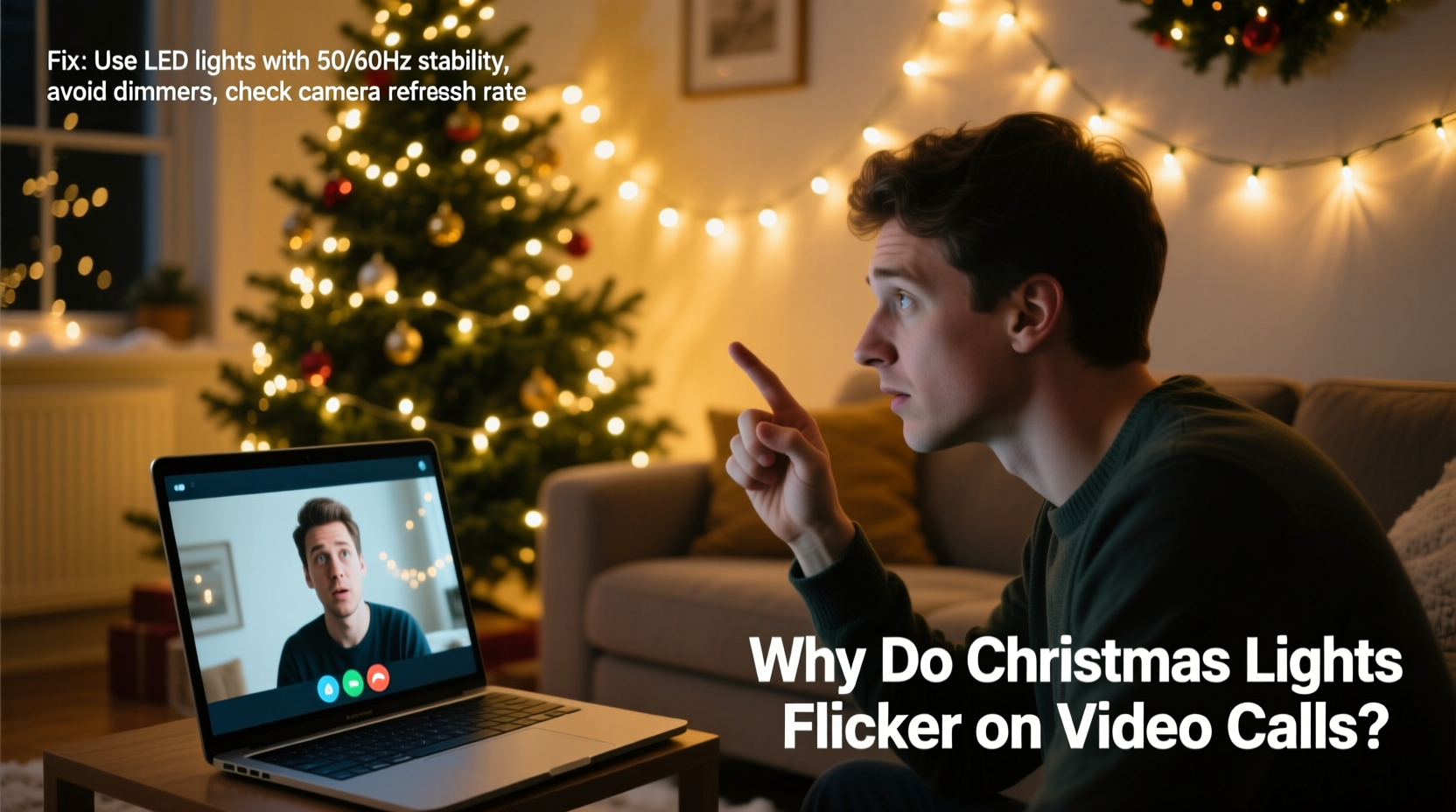
Digital cameras capture images in discrete frames per second (fps), typically 30 or 60 fps. Each frame is an exposure—essentially a snapshot of light over a short period. Meanwhile, many LED Christmas lights operate using pulse-width modulation (PWM) to control brightness. Instead of providing constant current, PWM rapidly switches the LEDs on and off, adjusting the ratio of “on” time to dim or brighten them.
This switching happens thousands of times per second, far faster than the human eye can detect. However, a camera doesn’t perceive continuous light the same way we do. If the frequency of the LED’s pulse doesn’t align with the camera’s frame rate or shutter speed, the sensor captures moments when the lights are partially or fully off, resulting in visible flicker or dark bands across the image.
This mismatch is known as a beat frequency—a periodic interference pattern created when two close frequencies interact. For example, if your lights pulse at 100 Hz and your camera runs at 30 fps with a fast shutter speed, the timing misalignment causes inconsistent exposure across frames.
“LED flicker may be invisible to us, but cameras act like high-speed strobe detectors—they expose what our eyes simply can’t see.” — Dr. Lena Park, Imaging Systems Engineer
Common Causes of Christmas Light Flicker on Video Calls
Not all lights behave the same way on camera. Several factors contribute to whether—and how severely—your Christmas lights will flicker during a video call:
- Type of LED driver: Cheap string lights often use basic PWM drivers with low-frequency pulses, increasing flicker visibility.
- Power source stability: Lights powered through USB hubs or low-quality adapters may experience voltage fluctuations, causing irregular blinking.
- Dimming mode: Manually dimmed LEDs or those set to twinkling modes increase the likelihood of rapid on-off cycles.
- Camera shutter speed: Webcams with fast shutter speeds (common in well-lit environments) are more likely to catch gaps between LED pulses.
- Light placement: Background lighting is more prone to flicker artifacts than direct room illumination due to lower overall brightness levels.
How to Fix Flickering Christmas Lights on Video Calls
Fixing the flicker doesn’t mean sacrificing holiday ambiance. In fact, with smart choices and minor tweaks, you can maintain a festive atmosphere while ensuring clean, stable video quality.
1. Switch to High-Frequency or Flicker-Free LEDs
Invest in premium LED strings labeled as “flicker-free” or designed for photography/filmmaking. These use higher-frequency drivers (often above 10,000 Hz) that exceed the sampling capability of most cameras, making flicker imperceptible. Look for brands marketed for studio use or compatible with slow-motion video.
2. Adjust Your Camera Settings
If you have control over your webcam settings (via software like OBS, Logitech Options, or camera utilities), try the following:
- Set your camera’s frame rate to match your region’s mains frequency: 50 Hz in Europe, 60 Hz in North America.
- Enable “anti-flicker” or “power line frequency” settings if available.
- Manually adjust the shutter speed to a multiple of the light’s pulse cycle—for example, 1/50s or 1/100s for 50 Hz regions.
Most built-in laptop webcams lack manual controls, so consider using an external USB camera with professional-grade settings.
3. Use Incandescent Mini Lights Instead
Old-school incandescent Christmas lights heat a filament to produce light, creating a thermal glow that remains relatively constant. While less efficient and hotter to the touch, they emit truly continuous light—making them immune to camera flicker. They’re especially effective for soft ambient lighting behind a desk.
4. Rely on Diffused Ambient Lighting
Instead of spotlighting the Christmas lights themselves, use them as indirect sources. Place them behind furniture, inside glass jars, or behind sheer fabric to diffuse their output. This reduces contrast and minimizes the visibility of flicker patterns on camera.
5. Turn Off Twinkle or Fade Modes
Modes like “twinkle,” “chase,” or “fade” intentionally modulate individual bulbs, creating dramatic visual effects—but also guaranteed flicker on video. Stick to steady-on modes during calls. You can always switch back to dynamic modes after your meeting ends.
6. Add Primary Room Lighting
Increase ambient light in your room using overhead lamps or daylight-balanced bulbs. A brighter environment allows your camera to use a slower shutter speed and wider aperture, reducing its sensitivity to rapid light changes. This also improves facial visibility, which takes priority over decorative lighting.
Checklist: Eliminate Christmas Light Flicker Before Your Next Call
- ✅ Test your video feed before joining a call—use the preview in Zoom or Teams.
- ✅ Disable twinkling, fading, or flashing modes on light strings.
- ✅ Ensure lights are plugged into a stable power source (not a daisy-chained extension).
- ✅ Increase ambient room lighting to reduce reliance on decorative lights.
- ✅ Reposition lights outside the direct camera background or diffuse them.
- ✅ Use flicker-free or incandescent holiday lights if possible.
- ✅ Adjust camera settings to match local power frequency (50 Hz or 60 Hz).
Comparison Table: Light Types and Camera Compatibility
| Light Type | Flicker Risk on Camera | Energy Efficiency | Best Use Case |
|---|---|---|---|
| Standard PWM LEDs | High – frequent flicker | High | Outdoor displays, non-video areas |
| Flicker-Free LEDs | Low – optimized for video | High | Home offices, video backgrounds |
| Incandescent Mini Lights | Very Low – steady output | Low | Indoor ambient lighting near workspaces |
| Smart RGB LEDs (e.g., Philips Hue) | Medium – depends on settings | High | Customizable scenes; avoid rapid transitions |
Real Example: A Remote Worker’s Holiday Setup Fix
Sarah, a project manager based in Chicago, loved decorating her home office with multicolored LED string lights every December. But during client calls, colleagues began commenting: “Your background looks like a disco,” and “Are the lights strobing?” Embarrassed, she recorded a test call and was shocked to see rolling dark bands sweeping across her screen every few seconds.
She started troubleshooting. First, she turned off the twinkle mode—this helped slightly, but the base flicker remained. Then she added a floor lamp with a 3000K warm bulb, brightening the room significantly. The flicker became less noticeable, but still present. Finally, she replaced her $12 Amazon LED string with a “flicker-free” version marketed for content creators. The difference was immediate: no more pulsing, no more distractions. Her next client call went smoothly, and one attendee even complimented her “cozy yet professional” setup.
Sarah now keeps two sets of lights: one for video days, one for evenings and weekends. She schedules her festive automation to turn off workday lights automatically during business hours.
Frequently Asked Questions
Why don’t I see the flicker with my eyes, but my camera does?
Human vision has a persistence of about 1/16th of a second, which smooths out rapid light changes. Cameras, however, sample light in precise intervals. If an LED turns off between frames or during part of an exposure, the sensor records darkness, creating visible flicker that your brain would naturally filter out.
Can flickering lights cause health issues during video calls?
While most people won’t experience harm, individuals with photosensitive conditions like epilepsy or migraines may be affected by pronounced flicker patterns, especially at lower frequencies (below 70–90 Hz). Even subliminal flicker can contribute to eye strain or fatigue during long meetings. Reducing or eliminating flicker supports visual comfort for all participants.
Do all LED Christmas lights flicker on camera?
No—not all do. Higher-quality LEDs with constant-current drivers or high-frequency PWM (above 1 kHz) produce minimal flicker. Some professional lighting brands specifically design holiday strings for film and broadcast use. Always check product specifications for “flicker-free” claims if video compatibility matters.
Final Tips for a Flicker-Free Festive Workspace
Enjoying holiday decorations during remote work is completely possible—with a little planning. The key is balancing aesthetics with technical awareness. Prioritize stable, continuous lighting for your face and workspace, then layer in decorative elements that enhance rather than interfere.
Remember: your primary goal in a video call is clear communication. Backgrounds should support, not distract. That doesn’t mean banning Christmas lights altogether—it means choosing the right kind and using them strategically.
Conclusion: Shine Bright Without the Flicker
Christmas lights add warmth and joy to the season, and there's no reason they should disrupt your professional presence online. By understanding how camera sensors interact with modern lighting, you can make informed choices that preserve both ambiance and image quality. Whether you upgrade your lights, tweak your camera settings, or simply reposition your setup, small changes lead to big improvements.
This holiday season, let your personality shine—without the unintended strobe effect. Apply these solutions ahead of your next virtual gathering, and enjoy a flicker-free, festive experience that delights both your eyes and your camera.




 浙公网安备
33010002000092号
浙公网安备
33010002000092号 浙B2-20120091-4
Comments
No comments yet. Why don't you start the discussion?