
In the evolving world of gaming and live streaming, a growing number of content creators are adopting dual-monitor setups to elevate their performance, workflow, and audience experience. What once seemed like a luxury reserved for professionals has now become standard among serious streamers on platforms like Twitch, YouTube, and Facebook Gaming. The reasons go far beyond extra screen space—they touch on efficiency, focus, and production quality. Understanding why some gamers use two monitors reveals a strategic approach to balancing gameplay, communication, and broadcast management in real time.
The Core Benefits of Dual Monitors for Gamers and Streamers
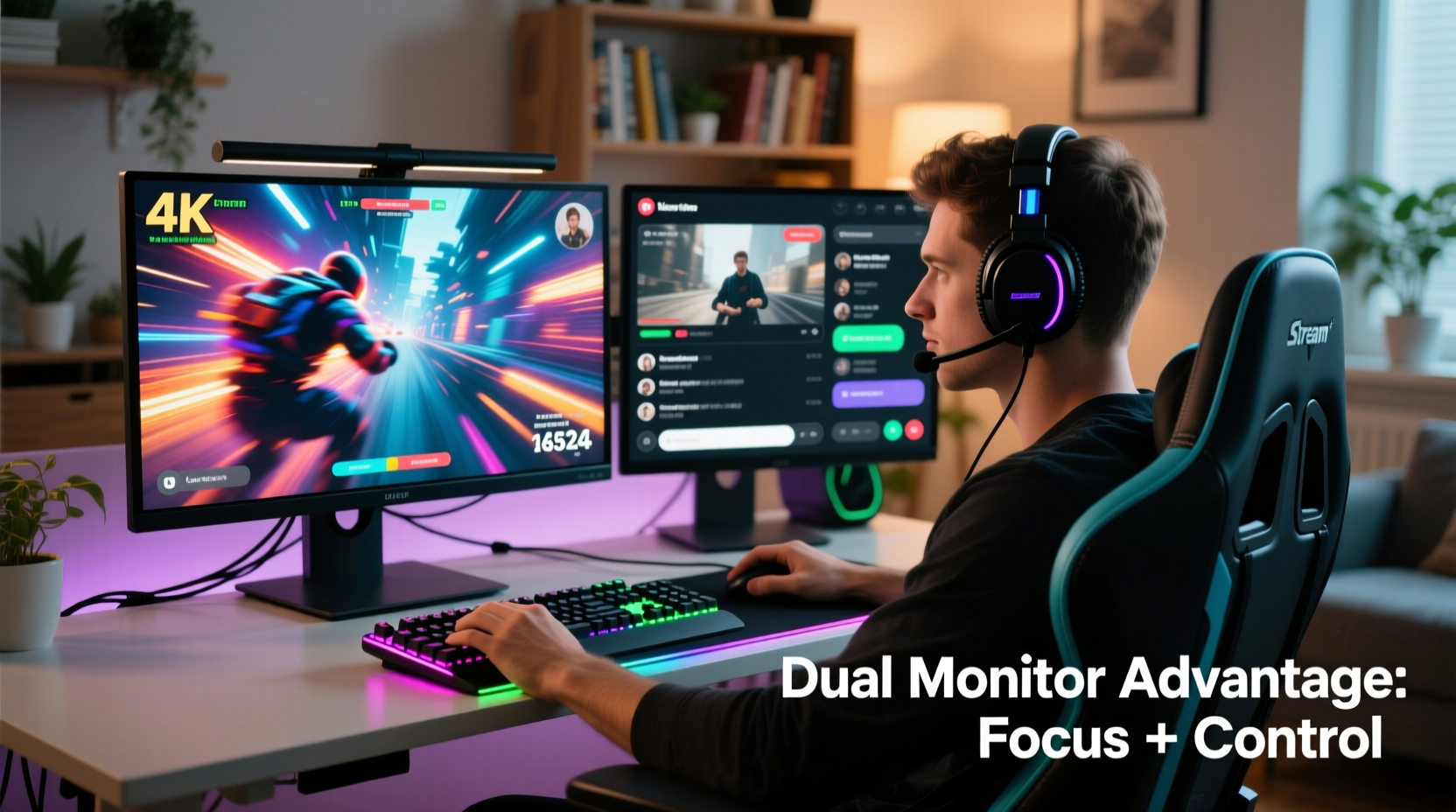
A single monitor forces streamers to juggle multiple windows—gameplay, chat, alerts, overlays, and audio controls—all within one confined visual space. This often leads to distractions, missed messages, or reduced immersion in the game itself. A second monitor eliminates this bottleneck by offloading non-game elements to a dedicated display, allowing the primary screen to remain focused solely on gameplay.
One of the most immediate advantages is improved multitasking. While the main monitor runs the game at full resolution and refresh rate, the secondary screen can host streaming software interfaces such as OBS Studio, Streamlabs, or Restream. This includes chat feeds from Twitch or Discord, donation alerts, scene transitions, and even browser sources for polls or viewer interactions. By separating these functions, streamers maintain control without compromising their in-game performance.
Enhanced Focus During Gameplay
Professional gamers and competitive streamers rely heavily on reaction time and situational awareness. Any visual clutter or pop-up notification on the primary screen can disrupt focus and cost precious milliseconds. With a second monitor handling all peripheral tasks, the main display becomes a clean zone for gameplay only. This setup mimics professional esports environments where players isolate their vision to the game field, minimizing cognitive load.
Streamers who play fast-paced titles like Counter-Strike 2, Valorant, or Apex Legends benefit significantly from this separation. They can keep an ear on community interaction through voice comms or text chat on the secondary screen while maintaining sharp concentration on objectives, enemy movements, and team coordination.
Stream Management Made Efficient
Running a successful stream involves more than just playing a game—it’s a live production. Behind every smooth broadcast is a layer of technical oversight: monitoring stream health, managing viewer engagement, responding to donations, and switching scenes appropriately. Attempting to manage all this on a single screen often means alt-tabbing, which risks crashing the game or dropping frames.
A dual-monitor configuration allows streamers to run their encoding software (like OBS) full-screen on the secondary display. This provides constant visibility into bitrate, dropped frames, audio levels, and active sources. If a scene isn’t rendering correctly or a source crashes, it can be fixed immediately without interrupting gameplay.
“Having a second monitor transformed my streaming from chaotic to controlled. I no longer miss donations or chat messages because everything is right in front of me.” — Jordan Lee, Full-Time Twitch Streamer with 45K Followers
Real-Time Chat Monitoring and Community Engagement
Viewer interaction is a cornerstone of successful streaming. Fans want to feel heard, and streamers who respond promptly build stronger communities. On a single monitor, reading chat typically requires shrinking the game window or using small overlay panels that limit visibility. With a second monitor, chat can be displayed in a large, readable format—either through native platform integrations or third-party tools like Chatty or Streamelements.
This expanded view enables streamers to track trending topics, answer questions, acknowledge new followers, and moderate behavior more effectively. It also allows co-streamers or guests to monitor conversation without interfering with gameplay.
Hardware and Software Optimization
Beyond usability, dual monitors contribute to system performance optimization. Modern GPUs handle multi-display output efficiently, especially when paired with capable CPUs and sufficient RAM. Offloading UI elements to a secondary screen reduces GPU load on the primary display, potentially improving frame rates in graphics-intensive games.
Additionally, operating systems like Windows 11 offer robust multi-monitor support, including virtual desktops, snap layouts, and per-display scaling. Streamers can assign specific applications to specific monitors and save window arrangements for quick setup between sessions.
| Task | Primary Monitor (Game) | Secondary Monitor (Stream Control) |
|---|---|---|
| Core Gameplay | ✔️ Full Screen | ❌ Not Displayed |
| Twitch/YouTube Chat | ❌ Small Overlay (if used) | ✔️ Full Browser or App Window |
| OBS Studio Interface | ❌ Hidden | ✔️ Fully Visible |
| Donation & Alert Feed | ❌ Pop-ups only | ✔️ Live Scroll or Dashboard |
| Music or SFX Controls | ❌ Minimized | ✔️ Open & Accessible |
| Discord Voice Chat | ❌ Minimal Indicator | ✔️ Full App with Message History |
Setting Up Your Dual-Monitor Streaming Rig: A Step-by-Step Guide
Transitioning to a dual-monitor setup doesn’t require advanced technical skills, but proper configuration ensures maximum benefit. Follow these steps to optimize your streaming environment:
- Assess Your Hardware: Confirm your graphics card supports multiple displays. Most modern GPUs (NVIDIA GTX/RTX series, AMD Radeon RX) support at least two HDMI or DisplayPort outputs.
- Select Compatible Monitors: Ideally, both monitors should have similar response times and resolutions. However, it's acceptable for the secondary monitor to be lower resolution since it won't run the game.
- Connect and Arrange Displays: Use appropriate cables (HDMI, DisplayPort, etc.) to connect both monitors. In Windows, press Win + P to choose “Extend” mode.
- Configure Display Settings: Go to Settings > System > Display. Drag the monitor icons to match your physical desk layout. Set the primary monitor as “Main display.”
- Assign Streaming Software to Secondary Screen: Open OBS Studio or Streamlabs and drag the interface to the second monitor. Dock chat windows, browser sources, and mixer panels there.
- Optimize In-Game Settings: Run your game in fullscreen or borderless windowed mode on the primary monitor. Avoid exclusive fullscreen if you need quick access to other apps.
- Test Before Going Live: Conduct a test stream to verify audio sync, scene transitions, and chat functionality across both screens.
Mini Case Study: How Alex Improved His Stream with Dual Monitors
Alex Rivera, a mid-tier Twitch streamer focusing on RPGs and indie games, initially streamed using a single 24-inch 1080p monitor. He frequently missed donations and struggled to reply to chat during intense story moments. After upgrading to a dual-monitor setup—one 27-inch 144Hz primary for gaming and a 24-inch secondary for streaming tools—his viewer engagement increased by 40% within two months.
He placed OBS, Twitch chat, and his music playlist on the second screen, allowing him to maintain immersion in games like Starfield and Baldur’s Gate 3. Viewers noticed quicker responses and more natural commentary. “I finally felt in control,” Alex said. “Before, I was constantly toggling windows. Now, I see everything at a glance.”
The change also reduced his post-stream fatigue. Without the mental effort of managing overlapping windows, he could focus on content creation and community building.
Common Mistakes to Avoid
- Using incompatible refresh rates: Running one monitor at 60Hz and another at 144Hz can cause input lag perception issues. Try to match specs where possible.
- Overcrowding the secondary screen: Just because you have extra space doesn’t mean you should open every app. Keep only essential tools visible.
- Neglecting cable management: Multiple monitors mean more cables. Use clips or sleeves to keep them organized and prevent accidental disconnections.
- Ignoring ergonomics: Poor monitor placement can lead to neck and eye strain. Both screens should be positioned so that minimal head turning is required.
- Skipping audio routing checks: Ensure game audio goes to your headset or stream, not external speakers, to avoid feedback loops.
Expert Insight: Why Production Quality Matters
According to tech analyst Maria Tran from Streaming Edge Weekly, “The shift toward dual monitors reflects a broader trend: viewers now expect streamers to deliver near-professional production value. It’s not enough to just play well—you have to engage, inform, and entertain simultaneously.”
“Streamers who invest in dual-monitor workflows aren’t just improving convenience—they’re building scalable content operations.” — Maria Tran, Tech Analyst & Streaming Consultant
She emphasizes that higher production quality correlates with longer viewer retention and faster follower growth. Features like real-time polls, alert animations, and interactive overlays are easier to manage when they don’t compete for screen real estate with gameplay.
FAQ: Common Questions About Dual-Monitor Streaming
Can I use a TV as a second monitor?
Yes, many streamers use smart TVs or older HDTVs as secondary displays. Just ensure the TV supports HDMI input and has low input lag. Be cautious of auto-sleep features that might disconnect the signal during idle periods.
Do I need a powerful PC to run two monitors?
For basic streaming tasks, most modern mid-range PCs can handle dual monitors without issue. The key factor is GPU output capability, not necessarily raw power. Integrated graphics (e.g., Intel Iris Xe, AMD Radeon Vega) can support two displays for non-gaming tasks.
Is a ultrawide monitor a good alternative to dual screens?
Ultrawide monitors (e.g., 21:9 aspect ratio) offer expanded horizontal space and can simulate dual-monitor productivity. However, they lack true separation—your eyes still scan across one continuous surface. For strict task isolation, two physical monitors remain superior.
Checklist: Setting Up Your Dual-Monitor Streaming Station
- ✅ Verify GPU supports dual outputs
- ✅ Choose primary and secondary monitors based on usage
- ✅ Connect both monitors using reliable cables
- ✅ Configure display settings in OS (extend mode)
- ✅ Install and set up streaming software (OBS, Streamlabs)
- ✅ Assign chat, alerts, and controls to secondary screen
- ✅ Test stream health, audio sync, and scene changes
- ✅ Optimize desk layout and viewing angles
- ✅ Create a routine startup sequence for consistency
Conclusion: Elevate Your Streaming Game
Using two monitors is more than a convenience—it’s a strategic upgrade that separates casual gamers from professional-grade streamers. The ability to separate gameplay from production tools enhances focus, improves responsiveness, and elevates overall broadcast quality. Whether you're aiming to grow your audience, improve interactivity, or simply enjoy a smoother streaming experience, a dual-monitor setup offers tangible, long-term benefits.




 浙公网安备
33010002000092号
浙公网安备
33010002000092号 浙B2-20120091-4
Comments
No comments yet. Why don't you start the discussion?