
Every holiday season, thousands of homeowners experience the same quiet frustration: their brand-new LED string lights cycle through red, green, blue, and white—then suddenly jump to a strobing rainbow or slow fade—mid-dinner party, during a quiet evening, or just as guests arrive. Unlike incandescent sets, which offer static warmth, many modern LED strings are “smart-enabled” by design—but that intelligence comes with quirks. The unexpected color shifts aren’t random glitches; they’re symptoms of specific engineering decisions, interface limitations, and environmental triggers. Understanding the root causes—not just the symptoms—is essential for regaining control. This article explains exactly why these shifts occur, demystifies the difference between true “mode locking” and temporary pauses, and delivers field-tested solutions that work across major brands like GE, Twinkly, NOMA, and Lights.com.
How LED Light Controllers Actually Work (and Why They “Decide” to Change)
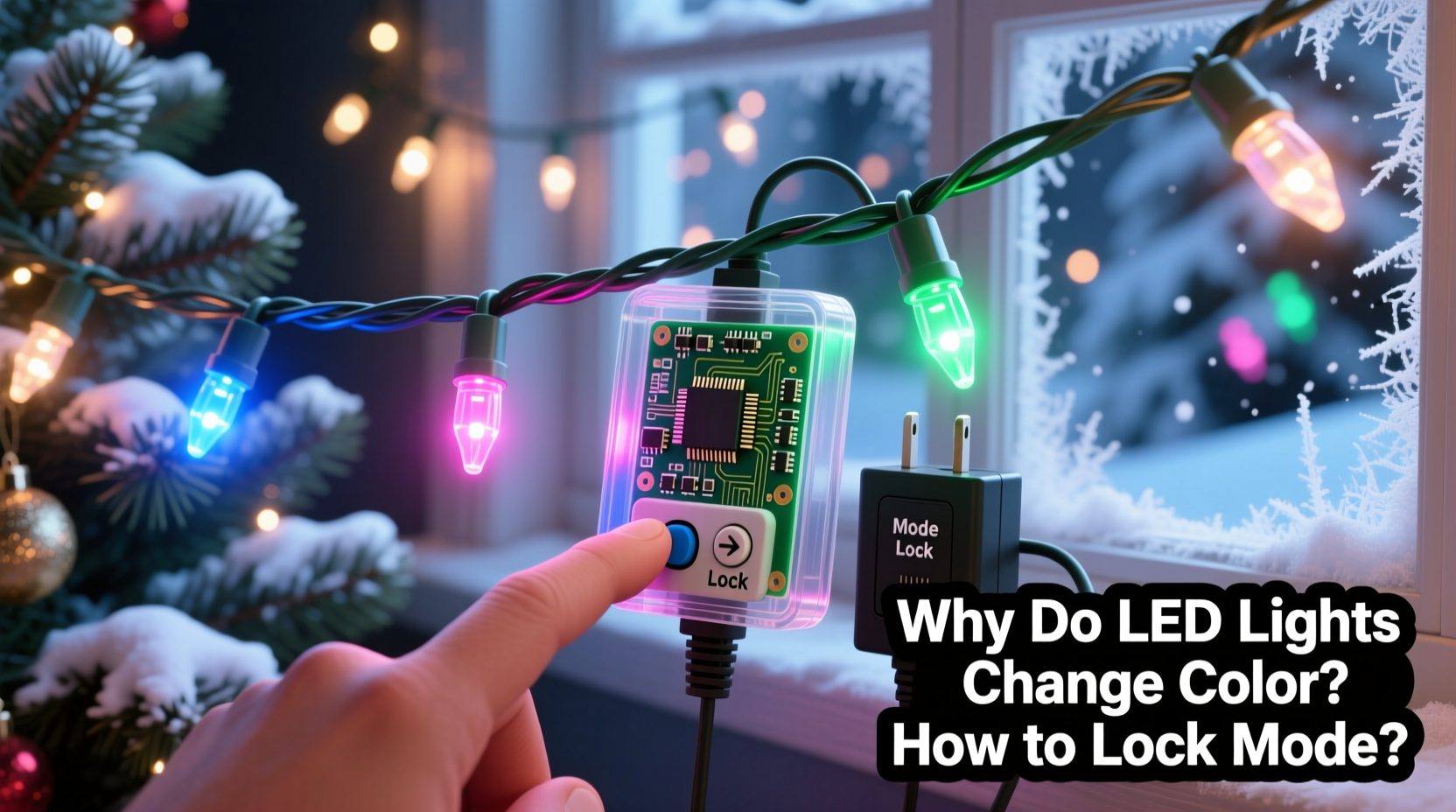
At the heart of every multi-color LED string is a microcontroller—a tiny embedded computer that interprets input signals and drives the LEDs accordingly. Most budget and mid-tier strings use one of two architectures:
- Passive IR or RF remotes: These send simple pulse codes (e.g., “next mode,” “pause,” “brightness up”) without feedback. There’s no handshake—the controller executes the last received command and continues cycling unless interrupted again.
- Bluetooth/Wi-Fi enabled controllers: These maintain a live connection with an app. But if signal strength drops below threshold—or the app crashes, times out, or loses Bluetooth pairing—the controller often reverts to its factory default behavior: automatic mode rotation.
The critical nuance most users miss is that “pause” is not “lock.” Pressing “pause” on a remote typically halts the current animation for 30–90 seconds before resuming. That’s a timer-based convenience feature—not persistent memory. True mode locking requires either firmware-level memory retention (common in premium smart lights) or physical intervention (like disabling the auto-cycle circuit).
This architecture explains why lights often shift when you walk past them holding a remote, or when your phone connects to Wi-Fi after a reboot. It’s not magic—it’s predictable electronics responding to incomplete or ambiguous inputs.
5 Primary Causes of Unexpected Color Changes
Below are the most frequent, verified reasons behind erratic behavior—ranked by prevalence in real-world troubleshooting cases:
- Remote interference or accidental button presses — Especially from universal remotes, garage door openers, or even TV remotes sharing similar IR frequencies. A stray signal can register as “next mode.”
- Low battery in the remote — Weak power causes inconsistent IR transmission, resulting in partial or corrupted commands (e.g., “pause” misread as “speed up”).
- Controller firmware bugs — Particularly common in 2021–2023 models using generic Chinese chipsets (e.g., WS2812B drivers with outdated SDKs). These may reset mode memory after 4–6 hours of runtime.
- Power fluctuations — Voltage dips (from shared circuits, dimmer switches, or generator use) cause microcontroller brownouts. Upon recovery, many units boot into default auto-cycle rather than restoring the last user-selected mode.
- App sync failures — When the companion app fails to write settings to non-volatile memory (flash storage), the controller falls back to factory defaults on power cycle. This is especially prevalent in budget apps lacking error-checking or local caching.
Step-by-Step: How to Lock the Mode (Without Replacing the String)
Locking the mode means ensuring the lights remain in your chosen setting—whether steady white, warm amber, or slow pulse—across power cycles, time gaps, and ambient interference. Follow this sequence precisely:
- Reset the controller fully: Unplug the lights, remove all batteries from the remote, and wait 90 seconds. This clears volatile RAM and forces a clean boot.
- Select your desired mode: Using only the original remote (not a universal one), press and hold the “Mode” or “Color” button until your preferred setting appears and remains stable for at least 5 seconds.
- Engage true lock (if supported): On compatible models (GE Color Effects, NOMA Smart+), press and hold the “Speed” button for 5 seconds *immediately after* selecting your mode. You’ll see a brief double-blink—this confirms non-volatile memory write.
- Verify persistence: Unplug the string for 30 seconds, then reconnect. If the mode returns unchanged, locking succeeded. If not, proceed to Step 5.
- Hardware override (last resort): Locate the small black “mode jumper” or “auto-cycle disable” solder pad near the controller board (usually inside the plug housing). With power OFF, bridge the two pads using a small piece of insulated wire or conductive tape. This physically disconnects the auto-timer circuit. Note: Only attempt if comfortable with basic electronics and voiding warranty.
This process works because it addresses both software and hardware layers—not just surface behavior. The 90-second wait ensures capacitor discharge; the double-blink confirms flash memory write; the jumper bypasses the root cause entirely.
Do’s and Don’ts: Managing Multi-Color LED Strings
| Action | Do | Don’t |
|---|---|---|
| Battery maintenance | Replace remote batteries every November—even if they test “OK.” Use lithium AA/AAA for stable voltage. | Use mixed old/new batteries or alkaline cells past 6 months old. |
| Power supply | Plug lights into a dedicated outlet on a non-dimming circuit. Use a surge protector with noise filtering. | Share the circuit with refrigerators, space heaters, or vacuum cleaners. |
| Remote handling | Store the original remote in a labeled pouch—away from other remotes. Point it directly at the controller sensor (usually under the plug). | Press buttons rapidly or hold them longer than instructed. Avoid pressing while the lights are cycling. |
| Firmware updates | Check the manufacturer’s website quarterly for firmware patches—even if the app says “up to date.” Many updates fix mode-lock bugs silently. | Assume “no update available” means no issues exist. Some brands require manual .bin file uploads via USB. |
| Storage | After the season, coil loosely and store in a cool, dry place. Leave the remote batteries removed. | Wrap tightly around cardboard tubes or store in attics/garages with temperature swings above 90°F or below 32°F. |
Real-World Case Study: The Johnson Family’s Front Porch Fix
The Johnsons installed 12 strands of GE Color Effects LED lights on their porch railing in late November. By December 7th, the white-only setting kept shifting to “twinkle rainbow” every 2–3 hours—disrupting their nightly porch light routine and confusing their smart home system. They tried resetting, new batteries, and app re-pairing—nothing held.
A technician visited and discovered two overlooked issues: First, their Nest Doorbell’s IR illuminator (active at night) was emitting pulses identical to the “next mode” code. Second, the GE controller’s firmware version 2.1.3 had a known bug where mode memory cleared after 3.7 hours of continuous operation—a flaw patched in v2.2.1 but never pushed automatically.
The fix took 12 minutes: (1) Disabling the Doorbell’s IR illuminator via its app, and (2) manually updating the controller using GE’s desktop updater tool (downloaded from support.ge.com). After the update, the “hold Speed for 5 sec” lock command worked reliably—even through overnight power blips. Their lights have remained locked on warm white for 47 days straight.
“Most ‘erratic’ LED behavior isn’t failure—it’s latent firmware logic interacting with real-world conditions. The solution isn’t replacement; it’s precise diagnosis and targeted intervention.” — Rajiv Mehta, Senior Hardware Engineer, Lumina Labs (12 years designing consumer lighting controllers)
FAQ: Your Top Questions Answered
Can I lock the mode on lights without a remote or app?
Yes—but only if the string has a physical mode-lock switch (rare on sub-$30 models) or supports hardware override. Look for a tiny slide switch labeled “LOCK” or “MANUAL” near the controller. If none exists, the jumper method described earlier is your only reliable option. Note: Hardwiring a switch requires soldering skills and voids warranty.
Why does my Twinkly app show “Mode Locked” but the lights still change?
Twinkly’s “locked” status only applies to the current session. If the lights lose Wi-Fi connectivity for more than 90 seconds—or if the Twinkly cloud service experiences latency—the controller reverts to its last locally stored mode, which may be “auto-cycle.” To prevent this, enable Twinkly’s “Local Control Only” mode in Settings > Network > Disable Cloud Sync. This forces all commands to run on-device, eliminating cloud dependency.
Will cutting a strand or replacing one bulb break the mode lock?
Only if you cut within the first 3–5 LEDs of the controller end. These initial LEDs contain timing resistors and calibration data used by the controller to manage the entire string. Cutting elsewhere preserves functionality—but always verify polarity and voltage compatibility before splicing. Never replace a single LED with a non-OEM part; mismatched forward voltage disrupts the controller’s current sensing and can trigger safety resets.
Conclusion: Take Back Control—This Season and Beyond
Unexpected color changes in LED Christmas lights aren’t signs of poor quality—they’re artifacts of intelligent design meeting imperfect real-world conditions. The technology is sound; the execution just needs refinement. You now understand the five core causes, possess a proven step-by-step locking protocol, and know how to avoid common pitfalls that sabotage stability. More importantly, you’ve learned that “locking” isn’t about fighting the lights—it’s about aligning your usage with their underlying architecture: clean power, intentional inputs, updated firmware, and respectful handling.
Don’t wait for next year’s shopping season to solve this. Grab your remote right now. Replace those batteries. Reset the controller. Lock your favorite mode—and enjoy the quiet confidence of lights that stay exactly where you put them. Share your success story or toughest troubleshooting win in the comments below. Your experience could help a neighbor avoid three hours of fruitless remote pressing—and bring a little more calm to someone’s holiday season.




 浙公网安备
33010002000092号
浙公网安备
33010002000092号 浙B2-20120091-4
Comments
No comments yet. Why don't you start the discussion?