
In an era dominated by sleek tablets, touchscreen laptops, and digital pens, one might assume that physical QWERTY keyboards are fading into obsolescence. Yet, millions of professionals, students, and writers continue to reach for traditional keyboards when taking notes—whether on a laptop, mechanical keyboard, or even a dedicated typing device like a portable typewriter alternative. The preference isn’t nostalgia; it’s rooted in tangible advantages related to speed, accuracy, ergonomics, and cognitive processing. While touchscreens offer portability and versatility, they fall short in several critical areas that matter during extended or high-intensity writing tasks.
This article explores the psychological, physiological, and practical reasons behind the enduring appeal of QWERTY keyboards for note-taking. From muscle memory to mental clarity, we’ll break down what makes physical keys a preferred tool for capturing thoughts efficiently and effectively.
The Tactile Advantage: Why Touch Matters
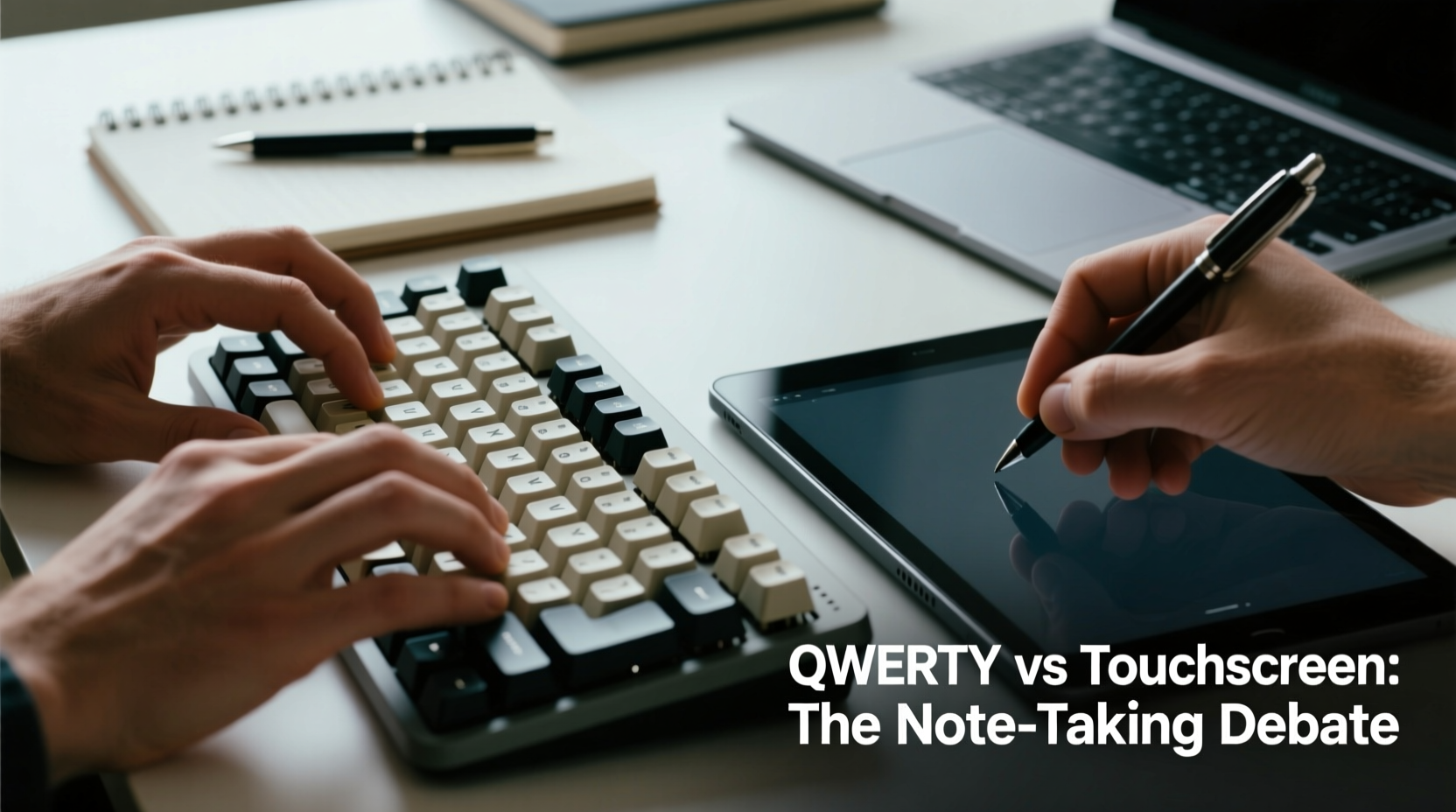
One of the most cited reasons for favoring QWERTY keyboards is tactile feedback—the physical sensation of pressing a key and feeling it register. This sensory input allows users to type accurately without constantly looking at their hands. Each keystroke provides resistance, travel distance, and an audible click (in mechanical models), all of which contribute to a more immersive and confident typing experience.
Touchscreen keyboards, by contrast, lack this feedback. Typists must rely heavily on visual confirmation, diverting attention from their thoughts to ensure correct input. This constant need for visual monitoring disrupts flow and increases cognitive load. Studies have shown that even minor delays or inaccuracies in touchscreen response can lead to frustration and reduced productivity.
The absence of physical boundaries between keys on a flat screen also leads to higher error rates, especially during fast typing. Without raised edges or spacing, fingers are more likely to slip onto adjacent keys. While predictive text helps, it cannot fully compensate for mis-taps, particularly with technical terms, names, or non-English words.
Cognitive Load and Focus: How Keyboards Support Thinking
Note-taking isn’t just about recording information—it’s about processing and organizing ideas in real time. When the act of typing becomes second nature, thanks to years of muscle memory built through consistent use of QWERTY layouts, the brain can focus on content rather than mechanics.
Research in cognitive psychology suggests that reducing motor effort during writing frees up working memory for higher-level thinking. A 2014 study published in Psychological Science found that students who typed notes on laptops performed better on conceptual questions than those who wrote longhand—provided they weren’t distracted. But the same benefit doesn’t always extend to touchscreen devices, where the lack of tactile guidance forces users to split attention between idea generation and accurate input.
“Efficient input methods allow the mind to stay engaged with the material, not the interface.” — Dr. Linda Nguyen, Cognitive Ergonomics Researcher, MIT Human Interaction Lab
For thinkers who value uninterrupted ideation—such as journalists drafting live reports, academics summarizing lectures, or creatives journaling stream-of-consciousness thoughts—a reliable keyboard minimizes friction. It acts as an invisible conduit between thought and text, whereas touchscreen interfaces often introduce subtle but cumulative distractions.
Ergonomics and Long-Term Comfort
Prolonged use of any device affects physical well-being, but the differences between keyboard and touchscreen ergonomics are significant. Typing on a flat glass surface typically requires holding the arms in a raised position, wrists bent unnaturally, or hunching forward—all postures linked to repetitive strain injuries (RSIs) like carpal tunnel syndrome.
QWERTY keyboards, especially full-sized ones, encourage a neutral wrist position and promote better posture when used with proper desk setup. Even compact or ergonomic models support angled typing, palm rests, and split designs that reduce strain. Many modern keyboards also offer customizable key heights and switch types tailored to individual preferences.
Consider a student attending back-to-back online classes, taking notes for three hours straight. On a tablet, this means cradling the device or propping it awkwardly, leading to neck strain (“text neck”) and shoulder fatigue. With a laptop or external keyboard, the user can maintain eye level with the screen while typing comfortably below.
| Factor | QWERTY Keyboard | Touchscreen |
|---|---|---|
| Tactile Feedback | High – physical keypress confirmation | Low – relies on vibration/visual cues |
| Error Rate | Lower with touch typing proficiency | Higher due to mis-taps and flat surface |
| Ergonomic Posture | Easier to maintain neutral alignment | Often leads to slouching or raised arms |
| Typing Speed | Average 50–80 WPM for trained typists | Average 30–45 WPM on virtual keyboards |
| Battery Impact | Minimal (especially wired) | Significant drain from screen + touch processing |
Workflow Integration and Customization
Another compelling reason professionals stick with QWERTY keyboards is integration with existing workflows. Most productivity software—Microsoft Word, Google Docs, Notion, Obsidian, coding environments—is designed around keyboard shortcuts. Ctrl+C, Ctrl+V, Alt+Tab, Cmd+F—these combinations become reflexive actions that dramatically increase efficiency.
On touchscreens, accessing these functions often involves multiple taps, menu navigation, or voice commands, breaking momentum. Even hybrid devices with attachable keyboards lose effectiveness if the connection feels laggy or the layout is cramped.
Moreover, advanced users customize their setups extensively: remapping keys, using macros, integrating foot pedals, or employing programmable function layers. These enhancements are nearly impossible to replicate seamlessly on touchscreen-only systems.
Mini Case Study: The Journalist in the Field
Sarah Kim, a freelance investigative journalist, regularly attends court hearings and community meetings where she takes extensive verbatim notes. She tested both an iPad Pro with a smart keyboard and her lightweight ThinkPad X1 Carbon over a six-week period.
While the iPad was easier to carry and quicker to boot, Sarah found herself missing crucial quotes due to typos and slow corrections. “I kept hitting the wrong keys because there was no bump to guide my fingers,” she said. “And every time I wanted to search my notes, I had to tap twice, wait for the magnifier, then drag the cursor—whereas on my laptop, I just hit Ctrl+F.”
After four weeks, she reverted to her laptop full-time. “The keyboard isn’t flashy, but it’s dependable. When accuracy matters, I trust my hands more than my eyes on glass.”
Building Muscle Memory: The Role of Habit and Proficiency
For decades, typing has been taught as a core skill in schools and workplaces. Millions have invested time mastering touch typing—the ability to write without looking at the keyboard. This skill relies on spatial memory reinforced by consistent key placement and resistance.
Switching to a touchscreen disrupts this learned behavior. Virtual keyboards resize dynamically, reposition based on grip, and lack uniformity across apps and devices. This inconsistency undermines muscle memory, forcing users to relearn basic patterns repeatedly.
Additionally, many people associate QWERTY keyboards with professionalism and seriousness. Using a laptop in a meeting signals engagement and preparedness, whereas pulling out a tablet may be perceived as casual or less committed—though perceptions are slowly shifting.
Step-by-Step Guide: Transitioning Back to Keyboard-Based Note-Taking
If you’ve relied heavily on touchscreens and want to reintegrate a QWERTY keyboard into your workflow, follow this sequence:
- Assess Your Needs: Determine whether you need portability (ultrabook), durability (rugged laptop), or performance (desktop).
- Choose the Right Keyboard Type: Opt for mechanical, scissor-switch, or low-profile depending on noise tolerance and travel preference.
- Set Up an Ergonomic Workspace: Ensure monitor height aligns with eye level, elbows form 90° angles, and wrists remain neutral.
- Relearn Touch Typing Basics: Use online trainers to rebuild finger positioning and rhythm.
- Integrate Productivity Shortcuts: Learn essential hotkeys for your primary apps to reduce mouse dependency.
- Test in Real Scenarios: Try the setup during meetings, lectures, or writing sessions to evaluate comfort and speed.
- Adjust Based on Feedback: Modify chair height, keyboard angle, or lighting to eliminate discomfort.
Frequently Asked Questions
Can’t touchscreen keyboards be improved with accessories?
Yes, Bluetooth keyboards and foldable models enhance usability, but they still lack the build quality, key travel, and stability of integrated laptop or desktop keyboards. Additionally, carrying extra accessories defeats the purpose of a minimalist touchscreen setup.
Are there people who actually type faster on touchscreens?
A small subset of users—particularly younger generations raised on smartphones—can achieve moderate speeds using swipe typing or two-thumb input. However, studies consistently show that trained typists using physical keyboards outperform touchscreen users in both speed and accuracy, especially over longer durations.
Doesn’t handwriting offer similar benefits to typing?
Handwriting engages different cognitive pathways and can improve memory retention, making it ideal for learning. However, it’s significantly slower than typing—averaging 20–30 words per minute versus 50+ on a keyboard. For real-time transcription or dense documentation, typing remains superior.
Final Thoughts: Choosing the Right Tool for the Task
The debate between QWERTY keyboards and touchscreens isn’t about which technology is “better” overall—it’s about matching the tool to the task. Touchscreens excel in media consumption, sketching, presentations, and quick annotations. They’re intuitive, portable, and increasingly powerful.
But when it comes to serious, sustained note-taking—where precision, speed, and mental focus converge—physical QWERTY keyboards retain a decisive edge. Their design supports human physiology, leverages years of learned skill, and integrates seamlessly with professional software ecosystems.
As new input methods emerge—from voice recognition to gesture control—keyboards will likely evolve rather than vanish. After all, the goal isn’t to eliminate tools but to preserve what works best for deep work, clear thinking, and efficient communication.




 浙公网安备
33010002000092号
浙公网安备
33010002000092号 浙B2-20120091-4
Comments
No comments yet. Why don't you start the discussion?