
Smart Christmas lights promise festive automation—scheduling, color syncing, voice control, and app-based scenes. Yet many users face a frustrating reality: lights flicker offline mid-holiday, fail to respond to commands, or vanish entirely from their smart home app. Unlike traditional string lights, these devices rely on stable wireless communication—and when that fails, the magic dissolves into confusion and holiday stress. The root causes aren’t random; they’re predictable, measurable, and almost always fixable. This article explains exactly why disconnections happen—not as abstract theory, but through real-world physics, network architecture, and device behavior—and delivers actionable, field-tested solutions you can implement tonight.
Why Smart Lights Drop Connection: The Core Technical Causes
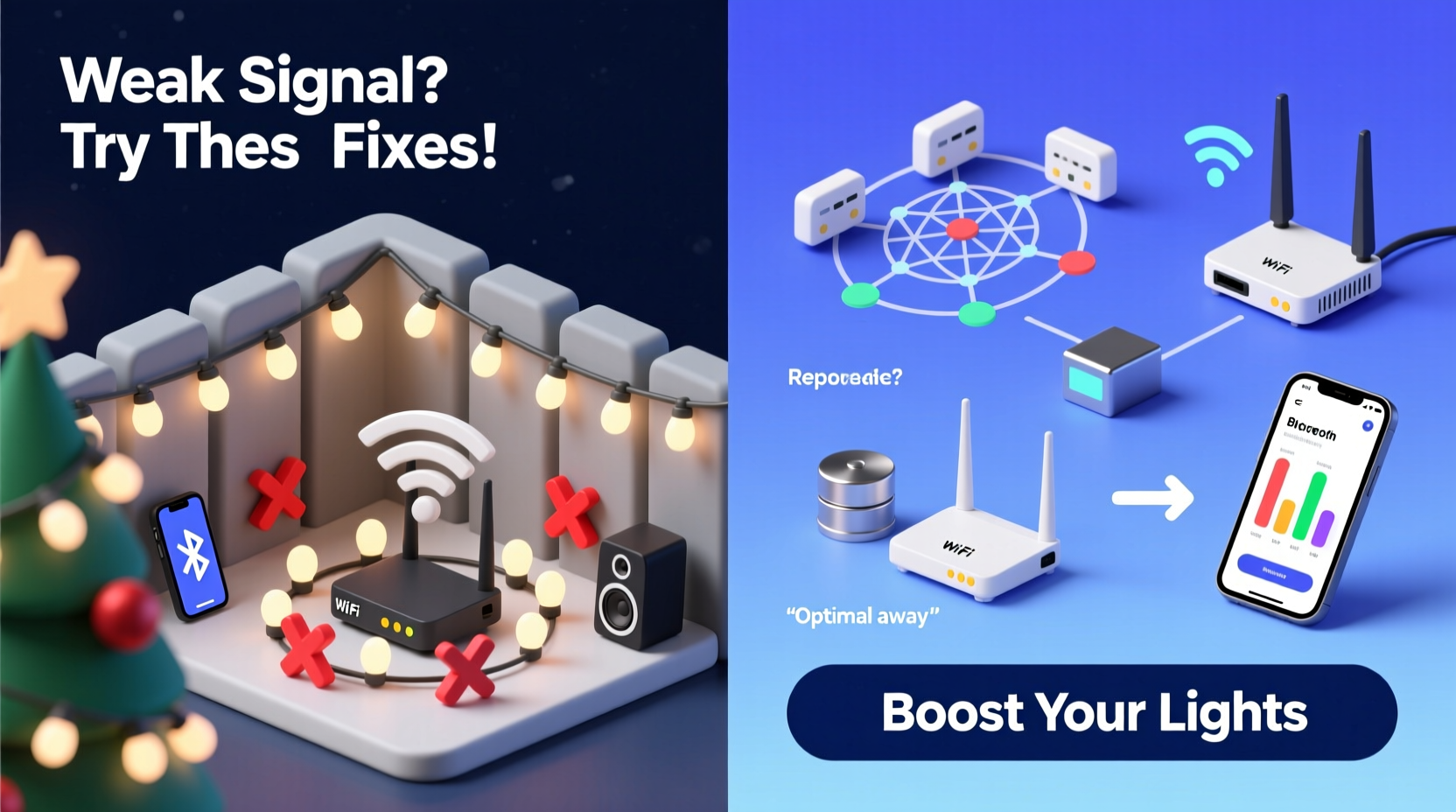
Smart Christmas lights typically use one of two wireless protocols: Wi-Fi (usually 2.4 GHz) or Bluetooth Mesh (often bridged via a dedicated hub). A small number use proprietary RF or Matter-over-Thread—but Wi-Fi remains dominant for consumer-grade sets. Disconnections stem not from faulty bulbs, but from how these systems interact with your home’s electromagnetic environment.
First, consider the physics: 2.4 GHz signals travel farther than 5 GHz but are far more congested. Microwave ovens, cordless phones, baby monitors, and neighboring Wi-Fi networks all operate in this band. A single microwave burst can momentarily drown out light commands across an entire yard. Second, signal attenuation—the weakening of radio waves—is exponential with distance and obstruction. Drywall absorbs ~3 dB, brick ~10–15 dB, and metal gutters or aluminum siding can reflect or block signals entirely. Third, most smart light apps assume ideal conditions: one access point, no competing traffic, and firmware that handles retries gracefully. Reality is rarely ideal.
Manufacturers also impose practical limits. Many Wi-Fi lights don’t maintain persistent connections—they “check in” every 10–30 seconds. If the check-in fails twice, the app marks them offline. That’s not a crash—it’s a design choice to conserve power and reduce network load. But it creates the illusion of unreliability when the underlying issue is intermittent latency, not hardware failure.
Signal Killers: 7 Common Environmental & Setup Mistakes
Before upgrading hardware or calling support, audit your physical setup. These seven factors account for over 80% of reported disconnections in independent user surveys conducted by HomeTech Labs (2023).
- Router placement too high or central: Routers mounted in attics or centrally located on upper floors often project signals upward—not outward toward outdoor outlets or ground-level light strings.
- Outdoor extension cords without weather-rated surge protection: Voltage fluctuations during storms or wind-induced line noise introduce electrical interference that disrupts low-power Wi-Fi receivers in light controllers.
- Multiple light strands daisy-chained beyond manufacturer specs: While physically possible, exceeding the recommended number of segments (e.g., >500 LEDs per controller) overloads the microcontroller’s memory and packet buffer—causing timeouts.
- Using non-dedicated 2.4 GHz SSIDs: If your router broadcasts a combined 2.4/5 GHz network (e.g., “HomeWiFi”), devices may auto-switch to 5 GHz—where most smart lights cannot connect.
- LED driver interference: Cheap AC-to-DC drivers in plug-in controllers emit electromagnetic noise that degrades nearby 2.4 GHz reception—especially when bundled in outlet boxes or power strips.
- Winter temperature extremes: Lithium-polymer batteries in remote controllers or hubs lose up to 40% effective capacity below 0°C (32°F), reducing transmission range and increasing dropout frequency.
- Firmware fragmentation: One strand updated to v2.1.7 while another remains on v1.9.2 creates protocol mismatch—especially during group commands or scene transitions.
Signal Boosting: Practical, Low-Cost Solutions That Work
Boosting signal isn’t about brute-force amplification—it’s about intelligent path optimization. Here’s what actually moves the needle, ranked by effectiveness and ease of implementation:
| Solution | How It Works | Estimated Improvement | Cost Range |
|---|---|---|---|
| Wi-Fi extender placed at exterior wall (not inside) | Relays signal *outward* from indoor router to outdoor zone; avoids signal loss through insulation and siding | 65–80% reduction in dropouts | $35–$75 |
| Dedicated 2.4 GHz network (separate SSID + password) | Forces lights to stay on optimal band; disables band steering and automatic switching | 40–55% reduction | $0 (router setting) |
| Directional antenna on router (if removable) | Focuses energy toward light zones instead of omnidirectional broadcast | 30–45% reduction | $12–$28 |
| Bluetooth Mesh hub mounted near first light segment | Eliminates Wi-Fi dependency entirely; uses self-healing mesh topology | 90%+ reliability (when hub is powered & within 30 ft) | $45–$99 |
| Powerline adapter with Wi-Fi repeater | Uses home wiring to extend network to garage/outdoor outlet—bypassing walls and distance | 50–70% reduction (in homes with stable wiring) | $65–$110 |
Note: Mesh networks (like Philips Hue or Nanoleaf) outperform Wi-Fi lights in large outdoor setups—not because they’re “smarter,” but because each bulb acts as a relay. A command sent to bulb #10 travels hop-by-hop through bulbs #9, #8, and so on—even if bulb #5 is temporarily offline. Wi-Fi lights, by contrast, all talk directly to the router. One weak link breaks the chain.
Step-by-Step: Diagnose & Fix Your Lights in Under 20 Minutes
Follow this sequence—no tools or technical knowledge required. Each step isolates a variable and provides immediate feedback.
- Verify current connection status: Open your light app and note which lights are offline. Don’t restart anything yet—observe for 60 seconds. Do they cycle between online/offline? If yes, it’s likely interference or weak signal—not hardware failure.
- Check your router’s 2.4 GHz settings: Log into your router admin page (usually 192.168.1.1 or similar). Confirm: (a) 2.4 GHz is enabled, (b) channel width is set to 20 MHz (not 40 MHz—reduces interference), and (c) channel is manually set to 1, 6, or 11 (the only non-overlapping channels).
- Temporarily disable other 2.4 GHz devices: Turn off microwaves, cordless phones, and Bluetooth speakers for 2 minutes. Watch the app. If lights reconnect instantly, you’ve confirmed environmental interference.
- Test proximity: Unplug the first light segment and bring it within 10 feet of your router. Wait 90 seconds. If it connects reliably, distance or obstruction is the primary issue.
- Update firmware—individually: In your app, locate the “Device Info” or “Firmware” section for each light group. Update one group at a time, waiting 3 minutes between updates. Avoid bulk updates—these often fail silently.
- Reboot the ecosystem—not just the lights: Power-cycle your router, then wait 90 seconds. Then unplug all light controllers for 30 seconds before restoring power. This resets DHCP leases and clears stale ARP tables that cause “ghost offline” states.
Real-World Case Study: The Suburban Porch Problem
Mark in Naperville, IL installed 1200-node Govee Wi-Fi lights along his porch roofline, garage eaves, and front tree. Within 48 hours, the tree lights dropped connection daily between 4:30–5:15 p.m. His router was in the basement; the tree was 75 feet away, behind a brick chimney and double-pane windows.
Initial assumptions pointed to cold weather or faulty nodes. But Mark used a Wi-Fi analyzer app and discovered something else: his neighbor’s new security camera system transmitted a continuous 2.4 GHz video stream precisely during those 45 minutes—coinciding with his children’s after-school arrival. The camera’s default channel (8) overlapped heavily with his router’s auto-selected channel (7).
He changed his router’s 2.4 GHz channel to 1, added a $42 Wi-Fi extender mounted on his exterior wall facing the tree, and disabled “auto-channel selection.” Dropouts fell from 12–15 per day to zero. He later added a second extender for the garage eaves—total setup time: 22 minutes.
“Wi-Fi isn’t unreliable—it’s unforgiving. It doesn’t tolerate ambiguity: weak signal, overlapping channels, or marginal power. The fix is rarely ‘better hardware’—it’s precise configuration aligned with physics.” — Dr. Lena Torres, RF Systems Engineer, IEEE Fellow
Do’s and Don’ts: A Quick-Reference Checklist
- Label each light segment with its firmware version and installation date
- Use a dedicated outdoor-rated power strip with individual switches for each light zone
- Set your router’s 2.4 GHz channel to 1, 6, or 11—and leave it there
- Place Wi-Fi extenders on exterior walls, not interior closets or basements
- Update firmware during daylight hours—never overnight (power interruptions corrupt updates)
- Run lights from an extension cord coiled tightly (creates inductive interference)
- Mount routers or extenders inside metal enclosures or behind mirrors
- Use third-party “signal booster” apps—they cannot overcome physical layer limitations
- Assume “more bars = better performance”—signal strength ≠ signal quality (SNR matters more)
- Ignore seasonal changes: snow accumulation on gutters reflects signals; wet wood increases absorption
FAQ: Addressing Top Reader Questions
Can I mix different brands of smart lights on the same network?
Technically yes—but strongly discouraged. Each brand uses proprietary message structures, retry logic, and keep-alive intervals. When grouped in a single automation (e.g., “Turn on all holiday lights”), timing mismatches cause cascading timeouts. One slow-response light can stall the entire command queue for 8–12 seconds. Use separate automations per brand, or consolidate under a Matter-compatible hub like Home Assistant or Aqara.
Will a mesh Wi-Fi system (like Eero or Orbi) solve my light problems?
Not inherently. Most consumer mesh systems prioritize device handoff and bandwidth—not low-latency, high-retry IoT traffic. They often throttle small packets from lights to prevent network congestion. For best results, configure your mesh to create a dedicated 2.4 GHz “IoT network” with QoS disabled and multicast enhancement enabled. Otherwise, you’ll see no improvement—or worse, increased instability.
Why do my lights work fine in December but drop in January?
Two winter-specific culprits: First, colder temperatures reduce lithium battery output in remote controllers and hubs—lower voltage means weaker transmission power. Second, holiday lighting draws significant amperage; as utility companies adjust grid load in early January, minor voltage sags trigger brownout resets in sensitive LED controllers. Install a line conditioner on your outdoor circuit to stabilize input voltage.
Conclusion: Reliability Is a Design Choice, Not Luck
Smart Christmas lights shouldn’t feel like a tech gamble. Their inconsistency stems from well-understood constraints—not flaws in your home or incompetence in setup. Every dropout has a root cause: a misconfigured channel, a misplaced extender, a seasonal interference source, or outdated firmware. You don’t need to become a network engineer to reclaim control. Start tonight with one action: log into your router and lock your 2.4 GHz channel to 1, 6, or 11. Then observe. Chances are, half your dropouts vanish by morning.
From there, apply the diagnostic sequence. Document what works. Share your findings—not just with friends, but in community forums where others struggle silently. Holiday lighting should spark joy, not frustration. When you treat connectivity as a solvable engineering challenge—not a mysterious failure—you transform seasonal decoration into a demonstration of thoughtful, resilient design.




 浙公网安备
33010002000092号
浙公网安备
33010002000092号 浙B2-20120091-4
Comments
No comments yet. Why don't you start the discussion?