
Mobile internet has transformed how we access information, shop, and communicate. Yet, nothing disrupts the experience faster than a website that crawls to load over cellular data. While poor signal strength is an obvious culprit, it’s not always the full story. Many users blame their carrier or device, when in fact, the issue often lies in website design, network conditions, or device settings. Understanding the root causes—and knowing what you can control—can make browsing significantly smoother.
Slow loading isn’t just frustrating; it affects productivity, increases data usage, and can even compromise security if pages fail to render critical updates. This guide breaks down the technical and practical reasons behind sluggish mobile web performance and provides actionable solutions anyone can apply—no tech expertise required.
Why Mobile Data Isn’t Always to Blame
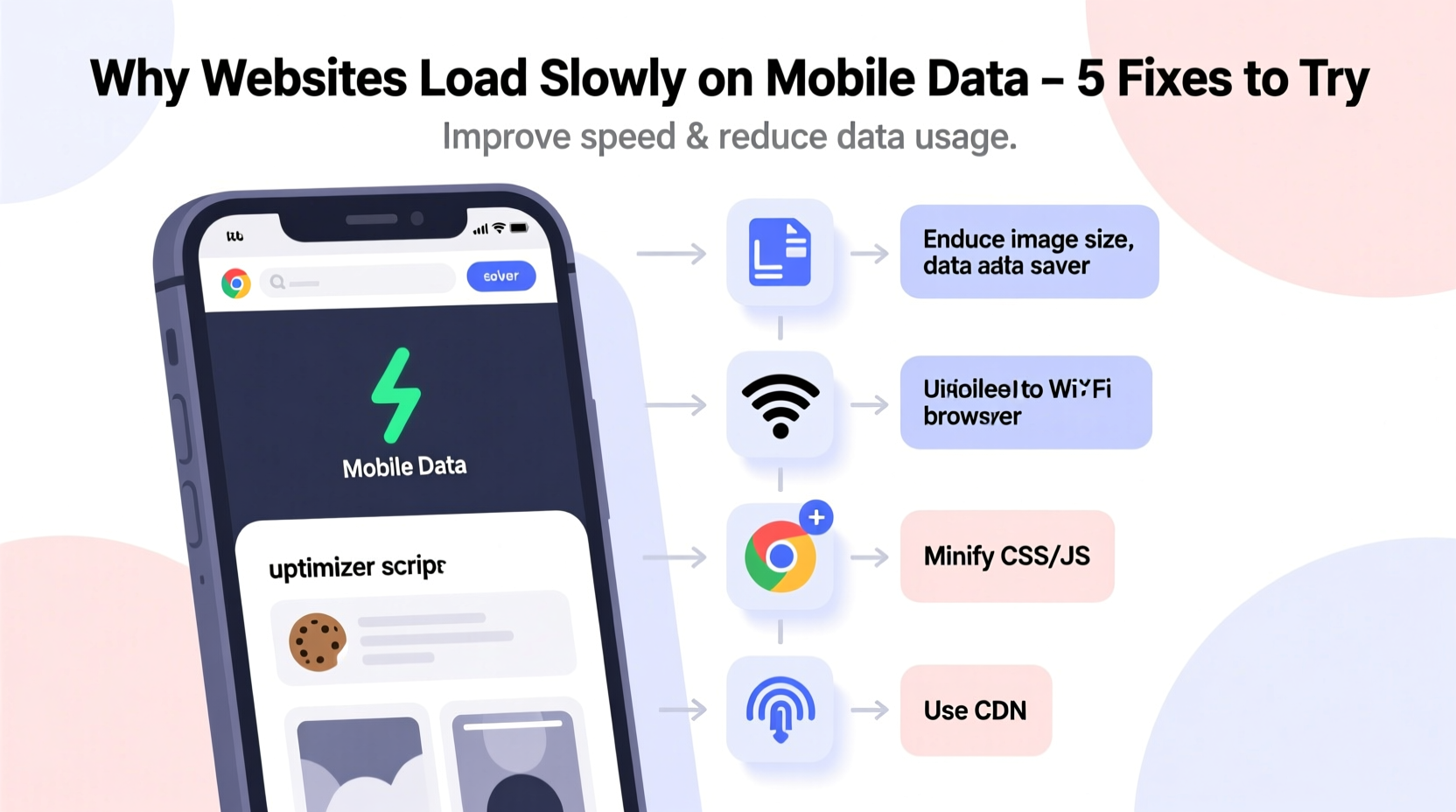
It's easy to assume slow speeds are due to weak 4G/5G signals or limited data plans. But while network quality matters, many delays stem from how websites are built and how devices manage resources. Mobile networks inherently have higher latency and lower bandwidth than Wi-Fi, making them less forgiving of inefficient designs.
Modern websites often include large images, auto-playing videos, multiple tracking scripts, and complex layouts—all optimized for desktop monitors with high-speed broadband. When these sites are viewed on mobile over data, they demand more bandwidth than necessary, leading to long load times, timeouts, or partial rendering.
Common Causes of Slow Website Loading on Mobile Data
Several interrelated factors contribute to poor mobile web performance. Recognizing these helps identify whether the problem is on your end or the website’s.
1. Heavy Page Weight
\"Page weight\" refers to the total size of all elements loaded by a webpage—images, scripts, fonts, CSS files, and embedded media. Some news or e-commerce sites exceed 5MB per page. On a congested mobile network, downloading that much data can take 10–30 seconds or more, especially in areas with spotty coverage.
2. Unoptimized Media Files
Images and videos account for up to 70% of a page’s size. If a site uses full-resolution desktop images without compression or responsive sizing, your phone downloads unnecessary bulk. For example, a 3000-pixel-wide image scaled down to fit a 400-pixel screen wastes bandwidth and processing power.
3. Excessive Third-Party Scripts
Websites often embed dozens of external scripts for ads, analytics (like Google Analytics), social media widgets, and chatbots. Each script requires a separate connection, increasing latency. These \"invisible\" requests add up quickly and can delay the main content from appearing.
4. Lack of Caching
Caching stores frequently used resources locally so they don’t need to reload every time. Without proper caching policies, your phone re-downloads the same logo, stylesheet, or font on every visit—even to the same site.
5. Server Location and Performance
If a website’s server is located thousands of miles away, data must travel farther, increasing response time. Shared hosting platforms or outdated infrastructure also slow down delivery, especially during peak traffic hours.
“Over 50% of mobile users abandon a page if it takes longer than three seconds to load.” — Google Web Fundamentals Team
Step-by-Step Guide to Improve Mobile Web Speed
You can't fix how websites are coded, but you can optimize your device and browsing habits to minimize delays. Follow this sequence to diagnose and improve performance.
- Test Your Connection: Use a speed test app (e.g., Speedtest by Ookla) to check download speed, upload speed, and ping. If results are below 5 Mbps download, the issue may be network-related.
- Switch Between 4G and 5G: If available, manually toggle between network modes. Sometimes 5G offers better speed, but in crowded areas, 4G might be more stable.
- Clear Browser Cache and Data: Accumulated cache can corrupt or slow down rendering. Go to Settings > Apps > [Your Browser] > Storage > Clear Cache.
- Try a Different Browser: Lightweight browsers like Firefox Focus, Opera Mini, or Microsoft Edge with data-saving mode compress pages before delivery, reducing load size by up to 60%.
- Enable Data Saver Mode: In Chrome, go to Settings > Advanced > Bandwidth > Enable “Lite Mode.” It routes pages through Google’s compression servers.
- Disable Non-Essential Content: Block images and JavaScript selectively using browser extensions (on supported browsers) or private browsing tools.
- Restart Your Device: Memory leaks or background apps can throttle performance. A reboot clears temporary bottlenecks.
Do’s and Don’ts When Browsing on Mobile Data
| Action | Do | Don’t |
|---|---|---|
| Browsing Habits | Use incognito mode to avoid bloated cookies and trackers | Keep 10+ tabs open simultaneously |
| Data Management | Set monthly data limits to avoid throttling | Stream HD video over mobile data |
| Browser Settings | Enable preload pages only on Wi-Fi | Allow autoplay videos on all sites |
| Site Interaction | Bookmark lightweight versions (e.g., Google AMP links) | Visit media-heavy forums or galleries on data |
| Maintenance | Update browser regularly for performance patches | Ignore update notifications for weeks |
Checklist: Optimize Your Mobile Browsing Experience
- ✅ Test current internet speed using a trusted app
- ✅ Switch to a browser with built-in data compression
- ✅ Enable data saver or lite mode in browser settings
- ✅ Clear cache and cookies weekly
- ✅ Turn off background app refresh for non-essential apps
- ✅ Avoid visiting sites known for heavy ads or pop-ups
- ✅ Bookmark simplified versions of frequently visited sites (e.g., m.example.com)
- ✅ Schedule large downloads for Wi-Fi connections
Real Example: How Sarah Improved Her Commute Browsing
Sarah, a marketing consultant, relied on her phone during daily train rides to review client reports and industry news. She noticed that certain websites took over 20 seconds to load, draining both battery and patience. After testing her connection (which showed 8 Mbps down), she ruled out network issues.
She switched from Safari to Opera Mini, enabling its turbo mode. Suddenly, pages loaded in under five seconds. Curious, she compared data usage: previously, reading one article consumed 3.2 MB; now it used just 1.1 MB. The difference? Opera compressed images and deferred non-critical scripts until after page display.
Sarah also started using bookmarks for mobile-friendly versions of sites and disabled JavaScript on ad-heavy blogs. Within a week, her browsing felt seamless—even during tunnel segments with intermittent signal.
Frequently Asked Questions
Does clearing cache really speed up my phone?
Yes, especially for browsers. Over time, cached files can become fragmented or outdated, forcing the browser to process redundant data. Clearing cache forces a fresh, clean load and can resolve rendering issues that mimic slow speeds.
Can a website be too slow to fix on my end?
Absolutely. If a site uses unoptimized video backgrounds, hundreds of tracking pixels, or lacks responsive design, no amount of device tweaking will make it fast. In such cases, consider using text-only readers (like Pocket or Reader View) or waiting until you’re on Wi-Fi.
Is 5G always faster than 4G for browsing?
Not necessarily. While 5G has higher theoretical speeds, real-world performance depends on tower proximity, congestion, and signal penetration. In dense urban areas or indoors, 4G may provide more consistent throughput. Monitor your actual speeds rather than relying on the network icon.
Expert Insight: What Developers Should Fix
While users can tweak settings, lasting improvements require changes at the source. Web developers play a crucial role in mobile performance.
“Website owners must treat mobile as the default, not an afterthought. Lazy loading, modern image formats like WebP, and code-splitting can reduce load times by 60% or more.” — Rajiv Mehta, Frontend Architect at NetSpeed Labs
Unfortunately, many businesses prioritize visual richness over usability. But Google now penalizes slow-loading sites in mobile search rankings, incentivizing change. Users can support this shift by favoring fast, accessible websites and providing feedback to those that lag.
Conclusion: Take Control of Your Mobile Experience
Slow website loading on mobile data isn’t inevitable. While network conditions matter, your choice of browser, settings, and habits have a profound impact. By understanding what slows pages down—and applying simple optimizations—you regain control over your digital experience.
Start today: switch to a data-efficient browser, clear old cache, and audit your most-used sites. Small changes compound into faster access, lower data bills, and less frustration. The web should work for you, not against you—especially when you're on the move.




 浙公网安备
33010002000092号
浙公网安备
33010002000092号 浙B2-20120091-4
Comments
No comments yet. Why don't you start the discussion?