
Watching a movie or series with perfectly synced subtitles enhances comprehension and immersion. But when subtitles drift—appearing too early or too late—it disrupts the experience, distracts focus, and can even make dialogue confusing. This misalignment, commonly known as subtitle lag or desynchronization, affects viewers across streaming platforms, downloaded media, and home theater setups. While frustrating, the issue is rarely permanent and often solvable with targeted troubleshooting. Understanding the root causes and knowing which tools or settings to adjust can restore perfect timing in seconds.
The Science Behind Subtitle-Audio Sync
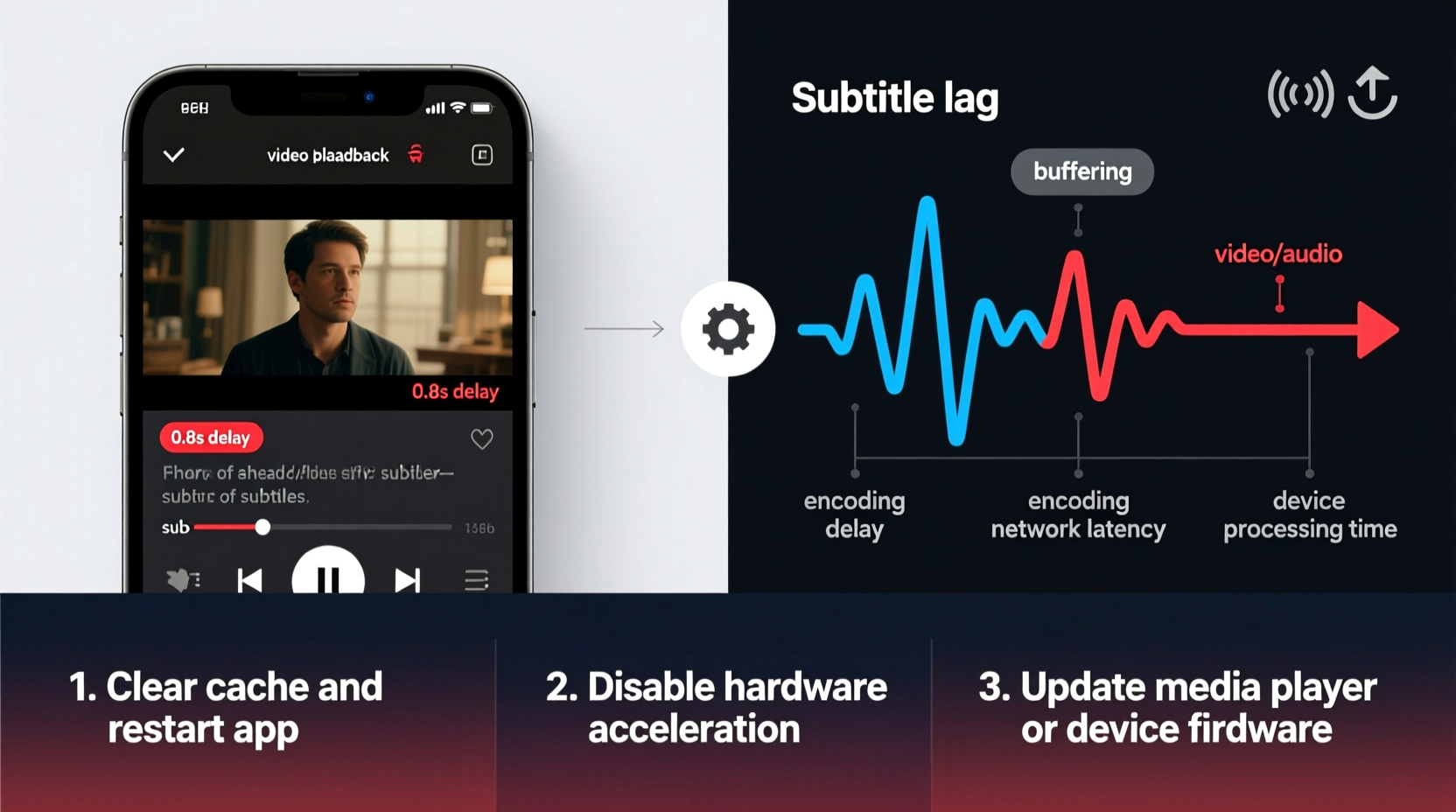
Subtitles are not inherently part of a video file; they exist as separate data streams—either embedded within the container (like MKV) or loaded externally (as .srt or .ass files). When playback software renders a video, it must coordinate three elements: video frames, audio tracks, and subtitle cues. Each component has its own timeline, measured in milliseconds. A delay occurs when the subtitle renderer fails to align with the audio clock.
This misalignment often stems from discrepancies during encoding, transmission, or decoding. For example, if a subtitle file was created using a different frame rate than the video, timestamps won’t match. Similarly, network buffering on streaming services may cause temporary audio delays while subtitles load instantly, creating an illusion that text leads or lags.
“Even a 100-millisecond gap between sound and text can break viewer immersion. Precision matters.” — Dr. Lena Torres, Media Synchronization Researcher, Berlin Institute of Digital Entertainment
Common Causes of Subtitle Lag
Several technical factors contribute to subtitle lag. Identifying the source is the first step toward resolution.
- Incorrect subtitle file timing: Subtitles manually timed to a version of a film with different pacing (e.g., director’s cut vs. theatrical release).
- Streaming buffer inconsistencies: Audio streams sometimes lag due to adaptive bitrate changes, while subtitles remain fixed.
- Hardware decoding delays: Some TVs or set-top boxes process audio slower than subtitles, especially with high-resolution audio formats like Dolby TrueHD.
- Container format mismatches: Merging subtitles into a video without adjusting timecodes can create persistent offset.
- Player-specific bugs: Outdated or poorly optimized media players may fail to synchronize external subtitle files correctly.
Instant Fixes You Can Apply Now
Most subtitle lag issues can be corrected immediately using built-in player features or lightweight tools. Here’s how to fix them based on your viewing method.
For Streaming Platforms (Netflix, Disney+, Amazon Prime)
These services typically manage synchronization automatically, but glitches happen.
- Pause the video for 10–15 seconds to allow buffers to stabilize.
- Switch subtitle languages on and off—this forces a reload of timing data.
- Clear browser cache or restart the app; corrupted session data can cause sync drift.
- On smart TVs, reboot the device or update firmware—older versions may have known sync bugs.
For Local Media Players (VLC, MPC-HC, Plex)
Desktop and mobile players offer direct control over subtitle timing.
In VLC Media Player:
- While playing the video, press Shift + H to delay subtitles or Shift + G to advance them.
- Use the menu: Subtitle > Subtitle Track Synchronization to adjust by milliseconds.
- To save changes permanently, go to Tools > Effects and Filters > Synchronization, adjust subtitle track, then export with new sync via transcoding.
In MPC-HC:
- Right-click the player > Subtitles > Timing > adjust offset using keyboard shortcuts (J / K).
Step-by-Step Guide: Correcting Subtitle Timing Permanently
If you frequently encounter lag with the same file, recalibrating the subtitle file itself ensures consistent playback across all devices.
- Open the subtitle file in a plain text editor (Notepad, TextEdit, or dedicated tool like Aegisub).
- Identify the timecode format: Most .srt files use
HH:MM:SS,mmm --> HH:MM:SS,mmm. - Determine the offset: Play the video and note where a clear line (e.g., “Hello”) appears. If the subtitle shows at 00:01:10,000 but the word is spoken at 00:01:10,700, the subtitle is 700ms too early.
- Adjust all entries: Use a tool like Subtitle Edit or online synchronizers to shift every line by +700ms.
- Save the corrected file with the same name and encoding (usually UTF-8).
- Test playback: Load the video and new subtitle file in your preferred player.
For advanced users, command-line tools like ffmpeg can automate this:
ffmpeg -i input.srt -itsoffset 0.7 -c copy output.srt
This shifts the entire subtitle track forward by 700 milliseconds.
Do’s and Don’ts: Best Practices for Subtitle Sync
| Do | Don’t |
|---|---|
| Verify subtitle-video version compatibility before downloading. | Assume all .srt files work universally across releases. |
| Use trusted sources like OpenSubtitles or Subscene with high user ratings. | Download subtitles from unverified torrent sites with no reviews. |
| Enable hardware acceleration only if your system supports stable decoding. | Force GPU rendering on low-end devices—it can increase audio lag. |
| Update media players regularly to benefit from sync bug fixes. | Ignore updates thinking older versions are more stable. |
| Store corrected subtitle files with descriptive names (e.g., movie.en.synced.srt). | Overwrite original files without backup. |
Real-World Example: Fixing a Delayed Foreign Film Subtitle
Carlos downloaded a French arthouse film from a legal archive site. The English subtitles consistently appeared half a second before the dialogue, making conversations feel disjointed. He used VLC to test: pressing Shift + H multiple times until speech and text aligned. After finding the ideal +500ms delay, he opened the .srt file in Subtitle Edit, applied a global shift of -500ms (to delay display), and saved it as “film_en_corrected.srt.” On subsequent viewings across his tablet and TV, the subtitles played perfectly in sync. The fix took under four minutes and improved his viewing experience significantly.
Expert Tools for Advanced Control
While basic players suffice for minor tweaks, specialized software offers deeper precision.
- Aegisub: A professional subtitle editor allowing waveform visualization of audio to precisely align text with speech peaks.
- Subtitle Edit: Supports translation, syncing, and format conversion with real-time preview.
- HandBrake: Burn subtitles directly into video (hardsubs) to eliminate sync issues on any device.
These tools are invaluable for archivists, educators, or multilingual households relying on accurate captioning.
Frequently Asked Questions
Can Wi-Fi speed affect subtitle sync?
Yes. Slow or unstable connections may delay audio buffering while subtitles—being small text files—load instantly. This creates a temporary lead for subtitles. Pausing briefly to let the audio catch up usually resolves it.
Why do subtitles stay synced on one device but lag on another?
Different devices decode audio and video at varying speeds. A smart TV might process DTS audio slower than a laptop, causing relative subtitle lag. Adjusting per-device settings or embedding corrected subtitles solves this inconsistency.
Is there a way to prevent subtitle lag before it happens?
Select subtitle files labeled with matching release groups (e.g., “BluRay” or “WEB-DL”). Avoid generic files without version info. Also, use media servers like Plex or Emby, which auto-match and correct subtitles based on video fingerprints.
Final Checklist: Eliminate Subtitle Lag for Good
- Confirm subtitle file matches the video version exactly.
- Test playback in a reliable player like VLC or MPC-HC.
- Use keyboard shortcuts to adjust sync during playback.
- Permanently correct timing using Subtitle Edit or Aegisub if needed.
- Re-encode or hard-code subtitles for universal compatibility.
- Keep media player software updated.
- Restart router or device if streaming sync issues persist.
“The future of subtitles lies in AI-driven synchronization—real-time correction based on speech detection. But today, manual precision still wins.” — Arjun Patel, Senior Developer at SubSync Technologies
Conclusion: Take Control of Your Viewing Experience
Subtitle lag isn’t a flaw in modern entertainment—it’s a solvable mismatch in timing systems. Whether you’re watching a foreign film, a lecture, or the latest series binge, perfect sync is within reach. By understanding the causes and applying the right fix—whether a quick keypress or a permanent file edit—you reclaim clarity and immersion. Don’t tolerate drifting text. Use the tools and techniques outlined here to ensure every word appears exactly when it should. Your next viewing session deserves nothing less than seamless harmony between sound and sight.




 浙公网安备
33010002000092号
浙公网安备
33010002000092号 浙B2-20120091-4
Comments
No comments yet. Why don't you start the discussion?