
Autocorrect has become a silent companion in our daily typing—on smartphones, tablets, and even laptops. It’s meant to save time and reduce errors, but too often, it feels like it’s working against us. You type “duck” as an expletive substitute, only for it to become “ducking.” You write “meet for lunch,” and suddenly it’s “meat for lunch.” These small frustrations add up, turning a helpful tool into a digital nuisance.
The truth is, autocorrect isn’t broken—it’s just misunderstood. Its behavior stems from complex algorithms trained on general language patterns, not your personal voice or context. When it misfires, it’s usually because the system lacks enough personalized data or is overzealous in its corrections. The good news? Most of these issues are fixable with the right settings, habits, and understanding.
How Autocorrect Actually Works (And Why It Fails)
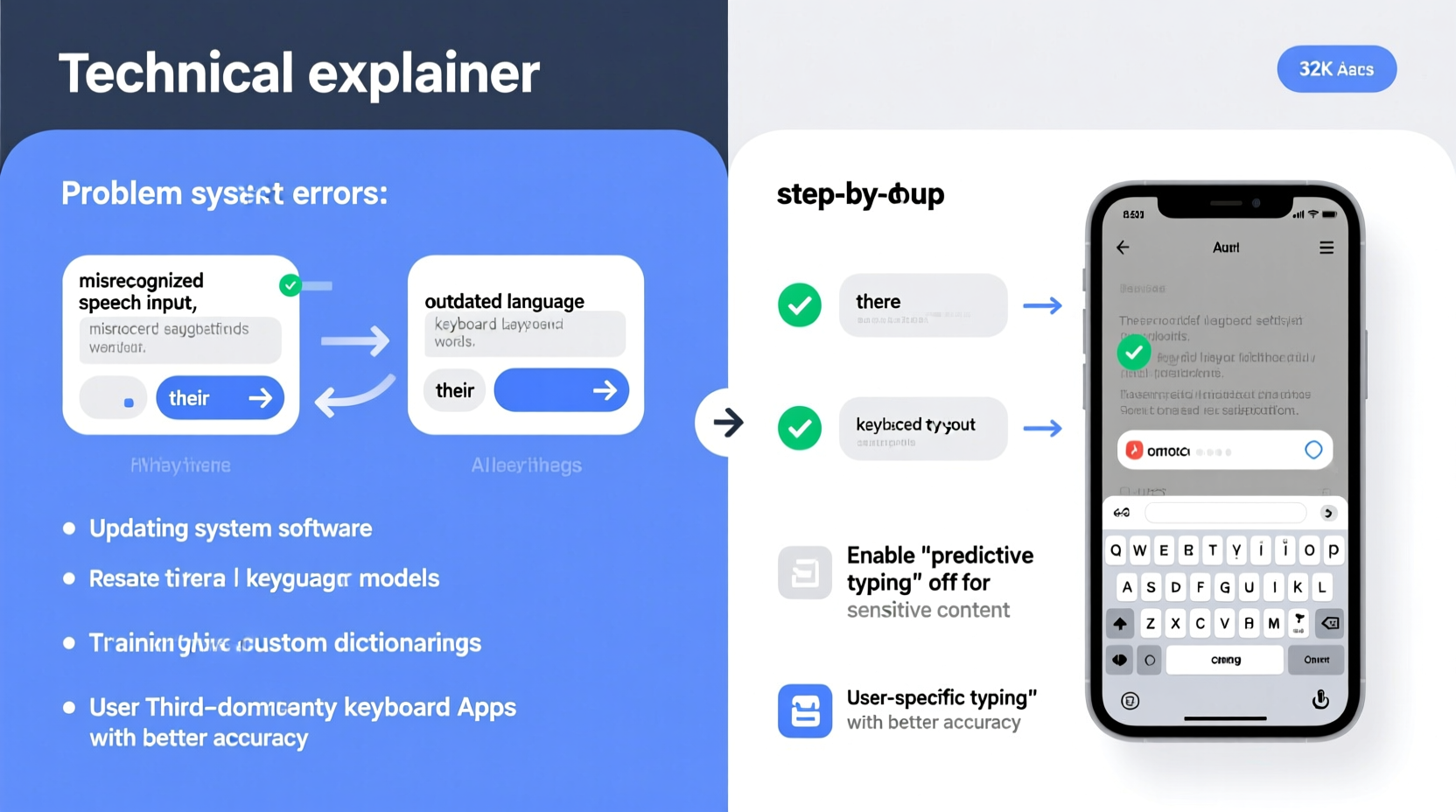
At its core, autocorrect relies on three main components: a dictionary of standard words, predictive text models, and user-specific learning. When you type, your device compares your input against known words and common phrases. If it detects a possible misspelling, it either suggests a correction or automatically replaces the word based on confidence levels.
However, this process breaks down in several real-world scenarios:
- Context blindness: Autocorrect doesn’t fully understand sarcasm, slang, or niche terminology. Typing “I’m feeling lit” might get changed to “I’m feeling list” because “lit” isn’t recognized as slang for “excited.”
- Overcorrection: Some keyboards prioritize speed over accuracy, replacing words before you’ve finished typing them. This leads to situations where “tomorrow” becomes “torpedo” after typing just “tomo.”
- Limited personalization: While modern keyboards learn from your typing, they do so slowly and conservatively. They may not adapt quickly to new names, technical terms, or regional expressions.
- Dictionary gaps: Industry jargon, brand names, or non-English words often don’t exist in default dictionaries, making them prime targets for unwanted changes.
“Autocorrect is designed for the average user, not the individual. That’s why it often fails people with specialized vocabularies or unique communication styles.” — Dr. Lena Park, Human-Computer Interaction Researcher, MIT Media Lab
Common Reasons Autocorrect Changes Words Incorrectly
Understanding the root causes helps you address them effectively. Here are the most frequent culprits behind rogue autocorrections:
1. Aggressive Auto-Replace Settings
Many devices come with aggressive auto-replacement enabled by default. This means the keyboard doesn’t just suggest corrections—it applies them instantly. If you’re a fast typist, you might not even notice the change until after you’ve sent the message.
2. Outdated or Generic Language Models
Your phone’s keyboard uses preloaded language models that reflect broad usage trends. These models may not account for evolving language, internet slang, or regional dialects. For example, “y’all” might be flagged as incorrect in some systems despite being widely used.
3. Poor Learning from User Input
Even if you repeatedly accept or reject certain corrections, some keyboards fail to remember your preferences. This could be due to privacy settings limiting data storage or bugs in the learning algorithm.
4. Third-Party Keyboard Limitations
Apps like Gboard, SwiftKey, or Apple’s native keyboard each have different behaviors. Some offer better customization, while others prioritize simplicity over control. Using a third-party app without adjusting its settings can lead to unexpected results.
5. Syncing Across Devices Gone Wrong
If you use multiple devices synced through iCloud, Google Account, or another cloud service, incorrect learned words or phrases can spread across all your gadgets. One typo accepted on your tablet might haunt your phone for weeks.
Step-by-Step Guide to Fix Persistent Autocorrect Errors
Follow this structured approach to regain control over your typing experience. These steps apply to both iOS and Android, with specific instructions noted where relevant.
- Review and Edit Your Personal Dictionary
Go to your keyboard settings and check the custom dictionary. Remove any incorrectly learned words and add frequently used ones (e.g., names, job titles, nicknames).
iOS: Settings > General > Keyboard > Text Replacement
Android: Settings > System > Languages & input > Virtual keyboard > [Your Keyboard] > Personal dictionary - Disable Auto-Capitalization and Automatic Periods (If Needed)
These features can interfere with intentional stylistic choices. Turning them off gives you more control.
iOS: Settings > General > Keyboard > toggle off “Auto-Capitalization” and “Period Shortcut”
Android: Keyboard settings > Text correction > disable “Auto-capitalization” and “Double-space period” - Adjust Prediction and Correction Sensitivity
Lower the correction aggressiveness to prevent unwanted replacements.
Gboard (Android/iOS): Settings > Text correction > set “Correction strength” to low or medium
SwiftKey: Settings > Correction > disable “Auto-correct misspelled words” or adjust sensitivity - Turn Off Predictive Text Temporarily
If predictions are more distracting than helpful, disable them during focused writing tasks. Re-enable them later when speed matters more than precision. - Clear Learned Data and Restart Learning
Resetting your keyboard’s learned vocabulary forces it to start fresh. Use this as a last resort if persistent errors won’t go away.
iOS: Settings > General > Transfer or Reset iPhone > Reset > Reset Keyboard Dictionary
Android (Gboard): App settings > Storage > Clear Data (note: this removes all learned words) - Switch to a More Customizable Keyboard
Consider switching to a keyboard app with better personalization tools. Gboard and SwiftKey allow extensive control over corrections, themes, and AI-powered predictions.
Do’s and Don’ts of Managing Autocorrect
| Do | Don’t |
|---|---|
| Add important names and technical terms to your personal dictionary | Assume autocorrect understands context—it rarely does |
| Use double quotes or asterisks around slang or informal words you don’t want changed | Ignore repeated corrections; they signal a setting issue |
| Test new settings in Notes or Messages before relying on them | Enable full auto-replace without testing first |
| Back up custom dictionaries if your device allows it | Blame yourself entirely—sometimes the system is just flawed |
Real Example: How a Freelancer Fixed Her Workflow Disruptions
Sarah, a freelance copywriter based in Portland, found herself constantly frustrated when writing client emails. She often used phrases like “on-brand” and “deep-dive,” only to have them changed to “on-barn” and “sleep-dive.” At first, she dismissed it as minor, but over time, these errors made her look careless—even though she proofread every message.
After losing a small contract due to a misunderstood phrase (“let’s circle back” became “let’s circus back”), Sarah decided to take action. She spent 20 minutes reviewing her Gboard settings, added 17 industry-specific terms to her personal dictionary, and lowered the correction strength. She also disabled automatic capitalization for bullet points.
Within a week, her error rate dropped by over 80%. More importantly, she regained confidence in her digital communication. “It felt like I was fighting my own tools,” she said. “Now, my keyboard actually supports how I write instead of rewriting me.”
Checklist: Take Control of Autocorrect Today
- ✅ Audit your personal dictionary—remove incorrect entries
- ✅ Add at least five frequently used words or names
- ✅ Lower correction sensitivity in keyboard settings
- ✅ Disable automatic periods and excessive capitalization
- ✅ Test changes in a draft note before sending real messages
- ✅ Consider switching to a smarter keyboard if problems persist
- ✅ Reset keyboard dictionary if errors continue (backup first if possible)
Frequently Asked Questions
Can I completely turn off autocorrect without disabling the whole keyboard?
Yes. On both iOS and Android, you can disable autocorrect independently. On iPhone: Settings > General > Keyboard > toggle off “Auto-Correction.” On Android: Open keyboard settings > Text correction > turn off “Auto-correct.” Predictive text will still appear, but no words will be changed automatically.
Why does autocorrect keep changing the same word even after I fix it?
This usually means the keyboard hasn’t properly learned your preference. It may also indicate that the word is flagged as invalid in the base dictionary. To fix this, manually add the correct version to your personal dictionary and ensure auto-correction isn’t overriding it due to high sensitivity settings.
Will resetting my keyboard dictionary delete my saved shortcuts?
Yes, in most cases. Resetting the dictionary clears all learned words, custom phrases, and text replacements. Before doing this, write down any important shortcuts or export them if your keyboard supports backup (some third-party apps do). After resetting, rebuild your dictionary with priority terms.
Conclusion: Make Autocorrect Work for You
Autocorrect shouldn’t feel like a game of linguistic whack-a-mole. With a few strategic adjustments, you can transform it from a source of frustration into a subtle ally. The key is recognizing that autocorrect isn’t one-size-fits-all. It requires tuning, just like any other tool in your digital toolkit.
Start by auditing your current settings, then personalize your dictionary and adjust correction behavior to match your writing style. Whether you're texting friends, drafting professional emails, or jotting down creative ideas, your device should support your voice—not overwrite it.




 浙公网安备
33010002000092号
浙公网安备
33010002000092号 浙B2-20120091-4
Comments
No comments yet. Why don't you start the discussion?