
When you check your phone or computer’s storage, you might notice a discrepancy between the advertised capacity—say, 128GB—and what actually appears as available. You may only see 105GB accessible, or even less. This gap isn’t a manufacturing defect or software error; it’s the result of several technical and operational factors that quietly consume space behind the scenes. Understanding these causes empowers you to manage your storage more effectively and avoid unexpected “storage full” warnings.
The mismatch between expected and actual available storage is common across smartphones, tablets, laptops, and even external drives. While some of the difference comes from unavoidable system overhead, other portions stem from user behavior and hidden data accumulation. Let’s break down exactly where your missing gigabytes go and what you can do about it.
Hidden System Files and Preinstalled Software
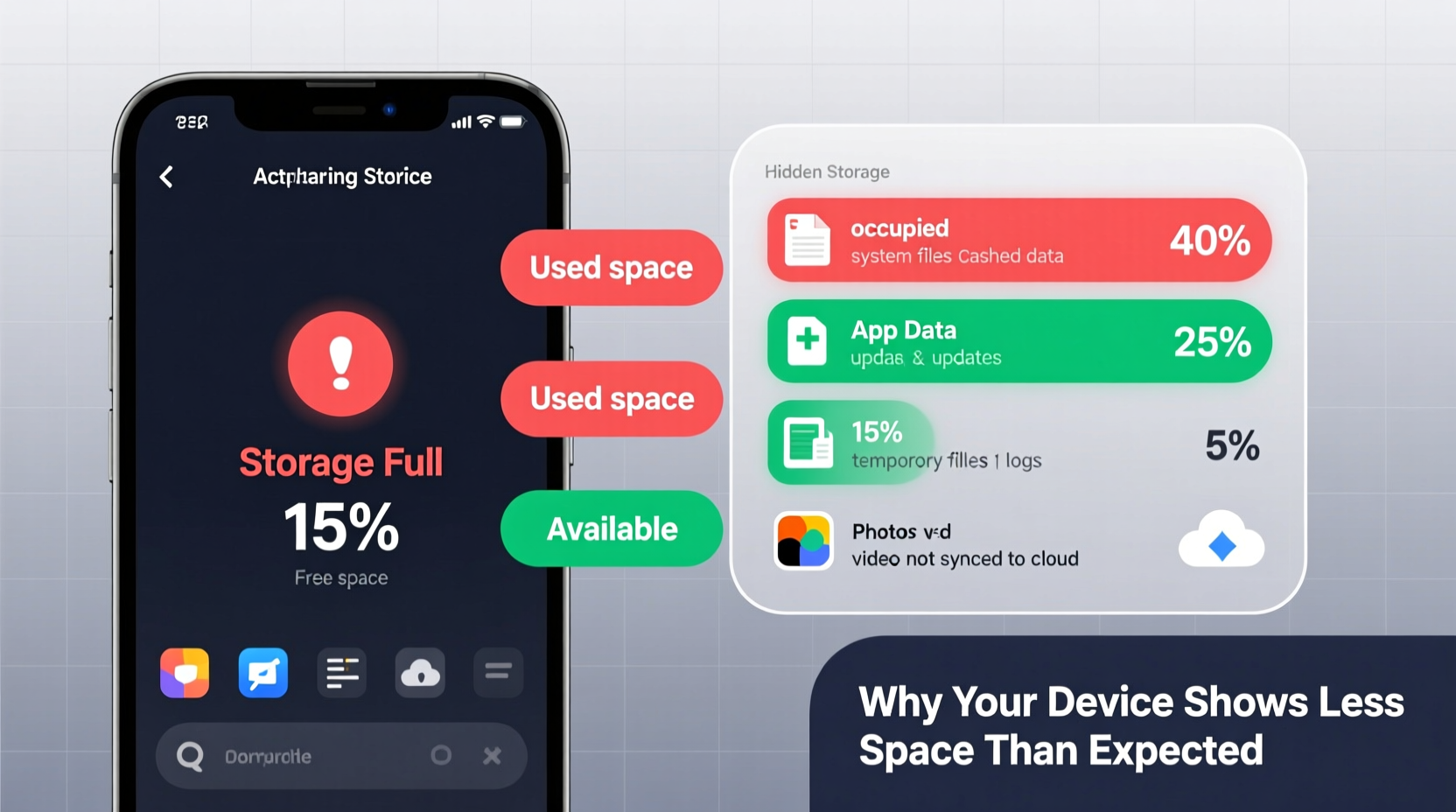
Every device ships with an operating system—iOS, Android, Windows, macOS—that requires a significant amount of storage just to function. These systems include core components like bootloaders, firmware, security modules, and essential services that cannot be removed. For example, a fresh iPhone with iOS 17 installed uses approximately 8–12GB of storage before you add a single photo or app. On Android devices, this baseline can range from 10GB to over 15GB depending on manufacturer skins and preloaded features.
In addition to the OS itself, manufacturers often bundle proprietary apps—sometimes called bloatware—such as trial subscriptions, social media shortcuts, or duplicate utilities. Many of these are non-removable without root access or advanced tools. Even if you never open them, they occupy space and may run background processes that generate cache files.
Storage Formatting and Binary vs. Decimal Measurement
One of the earliest contributors to the storage gap happens before you even power on your device. Manufacturers advertise storage using the decimal (base-10) system: 1GB = 1 billion bytes. However, operating systems calculate storage using binary (base-2): 1GB = 1,073,741,824 bytes. This difference means that a “128GB” drive actually provides closer to 119.2 binary gigabytes.
For example:
| Advertised Capacity (Decimal) | Actual Usable Space (Binary) | Difference |
|---|---|---|
| 64 GB | ~59.6 GB | ~4.4 GB |
| 128 GB | ~119.2 GB | ~8.8 GB |
| 256 GB | ~238.4 GB | ~17.6 GB |
| 512 GB | ~476.8 GB | ~35.2 GB |
This mathematical shift accounts for roughly 7% of the missing space right out of the box. It’s not deceptive—it’s standard industry practice—but it's rarely explained clearly to consumers.
App Caches, Temporary Files, and Residual Data
Applications generate temporary files to improve performance. Web browsers store page elements to load sites faster. Messaging apps cache images and videos for offline viewing. Games preload assets during installation. Over time, these files accumulate and can consume several gigabytes without obvious visibility.
What makes this particularly misleading is that cached data often isn’t labeled accurately in storage summaries. Your phone might say “Photos: 15GB,” but fail to mention that “System Cache” includes another 4GB of fragmented junk from various apps. Worse, some apps don’t clean up after themselves—even after uninstallation, leftover folders and configuration files may remain.
A real-world example illustrates this issue:
Mini Case Study: A user with a 128GB Android phone noticed only 80GB was usable after setup. After deleting old photos and uninstalling unused apps, storage barely improved. Using a file manager, they discovered a hidden folder named
.cache inside the internal storage, containing over 6GB of outdated video thumbnails from a streaming app they had uninstalled months earlier.
This kind of residual data is invisible through standard settings menus but recoverable with third-party tools or manual exploration (with proper permissions).
Step-by-Step Guide to Reclaim Hidden Storage
Follow this structured process to identify and free up concealed storage usage:
- Check total storage breakdown: Go to Settings > Storage to view high-level usage by category (apps, photos, system, etc.).
- Clear app caches individually: Navigate to Settings > Apps > [Select App] > Storage > Clear Cache. Start with social media and streaming apps.
- Delete downloaded files: Open your file manager and browse folders like Downloads, DCIM/.thumbnails, and Android/data. Remove unnecessary APKs, logs, or duplicate files.
- Review cloud sync status: Ensure photos and documents are backed up to iCloud, Google Drive, or Dropbox, then delete local copies if needed.
- Restart the device: A reboot forces the system to rebuild temporary files cleanly, sometimes removing orphaned entries.
- Use built-in optimization tools: On Android, use “Smart Storage”; on iOS, enable “Offload Unused Apps.”
- Perform a factory reset (last resort): Back up data first, then erase all content. This removes every trace of bloat, cache, and residual files.
Do’s and Don’ts of Storage Management
| Do’s | Don’ts |
|---|---|
| Enable automatic cloud backups for photos and videos | Store raw camera footage indefinitely without review |
| Regularly update apps to benefit from optimized file handling | Ignore “Storage Full” alerts until performance degrades |
| Use lightweight alternatives for heavy apps (e.g., Lite versions) | Install multiple apps that perform the same function |
| Uninstall apps you haven’t used in 60+ days | Delete system apps unless you fully understand the consequences |
| Move files to external SD cards or USB drives when possible | Store sensitive data on unencrypted external media |
Expert Insight on Long-Term Storage Health
Storage efficiency isn't just about freeing up space—it also affects device longevity and responsiveness. As storage fills, write speeds slow due to limited room for wear leveling on flash memory. Fragmentation increases, and thermal throttling may occur during intensive operations.
“Devices operate best when at least 10–15% of storage remains free. Running near full capacity stresses NAND memory and reduces overall lifespan.” — Dr. Lena Torres, Senior Engineer at Mobile Storage Labs
This buffer allows the operating system to manage virtual memory, maintain swap files, and optimize file placement. Consistently low free space can lead to app crashes, failed updates, and degraded multitasking performance.
FAQ: Common Questions About Missing Storage
Why does my phone show 10GB used by “Other” or “System”?
The “Other” or “System” category includes encrypted data, logs, caches, Siri/voice models, keyboard dictionaries, and partial downloads. It grows when software updates are staged or when apps store unclassified data. To reduce it, back up your device and restore from scratch via iTunes or recovery mode.
Can I delete system files to gain space?
No. System files are protected and essential for stability. Attempting to remove them can brick your device or trigger security lockdowns. Instead, focus on managing user-installed apps and media.
Does resetting settings clear storage?
No. Resetting settings (Settings > General > Reset > Reset All Settings) only clears network configurations, display preferences, and privacy permissions. It doesn’t delete files or caches. For meaningful cleanup, choose “Erase All Content and Settings.”
Conclusion: Take Control of Your Device’s True Capacity
Your device’s storage isn’t shrinking—it’s being utilized in ways that aren’t always visible. From fundamental formatting differences to silent cache accumulation, multiple layers contribute to the gap between advertised and usable space. The key to regaining control lies in regular maintenance, informed usage habits, and understanding what truly consumes your disk.
Start today by auditing your largest apps, clearing caches, and offloading infrequently accessed media to the cloud. Monitor trends over time and adjust your digital behavior accordingly. A well-maintained device not only performs better but lasts longer, delaying the need for costly upgrades.




 浙公网安备
33010002000092号
浙公网安备
33010002000092号 浙B2-20120091-4
Comments
No comments yet. Why don't you start the discussion?