
There’s nothing more frustrating than being in the middle of a crucial team play, coordinating strategies on Discord, only to be abruptly dropped from the call. The audio cuts out, your teammates’ voices vanish, and you’re left wondering—was it me, the game, or something deeper in the network? If Discord keeps disconnecting mid-game, you're not alone. Millions of users face this issue daily, especially when running bandwidth-heavy games alongside real-time voice communication. The good news: most causes are fixable with the right troubleshooting steps.
Discord disconnections during gameplay typically stem from a mix of network strain, software conflicts, outdated drivers, or misconfigured settings. While the app itself is generally stable, its performance depends heavily on how well your system manages competing demands. This guide dives into the root causes and offers actionable solutions to ensure consistent connectivity—so you can focus on gaming, not reconnecting.
Understanding Why Discord Disconnects During Gameplay
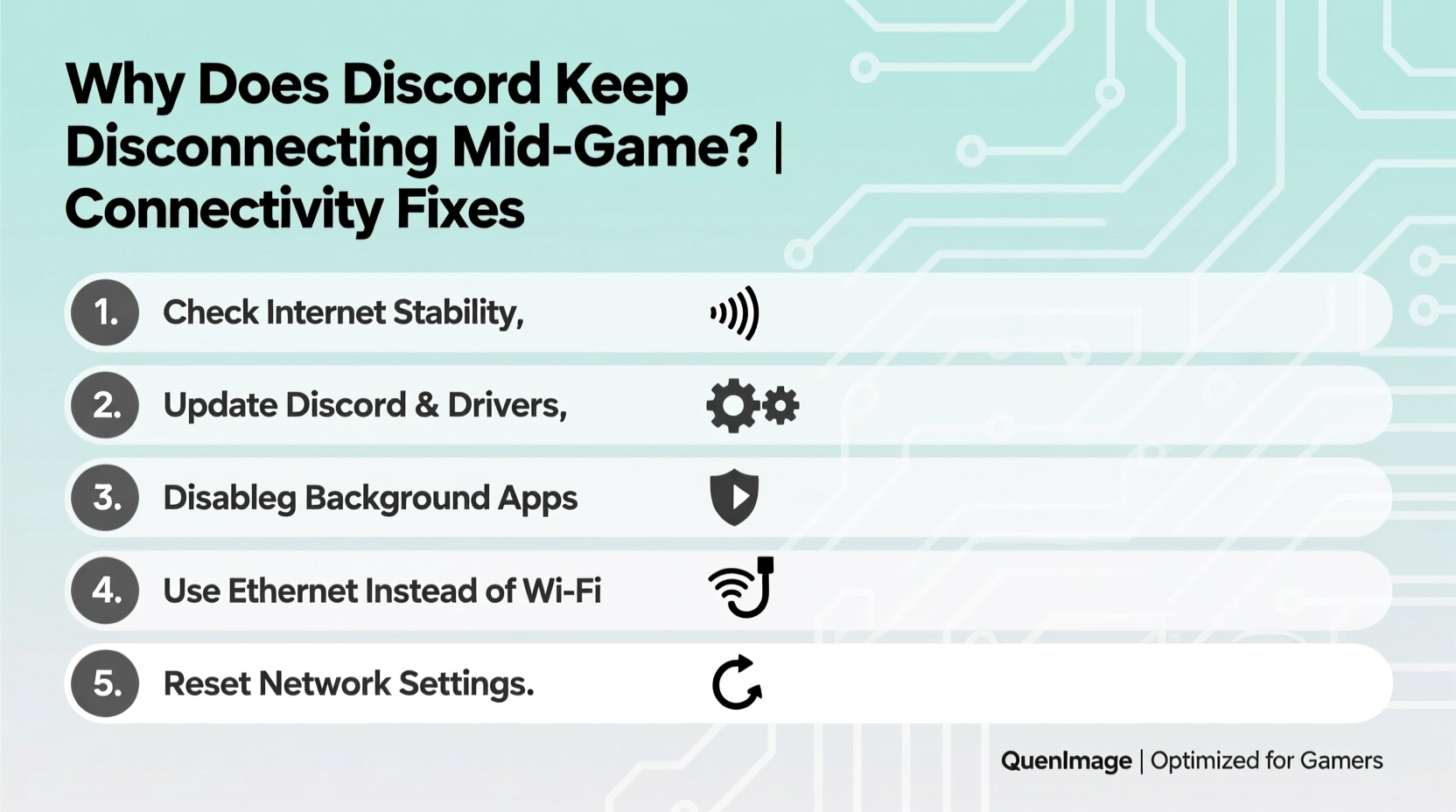
When you launch a modern video game, your computer allocates significant resources—CPU, GPU, RAM, and network bandwidth. At the same time, Discord runs in the background, maintaining a constant connection to voice servers. When both demand high throughput, conflicts arise. The most common triggers include:
- Bandwidth saturation: Games like Fortnite, Call of Duty, or Apex Legends use substantial upload and download speeds. If your connection isn’t strong enough, Discord may lose packets or time out.
- Poor Wi-Fi signal: Wireless connections are inherently less stable than wired ones, especially under load. Signal interference from other devices can cause micro-disruptions that kick you offline.
- QoS (Quality of Service) misconfiguration: Your router might not prioritize Discord traffic, allowing game data to dominate and starve the voice app.
- Outdated network drivers: Old or buggy drivers can’t handle simultaneous tasks efficiently, leading to dropped connections.
- Firewall or antivirus interference: Security software sometimes flags Discord as suspicious during high activity, temporarily blocking it.
These factors don’t always act alone. Often, it’s a combination—such as weak Wi-Fi compounded by an unoptimized router—that leads to repeated dropouts.
ping discord.com) while gaming to check for packet loss or latency spikes.
Step-by-Step Guide to Stabilize Discord Mid-Game
Follow this structured approach to diagnose and resolve the disconnection issue. Each step targets a specific potential cause, starting from the simplest to more advanced fixes.
- Switch to a Wired Connection
Replace Wi-Fi with an Ethernet cable. Wired connections offer lower latency, higher stability, and immunity to radio interference. Even if your Wi-Fi seems strong, Ethernet reduces variability under load. - Close Background Applications
Shut down unnecessary programs—especially those using the internet (cloud sync tools, browsers with multiple tabs, streaming apps). Freeing up bandwidth helps both your game and Discord maintain steady streams. - Set Discord to High Priority in Task Manager
PressCtrl+Shift+Escto open Task Manager, go to the “Details” tab, right-clickDiscord.exe, select “Set priority,” and choose “High.” This tells Windows to allocate more CPU resources to Discord. - Enable QoS on Your Router
Log into your router’s admin panel (usually via192.168.1.1), navigate to QoS settings, and prioritize traffic for Discord. Assign higher priority to UDP ports 50000–52000, which Discord uses for voice. - Update Network Drivers
Visit your motherboard or laptop manufacturer’s website, locate your network adapter model, and download the latest driver. Alternatively, use Device Manager to check for updates under “Network adapters.” - Add Discord to Firewall Exceptions
Go to Windows Security > Firewall & network protection > Allow an app through firewall. Ensure both private and public boxes are checked for Discord. Repeat for any third-party antivirus software. - Use Push-to-Talk Instead of Voice Activation
In Discord Settings > Voice & Video, switch from “Voice Activity” to “Push to Talk.” This reduces background audio processing and minimizes connection strain. - Lower Audio Subsystem Settings
Under Voice & Video settings, change “Audio Subsystem” from “Standard” to “Legacy.” Some users report improved stability, especially on older hardware.
Do’s and Don’ts: Optimizing Your Setup
| Do’s | Don’ts |
|---|---|
| Use Ethernet over Wi-Fi whenever possible | Don’t rely on crowded 2.4 GHz Wi-Fi bands |
| Limit downloads/uploads during gaming sessions | Don’t run torrents or cloud backups while playing |
| Regularly update Discord and network drivers | Don’t ignore app or OS updates |
| Test your internet speed before gaming | Don’t assume your ISP delivers consistent speeds |
| Use a dual-band router and connect to 5 GHz | Don’t place your router near metal objects or microwaves |
Real Example: Fixing Persistent Dropouts for Competitive Play
Jamal, a Valorant player from Chicago, struggled with Discord disconnects every time his squad entered ranked matches. He used a high-end gaming PC and a 300 Mbps internet plan but played over Wi-Fi. His symptoms matched classic bandwidth contention: audio would freeze for 5–10 seconds, then he’d be kicked from voice chat entirely.
He started by switching to an Ethernet cable—this reduced dropouts by about 60%. Next, he discovered his antivirus was scanning Discord files during peak usage. Adding Discord to the exclusion list stopped the scans. Finally, he enabled QoS on his ASUS router, prioritizing his PC’s IP address and Discord’s ports.
The result? No disconnections over three weeks of daily play. Jamal also noticed slightly better in-game ping, likely due to cleaner packet handling across the board.
“We often overlook how much coordination relies on stable voice comms. A single dropout can cost a round. Prioritizing Discord isn’t just convenience—it’s competitive necessity.” — Lena Park, Esports Coach and Network Analyst
Troubleshooting Checklist
Use this checklist to quickly verify key fixes:
- ✅ Connected via Ethernet (not Wi-Fi)
- ✅ Discord added to firewall/antivirus exceptions
- ✅ Push-to-talk enabled in settings
- ✅ Network drivers updated within the last 3 months
- ✅ No large downloads or uploads running in background
- ✅ Router supports QoS and it’s configured for Discord
- ✅ Discord running as administrator (optional but helpful)
- ✅ Audio Subsystem set to “Legacy” if experiencing glitches
- ✅ Tested connection with
ping discord.com -tduring gameplay - ✅ Restarted router and modem after configuration changes
Frequently Asked Questions
Why does Discord disconnect only when I’m in-game?
Games consume significant network and system resources. When combined with Discord’s real-time audio streaming, this can overwhelm your connection or CPU. Wi-Fi congestion, insufficient bandwidth, or lack of traffic prioritization often trigger disconnections specifically during gameplay.
Can my internet speed cause Discord to drop out?
Yes. While Discord only needs about 64 Kbps per voice stream, games can use 50–100 Mbps. If your total bandwidth is close to capacity, even small fluctuations can disrupt low-latency services like voice chat. Aim for at least 10–15% headroom above your peak usage.
Does restarting Discord help prevent disconnections?
Temporarily, yes. Restarting clears cached data and re-establishes the connection, which may resolve transient issues. However, if the root cause (like poor Wi-Fi or driver bugs) remains, the problem will return. Focus on long-term fixes rather than frequent restarts.
Conclusion: Stay Connected, Stay Competitive
Discord disconnections mid-game aren’t inevitable—they’re symptoms of correctable imbalances in your network and system setup. By addressing bandwidth allocation, improving connection stability, and optimizing software behavior, you can maintain flawless voice communication even during intense multiplayer sessions.
The difference between a sporadic chat dropout and rock-solid connectivity often comes down to a few precise adjustments: switching to Ethernet, configuring QoS, updating drivers, and managing background processes. These aren’t one-size-fits-all fixes, but a toolkit you can adapt based on your environment.




 浙公网安备
33010002000092号
浙公网安备
33010002000092号 浙B2-20120091-4
Comments
No comments yet. Why don't you start the discussion?