
Fortnite remains one of the most popular battle royale games across platforms, and its mobile version brings high-octane action directly into players’ hands. However, a growing number of users report frequent crashes—mid-match or during launch—turning what should be an immersive experience into a source of frustration. If you're wondering why Fortnite keeps crashing on your mobile device, you're not alone. The issue affects both Android and iOS users, often due to a mix of hardware limitations, software conflicts, and game-specific bugs. The good news is that many of these problems can be resolved with practical troubleshooting steps. This guide breaks down the root causes and delivers proven solutions to stabilize gameplay and reduce or eliminate crashes.
Understanding Why Fortnite Crashes on Mobile
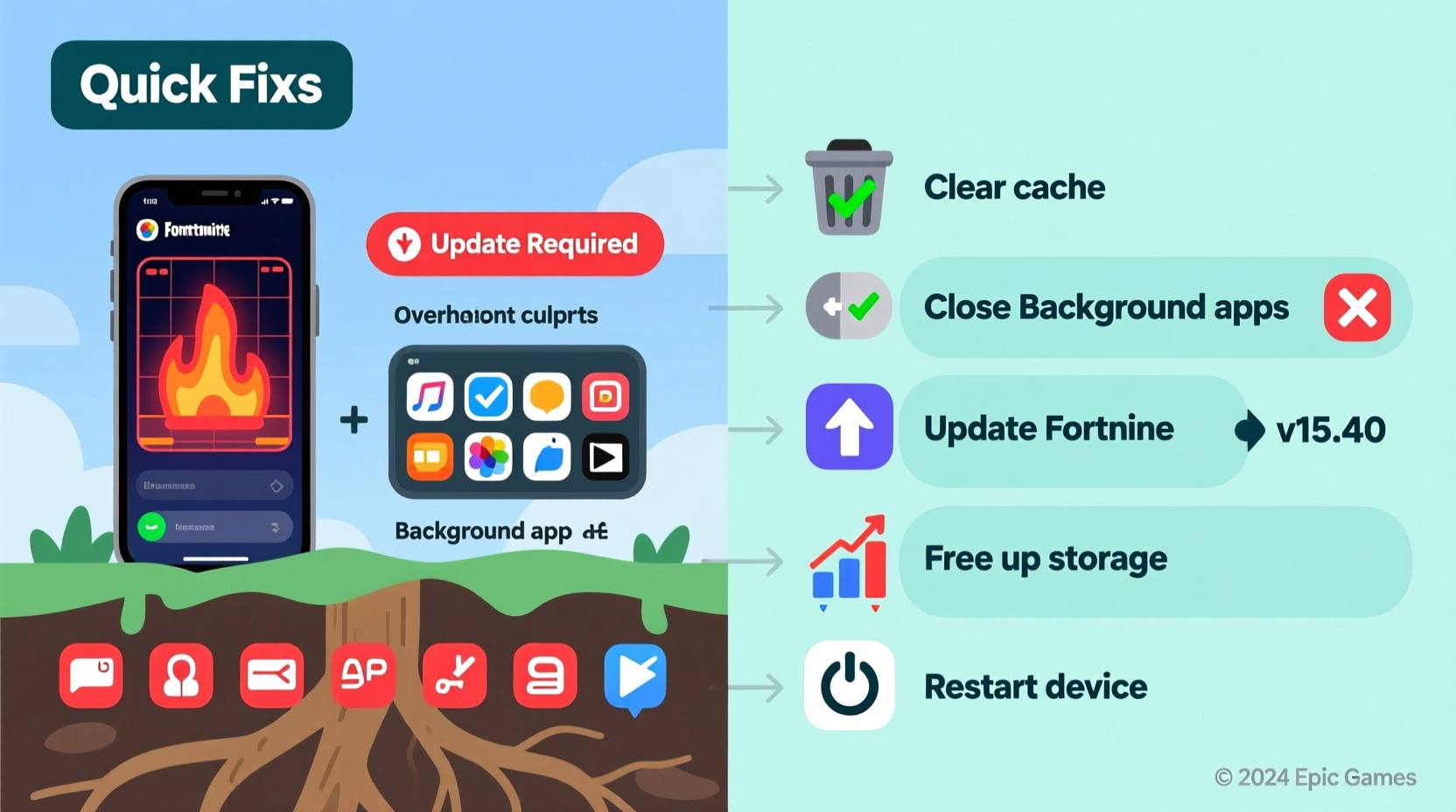
Before jumping into fixes, it's important to understand what’s behind the instability. Unlike simpler mobile games, Fortnite demands significant processing power, memory, and thermal management. When any part of this ecosystem fails, the app may crash unexpectedly. Common culprits include:
- Inadequate RAM: Running other apps in the background can starve Fortnite of necessary memory.
- Overheating: Prolonged gameplay increases device temperature, triggering automatic shutdowns.
- Outdated OS or Game Version: Compatibility issues arise when software isn’t up to date.
- Insufficient Storage: Low storage space hampers cache operations and file access.
- Buggy Updates: Occasionally, Epic Games releases updates with unresolved glitches.
- Unsupported Devices: Some phones don’t meet the minimum performance standards for smooth play.
Epic Games maintains a list of officially supported devices, but even those can experience crashes under suboptimal conditions. The key is identifying whether the problem lies with your device, the app, or external factors like network stability.
Step-by-Step Guide to Fix Fortnite Crashes
Follow this structured approach to systematically eliminate potential causes. Start with the simplest fixes and progress to more advanced solutions if needed.
- Restart Your Device
A basic reboot clears temporary system errors and resets active processes. Hold the power button, restart, then try launching Fortnite again. - Check for Game Updates
Open the App Store (iOS) or Google Play Store (Android) and search for Fortnite. If an update is available, install it immediately. Developers frequently patch known bugs that cause crashes. - Update Your Operating System
Outdated OS versions may lack critical compatibility patches. Go to Settings > General > Software Update (iOS) or Settings > System > System Update (Android) to ensure you’re running the latest version. - Clear Cache Data (Android Only)
On Android, go to Settings > Apps > Fortnite > Storage > Clear Cache. This removes corrupted temporary files without deleting your account data. - Reinstall the Game
If crashes persist, uninstall Fortnite completely, then redownload it from the official store. This replaces any damaged installation files. - Disable Battery Saver Mode
Power-saving modes limit CPU performance and background activity, which can interfere with Fortnite’s operation. Turn it off temporarily while playing. - Lower In-Game Graphics Settings
Reduce graphics quality, disable motion blur, and lower frame rate settings within Fortnite’s menu. This reduces strain on your device’s GPU and processor.
Many users see immediate improvement after just one or two of these steps—especially updating the game or restarting the device.
Do’s and Don’ts When Troubleshooting Crashes
| Do’s | Don’ts |
|---|---|
| Play in a cool environment to prevent overheating | Run multiple graphics-intensive apps simultaneously |
| Maintain at least 1–2 GB of free storage | Ignore system or app update notifications |
| Use official app stores for downloads | Install modded APKs or third-party launchers |
| Close background apps before gaming | Play while charging (increases heat buildup) |
| Monitor device temperature during long sessions | Leave the game running idle for extended periods |
Adhering to these guidelines helps maintain optimal performance and reduces the likelihood of sudden crashes. For example, playing while charging might seem convenient, but it accelerates heating, which is a leading cause of forced shutdowns.
Real-World Example: How One Player Fixed Persistent Crashes
Jamal, a 17-year-old Fortnite enthusiast from Austin, experienced constant crashes every 5–10 minutes on his Samsung Galaxy S20. He had recently updated the game, but performance worsened instead of improving. After trying several methods, he discovered the issue wasn’t the game itself—but a rogue screen-recording app running in the background. The app was consuming memory and interfering with GPU allocation, causing Fortnite to freeze and close unexpectedly.
By going into Developer Options and checking “Running Services,” Jamal identified the conflicting process. After uninstalling the screen recorder and resetting his network settings, Fortnite ran smoothly for over two hours without a single crash. His case highlights how third-party apps—even seemingly harmless ones—can disrupt high-performance games.
Expert Insight on Mobile Gaming Stability
“Mobile gaming crashes are rarely due to a single factor. It’s usually a combination of thermal throttling, memory pressure, and background processes. Users should treat their phone like a mini gaming console—optimize it accordingly.” — Dr. Lena Torres, Mobile Systems Analyst at TechFlow Labs
This perspective underscores the importance of treating mobile devices as performance machines when gaming. Just as you wouldn’t run a PC game with 15 browser tabs open, the same principle applies to smartphones. Managing system load is essential for consistent gameplay.
Quick Checklist: Prevent Fortnite Crashes
Keep this checklist handy for routine maintenance before each gaming session:
- ✅ Ensure your device meets Fortnite’s minimum requirements
- ✅ Update Fortnite to the latest version
- ✅ Install the most recent OS update
- ✅ Free up at least 2 GB of storage space
- ✅ Restart your phone before playing
- ✅ Close all background apps
- ✅ Disable battery saver and extreme power-saving modes
- ✅ Lower in-game graphics and frame rate settings
- ✅ Avoid playing while charging or in direct sunlight
- ✅ Monitor device temperature during extended sessions
Following this checklist consistently can dramatically improve stability. Many players report eliminating crashes altogether by simply adhering to these best practices.
Frequently Asked Questions
Why does Fortnite crash only during matches and not in the lobby?
During matches, Fortnite uses significantly more processing power for rendering environments, physics, and player interactions. If your device struggles under this load—due to heat, low RAM, or outdated drivers—it may crash only when demand spikes. Reducing graphics settings often resolves this.
Can using a cooling fan help prevent crashes?
Yes. External cooling accessories, such as clip-on fans or thermally conductive cases, help dissipate heat and prevent thermal throttling. While not always necessary, they’re beneficial during long gaming sessions, especially in warm environments.
Is Fortnite optimized for all Android phones?
No. Although Fortnite is available on many Android devices through the Epic Games app, only select models are officially supported. Phones not on Epic’s compatibility list may experience instability, poor performance, or outright crashes regardless of troubleshooting efforts.
Conclusion: Get Back in the Game
Fortnite crashing on mobile doesn’t have to be a recurring issue. With the right knowledge and proactive habits, most players can achieve stable, uninterrupted gameplay. The root causes—overheating, outdated software, insufficient resources—are manageable once identified. Simple actions like restarting your device, updating the app, closing background processes, and adjusting graphics settings can make a dramatic difference. More involved solutions, such as reinstalling the game or monitoring third-party app interference, address deeper system-level conflicts.
Remember, your smartphone is capable of handling demanding games, but it requires proper care and optimization. Treat it like the gaming device it can be, and you’ll spend less time troubleshooting and more time winning battles. Apply these fixes today, stay consistent with maintenance, and enjoy a smoother Fortnite experience on mobile.




 浙公网安备
33010002000092号
浙公网安备
33010002000092号 浙B2-20120091-4
Comments
No comments yet. Why don't you start the discussion?