
An orange or amber blinking light on your AirPods case is not a random glitch—it’s Apple’s way of communicating that something needs attention. While green typically indicates normal charging behavior, an orange or amber light signals a specific condition, often related to charging, connectivity, or hardware status. Understanding what this light means—and how to respond—can save you time, prevent unnecessary replacements, and keep your AirPods functioning optimally.
This guide breaks down the exact reasons behind the blinking orange light, explains how to interpret different patterns, and provides step-by-step solutions for resolving the underlying issue. Whether you're using first-gen AirPods or the latest AirPods Pro, this information applies across models with minor variations.
What the Orange Light Actually Means
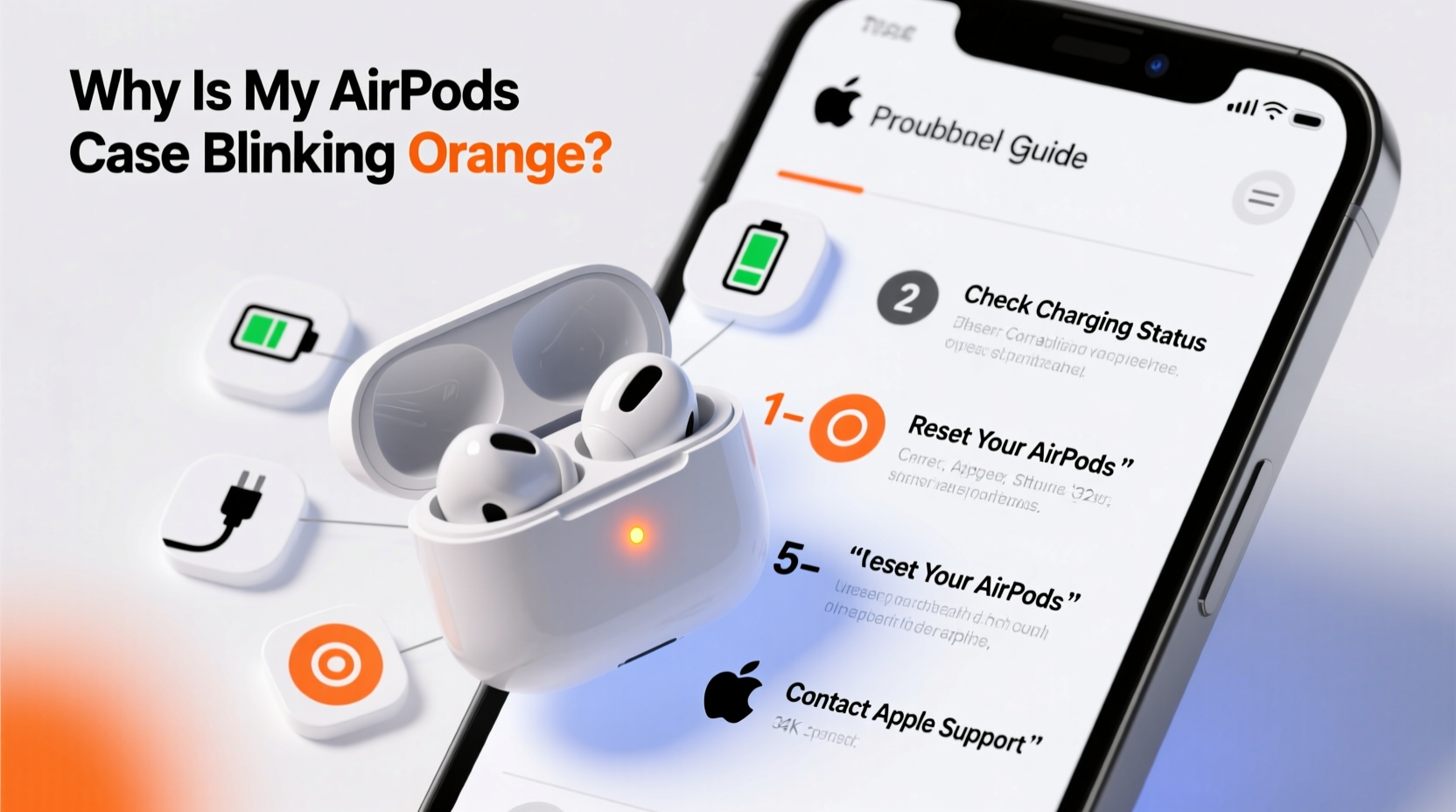
The status light inside your AirPods charging case serves as a visual indicator of the device’s current state. The color and pattern of the light convey important diagnostic information:
- Green (solid): AirPods are charged and ready to use.
- Green (flashing): AirPods are paired and connected successfully after opening the case near your device.
- Amber/Orange (solid): AirPods have less than one full charge remaining in the case.
- Amber/Orange (flashing): There’s an issue—either with charging, pairing, or internal diagnostics.
- No light: Case is completely drained or not receiving power.
A flashing orange light specifically indicates that your AirPods or their case are experiencing a problem. This could be due to a failed connection attempt, low battery at startup, or a need to reset the device. It does not mean your AirPods are broken—but ignoring it can lead to persistent syncing problems or reduced performance.
“Status lights on Apple accessories are designed to give users immediate feedback without needing to open Settings. An amber flash is essentially a ‘check engine’ light—it tells you there’s a recoverable issue.” — Jordan Lee, Senior Apple Support Technician
Common Causes of a Blinking Orange Light
Several scenarios can trigger the blinking orange light. Identifying the root cause is essential before attempting fixes. Below are the most frequent triggers:
1. Pairing Mode Not Recognized
If your AirPods are in pairing mode but your device doesn’t connect within five minutes, the case will flash amber and exit pairing mode automatically. This often happens when trying to pair with non-Apple devices or when Bluetooth is disabled.
2. Low Battery During Setup
Attempting to set up or pair your AirPods when the case has very low charge can result in a blinking orange light. The system halts the process to prevent incomplete configuration.
3. Firmware Sync Failure
When firmware updates fail to install correctly—often due to interrupted charging or outdated iOS versions—the AirPods may enter a recovery-like state, indicated by amber flashes.
4. Dirty or Damaged Charging Contacts
Dust, lint, or corrosion on the metal contacts inside the case or on the AirPod stems can interfere with charging and communication, prompting error indicators like the orange blink.
5. Internal Reset Required
Sometimes, software glitches caused by sudden disconnects, overheating, or app crashes require a manual reset. Until then, the case may continue flashing orange even if charging appears normal.
Step-by-Step Guide to Fix the Blinking Orange Light
Follow this structured approach to diagnose and resolve the issue efficiently. Start from Step 1 and proceed sequentially unless you’re certain of the cause.
- Charge the Case Fully
Connect the AirPods case to a known-good charger using an Apple-certified cable. Let it charge for at least 20–30 minutes. Watch for the light turning solid amber, then green. If no light appears, clean the charging port (see next section). - Clean the Charging Contacts
Use a dry, soft-bristled brush (like a clean toothbrush) to gently remove debris from:- The inner case where AirPods sit
- The base of each AirPod stem
- The Lightning or USB-C port on the case
- Reset Your AirPods
Place both AirPods in the case, close the lid, wait 30 seconds, then open it. Press and hold the setup button on the back of the case for about 15 seconds until the status light flashes amber, then white. Release the button. This clears existing connections and resets internal settings. - Reconnect to Your Device
With your iPhone or iPad nearby, open Bluetooth settings. Bring the open AirPods case close to the device. After resetting, the case should show a white flashing light, indicating it's ready to pair. Tap “Connect” on your screen. - Update Firmware and iOS
Ensure your connected iOS device is running the latest version. Firmware updates for AirPods happen automatically when connected to Wi-Fi and plugged in, but only if the host device is updated. Go to Settings > General > Software Update. - Forget and Re-Pair
On your iPhone: Go to Settings > Bluetooth, tap the “i” icon next to your AirPods, and select “Forget This Device.” Then repeat the pairing process from scratch.
Troubleshooting Table: Do’s and Don’ts
| Action | Do | Don't |
|---|---|---|
| Cleaning | Use a dry microfiber cloth and soft brush | Use alcohol, water, or metal tools |
| Charging | Use Apple-certified cables and adapters | Use cheap third-party chargers that cause voltage spikes |
| Resetting | Hold setup button until light flashes white | Release too early; ensure full 15-second press |
| Pairing | Keep device within 6 inches during setup | Attempt pairing with Bluetooth off or Airplane mode on |
| Storage | Store in cool, dry place away from magnets | Leave in hot cars or near microwaves/routers |
Real-World Example: Resolving a Persistent Flash
Consider Sarah, a remote worker who uses her AirPods Pro daily for calls. One morning, she noticed the case blinking orange repeatedly—even after charging overnight. Her AirPods wouldn’t connect, and the battery widget showed no charge.
She tried multiple cables and outlets with no success. Then, remembering lint buildup from gym bag storage, she inspected the charging pins. Using a wooden toothpick (gently), she removed visible fibers from the case contacts. After plugging in again, the light turned solid amber—indicating charging had resumed.
Still unable to pair, she performed a factory reset via the setup button. Within seconds, the light flashed white, and her iPhone prompted her to reconnect. Post-reset, audio quality improved, suggesting prior sync errors had degraded performance.
Sarah’s experience highlights two key points: physical maintenance matters, and a reset can resolve silent software hiccups affecting functionality.
Frequently Asked Questions
Is a blinking orange light a sign of a defective AirPods case?
Not necessarily. While hardware failure can cause persistent amber flashing, most cases respond to cleaning, charging, or resetting. Only consider replacement if all troubleshooting fails and Apple Support confirms a defect.
Why do my AirPods flash orange but won’t connect to any device?
This usually means they’re stuck in pairing mode or lack sufficient power to establish a connection. Charge the case fully, reset the AirPods, and ensure Bluetooth is active on your target device. Also, verify that the device isn’t already maxed out on paired accessories.
Can I use AirPods while the case blinks orange?
If the AirPods themselves are charged, yes—you can remove them and use them normally. However, the blinking case indicates an unresolved issue that may affect future charging or pairing. Address it as soon as possible to avoid long-term complications.
Preventive Checklist: Keep Your AirPods Running Smoothly
- ✅ Clean charging contacts monthly
- ✅ Store case in a protective sleeve
- ✅ Charge case before battery drops below 20%
- ✅ Keep iOS and connected devices updated
- ✅ Perform a soft reset every few months
- ✅ Avoid exposing case to extreme temperatures
- ✅ Use only certified charging accessories
When to Contact Apple Support
If you’ve completed all steps—cleaning, charging, resetting, updating—and the case continues to blink orange without responding to commands, it may indicate deeper hardware or firmware damage. Signs include:
- No response to the setup button
- No light at all, even after extended charging
- Overheating during charging
- Intermittent connectivity despite full charge
In such cases, contact Apple Support or visit an Apple Store. Depending on warranty status or AppleCare+ coverage, you may qualify for repair or replacement. Even out-of-warranty units sometimes receive goodwill service if a known issue is identified.
Final Thoughts: Stay Ahead of the Blink
The blinking orange light on your AirPods case isn’t a malfunction—it’s feedback. Like any smart device, AirPods rely on clear communication between hardware and software. When that breaks down, the amber flash acts as an alert, prompting user intervention.
By understanding what the light signifies and maintaining consistent care habits, you extend the lifespan of your AirPods and enjoy seamless audio experiences. Most issues are solvable at home with patience and the right steps. The key is acting promptly rather than waiting for symptoms to worsen.




 浙公网安备
33010002000092号
浙公网安备
33010002000092号 浙B2-20120091-4
Comments
No comments yet. Why don't you start the discussion?