
There’s nothing more frustrating than relying on your AirPods for a morning workout, an important call, or a long commute—only to have them cut out without warning. Random disconnections are one of the most common complaints among AirPod users, yet many assume it's just part of using wireless earbuds. The truth is, while occasional hiccups can happen, frequent or unpredictable dropouts usually point to fixable issues in your device settings, environment, or hardware condition.
This guide dives deep into the real causes behind AirPod disconnections and provides actionable, tested solutions to restore a seamless Bluetooth experience. Whether you're using first-generation AirPods or the latest AirPods Pro, these strategies will help you diagnose and resolve connectivity problems for good.
Understanding the Root Causes of AirPod Disconnections
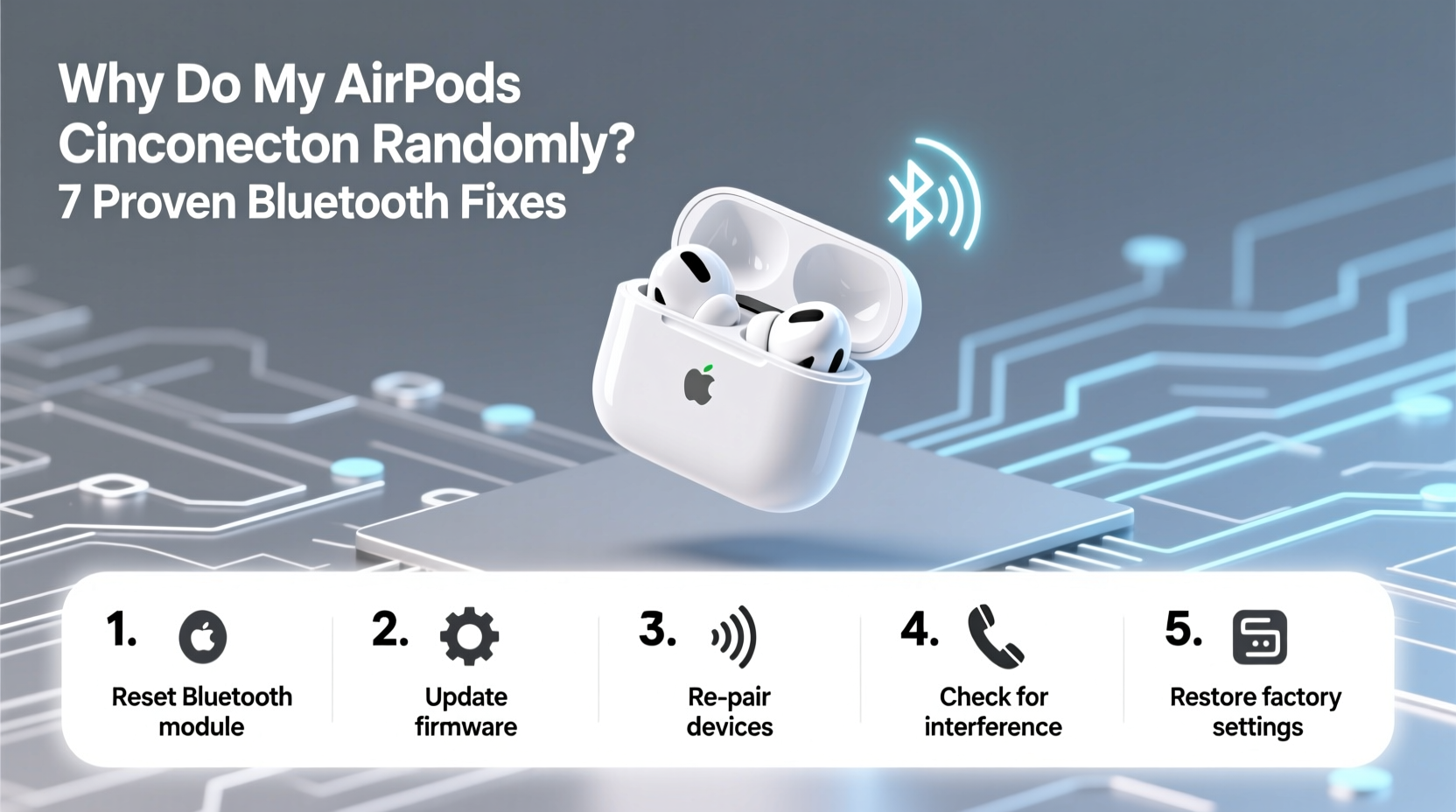
Before jumping into fixes, it’s essential to understand what might be causing your AirPods to disconnect. Bluetooth technology is robust but sensitive to interference, configuration errors, and software bugs. Here are the most common culprits:
- Bluetooth interference: Other wireless devices (Wi-Fi routers, microwaves, cordless phones) operating on the 2.4 GHz band can disrupt the signal.
- Outdated firmware: Apple regularly releases firmware updates for AirPods that improve stability and performance. If not updated, older versions may struggle with modern devices.
- Low battery: A sudden power drop in either AirPod or the charging case can cause unexpected disconnection.
- Device overload: Connecting too many Bluetooth devices simultaneously can overwhelm your iPhone, iPad, or Mac.
- Software glitches: iOS bugs or corrupted Bluetooth pairing data often lead to unstable connections.
- Physical obstructions: Walls, metal objects, or even your body can weaken the Bluetooth signal when you move out of direct range.
Step-by-Step Troubleshooting Guide
Follow this structured approach to identify and eliminate the source of your AirPod disconnections. Each step builds on the previous one, ensuring no potential fix is overlooked.
- Restart both your AirPods and connected device. Power cycling clears temporary glitches. Turn off your iPhone or iPad, then place your AirPods back in the case for 30 seconds before reopening.
- Check battery levels. Use the battery widget on your iPhone or ask Siri, “How much battery do my AirPods have?” Low charge can mimic connectivity issues.
- Forget and re-pair your AirPods. Go to Settings > Bluetooth, tap the info (i) icon next to your AirPods, and select “Forget This Device.” Then, hold the setup button on the back of the case until the status light flashes white, and reconnect as if setting up anew.
- Ensure Automatic Switching is configured correctly. If you use multiple Apple devices, go to Settings > Bluetooth > [Your AirPods] > Connect to This iPhone/iPad and choose “When Last Connected to This iPhone” or “Automatically,” depending on preference.
- Reset Network Settings (iOS). This erases all saved Wi-Fi networks and Bluetooth pairings but often resolves deep-seated connectivity conflicts. Go to Settings > General > Transfer or Reset iPhone > Reset > Reset Network Settings.
Firmware Update Verification
Apple pushes AirPod firmware updates automatically when your AirPods are connected to an iOS device and charging. However, you can verify the version:
- Connect your AirPods to your iPhone.
- Go to Settings > General > About > AirPods.
- Tap the model number to reveal the firmware version (e.g., 6A300).
The latest firmware versions (as of 2024) are typically above 6A300 for AirPods Pro and 5B57 for standard AirPods. If your version is outdated, ensure your iPhone is updated to the latest iOS and leave your AirPods charging near it overnight to trigger an update.
“Many so-called ‘hardware’ issues with AirPods are actually resolved by firmware updates that optimize Bluetooth stack performance.” — David Lin, Senior Wireless Engineer at Apple Support Forum Contributor
Environmental and Usage Factors That Impact Connection Stability
Your surroundings play a bigger role in Bluetooth reliability than most realize. Even minor changes in location or device usage can degrade signal quality.
Avoiding Signal Interference
Bluetooth uses the same 2.4 GHz frequency as many household devices. Common sources of interference include:
- Dual-band Wi-Fi routers broadcasting on 2.4 GHz
- Microwave ovens during operation
- Wireless gaming controllers
- Nearby public hotspots or crowded office environments
To minimize disruption, switch your router to 5 GHz where possible, or physically distance your listening area from high-interference appliances.
Optimizing Device Placement
Carrying your phone in a back pocket or bag while wearing AirPods increases the chance of signal blockage. The human body absorbs radio waves, especially at close range. For consistent audio, keep your connected device in a front pocket or on a nearby surface.
Do’s and Don’ts of AirPod Maintenance
| Do’s | Don’ts |
|---|---|
| Clean ear tips and stems weekly with a dry, lint-free cloth | Use liquids or cleaning sprays directly on AirPods |
| Store AirPods in their case when not in use | Leave them exposed to moisture or extreme temperatures |
| Update your iOS and paired devices regularly | Ignore persistent disconnection warnings |
| Use automatic ear detection to pause playback when removed | Overload Bluetooth with multiple active accessories |
| Check for debris in charging contacts | Forcefully insert AirPods into the case if misaligned |
Real-World Case Study: Fixing Chronic Disconnections
Samantha, a freelance graphic designer in Austin, reported that her AirPods Pro would disconnect every 5–10 minutes during Zoom calls. She worked from a home office filled with smart devices—Wi-Fi extenders, a printer, and multiple monitors. Initially assuming her AirPods were defective, she considered purchasing a new pair.
Instead, she followed a diagnostic checklist:
- She restarted her iPhone and reset network settings.
- She moved her router to 5 GHz-only mode, reducing 2.4 GHz congestion.
- She began placing her iPhone on her desk instead of in a drawer.
- She disabled unused Bluetooth devices like an old fitness tracker.
Within two days, the disconnections stopped entirely. Samantha later discovered that her old fitness band was broadcasting a weak, conflicting Bluetooth signal that interfered with her AirPods—even when not actively connected.
This case highlights how environmental factors and background devices can silently undermine performance. A methodical approach—not replacement—is often the better solution.
Advanced Fixes for Persistent Problems
If basic troubleshooting fails, consider these deeper interventions:
Disable Automatic Ear Detection
While convenient, this feature uses optical sensors that can malfunction due to sweat, dirt, or lighting conditions. False readings may cause the AirPods to think they’ve been removed, pausing audio or disconnecting.
To disable: Go to Settings > Accessibility > AirPods > Automatic Ear Detection → toggle off.
Turn Off Share Audio and Audio Sharing Features
If you frequently share audio with others, background processes may interfere with primary connections. Disable “Share Audio” in Control Center when not in use.
Test with Another Device
Pair your AirPods with a friend’s iPhone or an Android phone. If the issue persists, the problem likely lies with the AirPods themselves. If they work flawlessly, the fault is with your original device’s Bluetooth module or software.
Factory Reset Your AirPods
This should be a last resort. To factory reset:
- Place both AirPods in the case and close the lid.
- Wait 30 seconds, then open the lid.
- Press and hold the setup button on the back for 15 seconds until the status light flashes amber, then white.
- Re-pair as new.
This wipes all pairing history and resets internal settings to default.
Checklist: How to Prevent Future AirPod Disconnections
- ✅ Keep iOS and AirPods firmware up to date
- ✅ Store AirPods in the case when not in use
- ✅ Clean sensors and charging points monthly
- ✅ Minimize Bluetooth clutter on your device
- ✅ Avoid high-interference zones (kitchens, server rooms)
- ✅ Restart your iPhone weekly to clear memory leaks
- ✅ Use one primary device for main AirPod pairing
Frequently Asked Questions
Why do my AirPods disconnect when I move my head?
This often occurs when your iPhone is in a pocket or bag. Movement can temporarily block the Bluetooth signal through your body. Try keeping your phone in a jacket pocket or on a table. Also, clean the sensors on the stems—they can get clogged with wax or oil, triggering false removal signals.
Can I fix AirPod disconnections without resetting?
Yes, in most cases. Start with simpler steps: restart devices, check battery, forget and re-pair, and reduce environmental interference. Only proceed to reset if these fail. Many users resolve issues without touching factory reset.
Do third-party chargers affect AirPod connectivity?
Not directly, but poor-quality chargers can damage battery health over time, leading to inconsistent power delivery. This may cause sudden shutdowns that appear as disconnections. Stick to Apple-certified or MFi (Made for iPhone) accessories.
Conclusion: Take Control of Your Listening Experience
Random AirPod disconnections aren’t inevitable. With the right knowledge, most issues can be diagnosed and fixed in under 20 minutes. The key is systematic troubleshooting—starting with simple fixes like re-pairing and progressing to deeper resets only when necessary.
By optimizing your environment, maintaining your devices, and understanding how Bluetooth works, you can enjoy uninterrupted audio whether you're taking calls, working out, or relaxing with music. Don’t accept glitches as normal. Apply these solutions today and reclaim the seamless experience your AirPods were designed to deliver.




 浙公网安备
33010002000092号
浙公网安备
33010002000092号 浙B2-20120091-4
Comments
No comments yet. Why don't you start the discussion?