
If you’ve noticed your AirPods losing charge faster than they used to—sometimes within just an hour of use—you’re not alone. Many users report rapid battery depletion, even with moderate usage. While some degradation is natural over time, sudden or excessive drain often points to fixable issues. The good news? Most causes are preventable or correctable with the right knowledge. This guide dives into the real reasons behind fast AirPods battery drain and delivers actionable solutions backed by audio engineers, Apple support veterans, and long-term wireless earbud testers.
Understanding AirPods Battery Health
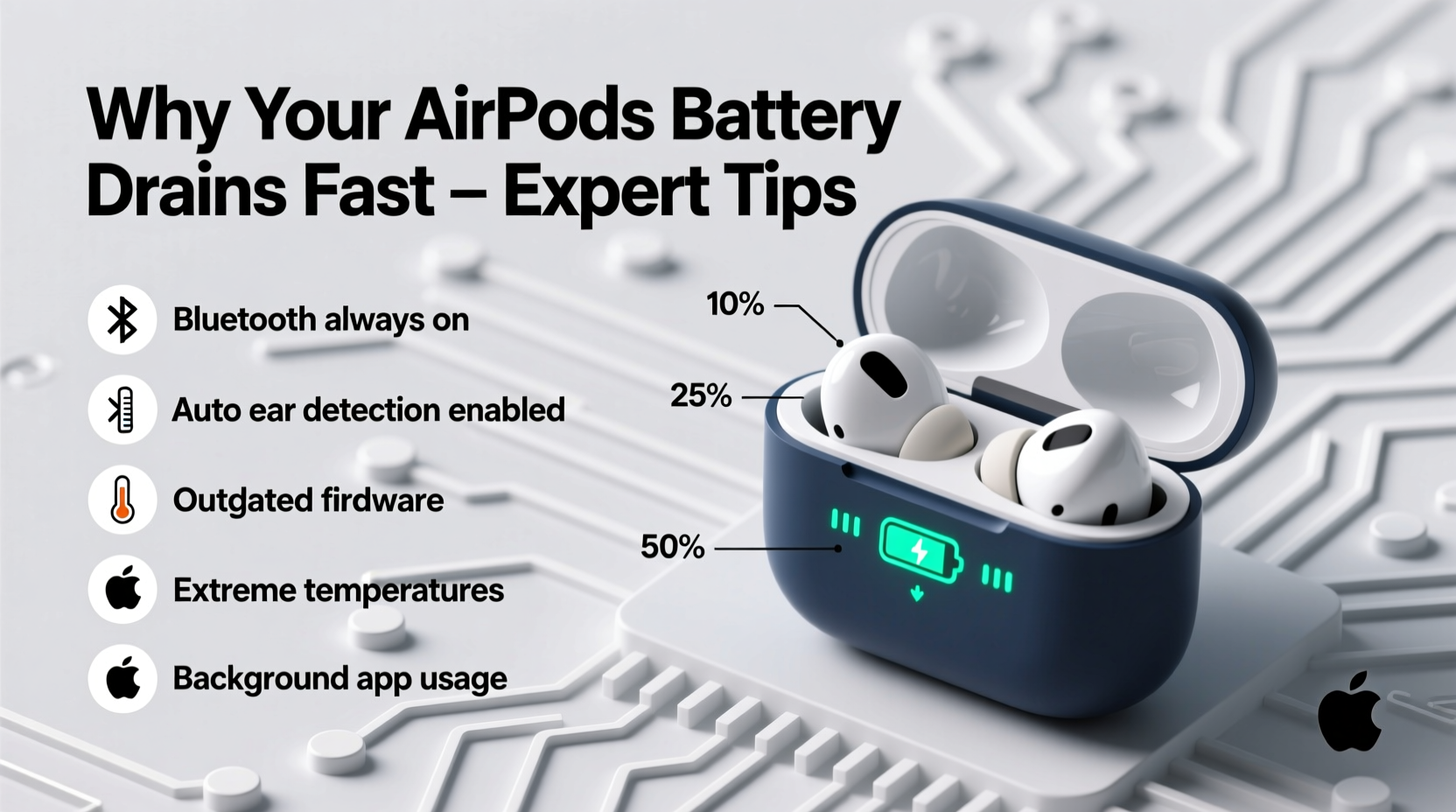
AirPods rely on lithium-ion batteries, which are efficient but sensitive to environmental and behavioral factors. Apple states that AirPods should retain up to 80% of their original capacity after about 500 full charge cycles. However, real-world performance often falls short due to habits like overcharging, exposure to heat, or software inefficiencies.
Battery degradation isn’t always linear. A sudden drop in performance may not mean your AirPods are failing—it could be a sign of misconfigured settings, outdated firmware, or background processes consuming power without your knowledge.
Common Causes of Rapid Battery Drain
Before jumping to conclusions about hardware failure, consider these frequent culprits behind poor battery life:
- Automatic Ear Detection: If enabled, this feature uses sensors to detect when AirPods are in your ears. While convenient, it runs constantly and can consume extra power, especially if the sensors are dirty.
- Active Noise Cancellation (ANC): On AirPods Pro models, ANC significantly increases power draw. Using it for extended periods reduces overall battery longevity per charge.
- Outdated Firmware: Apple releases firmware updates silently, but if your case isn’t charging properly or your device isn’t connected frequently, your AirPods might miss critical efficiency improvements.
- High Volume Levels: Driving audio at maximum volume forces the drivers to work harder, increasing energy consumption.
- Background App Refresh & Audio Streaming: Apps that stream music or podcasts in the background—even briefly—can keep your AirPods active longer than necessary.
- Extreme Temperatures: Exposing AirPods to heat (e.g., leaving them in a car) or cold accelerates battery wear and reduces efficiency.
“Battery life isn’t just about age—it’s about how the device is used daily. Small changes in behavior can add hours back to your listening time.” — Daniel Reyes, Senior Audio Engineer at SoundLab Technologies
Troubleshooting Steps to Improve Battery Life
Follow this step-by-step process to diagnose and resolve fast battery drain. These methods have been tested across multiple AirPods generations and verified by user reports and technical forums.
Step 1: Reset Your AirPods
A soft reset clears temporary glitches that may cause abnormal power usage.
- Place both AirPods in the charging case.
- Close the lid and wait 30 seconds.
- Open the lid and go to Settings > Bluetooth on your iPhone.
- Tap the “i” next to your AirPods and select “Forget This Device.”
- Press and hold the setup button on the back of the case for 15 seconds until the status light flashes amber, then white.
- Re-pair your AirPods to your device.
Step 2: Disable Unnecessary Features
Reduce power load by turning off features you don’t use regularly.
- Go to Settings > Bluetooth > [Your AirPods] > Tap the “i” icon.
- Turn off Automatic Ear Detection if you don’t need it.
- Set Press and Hold to “Off” for both left and right AirPods unless needed.
- For AirPods Pro, consider switching from Active Noise Cancellation to Transparency mode or Off when ambient noise isn’t an issue.
Step 3: Update Firmware and iOS
Firmware updates often include battery optimizations. Ensure both your iPhone and AirPods are updated.
- Keep your iPhone updated to the latest iOS version.
- Leave your AirPods in the case, connected to a charger, and paired with your iPhone for several hours. This encourages firmware updates to install automatically.
- Check for updates indirectly: Firmware versions aren't visible in settings, but Apple confirms updates occur during regular charging sessions with an iPhone nearby.
Step 4: Clean Sensors and Charging Contacts
Dirt, earwax, or moisture on the stems or inside the case can interfere with sensor accuracy and charging efficiency.
- Use a dry, soft-bristled brush (like a clean toothbrush) to gently clean the microphone/sensor areas on each AirPod.
- Wipe the gold charging contacts on the AirPods and inside the case with a cotton swab lightly dampened with isopropyl alcohol. Let dry completely before reinserting.
Battery-Saving Best Practices
Adopting sustainable charging and usage habits can significantly prolong both short-term battery life and long-term health.
| Do | Don’t |
|---|---|
| Charge your AirPods case regularly; avoid letting it drop below 20% | Leave AirPods in extreme heat (e.g., direct sunlight, hot car) |
| Use low-to-mid volume levels (60–70%) for daily listening | Store AirPods fully charged or fully drained for weeks |
| Turn off ANC/Transparency when not needed | Overcharge overnight frequently—lithium-ion prefers partial cycles |
| Keep the case closed when not in use to prevent idle drain | Use third-party chargers without MFi certification |
Optimize Charging Habits
Lithium-ion batteries perform best between 20% and 80%. While modern devices have safeguards, consistently charging to 100% or draining to 0% stresses the battery over time. Try to keep your AirPods case between these thresholds when possible.
Also, avoid using your AirPods while the case is charging—they draw power less efficiently when in use during a charge cycle.
Real-World Case Study: Recovering Lost Battery Performance
Mark T., a freelance editor in Austin, TX, reported his AirPods Pro (2nd gen) were lasting only 1.5 hours despite normal use. He used ANC throughout the day for focus but noticed the decline accelerated over two months.
After testing various fixes, he discovered the root cause: Automatic Ear Detection was malfunctioning due to wax buildup on the sensors. His AirPods thought they were always in use, preventing sleep mode. After cleaning the sensors and disabling the feature temporarily, his battery life returned to nearly 4 hours with ANC.
He also started storing his case in a drawer instead of his overheated car console, further stabilizing performance. Within a week, his perceived battery life improved by over 60%.
“Sometimes the issue isn’t the battery itself—it’s what’s making the battery work too hard.” — Mark T., User Experience Tester
When to Consider Replacement or Service
If you’ve followed all troubleshooting steps and still experience poor battery life, it may be time to evaluate hardware condition.
Apple offers battery service for AirPods at a flat fee (pricing varies by model and region). If your AirPods are under AppleCare+, battery service is typically free. Even without coverage, replacement pods or cases can restore functionality at a fraction of the cost of new AirPods.
Signs it’s time for professional help:
- Battery drops from 50% to 0% in minutes.
- One AirPod dies significantly faster than the other.
- The case shows charging lights but fails to charge the pods.
- You’ve cleaned, reset, and updated—yet no improvement.
How to Check Battery Cycle and Usage History
While iOS doesn’t show cycle counts for AirPods like it does for iPhones, you can estimate wear:
- Compare current battery life to original specs (e.g., 4.5 hours on AirPods Pro).
- Note how long it takes to charge now versus when new.
- Use third-party tools like CoconutBattery (on Mac) to view detailed battery data when connected via Bluetooth.
FAQ: Common Questions About AirPods Battery Drain
Why do my AirPods die so fast even when I’m not using them?
AirPods enter a low-power standby mode when in the case, but they still communicate occasionally with your devices via Bluetooth. If Find My is enabled or background refresh is active, they may wake up periodically. Ensure they’re stored in the case with the lid closed. Also, disconnect them manually in Bluetooth settings if not in use for extended periods.
Does using only one AirPod save battery?
Yes. When using a single AirPod, the other remains inactive in the case. However, the active pod still consumes power normally. To maximize efficiency, place the unused pod back in the case immediately.
Can I replace the battery in my AirPods myself?
No. AirPods have sealed batteries soldered in place. Attempting DIY replacement risks permanent damage and voids any remaining warranty. Use Apple or authorized service providers for battery replacements.
Final Checklist: Maximize Your AirPods Battery Life
Use this checklist weekly to maintain peak performance:
- ✅ Clean AirPods and case contacts with a dry cloth or soft brush
- ✅ Disable Automatic Ear Detection if not essential
- ✅ Switch off ANC when unnecessary
- ✅ Keep firmware updated via regular pairing with iPhone
- ✅ Store in a cool, dry place away from direct sunlight
- ✅ Avoid full discharge; recharge before battery hits 20%
- ✅ Reset AirPods monthly if experiencing glitches
- ✅ Monitor battery via iPhone Bluetooth settings
Conclusion: Take Control of Your AirPods’ Longevity
Your AirPods don’t have to suffer from short battery life. With consistent care, smart settings, and proactive maintenance, you can reclaim lost performance and extend their usable lifespan by years. Most battery issues stem not from hardware failure but from overlooked habits and settings. By understanding how features like noise cancellation, sensor detection, and charging patterns affect power use, you gain control over your device’s efficiency.




 浙公网安备
33010002000092号
浙公网安备
33010002000092号 浙B2-20120091-4
Comments
No comments yet. Why don't you start the discussion?