
If your Alexa Echo has started sounding muffled, crackling, or otherwise distorted, you're not alone. Thousands of users report sudden audio issues that make voice responses hard to understand or music playback unpleasant. While it can be frustrating, most distortion problems stem from fixable causes—ranging from software glitches to physical placement. Understanding the root causes and knowing how to respond can save time, prevent unnecessary replacements, and keep your smart speaker performing at its best.
Alexa devices are engineered for consistent, high-quality audio output. When distortion occurs, it's usually a symptom of an underlying issue rather than a permanent hardware failure. Whether you own an Echo Dot, Echo Studio, or another model in Amazon’s lineup, this guide walks through the most common reasons behind distorted sound and provides actionable steps to resolve them quickly and effectively.
Common Causes of Distorted Sound on Alexa Echo Devices
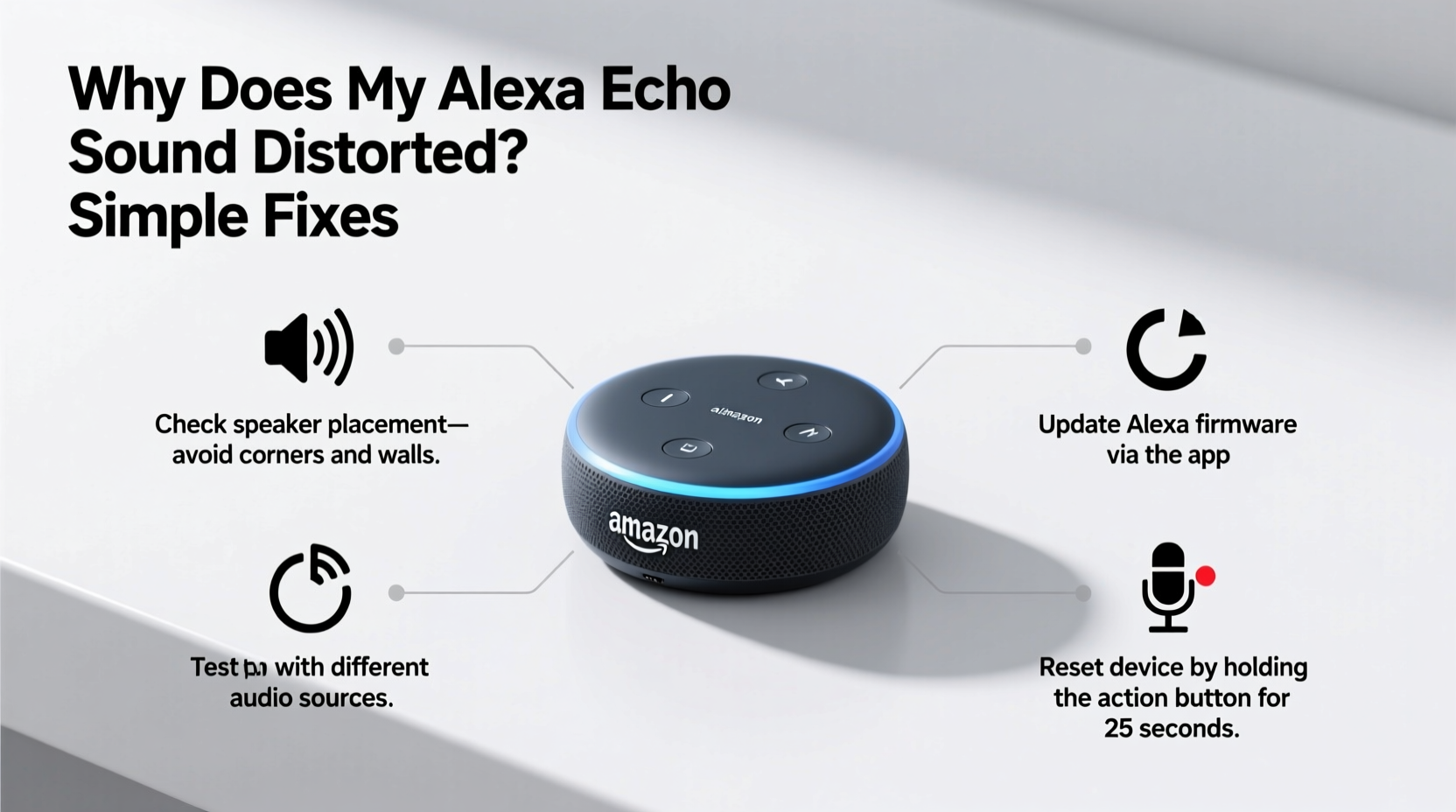
Distortion in your Echo speaker isn’t always due to one single factor. It often results from a combination of environmental, technical, and usage-related conditions. Identifying the source is the first step toward resolution.
- Physical obstructions: Placing the Echo near walls, inside cabinets, or under objects can block sound ports and cause muffled output.
- Poor Wi-Fi connectivity: Buffering or unstable internet connections may lead to choppy or garbled audio during streaming.
- Firmware or software bugs: Outdated or corrupted firmware can interfere with audio processing.
- Overdriven volume levels: Playing audio at maximum volume for extended periods can strain internal speakers, especially on compact models like the Echo Dot.
- Dust or debris buildup: Accumulated dirt in speaker grilles or microphones can dampen clarity.
- Bluetooth interference: If using Bluetooth mode, nearby wireless devices may disrupt signal quality.
- Aging hardware: Over time, internal components such as drivers or amplifiers may degrade, particularly in older units.
Step-by-Step Troubleshooting Guide
Follow this logical sequence to diagnose and correct distorted audio on your Alexa-enabled device. Start with basic checks before progressing to advanced solutions.
- Check the speaker placement. Ensure the Echo is upright, away from walls, and not enclosed. Optimal placement allows sound to project freely.
- Lower the volume temporarily. High volume can cause temporary distortion. Reduce it gradually and assess clarity improvements.
- Restart the device. Unplug the power adapter for 30 seconds, then plug it back in. This clears temporary software glitches.
- Test different audio sources. Play music via Spotify, ask Alexa a question, and test alarms. If only one source is distorted, the issue may lie with the app or stream—not the speaker.
- Reconnect to Wi-Fi. In the Alexa app, go to Device Settings > Wi-Fi and reconnect. A weak signal affects streaming quality.
- Forget and re-pair Bluetooth devices. If using Bluetooth, disconnect and re-pair your phone or tablet to eliminate pairing errors.
- Update firmware. The Alexa app automatically checks for updates, but ensure your device shows \"Up to date\" under Device Info.
- Factory reset (if needed). As a last resort, reset the device through the app or by holding the Action button for 25 seconds until the light ring turns orange.
“Many audio issues stem from environmental factors rather than hardware defects. Simple adjustments in placement or network stability often resolve distortion.” — David Lin, Senior Audio Engineer at SmartHome Labs
Tips for Preventing Future Audio Distortion
Maintaining your Echo speaker properly reduces the likelihood of recurring audio problems. Incorporate these habits into your routine to preserve sound quality over time.
- Avoid extreme temperatures: Don’t place your Echo near heaters, air conditioners, or windows exposed to direct sunlight. Heat and humidity affect internal electronics.
- Use moderate volume levels: Consistently playing at max volume stresses small speakers. Keep volume between 40%–70% for daily use.
- Keep software updated: Enable automatic updates in the Alexa app to receive performance fixes and security patches.
- Minimize background noise interference: Devices like microwaves, cordless phones, or baby monitors operating on 2.4 GHz can interfere with Wi-Fi and Bluetooth signals.
- Position for optimal acoustics: Place the Echo in the center of a room or elevated surface for balanced sound dispersion.
Do’s and Don’ts: Quick Reference Table
| Do’s | Don’ts |
|---|---|
| Place the Echo on a flat, open surface | Enclose it in a cabinet or bookshelf |
| Keep firmware updated via the Alexa app | Ignore update notifications for weeks |
| Clean the exterior regularly with a dry cloth | Use liquids or aerosol cleaners directly on the device |
| Reboot monthly to clear memory cache | Leave the device plugged in without maintenance |
| Use original power adapter provided by Amazon | Use third-party chargers with incorrect voltage |
Real-World Example: Resolving Persistent Crackling in a Home Office
Sarah, a freelance writer in Portland, noticed her Echo Dot 4th Gen began producing crackling sounds whenever she played morning news briefings. The issue worsened over a week, eventually affecting all audio outputs—even alarms sounded fuzzy.
She first tried restarting the device, which helped briefly. But after placing her laptop charger near the Echo, the crackling returned immediately. Suspecting electromagnetic interference, she moved the Echo two feet away from all electronics. The distortion disappeared.
Further inspection revealed that her third-party USB power adapter was emitting radio frequency noise. After switching back to Amazon’s original adapter, the problem never recurred. Sarah now keeps all non-essential electronics at least 18 inches from her Echo and schedules monthly restarts to maintain performance.
This case illustrates how seemingly minor environmental factors—like power supply quality or proximity to other devices—can significantly impact audio fidelity.
When to Consider Hardware Replacement
Despite thorough troubleshooting, some cases point to irreversible hardware damage. Recognizing when a device needs replacement prevents wasted effort and ensures continued functionality.
Signs indicating possible hardware failure include:
- Constant buzzing or static even at low volume
- No sound at all after factory reset and re-setup
- Visible damage to the speaker grille or internal components
- Device fails diagnostic tests in the Alexa app
- Distortion persists across multiple networks and audio sources
If your Echo is under warranty (typically one year), contact Amazon Support for a free replacement. Even out-of-warranty devices may qualify for discounted replacements, especially if part of a known recall batch.
Before discarding the unit, consider repurposing it. A distorted speaker can still function as a smart home hub for controlling lights, thermostats, or security systems—functions that don’t rely heavily on audio output.
Frequently Asked Questions
Can a poor internet connection cause Alexa to sound distorted?
Yes. If your Wi-Fi signal is weak or unstable, Alexa may struggle to stream responses or music smoothly, resulting in robotic, choppy, or broken audio. Improve signal strength by moving your router closer, using a Wi-Fi extender, or switching to a less congested band (e.g., 5 GHz instead of 2.4 GHz where supported).
Why does my Echo sound fine sometimes but distorted at other times?
Intermittent distortion often points to environmental triggers such as temperature changes, temporary network drops, or interference from nearby appliances. It could also indicate early-stage hardware wear. Monitor patterns—such as whether distortion occurs more at night or during certain activities—to isolate the cause.
Will resetting my Echo delete my routines and settings?
A factory reset will erase all personalized data, including Wi-Fi passwords, smart home integrations, alarms, and custom routines. However, your Alexa account history (like voice recordings) remains stored in the cloud unless manually deleted. After reset, you’ll need to reconfigure the device through the Alexa app.
Conclusion: Restore Clarity and Confidence in Your Smart Speaker
Distorted sound from your Alexa Echo doesn’t have to mean the end of its life. In most cases, the issue is solvable with thoughtful troubleshooting and preventive care. From adjusting placement and cleaning the grille to updating firmware and managing interference, each step brings you closer to crisp, clear audio.
The key is systematic diagnosis—don’t jump straight to replacement. Test one variable at a time, document what works, and apply long-term maintenance habits. Your Echo is designed to last years with proper care, and restoring its sound quality ensures you continue benefiting from seamless voice control, entertainment, and smart home automation.




 浙公网安备
33010002000092号
浙公网安备
33010002000092号 浙B2-20120091-4
Comments
No comments yet. Why don't you start the discussion?