
If your Alexa Echo has started sounding like it's speaking through a pillow, you're not alone. A sudden drop in audio quality can be frustrating—especially when you rely on your device for music, news, or smart home commands. Muffled sound doesn’t always mean the speaker is broken. In many cases, the issue stems from simple causes that are quick to diagnose and even faster to fix.
This guide breaks down the most common reasons behind muffled Alexa audio and provides practical, step-by-step solutions. Whether it’s dust buildup, software glitches, or incorrect placement, we’ll help you identify the root cause and restore your Echo’s sound to its full clarity.
Common Causes of Muffled Sound on Alexa Devices
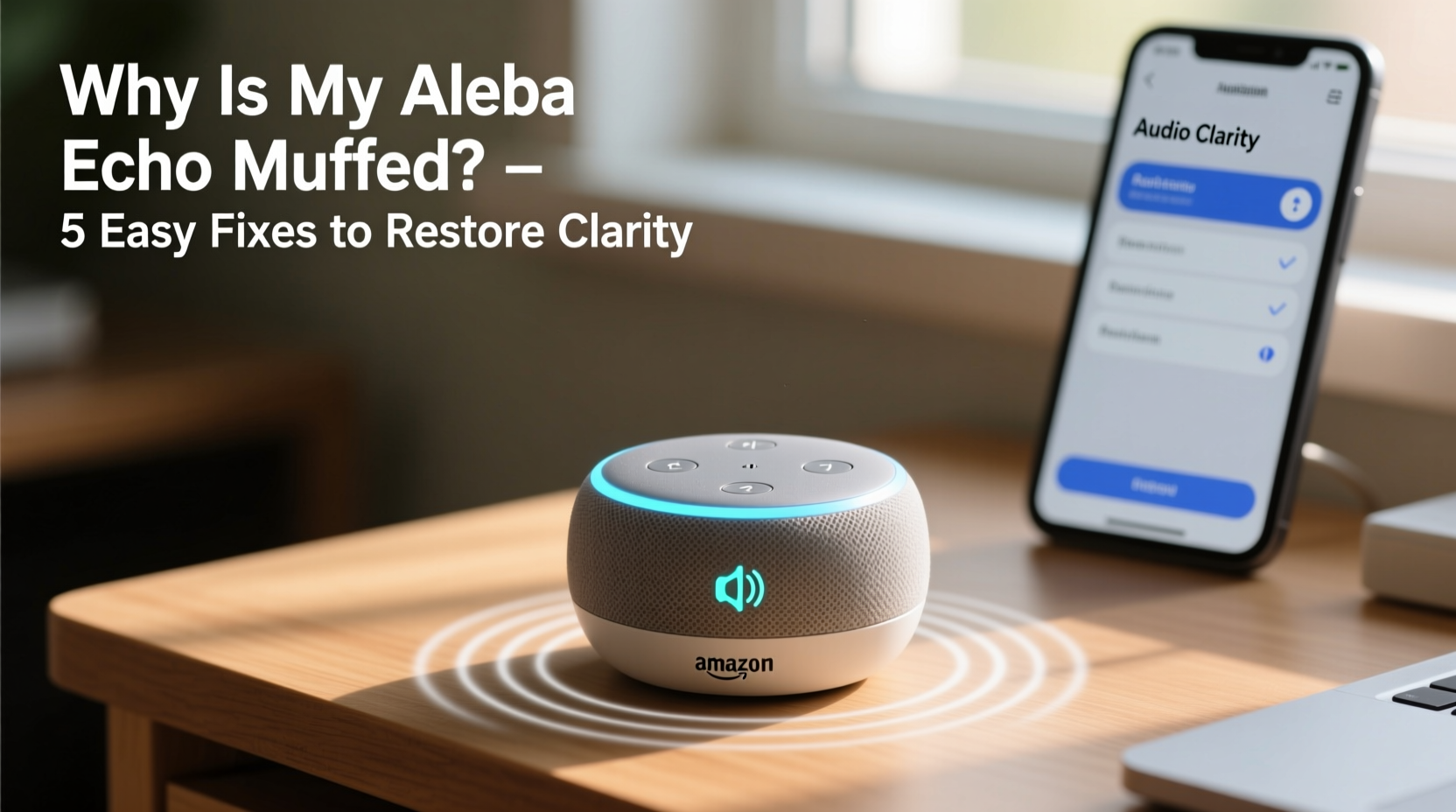
Alexa Echo devices are engineered for balanced, room-filling audio, but several factors can compromise their performance over time. Understanding what might be affecting your device is the first step toward resolution.
- Dust and debris buildup: Over time, dust accumulates in the speaker grille, dampening sound output.
- Poor device placement: Placing your Echo near walls, inside cabinets, or under objects can obstruct sound dispersion.
- Software bugs or outdated firmware: Glitches after updates or unoptimized firmware can affect audio processing.
- Audio settings misconfiguration: Equalizer settings, volume leveling, or accessibility features may unintentionally dull the sound.
- Hardware damage: Physical impact, liquid exposure, or aging components can degrade speaker performance.
- Wi-Fi interference or low bandwidth: Streaming issues due to poor network stability can result in compressed, lower-quality audio.
While some issues require technical troubleshooting, many can be resolved with basic maintenance and awareness.
Step-by-Step Guide to Diagnose and Fix Muffled Audio
Before assuming hardware failure, follow this systematic approach to isolate and correct the problem.
- Check physical obstructions: Ensure nothing is covering the speaker grille. Remove any objects placed directly on or around the device.
- Reposition the device: Move your Echo away from corners, shelves, or enclosed spaces. Center it on an open surface at ear level.
- Restart the device: Unplug the power adapter for 30 seconds, then plug it back in. Wait for the light ring to turn blue before testing audio.
- Test multiple audio types: Play music, ask for weather, and listen to an audiobook. If all sound muffled, the issue is likely systemic.
- Verify Wi-Fi connection: Open the Alexa app, go to Device Settings > Network, and ensure signal strength is strong (above -70 dBm).
- Update firmware: The Alexa app automatically checks for updates, but manually restart the device to prompt a refresh if needed.
- Reset audio calibration: Say “Alexa, retune speakers” (available on select models like Echo Studio) to re-optimize sound based on room acoustics.
This sequence addresses both environmental and technical variables. Most users notice improvement after completing just the first few steps.
Optimizing Audio Settings in the Alexa App
The Alexa app offers granular control over sound output, but default settings aren’t always ideal for every environment. Adjusting these can dramatically improve clarity.
Adjust EQ and Bass Settings
Navigate to Devices > Echo & Alexa > [Your Device] > Sound > Audio Profile. Here, you can modify bass and treble levels depending on your model. For clearer voice reproduction:
- Slightly reduce bass if voices sound boomy or distant.
- Increase treble moderately to enhance vocal presence.
- Select “Balanced” or “Speech” mode if available.
Disable Volume Leveling (if necessary)
Volume leveling compresses dynamic range to keep audio consistent, but this can flatten speech and music. To disable:
- Open the Alexa app.
- Go to Settings > Music & Podcasts > Audio Preferences.
- Turn off “Volume Leveling” for platforms like Amazon Music or Spotify.
This allows more natural variation in sound, improving perceived clarity during spoken content.
| Setting | Recommended for Clarity | When to Avoid |
|---|---|---|
| Bass Boost | Off or Low | When listening to deep-voiced podcasts or bass-heavy music |
| Treble | Medium-High | If audio becomes sharp or piercing |
| Audio Profile | Speech or Balanced | During immersive music sessions where dynamics matter |
| Volume Leveling | Off | If you prefer consistent volume across tracks |
Real-World Example: Sarah’s Kitchen Echo Dilemma
Sarah noticed her Echo Dot in the kitchen sounded dull and hard to understand, especially during morning news briefings. She assumed it was failing, but instead of replacing it, she investigated.
She began by moving the device from a corner cabinet onto the countertop. Immediately, the sound opened up. Next, she wiped the mesh grille with a soft brush—revealing a layer of flour and grease from cooking. After a restart, she accessed the Alexa app and reduced the bass boost, which had been set to “High” during a previous experiment with music.
The difference was striking. Voices were crisp again, and Alexa responded more accurately to commands. Sarah saved $50 and extended her device’s life with less than 15 minutes of effort.
“Most audio issues with smart speakers are environmental or configuration-based. Hardware failure is rare in devices under two years old.” — Jordan Lee, Senior Acoustic Technician at SmartHome Labs
Preventative Maintenance Checklist
To avoid recurring muffled sound, adopt these habits as part of routine care:
- ✅ Wipe the speaker grille weekly with a dry microfiber cloth.
- ✅ Keep the device at least 6 inches away from walls and large objects.
- ✅ Avoid placing near sinks, stoves, or humidifiers to prevent moisture damage.
- ✅ Restart your Echo monthly to clear memory and reload firmware cleanly.
- ✅ Check for app and device updates quarterly.
- ✅ Use voice clarity mode during calls or news playback.
- ✅ Position the device so the microphone array (top panel) isn’t blocked.
Consistent maintenance prevents gradual degradation that users often mistake for permanent damage.
Frequently Asked Questions
Can I clean the inside of my Echo speaker?
No, disassembling your Echo voids the warranty and risks damaging internal components. Stick to external cleaning using a dry or slightly damp cloth and a soft-bristled brush for the grille. Never use liquids, aerosols, or compressed air directly on the device.
Why does Alexa sound fine sometimes but muffled at other times?
Intermittent muffled audio often points to network instability or adaptive audio settings. If Alexa streams music smoothly but news briefings sound unclear, check your internet speed during those times. Also, confirm that Bluetooth devices aren’t intermittently connecting and altering output settings.
Does room size affect Alexa’s sound quality?
Yes. Large rooms may cause Alexa to struggle with volume dispersion, making sound seem thin or distant. Smaller, cluttered rooms can create echo or muffling due to reflections. Use “Speaker Placement” tips in the Alexa app to optimize output based on your space.
Conclusion: Clear Sound Starts with Smart Habits
Muffled audio on your Alexa Echo is rarely a death sentence for the device. More often, it’s a sign that something small needs attention—whether it’s a dusty grille, suboptimal placement, or a forgotten audio setting. By applying regular maintenance and understanding how Alexa processes sound, you can preserve its performance for years.
Don’t rush to replace your device at the first sign of distortion. Start with the basics: clean it, move it, restart it, and tweak its settings. Most issues resolve quickly once you know where to look.




 浙公网安备
33010002000092号
浙公网安备
33010002000092号 浙B2-20120091-4
Comments
No comments yet. Why don't you start the discussion?