
Alexa is designed to simplify daily life—turning on lights, playing music, setting timers, and answering questions with just your voice. But when it consistently misunderstands what you’re saying, the convenience quickly turns into frustration. If you’ve found yourself repeating commands or receiving irrelevant responses, the issue likely isn’t your accent or pronunciation—it’s often a matter of microphone sensitivity, environmental interference, or incorrect device calibration.
Understanding why Alexa mishears commands—and how to fix it—is essential for getting the most out of your smart home ecosystem. This guide dives into the technical and environmental causes behind poor voice recognition and provides actionable solutions, including microphone calibration techniques, placement adjustments, and software optimizations that restore clarity and responsiveness.
Common Causes of Alexa Mishearing Commands
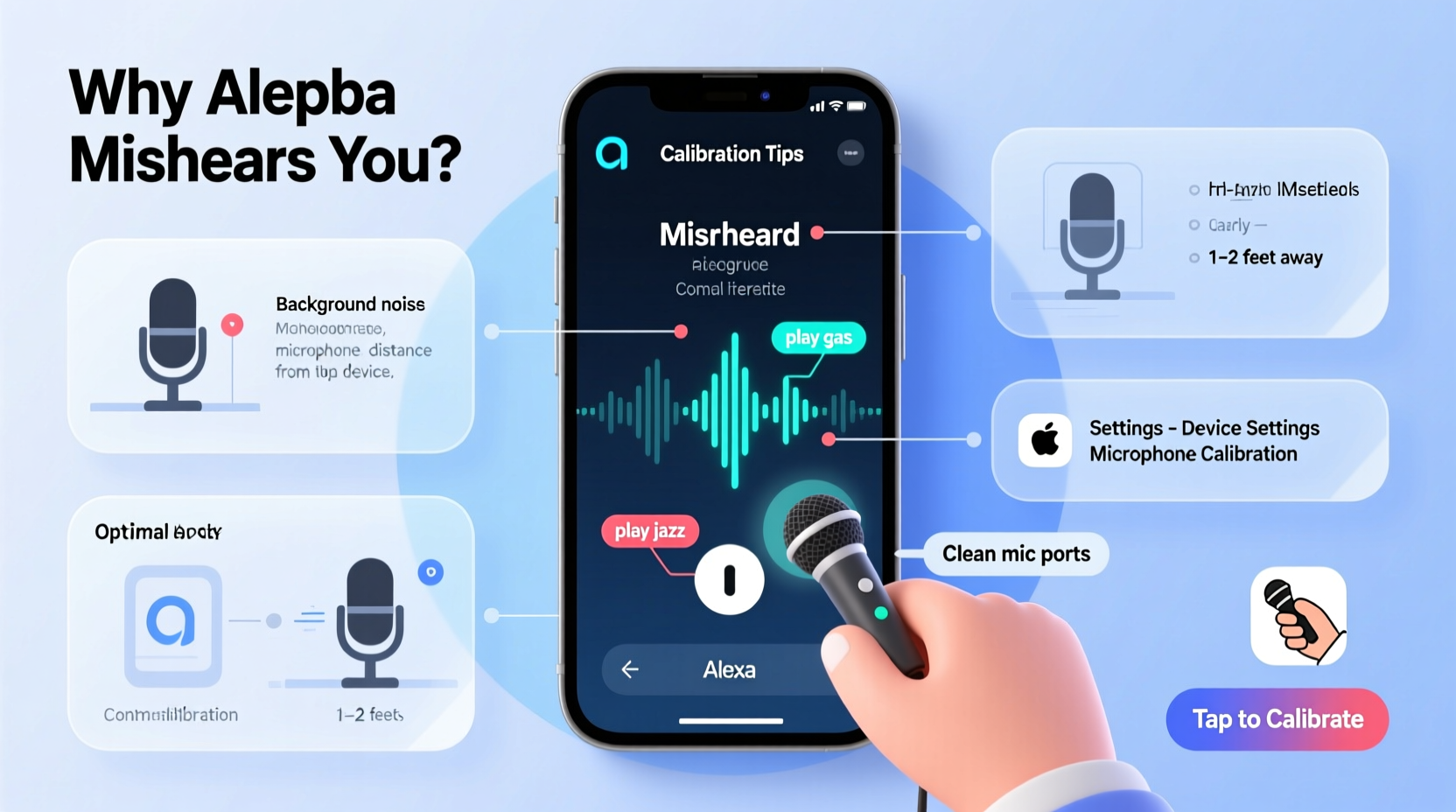
Alexa relies on far-field voice recognition powered by multiple microphones and advanced noise-canceling algorithms. Despite these features, several factors can interfere with accurate command detection:
- Background noise: Fans, TVs, kitchen appliances, or loud conversations can drown out your voice.
- Poor device placement: Corners, enclosed shelves, or surfaces that reflect sound can distort input.
- Microphone obstructions: Dust, fabric covers, or hands covering the top of the device impair audio capture.
- Outdated firmware: Older software versions may lack improved speech models or bug fixes.
- Multiple Echo devices nearby: Simultaneous wake-word detection can cause confusion or partial processing.
- Accents or speech patterns: While Alexa supports many dialects, rapid speech or unique inflections may challenge recognition.
Step-by-Step Guide to Calibrate Your Alexa Microphone
Unlike traditional hardware, Alexa doesn’t offer a direct “microphone calibration” button. However, Amazon provides tools within the Alexa app to test and optimize performance. Follow this sequence to fine-tune your device’s listening ability:
- Open the Alexa App: Launch the app on your smartphone or tablet and ensure you're logged into the correct account.
- Navigate to Devices: Tap the “Devices” icon in the bottom-right corner, then select “Echo & Alexa.”
- Select Your Device: Choose the specific Echo unit that’s having trouble hearing you.
- Access Microphone Settings: Tap the gear icon (Settings), then scroll to “Accessibility.”
- Run the Microphone Test: Select “Microphone Test” and follow the prompts. Speak a few standard phrases like “Turn on the living room light” or “What’s the weather today?” Alexa will play back what it heard.
- Analyze Results: If the playback is garbled, incomplete, or incorrect, proceed to adjust placement or perform a restart.
- Restart the Device: Unplug your Echo for 30 seconds, then plug it back in. This resets internal processes and can clear temporary glitches.
- Re-run the Test: After rebooting, repeat the microphone test to check for improvement.
This process doesn’t recalibrate the mic in a technical sense but forces Alexa to reprocess audio inputs using updated environmental data, effectively serving as a soft recalibration.
Optimizing Placement and Environment for Better Voice Recognition
The physical location of your Echo device plays a critical role in its ability to hear you clearly. Even high-end microphones struggle in suboptimal environments.
Best Practices for Device Positioning
| Do | Don't |
|---|---|
| Place on an open surface at waist to chest height | Hide inside cabinets or bookshelves |
| Position away from walls and corners to reduce echo | Put in tight corners where sound reflects unpredictably |
| Keep at least 6 inches from walls and large objects | Place near air vents, fans, or running appliances |
| Angle slightly toward common speaking areas | Cover the top or obstruct the microphone array |
Hard surfaces like glass or tile can create audio reflections, while soft materials like curtains or carpets help absorb excess noise. Consider placing your Echo on a fabric coaster or rubber pad to dampen vibrations from tabletops.
Managing Background Noise
If you frequently use Alexa in noisy environments—like kitchens during cooking or living rooms with the TV on—enable Adaptive Volume and Speech Enhancement features:
- In the Alexa app, go to Settings > [Your Device] > Accessibility.
- Turn on Speech Enhancement to boost voice clarity in loud settings.
- Enable Adaptive Volume so Alexa increases its response volume based on ambient noise.
These features don’t improve input quality directly but help maintain two-way communication effectiveness.
Real-World Example: Fixing a Persistent Mishearing Issue
Sarah, a remote worker in Chicago, noticed her Echo Dot in the home office kept misinterpreting simple commands. “Alexa, start my work playlist” became “Alexa, stop my fork playmat,” which triggered random smart plug actions. Frustrated, she almost returned the device.
After reviewing this guide, she realized her Echo was placed inside a wooden desk organizer, partially blocked by pens and notebooks. She moved it to the center of her desk, ran the microphone test, and discovered immediate improvement. She also disabled a second Echo in the adjacent bedroom to prevent cross-talk. Within minutes, command accuracy jumped from 40% to over 95%.
“I didn’t think such a small change would make a difference,” Sarah said. “Now I feel silly for almost giving up on it.”
Expert Insight: What Engineers Say About Voice Recognition Limits
Voice recognition systems, even advanced ones like Alexa, operate within physical and algorithmic constraints. Dr. Lena Patel, a senior audio engineer at a leading smart speaker manufacturer, explains:
“Microphone arrays are only as good as their environment. We design them to filter out steady-state noise like AC units, but sudden sounds—dog barks, door slams—are harder to predict. Calibration isn’t about adjusting sensitivity knobs; it’s about teaching the system to adapt dynamically to real-world conditions.” — Dr. Lena Patel, Audio Systems Engineer
She emphasizes that regular retesting and strategic placement are more effective than expecting perfect performance out of the box.
Checklist: 7 Steps to Improve Alexa’s Hearing Accuracy
Use this checklist weekly or whenever you notice declining performance:
- ✅ Run the microphone test in the Alexa app
- ✅ Ensure no objects are blocking the top of the device
- ✅ Relocate the Echo to a central, open area
- ✅ Restart the device (unplug for 30 seconds)
- ✅ Update device software via the Alexa app
- ✅ Reduce background noise during voice interactions
- ✅ Disable redundant Echo devices temporarily to avoid overlap
Following this routine monthly can prevent gradual degradation in performance due to dust buildup or software hiccups.
Frequently Asked Questions
Can I manually adjust Alexa’s microphone sensitivity?
No, Alexa does not allow manual gain control for its microphones. Sensitivity is automatically managed through adaptive algorithms. However, you can influence performance indirectly by adjusting placement, enabling speech enhancement, and keeping the device clean.
Does dust really affect Alexa’s ability to hear me?
Yes. Over time, dust and debris can clog the tiny microphone ports on top of your Echo. Use a dry, soft-bristled brush or compressed air (on low pressure) to gently clean the surface every few months. Avoid liquids or cotton swabs, which can push dirt deeper or damage components.
Why does Alexa hear me better at night than during the day?
This is typically due to lower ambient noise levels at night. During daytime hours, HVAC systems, dishwashers, televisions, and household activity increase background noise, making it harder for Alexa to isolate your voice. Consider using Adaptive Volume and Speech Enhancement to counteract this.
Final Thoughts and Next Steps
Misheard commands don’t mean your Alexa is broken—they’re usually a sign that the device needs environmental or operational tuning. By understanding how Alexa listens, optimizing its placement, and using built-in tools like the microphone test, you can dramatically improve reliability without spending a dime.
Start with one device today. Run the test, move it to a better spot, and speak a few commands. The difference might surprise you. And if you’ve solved a stubborn issue others are facing, share your experience. Your insight could be the fix someone else has been searching for.




 浙公网安备
33010002000092号
浙公网安备
33010002000092号 浙B2-20120091-4
Comments
No comments yet. Why don't you start the discussion?