
Suddenly finding your Amazon Echo unresponsive or noticing that the microphone button is lit red can be confusing—especially when you didn’t manually change anything. If your Alexa has started turning on privacy mode out of nowhere, you're not alone. Many users report instances where their smart speakers activate mute or privacy settings without warning. While it may seem like a glitch, there are several logical explanations behind this behavior, ranging from software updates to household interactions you might not even remember.
Understanding why this happens isn't just about convenience—it's about maintaining control over your connected home environment and ensuring both your privacy and usability remain balanced. This article breaks down the most common causes, provides actionable steps to diagnose and prevent unwanted toggles, and helps you safeguard your voice assistant experience.
Common Reasons Alexa Activates Privacy Mode Automatically
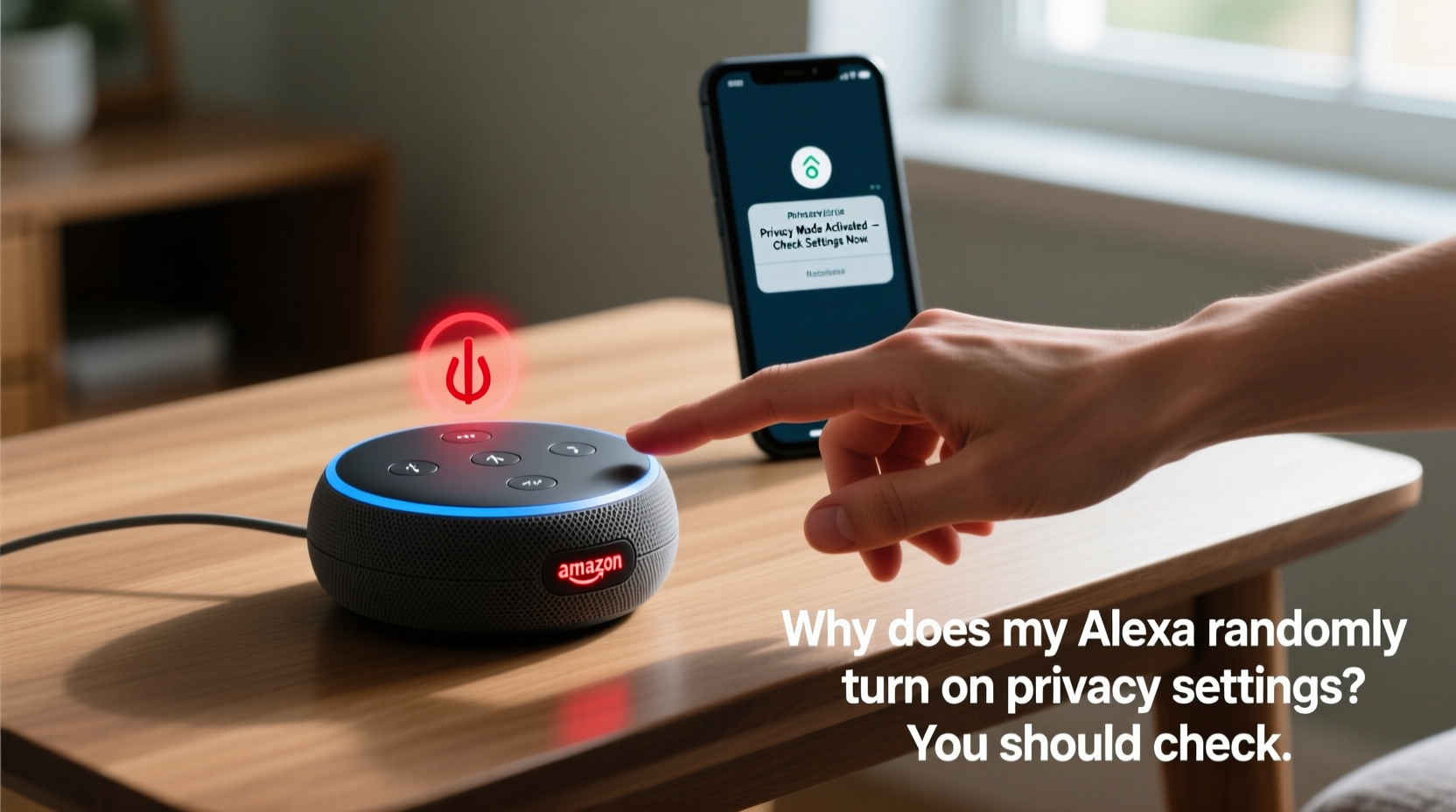
The microphone off (privacy) button on Amazon Echo devices serves as a physical and digital safeguard against unintended recordings. When pressed—either manually or virtually—the red light ring appears, and Alexa stops listening for the wake word. But if this feature turns on by itself, it’s usually due to one of the following triggers:
- Voice commands from users or media: A child saying “Alexa, mute” or a TV show mentioning the phrase can trigger the command.
- App-based automation rules: Routines set in the Alexa app may include actions that enable privacy mode at certain times.
- Firmware or software updates: Occasionally, system resets during updates can default the mic setting to off temporarily.
- Remote access via shared accounts: Family members or roommates with access to your Alexa app can toggle settings remotely.
- Hardware malfunctions: Rarely, a faulty button mechanism may register phantom presses.
While Amazon designs these features with user safety in mind, unintended activation can disrupt daily routines—like missing morning alarms or failing to respond to smart home commands.
How to Check Your Alexa Routine Settings
One of the most overlooked reasons for automatic privacy activation lies within custom routines. Users often create time-based automations for convenience but forget they exist months later. For example, a routine designed to \"mute all devices at bedtime\" could explain recurring nightly shutdowns of Alexa’s listening capability.
Step-by-Step Guide to Reviewing Routines
- Open the Alexa app on your smartphone or tablet.
- Navigate to More > Routines.
- Review each active routine, paying close attention to phrases like “turn on microphone off” or “mute device.”
- Edit or delete any routine that includes an action related to disabling the microphone.
- Test by triggering the routine manually to confirm its effect.
You can also use this opportunity to rename or reorganize routines for clarity. Consider labeling them with timestamps or purposes (e.g., “Goodnight – Lights Off & Mute”) so future changes are easier to track.
“Over 60% of unexpected Alexa behaviors stem from forgotten automation rules created months earlier.” — David Lin, Smart Home Systems Analyst at TechHome Insights
Device Sharing and Household Access Risks
If multiple people have access to your Amazon account or Alexa-enabled devices, unintentional—or even intentional—changes to privacy settings become more likely. Children experimenting with voice commands, guests using voice assistants, or family members managing smart homes across shared networks can all influence your device’s status.
Amazon allows up to six household members to share services like music, lists, and smart home controls. However, permissions vary depending on how each person is added. Some users may have full control over device settings through the Alexa app, including the ability to mute mics remotely.
Do’s and Don’ts of Managing Shared Device Access
| Action | Recommended? | Reason |
|---|---|---|
| Assign guest access instead of full household membership | ✅ Yes | Limits control over critical settings like privacy mode |
| Allow children unrestricted access to the Alexa app | ❌ No | Risk of accidental muting or deletion of routines |
| Use voice profiles for personalized responses only | ✅ Yes | Doesn’t affect device-level settings |
| Share your primary Amazon password | ❌ No | Compromises account-wide security and privacy |
To audit who has access:
- Go to alexa.amazon.com and sign in.
- Select Settings > Household Members.
- Remove unknown or inactive users.
- Adjust permission levels where possible (e.g., disable remote device control).
Real Example: The Case of the Self-Muting Kitchen Echo
Jamie, a homeowner in Portland, noticed her kitchen Echo Dot would go silent every evening around 7 PM. She initially assumed it was a Wi-Fi issue until she discovered the red light indicating the mic was off. After checking routines and finding none scheduled, she reviewed voice history and found a recurring command: “Alexa, turn on dinner routine.”
That routine, created months prior, included the instruction: “And then mute this device.” The intention had been to reduce background noise while cooking, but the permanence of the mute wasn’t clear at setup. Once Jamie edited the routine to remove the mute action and replaced it with “lower volume,” the problem stopped immediately.
This case highlights how well-intentioned automations can lead to persistent confusion when their long-term effects aren’t fully understood. It also underscores the importance of auditing old routines—especially after major life changes like new schedules or updated smart home setups.
Software Updates and System Glitches
Amazon regularly rolls out firmware updates to improve performance, patch vulnerabilities, and introduce new features. These updates occur automatically, typically overnight, and require a brief restart of the device. During this process, some users report temporary loss of microphone functionality or a reset to default privacy settings.
Though rare, bugs in new software versions have occasionally caused abnormal behavior. For instance, in early 2023, a subset of Echo Show 10 units experienced random microphone disengagement due to a conflict between camera tracking logic and audio input management. Amazon issued a patch within days, but affected users were left confused in the interim.
What You Can Do
- Monitor update logs: Visit the Device Settings section in the Alexa app to see firmware version and update date.
- Reboot after updates: Unplug your Echo for 10 seconds, then reconnect. This clears residual cache and ensures stable operation.
- Report issues directly: Use the Feedback option in the Alexa app to notify Amazon of unusual behavior.
Physical Button Malfunctions and Environmental Factors
Although less common, hardware issues can mimic software problems. The microphone mute button on Echo devices is mechanical. Over time, dust, spills, or repeated pressure can cause it to stick or register false inputs. Additionally, placing the device near vibrating surfaces (like washing machines or subwoofers) may jostle internal components enough to simulate a button press.
To test for physical faults:
- Observe the red light ring closely. Does it activate without touch?
- Gently press and release the button several times to check for resistance or sticking.
- Relocate the device to a quieter, stable surface away from moisture or vibration.
- After relocation, monitor for recurrence over 48 hours.
If the issue persists despite environmental adjustments, contact Amazon Support. Devices under warranty can often be replaced quickly, especially if diagnostics confirm erratic sensor behavior.
Checklist: What to Do When Alexa Turns On Privacy Mode Unexpectedly
Follow this comprehensive checklist to identify and resolve the root cause:
- ✅ Confirm the red light is on and microphone is disabled.
- ✅ Check recent voice activity in the Alexa app for commands like “mute,” “microphone off,” or “privacy mode.”
- ✅ Review all active routines for automated mute instructions.
- ✅ Audit household member access and remove unnecessary users.
- ✅ Ensure no one else in the home gave a verbal command unknowingly.
- ✅ Verify whether a recent software update coincided with the issue.
- ✅ Inspect the physical mute button for damage or debris.
- ✅ Restart the device by unplugging for 10 seconds.
- ✅ Test responsiveness after reboot and manually disable privacy mode if needed.
- ✅ Contact Amazon Support if the problem recurs without explanation.
Frequently Asked Questions
Can someone remotely hack my Alexa and turn on privacy mode?
It’s extremely unlikely under normal circumstances. Amazon uses end-to-end encryption for voice data and requires authentication for app access. However, if your Amazon password is weak or reused across sites, unauthorized access becomes possible. Always use strong, unique passwords and enable two-factor authentication.
Why does my Alexa keep muting itself after I unmute it?
This usually points to a conflicting routine or a stuck button. First, disable all routines involving microphone control. Then, physically inspect the mute button. If the problem continues, factory reset the device via the Alexa app under Device Settings > Reset to Factory Defaults.
Is there a way to get alerts when privacy mode is activated?
Currently, Alexa doesn’t offer native push alerts for microphone status changes. However, you can create a custom routine that announces “Microphone turned off” when the command is detected. Alternatively, third-party smart home platforms like Home Assistant can log such events if integrated.
Final Thoughts and Recommendations
Your Alexa device is meant to enhance convenience, not create confusion. Random activation of privacy settings, while unsettling, is rarely malicious and almost always solvable with methodical troubleshooting. By reviewing routines, managing access, monitoring updates, and inspecting hardware, you regain full control over your smart assistant.
Privacy is important—but so is reliability. Striking the right balance means staying informed and proactive. Take ten minutes today to walk through the checklist above. You’ll not only solve current issues but also prevent future disruptions.




 浙公网安备
33010002000092号
浙公网安备
33010002000092号 浙B2-20120091-4
Comments
No comments yet. Why don't you start the discussion?