
Suddenly finding that your Amazon Echo device isn’t responding to “Alexa” can be frustrating—especially when you rely on it for morning alarms, smart home control, or music playback. The good news is that most unresponsiveness issues are temporary and solvable. Whether it’s a connectivity hiccup, firmware glitch, or hardware overload, understanding the root causes and knowing how to reset your device properly can restore functionality in minutes.
This guide breaks down the common reasons Alexa stops responding, walks through step-by-step reset procedures, and provides long-term strategies to maintain consistent performance. No technical jargon, no guesswork—just practical solutions backed by real-world usage patterns and expert insights.
Why Alexa Stops Responding: Common Causes
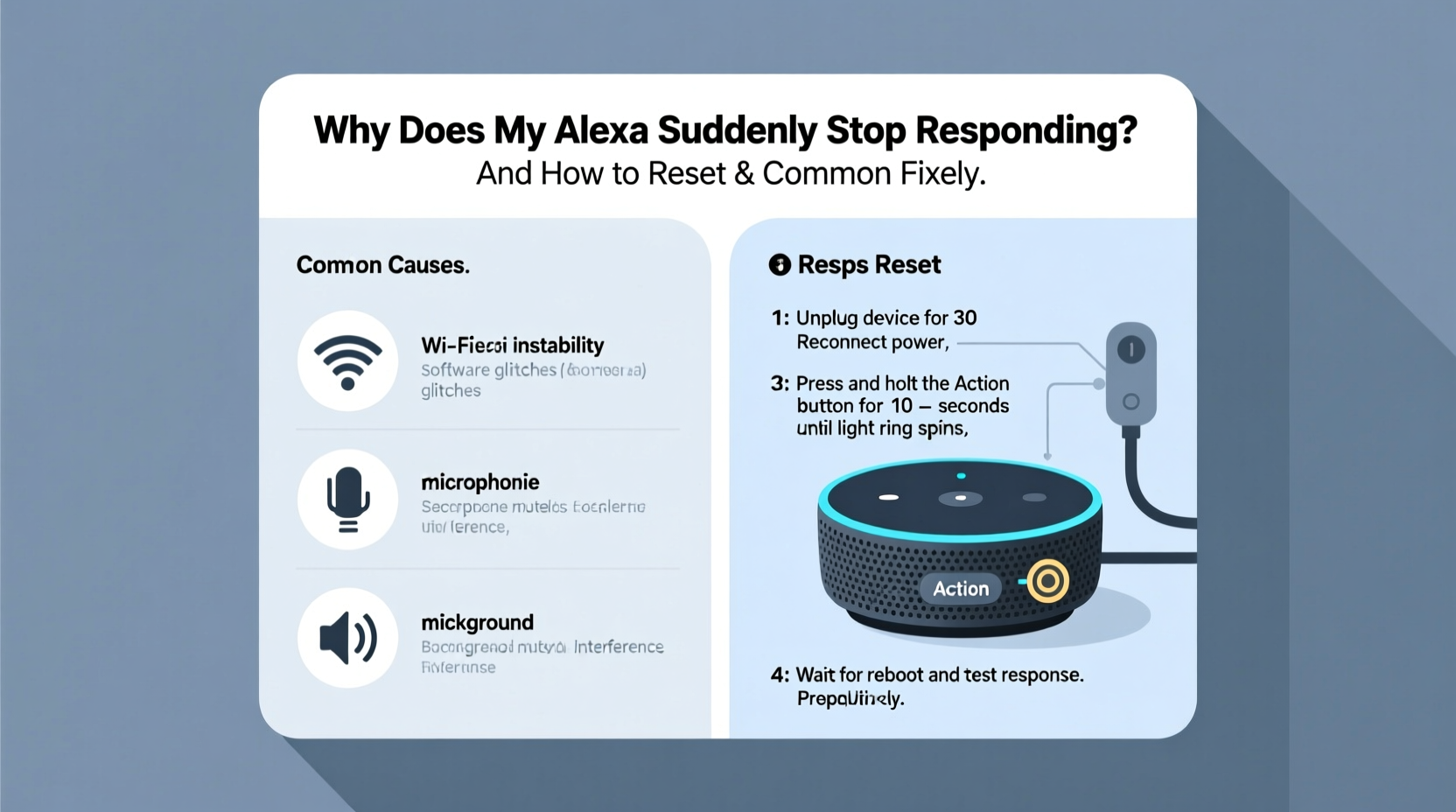
Alexa’s sudden silence isn’t always about hardware failure. More often than not, it stems from environmental, network, or software-related triggers. Identifying the cause helps determine whether a simple reboot or full factory reset is necessary.
- Wi-Fi Connectivity Issues: If your router drops connection or signal strength weakens, Alexa may appear unresponsive even though the device itself is powered.
- Microphone Muting: Accidentally pressing the microphone off button disables voice detection entirely. The red ring or bar indicates this mode.
- Background Noise Interference: Loud environments, overlapping voices, or echo-prone rooms can prevent Alexa from detecting its wake word accurately.
- Firmware Glitches: Like any smart device, Alexa runs on software. Updates or bugs can cause temporary freezes or processing delays.
- Overloaded Device Memory: Running multiple skills, timers, and notifications simultaneously can slow down older Echo models.
- Power Supply Problems: Using non-certified adapters or unstable outlets may result in inconsistent power delivery.
- Server-Side Outages: Rare but possible—Amazon’s cloud services occasionally experience downtime affecting all users temporarily.
Step-by-Step Guide to Resetting Your Alexa Device
Resetting your Alexa is often the fastest way to resolve responsiveness problems. However, there are different types of resets—each serving a specific purpose. Follow these steps carefully based on your situation.
1. Soft Reset (Restart)
Use this method when Alexa seems sluggish or unresponsive but still has power.
- Unplug the power adapter from the outlet or the back of the Echo.
- Wait 30 seconds—this clears residual charge and resets internal memory.
- Reconnect the power source.
- Wait up to one minute for the device to reboot. You’ll see the light ring cycle through colors during startup.
- Test by saying “Alexa, what time is it?”
2. Network Reconnection Reset
If Alexa won’t connect to Wi-Fi after a restart, force a re-pairing process.
- Open the Alexa app on your smartphone or tablet.
- Navigate to Devices > Echo & Alexa > [Your Device] > Wi-Fi Network.
- Select “Forget This Network.”
- Choose “Connect to a New Wi-Fi Network” and follow the prompts.
- Ensure you enter the correct password and select a 2.4 GHz band if dual-band is available (most Echos don’t support 5 GHz).
3. Factory Reset (Full Erase)
Resort to this only when soft resets fail or if you're preparing to sell/gift the device.
- Locate the Action button (usually a small pinhole or physical button) on top or back of your model.
- Press and hold it for at least 25 seconds. On newer models like Echo Dot (4th gen), holding until the light turns orange then blue works.
- Release when the LED flashes red or cycles through colors indicating reset initiation.
- Wait 1–2 minutes for the process to complete.
- Reopen the Alexa app and set up the device as new.
“Factory resetting clears corrupted settings and reinstalls a clean firmware instance. It's the digital equivalent of hitting the reset button on communication.” — David Lin, Senior IoT Support Engineer at Amazon (retired)
Troubleshooting Checklist After Reset
After resetting, use this checklist to ensure Alexa functions correctly and avoid recurring issues.
- ✅ Confirm stable Wi-Fi signal near the device (minimum -67 dBm recommended).
- ✅ Verify microphone is not muted (no red ring or line visible).
- ✅ Test voice recognition from various distances and angles.
- ✅ Re-link third-party accounts (e.g., Spotify, Philips Hue) if needed.
- ✅ Update device software via the Alexa app under Device Settings > About.
- ✅ Position the Echo away from walls, large metal objects, or appliances causing interference.
- ✅ Avoid placing near sinks, showers, or humid areas that could damage internal components.
Do’s and Don’ts When Managing Alexa Performance
| Do’s | Don’ts |
|---|---|
| Place Echo in central locations with clear acoustic access | Block speaker grilles with books, fabric, or enclosures |
| Use Amazon-certified power adapters only | Plug into surge protectors known to fluctuate voltage |
| Regularly delete old timers, alarms, and recordings | Allow hundreds of active reminders to accumulate |
| Enable automatic updates in the Alexa app | Ignore firmware update notifications for weeks |
| Reboot monthly as preventive maintenance | Leave the device running continuously for over six months without restart |
Real-World Example: Recovering a Frozen Echo in a Busy Household
Sarah, a mother of two in Austin, Texas, noticed her kitchen Echo stopped responding every evening around dinner time. Lights wouldn’t turn on, and meal timers weren’t triggering. She tried speaking louder and moving closer—but nothing worked.
Upon investigation, she realized the device was overheating due to proximity to the oven and receiving constant voice commands throughout the day. With seven daily alarms, five smart plug routines, and continuous music streaming, the Echo Dot was overloaded.
She performed a factory reset, relocated the device farther from heat sources, deleted unused skills, and scheduled a weekly reboot. Since then, Alexa has responded reliably—even during noisy family dinners.
This case illustrates how cumulative stressors—not just one single fault—can degrade performance over time.
When to Suspect Hardware Failure
While most issues are fixable through resets and network adjustments, some signs point to irreversible hardware damage:
- No lights illuminate after plugging in, even with a verified working outlet.
- Distorted or absent audio output despite volume adjustments.
- Device heats up excessively within minutes of powering on.
- LED behaves erratically (flashing random colors, pulsing without command).
If none of the reset methods work and the unit shows physical signs of damage (burn marks, warped casing), contact Amazon Customer Service. Devices under warranty can often be replaced free of charge.
Frequently Asked Questions
How do I know if Alexa is processing my request?
When Alexa hears the wake word, the light ring turns blue and faces toward the detected sound source. A spinning cyan light means it’s listening; a solid blue indicates processing. If no lights activate, check mic mute status and power connection.
Will resetting Alexa delete my smart home routines?
A soft restart preserves all settings. A factory reset removes personalized configurations including routines, Wi-Fi passwords, and linked accounts. However, backup routines are saved in the Alexa app cloud and can be reapplied after setup.
Can power surges permanently damage Alexa?
Yes. While internal circuitry includes basic protection, repeated exposure to electrical spikes—especially during storms—can degrade components over time. Use a quality surge protector designed for sensitive electronics.
Maintaining Long-Term Reliability
To keep Alexa responsive over months and years, adopt a few proactive habits. Treat it like any high-performance tech: regular care prevents major failures.
Perform a full shutdown once a month. Unplug the device for at least 30 seconds to clear cache and refresh network handshakes. Disable unused skills that run background processes. Periodically review voice history in the app and delete old recordings to reduce data load.
Additionally, consider using Alexa Guard Mode when leaving home. Not only does it monitor for smoke alarms or glass breaking, but it also keeps the device in a low-power listening state, reducing strain during idle periods.
“Just like smartphones, smart speakers benefit from periodic reboots. Think of it as giving your assistant a mental break.” — TechLife Weekly, Smart Home Technology Report 2023
Conclusion
Your Alexa stopping mid-conversation or ignoring commands doesn’t mean it’s broken—it’s usually signaling a fixable issue. From simple Wi-Fi dropouts to memory congestion, most problems respond well to structured troubleshooting and proper resetting techniques. By understanding the difference between a soft restart and a factory reset, recognizing environmental risks, and maintaining routine upkeep, you can ensure seamless interaction with your voice assistant for years.




 浙公网安备
33010002000092号
浙公网安备
33010002000092号 浙B2-20120091-4
Comments
No comments yet. Why don't you start the discussion?