
Alexa, Amazon’s voice-powered virtual assistant, has become a central part of many smart homes. Whether you're using it to play music, control lights, set timers, or check the weather, sudden unresponsiveness can be both confusing and disruptive. You say “Alexa,” but nothing happens. No blue light, no chime, no response. What went wrong? The good news is that most issues are temporary and fixable with simple troubleshooting steps.
This guide breaks down the most common reasons behind Alexa’s sudden silence, explains the technical glitches at play, and provides reliable restart techniques and long-term fixes to keep your device running smoothly.
Common Reasons Alexa Stops Responding
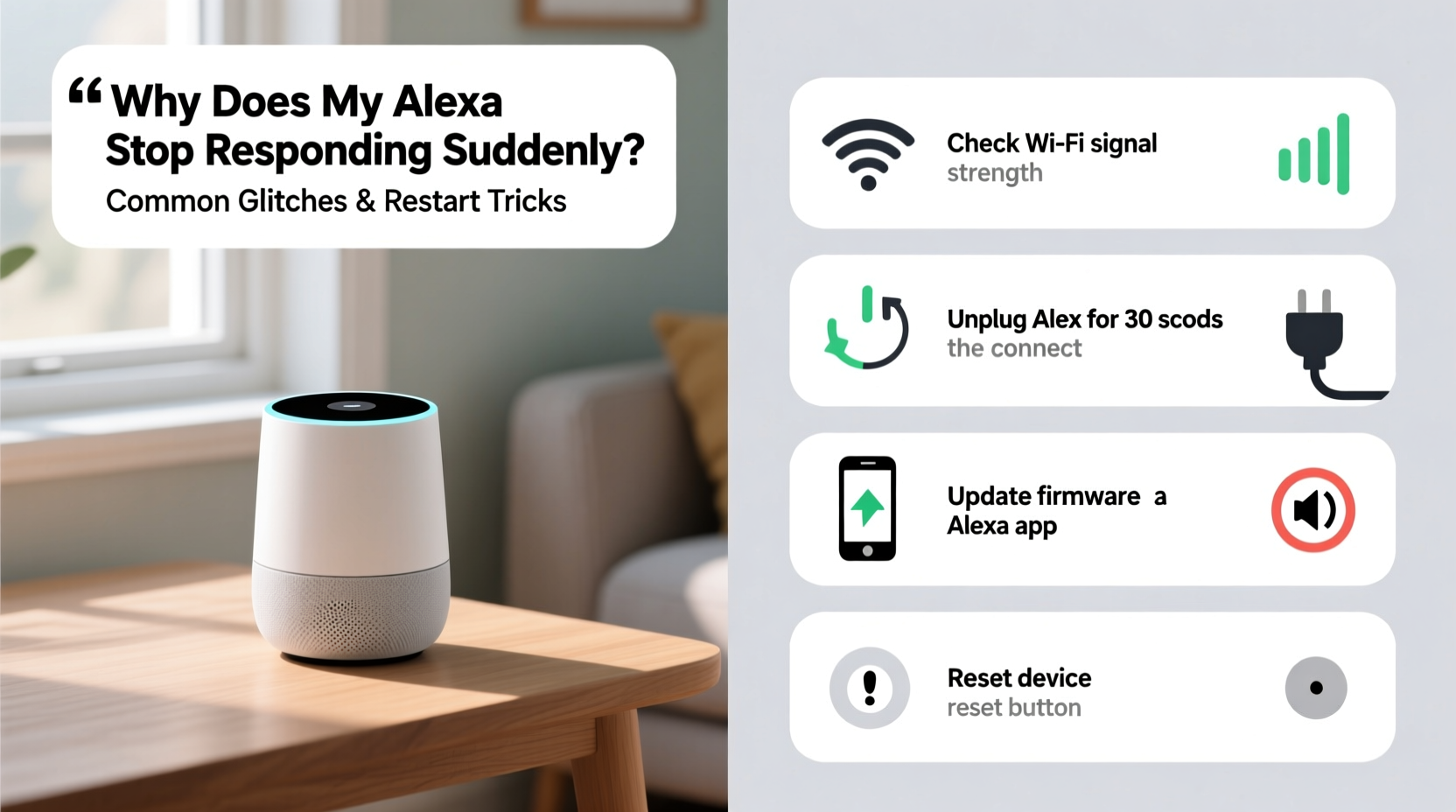
Alexa devices rely on a stable internet connection, proper power supply, and up-to-date firmware. When any of these components fail—even temporarily—your Echo may stop responding. Understanding the root causes helps you diagnose and resolve the issue faster.
- Wi-Fi connectivity issues: A weak or dropped internet connection is the leading cause of Alexa unresponsiveness.
- Power supply problems: Faulty cables, unstable outlets, or power surges can interrupt device operation.
- Firmware glitches: Software bugs or failed updates can freeze the system.
- Microphone mute: The physical mute button might have been pressed accidentally.
- Server-side outages: Rarely, Amazon’s cloud services experience downtime affecting all users.
- Overloaded device memory: Long uptimes without reboots can slow down performance.
Step-by-Step Restart Tricks to Revive Your Alexa
Restarting your Alexa device is often the fastest way to restore functionality. But not all restarts are equal. Below is a tiered approach—from basic to advanced—to ensure maximum effectiveness.
- Soft Restart (Power Cycle): Unplug your Echo from the power source. Wait at least 30 seconds—this allows capacitors to discharge and clears temporary memory. Plug it back in. Wait for the startup chime and blue ring to confirm reboot.
- Network Reset: After powering back on, wait two minutes. Then press and hold the Action button (the dot on top) for 5 seconds until the light ring turns orange. This forces a Wi-Fi reconnect.
- Factory Reset (Last Resort): If the device remains unresponsive, press and hold the Microphone Off and Volume Down buttons simultaneously for about 20 seconds. The light ring will pulse yellow, then turn off and restart. This erases all settings and returns the device to factory defaults.
After a factory reset, you’ll need to reconfigure your Echo via the Alexa app. Make sure your phone is connected to the same Wi-Fi network you intend to use.
Do’s and Don’ts When Troubleshooting Alexa Glitches
| Action | Do | Don't |
|---|---|---|
| Restart Frequency | Reboot every 4–6 weeks to clear memory and refresh connections | Leave the device running for months without a restart |
| Wi-Fi Connection | Use 2.4 GHz band; place Echo within range of router | Try connecting to 5 GHz networks (not supported by most Echos) |
| Power Source | Use the original Amazon power adapter | Use third-party chargers with incorrect voltage |
| Software Updates | Allow automatic updates; check firmware status in app | Disable updates to “save bandwidth” |
| No Response After Command | Check mute button, speak clearly, verify internet | Yell repeatedly or assume the device is broken immediately |
Real-World Case: The Weekend Blackout
Sarah, a remote worker in Denver, relied on her Echo Dot to manage her daily routine. On a Saturday morning, she noticed Alexa wasn’t responding. She tried multiple commands—“Set a timer,” “Play jazz music,” “What’s the weather?”—but received no reply. The light ring didn’t activate at all.
She first checked the power cable and outlet. The device was plugged in, but the LED remained dark. She unplugged it, waited 45 seconds, and plugged it back in. This time, the blue ring appeared, but Alexa still wouldn’t respond to voice.
Sarah opened the Alexa app and saw a notification: “Device offline.” She realized her router had restarted overnight due to a power flicker. Her Echo hadn’t automatically rejoined the network. She used the app to forget the device and set it up again under the same name. Within three minutes, Alexa was back online and functioning normally.
This case highlights how even minor network interruptions can disrupt Alexa’s responsiveness—and how a methodical approach resolves most issues.
Expert Insight: What Engineers Say About Smart Speaker Stability
“Smart speakers like Alexa are designed for continuous uptime, but they’re still computers. Memory leaks, corrupted cache, and network handshakes can fail silently. A monthly reboot is as important as updating your phone.” — Raj Mehta, Senior IoT Engineer at a leading smart home firm
Experts emphasize that consumer devices are built for ease of use, not industrial-grade reliability. Unlike servers that self-monitor and auto-recover, home assistants depend on user intervention when things go wrong. Regular maintenance prevents small issues from becoming major disruptions.
Advanced Fixes for Persistent Alexa Issues
If basic restarts don’t solve the problem, consider deeper solutions:
1. Check Router Quality of Service (QoS) Settings
Some routers deprioritize voice devices during high-bandwidth activities (e.g., 4K streaming). Log into your router settings and assign higher priority to your Echo’s IP address. This ensures consistent communication with Amazon’s servers.
2. Use a Wi-Fi Extender or Mesh Network
If your Echo is far from the router, signal degradation can cause intermittent dropouts. A mesh system like Eero or Google Nest Wifi provides seamless coverage. Avoid placing Echo devices near microwaves, cordless phones, or thick walls that block signals.
3. Disable Conflicting Skills
Third-party skills sometimes conflict with core Alexa functions. In the Alexa app, go to Skills & Games > Your Skills > Manage. Disable recently added skills one by one to test if responsiveness improves.
4. Test with a Different Power Adapter
A failing power supply can cause erratic behavior. Borrow a compatible USB adapter (5V/1A minimum) to rule out power issues. Never use phone fast-chargers unless specified by Amazon.
5. Factory Reset and Re-pair All Devices
If you have multiple smart devices linked to Alexa, a corrupted pairing database can cause delays or timeouts. After a factory reset, re-add devices gradually to identify problematic integrations.
Troubleshooting Checklist: Get Alexa Talking Again
Follow this checklist systematically when Alexa stops responding:
- ✅ Confirm the power cable is securely connected and the outlet works.
- ✅ Check the microphone mute button—red light means muted.
- ✅ Look for the blue activation ring when saying “Alexa.” No light? Power or hardware issue.
- ✅ Reboot the Echo: Unplug for 30+ seconds, then plug back in.
- ✅ Restart your Wi-Fi router.
- ✅ Open the Alexa app and check device status under Devices > Echo & Alexa.
- ✅ Ensure your phone and Echo are on the same Wi-Fi network.
- ✅ Force a reconnect by holding the Action button until the ring turns orange.
- ✅ Test internet speed—minimum 1 Mbps upload/download for voice services.
- ✅ Perform a factory reset if all else fails.
Frequently Asked Questions
Why does Alexa respond sometimes but not others?
Inconsistent responses are usually due to spotty Wi-Fi, background noise interference, or competing audio sources. Try relocating the device closer to your router, reducing ambient noise, or disabling Bluetooth connections that might interfere.
Can a software update break my Alexa?
Rarely, but it’s possible. Amazon pushes silent updates that occasionally introduce bugs. If Alexa stopped working right after a quiet period, an update may be the culprit. A restart often resolves it. If not, wait 24 hours—Amazon typically rolls out hotfixes quickly.
How do I know if it’s a hardware failure?
If your Echo shows no signs of life—no lights, no sound—even after trying a known-good power adapter and outlet, the internal hardware may be damaged. Contact Amazon Support for warranty replacement, especially if the device is less than two years old.
Conclusion: Keep Alexa Reliable with Proactive Care
Alexa’s sudden silence doesn’t always mean it’s broken. Most issues stem from preventable causes like network instability, power hiccups, or software fatigue. By understanding the common glitches and applying the right restart techniques, you can restore functionality in minutes—not days.
The key is consistency: treat your smart speaker like any other tech device. Reboot it monthly, keep it updated, and ensure strong Wi-Fi coverage. These habits prevent 90% of issues before they start.




 浙公网安备
33010002000092号
浙公网安备
33010002000092号 浙B2-20120091-4
Comments
No comments yet. Why don't you start the discussion?