
Amazon Alexa has transformed the way people interact with their homes, offering voice-controlled access to music, smart devices, weather updates, and more. Yet, even the most reliable technology can falter. If you've found yourself saying “Alexa,” only to be met with silence, you're not alone. Many users experience intermittent or complete unresponsiveness from their Echo devices. While frustrating, most of these issues are solvable with methodical troubleshooting. Understanding the root causes—ranging from Wi-Fi hiccups to hardware faults—can save time and restore functionality quickly.
Common Reasons Alexa Stops Responding
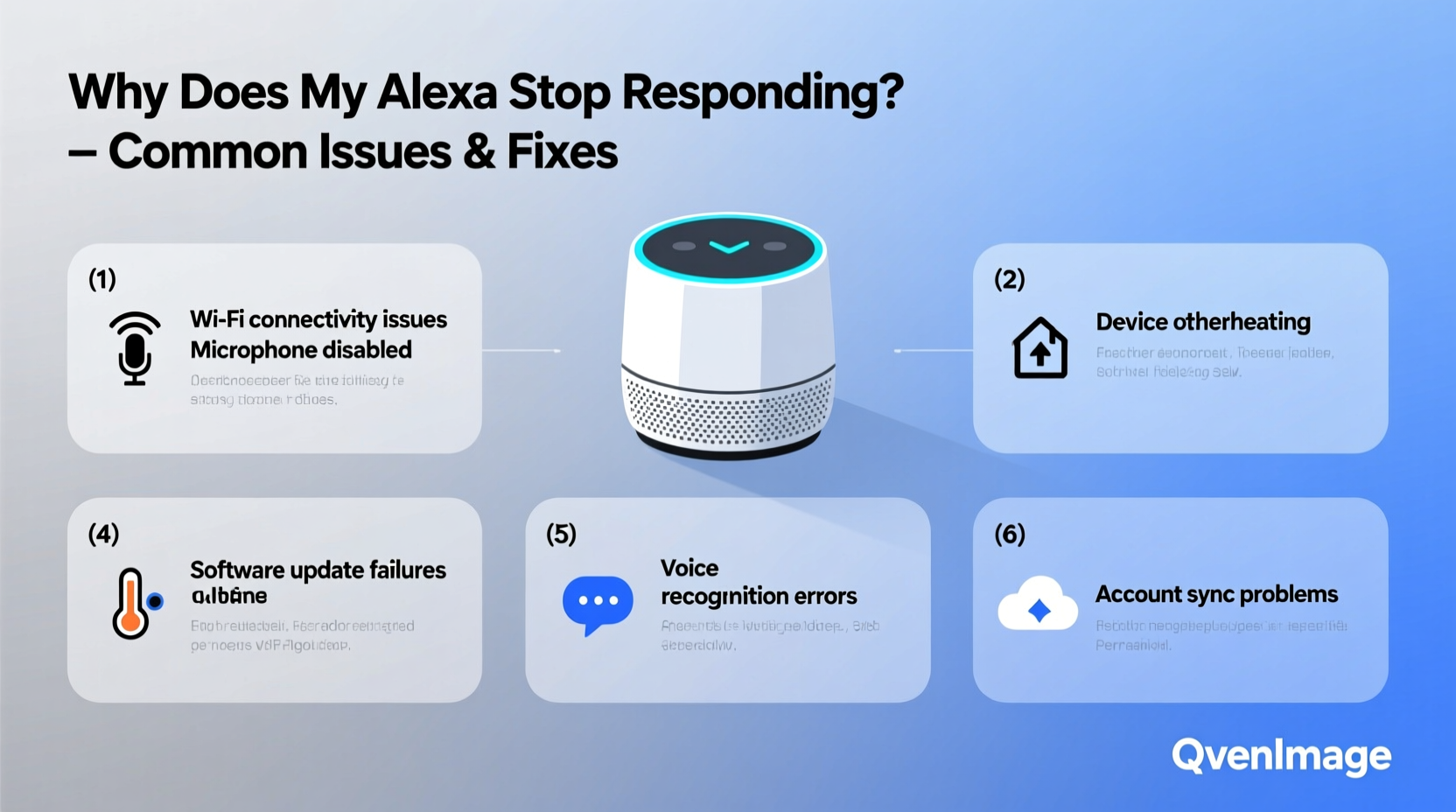
Alexa's failure to respond isn't usually due to a single cause. Instead, it often stems from a combination of network, device, or software-related problems. Identifying the underlying issue is the first step toward resolution.
- Wi-Fi connectivity problems: Alexa requires a stable internet connection to process voice commands. Weak signals or router outages disrupt communication.
- Microphone or speaker malfunctions: Physical damage or mute settings can prevent Alexa from hearing or replying.
- Outdated firmware: Echo devices receive regular updates. Falling behind can lead to bugs or degraded performance.
- Server-side outages: Amazon’s cloud services occasionally go down, affecting all users regardless of local conditions.
- Device overload: Too many connected smart home devices or skills can slow down response times or cause timeouts.
- Power supply issues: Faulty power adapters or unstable outlets may intermittently cut power to the device.
Step-by-Step Troubleshooting Guide
Follow this structured approach to isolate and resolve the issue efficiently. Begin with the simplest checks before moving to advanced diagnostics.
- Verify the microphone is unmuted. Check the physical mute button on top of your Echo. If red, the mic is off. Press it to reactivate listening mode.
- Test the speaker output. Play music or ask for the time. If no sound comes out, adjust volume via the app or restart the device.
- Restart your Echo device. Unplug it for 30 seconds, then plug it back in. Wait two minutes for full reboot.
- Check your Wi-Fi connection. Ensure other devices connect without issues. Reboot your router if necessary.
- Move the Echo closer to the router. Distance and walls weaken signal strength. Try relocating temporarily to test responsiveness.
- Reconnect to Wi-Fi via the Alexa app. Go to Devices > Echo & Alexa > [Your Device] > Change Wi-Fi Network and re-enter credentials.
- Update device software. The Alexa app will notify you of pending updates. If not, manually check under Device Settings > About.
- Factory reset as last resort. Hold the Action button (usually *) for 25 seconds until lights cycle. Then set up again like new.
When to Suspect Server Outages
Sometimes, the problem isn't on your end. Amazon Web Services (AWS), which powers Alexa, experiences rare but impactful outages. These affect millions of users simultaneously.
To confirm whether the issue is widespread:
- Visit AWS Service Health Dashboard and look for anomalies in Alexa-related services.
- Check third-party sites like Downdetector.com to see real-time user reports.
- Search social media using hashtags like #AlexaDown to gauge public sentiment.
“We monitor service health continuously. If Alexa isn’t responding globally, it’s likely an infrastructure-level event we’re already addressing.” — Amazon Customer Support Spokesperson
Do’s and Don’ts When Fixing Alexa Issues
| Do | Don't |
|---|---|
| Restart both your Echo and router regularly. | Ignore persistent red rings—they indicate serious connectivity or hardware issues. |
| Keep the Alexa app updated on your phone. | Use third-party chargers that don’t meet USB specifications. |
| Place Echo devices away from appliances causing interference (e.g., microwaves). | Assume the device is broken after one failed command—test multiple queries first. |
| Use the 2.4 GHz band instead of 5 GHz Wi-Fi where possible; better range and compatibility. | Perform factory resets without backing up routines or smart home configurations. |
| Label each Echo in multi-device homes for easier management. | Leave outdated skills enabled—they can conflict with core functions. |
Real Example: Recovering a Non-Responsive Echo Dot
Sarah, a remote worker in Portland, noticed her kitchen Echo Dot stopped answering mid-week. She could hear chimes when notifications arrived, but voice commands went unanswered. First, she checked the mute button—unmuted. Then, she asked Alexa to turn on a smart bulb; nothing happened.
She opened the Alexa app and saw the device listed as “Offline.” After restarting the Echo and her router with no change, she used her phone’s hotspot to connect the Dot directly. Suddenly, Alexa responded perfectly. This confirmed the issue was her home Wi-Fi configuration—not the device.
Digging deeper, Sarah discovered her router had automatically switched to 5 GHz-only mode overnight during a firmware update. Since older Echo Dots don’t support 5 GHz well, connectivity dropped. Switching back to dual-band mode restored normal operation within minutes.
This case highlights how environmental factors—not device failure—are often to blame.
Preventive Maintenance Checklist
Proactive care reduces the frequency of disruptions. Use this checklist monthly to keep your Alexa ecosystem running smoothly.
- ✅ Reboot your Echo devices at least once a month.
- ✅ Restart your router every 4–6 weeks.
- ✅ Confirm all devices show “Online” status in the Alexa app.
- ✅ Remove unused or problematic skills that may cause conflicts.
- ✅ Verify that Do Not Disturb mode isn’t accidentally enabled.
- ✅ Clean dust from speaker grilles gently with a dry microfiber cloth.
- ✅ Test voice recognition weekly by asking varied questions.
- ✅ Review routine triggers and ensure they execute correctly.
Frequently Asked Questions
Why does Alexa sometimes respond slowly?
Delays typically stem from weak Wi-Fi signals, high server load, or background processing of complex requests. Moving the device closer to the router or simplifying commands (“Play jazz” vs. “Play smooth jazz from the 90s”) can improve response speed.
What does a yellow or orange light mean on my Echo?
A pulsing yellow light indicates pending notifications or messages. An orange light cycling during startup means the device is attempting to connect to Wi-Fi. If it stays orange indefinitely, setup may have failed—reconfigure through the app.
Can I use Alexa without Wi-Fi?
No. Alexa relies entirely on cloud-based processing. Without internet, it cannot interpret or fulfill voice commands. Local device control (like alarms) may work briefly, but full functionality requires online access.
Advanced Fixes for Persistent Problems
If basic troubleshooting fails, consider these deeper interventions:
Change DNS Settings on Your Network
Sometimes, ISP-provided DNS servers misroute traffic. Switching to Google DNS (8.8.8.8 and 8.8.4.4) or Cloudflare (1.1.1.1) can improve reliability. Access your router settings page and update DNS under WAN or Internet settings.
Assign Static IP to Your Echo
Dynamic IPs can cause confusion if your router assigns a new address after reboot. In your router admin panel, reserve a fixed IP for your Echo’s MAC address. This ensures consistent identification on the network.
Disable IPv6 Temporarily
While modern, IPv6 can interfere with some Echo models. Disabling it in router settings may resolve connection instability—especially if logs show repeated handshake failures.
Test with Ethernet Adapter (for compatible Echos)
Some Echo Show and Studio models support Ethernet via USB-C adapters. Wired connections eliminate Wi-Fi variables and provide rock-solid stability.
Knowing When to Replace Your Device
Even with perfect care, hardware degrades over time. Consider replacement if:
- The microphone consistently fails to activate despite clean environment and correct settings.
- Speaker distortion persists after cleaning and resetting.
- The device overheats frequently or shuts down unexpectedly.
- It's more than four years old and lacks support for newer features or security updates.
Older models like the first-generation Echo or Echo Dot lack processing power for today’s feature-rich interactions. Upgrading brings improved audio quality, faster responses, and better integration with modern smart homes.
Conclusion
Alexa’s silence doesn’t have to be permanent. Most non-responsiveness issues stem from manageable causes—network instability, overlooked settings, or simple glitches. By systematically checking connections, updating software, and understanding warning signs, you regain control quickly. Regular maintenance prevents many problems before they arise, ensuring seamless interaction day after day.




 浙公网安备
33010002000092号
浙公网安备
33010002000092号 浙B2-20120091-4
Comments
No comments yet. Why don't you start the discussion?