
If you’ve ever been startled by your Alexa device suddenly lighting up, speaking, or playing music without warning, you’re not alone. Random activations are one of the most common complaints among Amazon Echo owners. While Alexa is designed to respond to voice commands, unintended triggers can disrupt your day, raise privacy concerns, or even suggest a malfunction. The good news is that most causes are fixable with simple adjustments. Understanding why this happens—and knowing exactly what to do—can restore control over your smart home assistant.
Understanding How Alexa Listens (and When It Should)
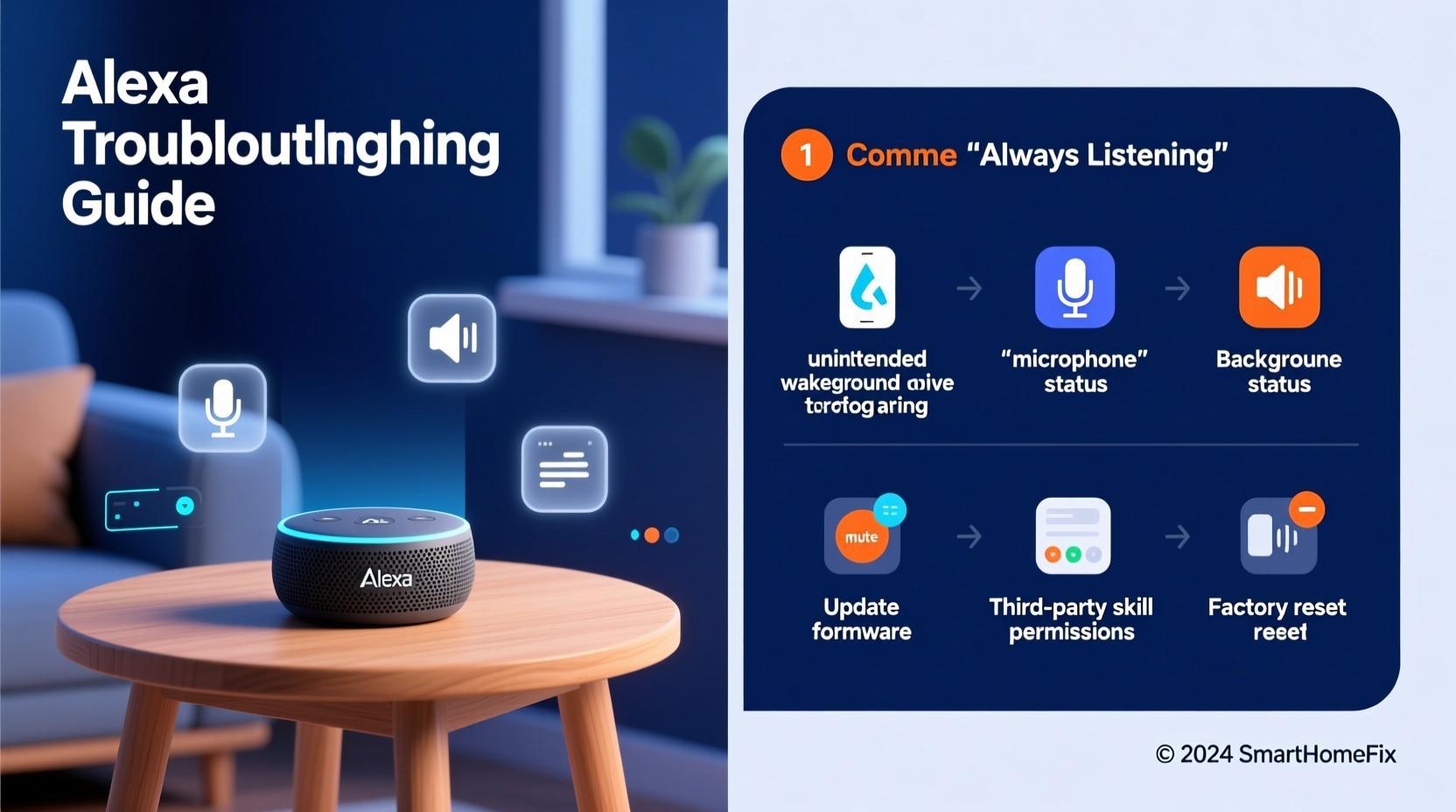
Alexa devices are built with far-field microphones that constantly listen for their wake word—typically “Alexa,” though users can change it to “Echo,” “Computer,” or “Amazon.” This doesn’t mean Alexa records everything you say. Instead, it processes audio locally in real time, only sending data to the cloud when it detects the wake word. However, false positives occur when background noise, similar-sounding words, or technical glitches trick the device into thinking it was called.
Common misheard phrases include:
- “Hey Lexa” or “Alex” in conversation
- TV commercials mentioning “Alexa”
- Words like “election,” “alexander,” or “allegedly” in noisy environments
- Other voices or audio content mimicking the wake tone
Amazon has improved wake-word detection over time, but no system is perfect. Environmental factors and device placement significantly influence accuracy.
Top 5 Causes of Random Alexa Activations
Before applying fixes, identify the root cause. Random activations rarely stem from a single issue—they’re usually the result of overlapping factors. Here are the most frequent culprits:
- Background Noise and Acoustic Triggers: Loud environments, echoes, or high-pitched sounds can mimic the wake word pattern.
- Poor Microphone Sensitivity Settings: Overly sensitive mics pick up distant or unrelated speech.
- Firmware or Software Glitches: Bugs in updates can cause erratic behavior, including phantom activations.
- Connected Smart Devices Sending Commands: Some routines or third-party integrations may trigger Alexa unintentionally.
- Unauthorized Access or Account Compromise: Though rare, compromised accounts could allow remote activation.
While most cases are harmless, persistent random behavior should be investigated thoroughly.
Real Example: The Case of the Midnight Music
Sarah, a homeowner in Portland, began noticing her kitchen Echo Dot turning on around 2 a.m., playing soft jazz. She initially suspected a neighbor’s voice carrying through thin walls. After reviewing her Alexa app history, she discovered a recurring routine labeled “Midnight Chill” set to activate at 2:00 a.m. She never created it. Further investigation revealed her teenage son had enabled it as a prank using his own phone linked to her account. Once he removed the routine and Sarah reviewed connected devices, the random activations stopped.
This scenario highlights two key points: routines can run silently, and shared household access increases risk. Always audit who has permission to control your devices.
Step-by-Step Guide to Stop Alexa From Turning On Randomly
Follow this systematic approach to diagnose and eliminate unwanted activations. Each step builds on the previous one, ensuring no stone is left unturned.
- Review Your Alexa App Activity
Open the Alexa app, go to Settings > History, and check recent voice commands. Look for unrecognized inputs or automated routines. Delete any suspicious entries. - Disable Unused Routines
Navigate to Routines in the app. Disable or delete any you don’t actively use, especially time-based or motion-triggered ones. Test by leaving the room and returning to see if routines fire unnecessarily. - Adjust Microphone Sensitivity (if available)
Some newer Echos allow sensitivity tuning. In the app, go to Device Settings > Microphone Sensitivity and lower it slightly if you're in a noisy environment. - Change the Wake Word
Go to Device Settings > Wake Word. Switch from “Alexa” to “Computer” or “Echo.” This reduces false triggers from TV ads or conversations. - Reboot and Update Your Device
Unplug your Echo for 30 seconds, then plug it back in. After rebooting, check for firmware updates under Device Settings > About > Check for Updates. - Check Connected Apps and Skills
In the app, review Skills & Games > Your Skills. Remove any unfamiliar or unused skills, particularly those with voice permissions. - Secure Your Amazon Account
Visit amazon.com, go to Your Account > Login & Security, and review trusted devices and recovery options. Enable two-factor authentication if not already active.
After completing these steps, monitor your device for 48 hours. If activations persist, consider a factory reset as a last resort.
Do’s and Don’ts: Managing Alexa Responsibly
| Do’s | Don’ts |
|---|---|
| ✅ Place Echo devices away from TVs, speakers, or windows where outside voices might enter | ❌ Leave default wake word “Alexa” in households with frequent name usage |
| ✅ Regularly review voice history and disable unused routines | ❌ Share your Amazon password instead of using Family Profiles |
| ✅ Use mute button when privacy is critical (e.g., during meetings or private calls) | ❌ Ignore software update notifications—they often fix bugs causing instability |
| ✅ Set up voice profiles for personalized recognition and reduced misfires | ❌ Install third-party skills from unverified developers without checking permissions |
“False wake-ups are usually environmental or configuration issues, not hardware defects. Most can be resolved with a few smart settings changes.” — David Lin, Senior IoT Support Engineer at Amazon (via public forum response)
Troubleshooting Persistent Issues
If Alexa continues to activate randomly despite following the above steps, dig deeper into advanced diagnostics.
Perform a Factory Reset
To reset your Echo:
- Press and hold the Mute and Volume Down buttons simultaneously for 20 seconds.
- Wait for the light ring to turn orange, then white.
- Release the buttons and allow the device to restart.
- Reconnect via the Alexa app as if setting up a new device.
Note: This erases all custom settings, so reconfigure carefully afterward.
Test with Mute Enabled
Press the microphone (mute) button on top of your device. If random activations stop completely while muted, the issue is audio-related. If they continue (e.g., lights flashing without sound), there may be a deeper firmware or network problem.
Check Network Stability
Wi-Fi interference or packet loss can cause command misinterpretation. Try relocating your router closer to the Echo or switching from 2.4 GHz to 5 GHz (if supported). You can also test by temporarily disconnecting other smart devices to isolate the issue.
FAQ: Common Questions About Alexa’s Random Behavior
Can someone remotely turn on my Alexa without permission?
Only if they have access to your Amazon account. Ensure strong passwords, two-factor authentication, and routinely audit connected devices. No known exploits allow strangers to activate your Echo without credentials.
Why does my Alexa light up but not say anything?
This often means it detected a partial wake word or command but didn’t process a full request. It could also indicate a brief connection glitch or internal processing error. Rebooting usually resolves temporary hiccups.
Is Alexa recording me when it turns on by itself?
Technically, yes—but only after detecting the wake word. Recordings are stored briefly in the cloud unless deleted. You can auto-delete voice recordings every 3 or 18 months in the app under Privacy Settings. For maximum privacy, disable this feature entirely or use the mute button frequently.
Essential Checklist: Stop Alexa From Turning On Randomly
Use this actionable checklist to secure and stabilize your Alexa experience:
- ☑ Review voice history in the Alexa app for unrecognized commands
- ☑ Disable or delete unused routines (especially time- or sensor-based ones)
- ☑ Change the wake word from “Alexa” to “Computer” or “Echo”
- ☑ Lower microphone sensitivity if available on your model
- ☑ Mute the device at night or during private moments
- ☑ Uninstall unnecessary or suspicious third-party skills
- ☑ Reboot your Echo and check for firmware updates
- ☑ Secure your Amazon account with two-factor authentication
- ☑ Perform a factory reset if problems persist
- ☑ Consider relocating the device away from noise sources
Conclusion: Take Control of Your Smart Home Experience
Random Alexa activations are frustrating, but they’re rarely a sign of serious danger. With methodical troubleshooting, most issues resolve quickly. The key is balancing convenience with awareness—smart assistants should serve you, not surprise you. By adjusting settings, securing your account, and understanding how Alexa interprets sound, you regain full control over when and how your device responds.




 浙公网安备
33010002000092号
浙公网安备
33010002000092号 浙B2-20120091-4
Comments
No comments yet. Why don't you start the discussion?