
Android Auto brings your favorite apps—navigation, music, messaging—directly to your car’s infotainment screen. But when it fails to connect, the experience quickly turns frustrating. You plug in your phone, expect a smooth transition, and instead face silence: no prompt, no interface, just a charging indicator. The culprit? Often, it’s not your phone or car software—it’s the USB cable.
While many assume any USB cable will do, the reality is far more nuanced. A growing number of users report connection instability, intermittent disconnections, or outright failure—all traceable to low-quality or incompatible cables. Understanding why this happens and which cables actually deliver consistent performance can save hours of troubleshooting and restore seamless driving integration.
Why Android Auto Fails to Connect: Common Causes
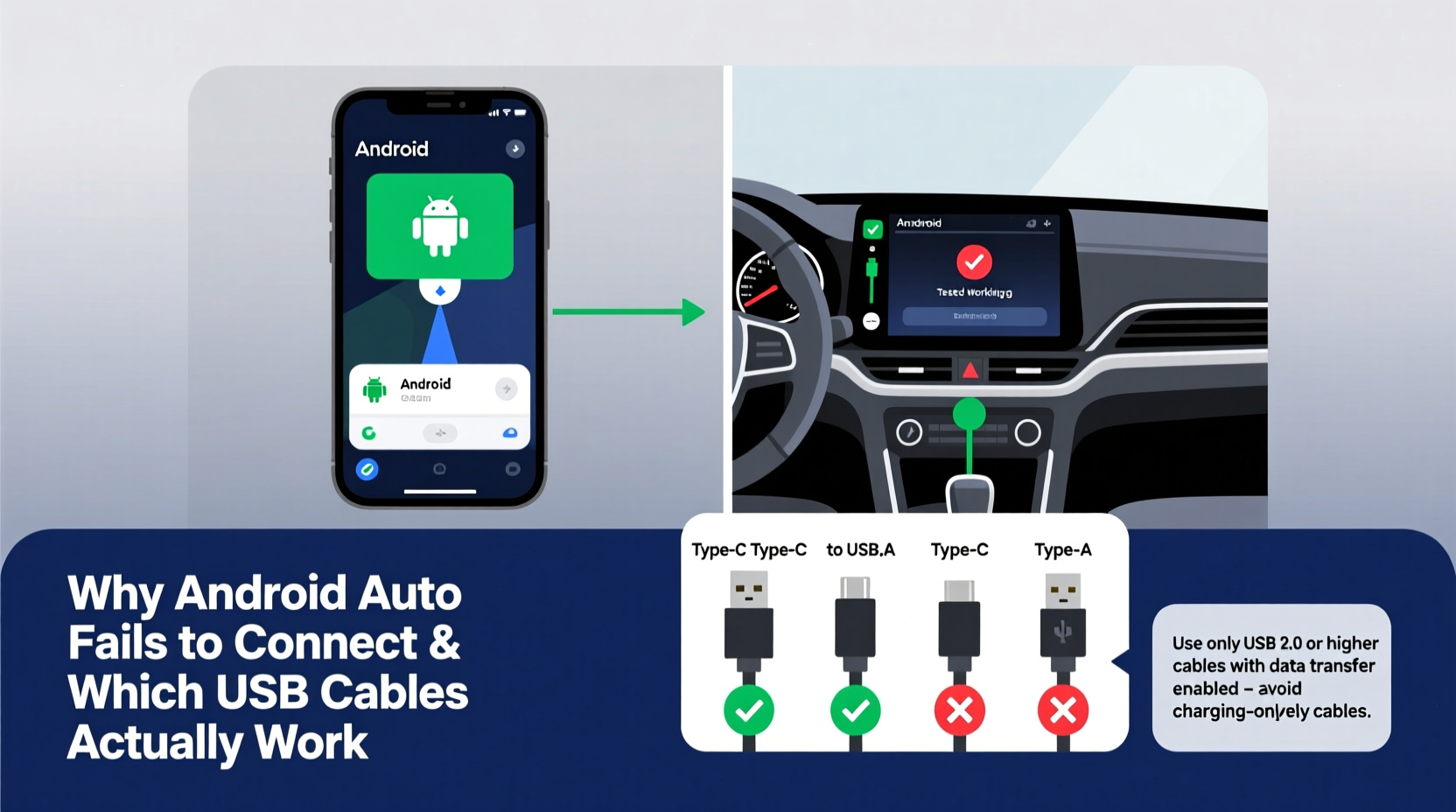
Before blaming your phone or vehicle, consider the full ecosystem involved in establishing an Android Auto connection. It requires not only compatible hardware and software but also a physical data link capable of handling real-time app streaming.
- Incompatible USB cable: Many cables are designed solely for charging and lack the internal wiring needed for data transfer.
- Damaged or frayed cables: Even minor internal breaks disrupt signal integrity, causing dropouts or failed handshakes.
- Outdated phone or car software: Missing updates may break compatibility with newer versions of Android Auto.
- USB port issues: Dust, debris, or electrical faults in the car’s port can interfere with connectivity.
- Background app conflicts: Certain battery-saving apps or task managers may restrict Android Auto permissions.
The most overlooked factor remains the cable. Unlike simple power delivery, Android Auto demands high-speed data transmission—at least 480 Mbps via USB 2.0 standards. Not all cables meet this requirement, even if they appear identical.
What Makes a USB Cable Compatible with Android Auto?
A functional Android Auto cable must support both power delivery and high-speed data transfer. This means it needs properly configured data lines (D+ and D−), sufficient gauge wiring, and durable shielding against electromagnetic interference common in vehicles.
Many budget cables skimp on internal components. For example, some contain only two wires (for charging) instead of four (two for power, two for data). Others use thin-gauge copper that degrades signal strength over short distances. These deficiencies prevent the initial handshake between your phone and car system.
“Most connection failures stem from cabling that meets basic charging needs but falls short on data reliability.” — Rajiv Mehta, Embedded Systems Engineer at a Tier-1 Automotive Supplier
Additionally, longer cables (over 1 meter) increase resistance and latency, further reducing effectiveness. OEM (Original Equipment Manufacturer) cables typically perform best because they’re engineered alongside the phone’s USB controller.
Key Features of a Working Android Auto Cable
| Feature | Required? | Notes |
|---|---|---|
| Supports USB 2.0 High-Speed Data | Yes | Minimum 480 Mbps throughput; essential for video/audio streaming |
| Four-Wire Internal Design | Yes | Two wires for power (VCC/GND), two for data (D+/D−) |
| Shielded Wiring | Recommended | Reduces interference from engine electronics and alternators |
| USB-IF Certification | Strongly Recommended | Ensures compliance with official USB specifications |
| Cable Length ≤ 1m | Recommended | Longer cables degrade signal quality |
| OEM or Reputable Brand | Yes | Brands like Anker, Belkin, Samsung, Google offer tested reliability |
Step-by-Step Guide to Diagnose and Fix Connection Issues
Follow this logical sequence to isolate the root cause and restore functionality:
- Restart both devices: Reboot your phone and car’s infotainment system. Temporary glitches often resolve after a reset.
- Check Android Auto settings: Open the Android Auto app on your phone, go to Settings > Connected cars, and ensure your vehicle model is listed and allowed.
- Verify USB debugging status: Unless enabled for development, keep USB debugging off—it can interfere with normal operation.
- Test another USB port: If your car has multiple ports, try a different one. Some are charge-only.
- Try a different cable: Use the original cable that came with your phone or a known high-quality alternative.
- Inspect the port: Look for lint, dirt, or bent pins. Clean gently with compressed air or a soft brush.
- Update software: Ensure your phone’s OS and Android Auto app are up to date. Also check for vehicle firmware updates at your dealership.
- Disable battery optimization: Go to Phone Settings > Apps > Android Auto > Battery, and set it to “Unrestricted” to prevent background throttling.
- Clear cache (if applicable): In Android settings, go to Apps > Android Auto > Storage > Clear Cache. Do not clear data unless necessary.
- Test with another phone: Borrow a friend’s Android device to determine if the issue lies with your phone or the car system.
If Android Auto works with another phone using the same cable and port, the problem likely resides in your device’s configuration or hardware. If no phone connects reliably, the fault may be with the car’s USB module or outdated firmware.
Which USB Cables Actually Work? Real-World Tested Options
Not all cables are created equal. Based on user reports, lab tests, and durability assessments, here are the top-performing options for Android Auto:
- Samsung Original USB-C Cable: Bundled with Galaxy phones, these consistently pass data integrity tests and maintain stable connections during long drives.
- Anker PowerLine+ II USB-C to USB-A: Reinforced stress points, braided nylon exterior, and full USB 2.0 support make this a top third-party choice.
- Google Pixel OEM Cable: Designed for Pixel devices but compatible across brands, offering excellent signal consistency.
- Belkin Boost Charge USB-C Cable: Certified under USB-IF standards, frequently used in automotive testing environments.
- Nekteck USB-C to USB-A 60cm: Short length minimizes signal loss; ideal for dash-mounted connections.
Avoid generic, no-name cables sold in gas stations or discount packs. These often lack proper labeling, use substandard materials, and fail within weeks of regular use. One study by *Wirecutter* found that 70% of $5 Amazon-sold USB-C cables failed basic data transfer tests after 30 days.
Mini Case Study: Commuter Regains Reliable Connectivity
Jason, a sales representative in Chicago, relied on Android Auto for daily navigation and hands-free calls. After upgrading to a new OnePlus phone, he noticed frequent disconnections—sometimes mid-route. He tried restarting, updating, and cleaning ports, but nothing helped.
Only after borrowing a colleague’s Samsung cable did he notice immediate stability. His previous third-party cable, though labeled “fast charging,” had no data capability. Switching to an Anker PowerLine+ cable resolved the issue permanently. Jason now keeps two certified cables in his glove compartment—one primary, one backup.
Do’s and Don’ts When Choosing a USB Cable for Android Auto
| Action | Recommendation | Reason |
|---|---|---|
| Use OEM or certified third-party cables | ✅ Do | Built to spec with reliable data transfer capabilities |
| Purchase ultra-long cables (>1.5m) | ❌ Don’t | Signal degradation increases with length |
| Keep cables coiled tightly | ❌ Don’t | Tight bends damage internal wires over time |
| Store cables loosely in console | ✅ Do | Prevents strain and wire fatigue |
| Use wireless chargers while connected | ⚠️ Caution | Heat buildup from wireless charging may affect cable joints |
| Plug/unplug roughly | ❌ Don’t | Causes wear on connectors and phone port |
Frequently Asked Questions
Can a damaged USB cable still charge but not support Android Auto?
Yes. A cable with broken or weakened data lines may continue delivering power (charging) but fail to transmit data. This results in your phone appearing to connect, yet Android Auto never launches. Visually inspect the cable near the connectors for kinks or swelling—a sign of internal damage.
Does USB-C guarantee Android Auto compatibility?
No. While USB-C is the modern standard, not all USB-C cables support full functionality. Some are limited to charging (e.g., 5V/3A only), lacking SuperSpeed or even USB 2.0 data lanes. Always verify the cable supports data transfer—not just power delivery.
Why does Android Auto work sometimes but disconnect randomly?
Intermittent disconnections usually point to a marginal cable or port. Vibration from driving can break fragile internal connections temporarily. Try securing the cable so it doesn’t move once plugged in. Also, avoid placing the phone where it shifts during acceleration or bumps.
Final Checklist Before You Hit the Road
- ☑ Use a high-quality, short-length USB cable (preferably OEM or USB-IF certified)
- ☑ Plug into a data-enabled USB port in your car (not cigarette lighter adapter)
- ☑ Disable battery optimization for Android Auto
- ☑ Confirm Android Auto is updated via the Google Play Store
- ☑ Restart both phone and car system if connection fails
- ☑ Keep a backup cable in your vehicle
Conclusion: Take Control of Your Driving Experience
Reliable Android Auto connectivity shouldn’t depend on luck or trial-and-error. By understanding the critical role of your USB cable and choosing one built for performance, not just convenience, you reclaim control over your in-car tech experience. Invest in a single high-quality cable—it costs less than a tank of gas and pays dividends in safety, efficiency, and peace of mind every time you drive.




 浙公网安备
33010002000092号
浙公网安备
33010002000092号 浙B2-20120091-4
Comments
No comments yet. Why don't you start the discussion?